

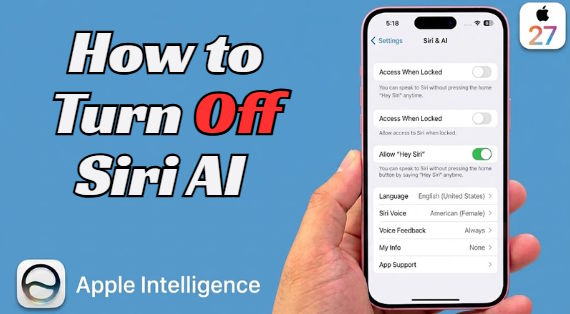
Siri feels different on iOS 27, especially with Apple adding more AI-powered features to the experience. While these changes can be useful, not everyone wants an AI-focused Siri on their iPhone. You may prefer the older Siri experience, want more control over AI features, or simply find the new setup annoying.
You can adjust several Siri and Apple Intelligence settings to change how Siri works. In this guide, we’ll show you how to remove Siri AI on iOS 27 and share practical fixes for common Siri issues.
Siri AI Settings on iOS 27
The iOS 27 Siri update brings a more advanced AI-powered Siri with features such as personal context, onscreen awareness, and improved app actions. However, you do not have to use all of these features. iOS 27 gives you several ways to control Siri, depending on how much of the new experience you want to remove.
You can turn off Siri AI completely, switch back to Siri Classic, or change the Siri & Search settings for individual apps. These options let you keep basic Siri functions while limiting suggestions, app access, and other AI-related features.
Turn Off Siri AI
The easiest way to turn off Siri AI is through the Siri settings on your iPhone. When you turn Siri off, it stops responding to voice commands and other ways of activating Siri.
Follow these steps:
- Open Settings on your iPhone.
- Scroll down and tap Siri.
- Tap Turn Off Siri at the bottom of the page.
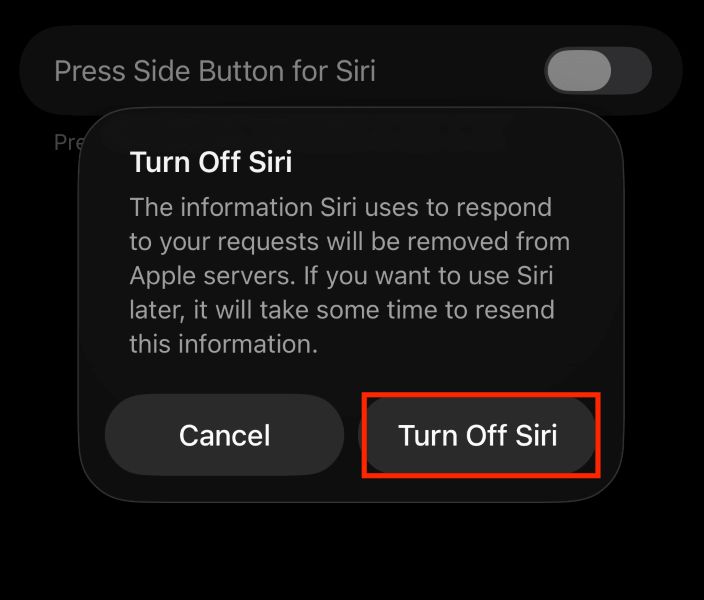
- Tap Turn Off Siri again when the confirmation message appears.
Siri will now be disabled on your iPhone. You will no longer be able to activate it with voice commands or other Siri triggers.
If you only want to remove the new AI experience but still want to use Siri, you can turn Siri back on and select the Siri Classic option instead.
Switch Back to Classic Siri
You do not have to completely disable Siri just because you do not want the new AI version. iOS 27 lets you switch back to Siri Classic, giving you the traditional Siri experience for basic commands and tasks.
To switch from Siri AI to Classic Siri:
- Open Settings and tap Siri.
- Tap Turn Off Siri and confirm.
- Return to the Siri settings.
- Tap Turn On Siri.
- When prompted to choose a Siri version, select Siri Classic.
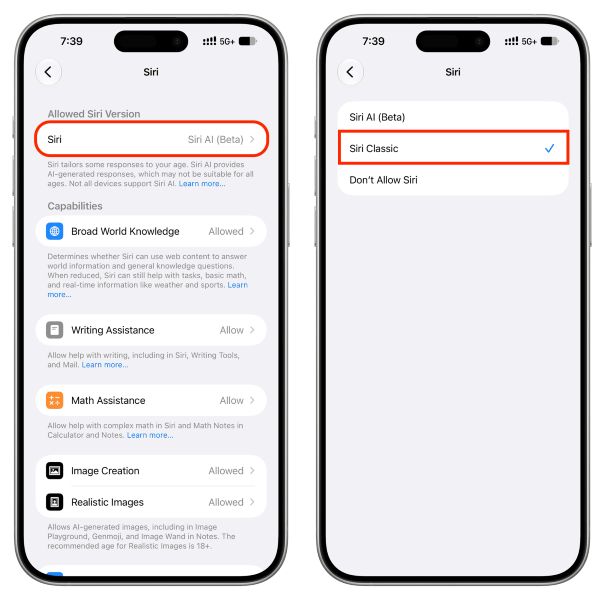
After this, your iPhone will use the classic Siri interface instead of the new AI-powered version. This is useful if you still want to use Siri for tasks such as setting alarms, checking information, sending messages, or controlling compatible devices without using the newer Siri AI experience.
Manage Siri & Search Settings
You can also limit how Siri interacts with individual apps instead of turning Siri off completely. The Siri & Search settings let you control app-related suggestions, learning, and how apps appear in search and other parts of your iPhone.
To manage these settings:
- Open Settings and tap Siri.
- Tap App Access.
- Select the app you want to manage.
- Review the available options, such as Learn from this App, Show on Home Screen, Suggest App, and Suggest Notifications.
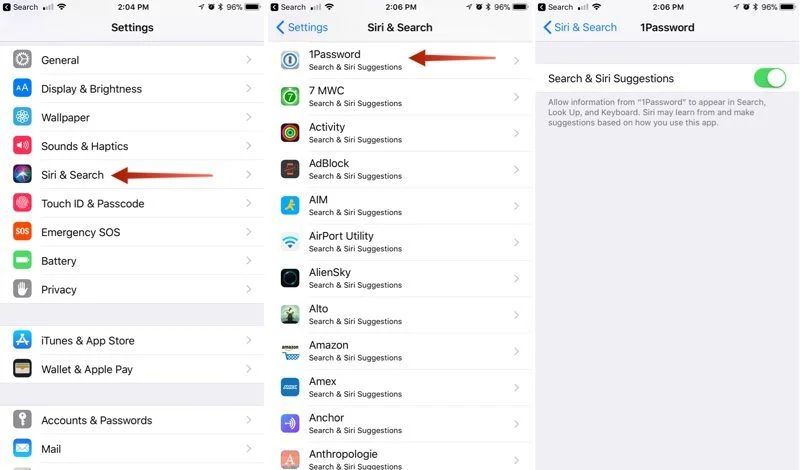
- Turn off the options you do not want to use.
You can also prevent an app's content from appearing in Search. Go to Settings > Apps, select the app, tap Search, and turn off Show Content in Search if the option is available. This can prevent information from that app from appearing in general search results or being used for relevant Siri requests.
Keep in mind that turning off Siri AI does not automatically disable every Apple Intelligence feature in iOS 27.
How to Fix Siri Issues on iOS 27 with Tenorshare ReiBoot
The iOS 27 Siri update may cause issues like Siri not responding, freezing, or crashing. If basic fixes fail, a system repair may help. Tenorshare ReiBoot provides a straightforward way to repair common iOS system problems.
It supports iOS 27 and includes tools for fixing issues such as system freezes, boot loops, black screens, and failed updates. Its Standard Repair mode is designed to repair the system while keeping existing iPhone data intact.
Key Features of Tenorshare ReiBoot
- Supports iOS 27: ReiBoot is compatible with iOS 27 and various iPhone models.
- Fixes 150+ iOS issues: It can address problems such as crashes, freezes, black screens, boot loops, and other system-related glitches.
- Standard Repair without data loss: The Standard Repair mode is designed to fix common iOS system problems without erasing photos, messages, contacts, or other personal data.
- Easy repair process: You can connect your iPhone to a Windows PC or Mac and start the repair through a simple interface.
- Recovery Mode support: ReiBoot can help enter or exit Recovery Mode when the iPhone cannot start normally.
- iOS upgrade and downgrade options: The software also supports certain iOS upgrade and downgrade functions, depending on the available firmware.
How to use ReiBoot to fix iOS 27 Siri:
- Download and open Tenorshare ReiBoot on your computer and connect your iPhone with a USB cable. Wait for the software to detect your device. Click Start Repair on the main screen.
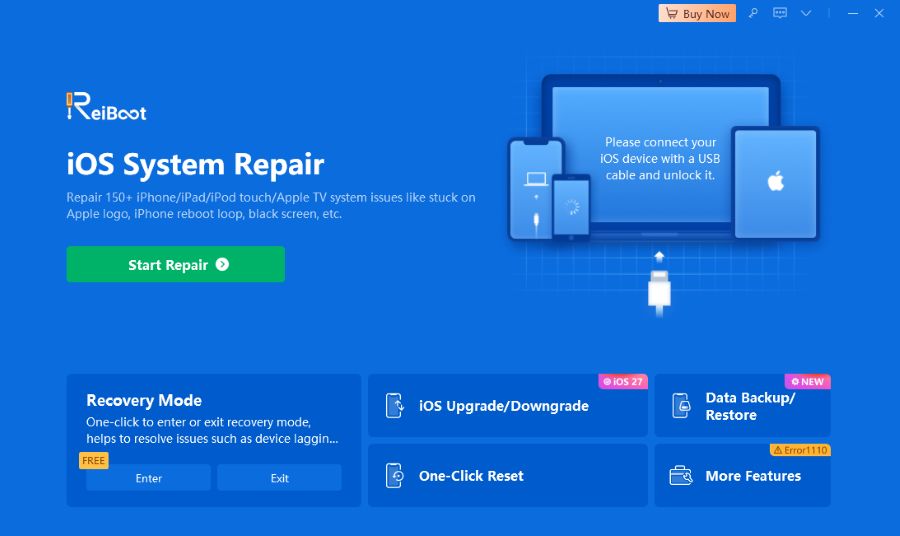
- Then choose Standard Repair. This mode is designed to fix common iOS system issues without deleting your data.
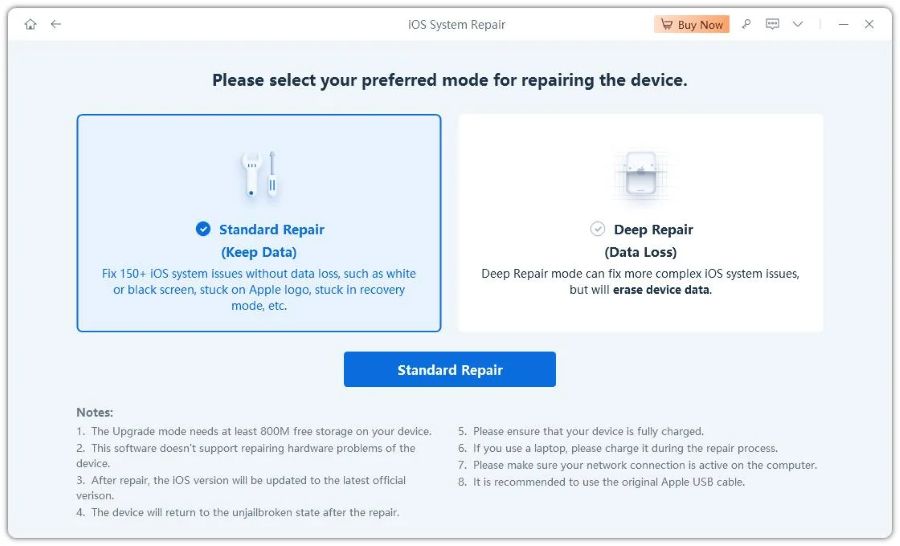
- ReiBoot will show the firmware package available for your iPhone. Check the details and click Download to get the required iOS firmware.
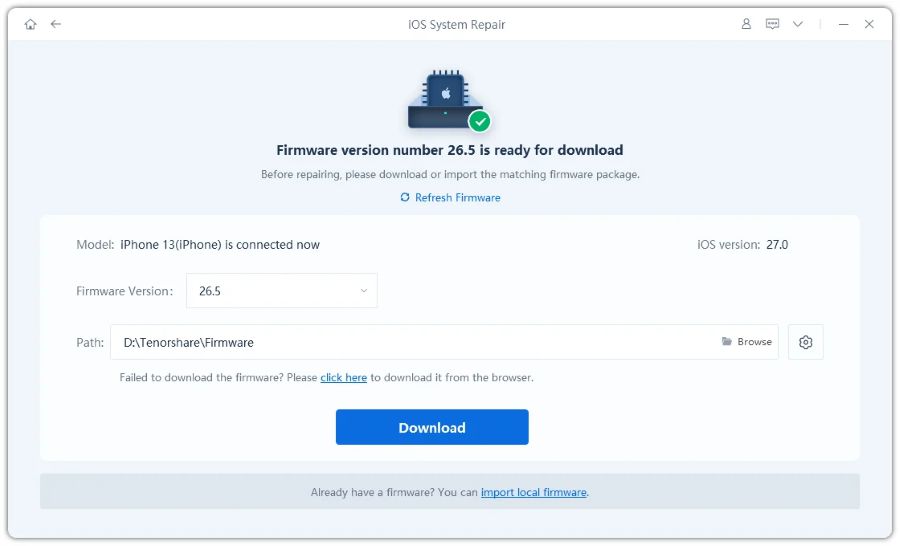
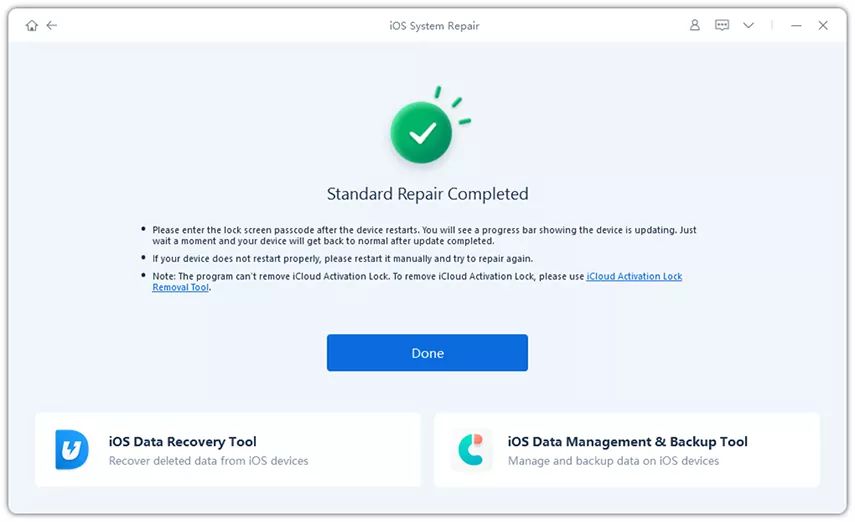
- Once the firmware is downloaded, click Start Standard Repair. Keep your iPhone connected and avoid using the device until the process is complete.
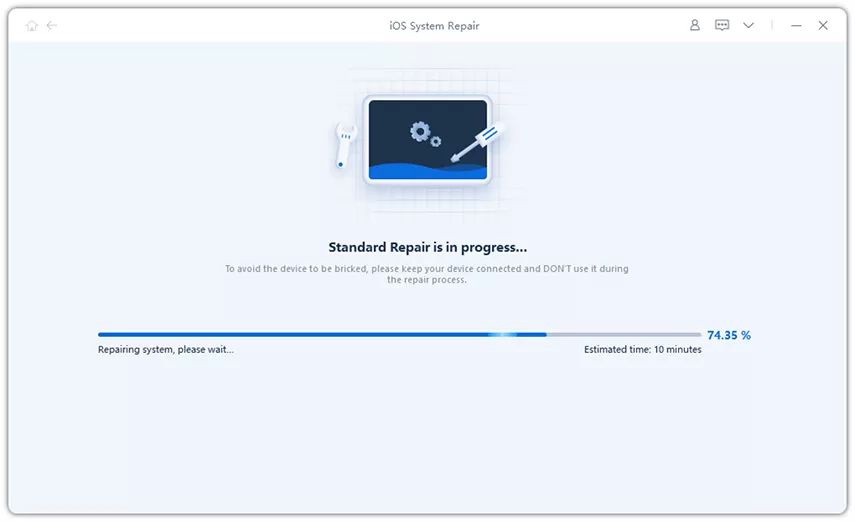
- ReiBoot will repair the iOS system and restart your iPhone automatically. Once it turns on, check Siri to see whether the issue has been resolved. Your existing data should remain on the device after Standard Repair.
Other Ways to Fix Siri Issues
The iOS 27 Siri update can sometimes cause temporary issues, but a few simple fixes may get Siri working again. Try these methods before moving to a system repair.
1. Restart Your iPhone
A simple restart can clear temporary software glitches and refresh the services Siri relies on. It only takes a minute and is worth trying first.
- Press and hold the side button and either volume button.
- Drag the power-off slider.
- Wait about 30 seconds.
- Press and hold the side button until the Apple logo appears.
- Test Siri after your iPhone restarts.
2. Check Siri & Search Settings
Your Siri & Search settings control how Siri responds, learns from apps, and provides suggestions. If Siri is not responding as expected, check these settings before trying more advanced fixes.
- Open Settings and tap Siri.
- Make sure Siri is turned on.
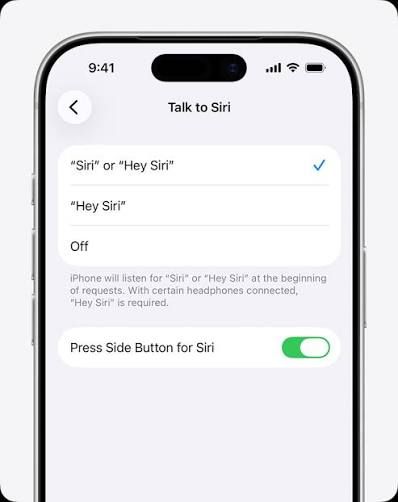
- Check the available voice activation and Siri options.
- If you want to remove Siri AI, check whether Siri Classic is available and select it.
- Open Siri > App Access to manage Siri's interaction with individual apps.
3. Check Your Internet Connection
Siri may need an active internet connection to process certain requests. A weak Wi-Fi or cellular connection can make Siri slow, unresponsive, or unable to complete some requests.
- Open Settings > Wi-Fi.
- Make sure you are connected to a working network.
- For mobile data, go to Settings > Cellular and check that cellular data is enabled.
- Open Safari and visit a website to test the connection.
4. Update iOS
Apple may release software updates with fixes for problems affecting Siri and other system features. Checking for the latest version can help if the issue started after the iOS 27 update.
- Open Settings.
- Go to General > Software Update.
- Wait for your iPhone to check for updates.
- If an update is available, tap Update Now or Update Tonight.
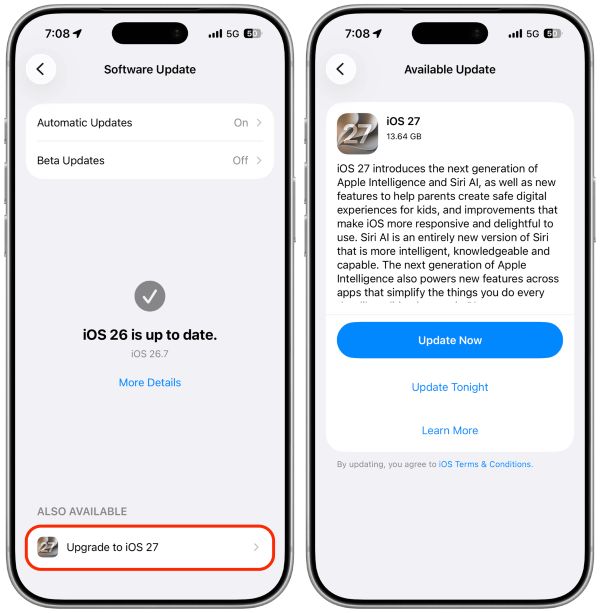
- Let the installation finish, then test Siri again.
FAQ About Remove Siri AI
1. Can I remove Siri AI from iOS 27?
Yes. You can remove Siri AI by turning off Siri from Settings > Siri > Turn Off Siri. If you still want to use Siri, iOS 27 also provides an option to switch back to Siri Classic instead of using the new AI-powered version.
2. How do I remove Apple Intelligence on iOS 27?
iOS 27 does not provide one universal switch for every Apple Intelligence feature. You need to manage individual AI features through their respective settings. For example, you can turn off notification summaries, Mail summaries, Smart Replies, and other Apple Intelligence features separately. You can also use Settings > Screen Time > Content & Privacy Restrictions > Siri > Allowed Siri Version to select Siri Classic and manage certain AI capabilities.
3. Is there a workaround to use Classic Siri and CarPlay without Siri AI?
Yes. If you need Siri for CarPlay but prefer not to use Siri AI, you can switch to Siri Classic through Settings > Screen Time > Content & Privacy Restrictions > Siri > Allowed Siri Version > Siri Classic.
Final Words
The iOS 27 Siri update gives you different ways to manage the new Siri experience. You can remove Siri AI, switch back to Siri Classic, or adjust Siri settings based on your needs. If Siri still freezes, crashes, or stops responding after trying these fixes, Tenorshare ReiBoot can help repair common iOS system issues. Its Standard Repair mode is designed to fix system problems without erasing your personal data.

