

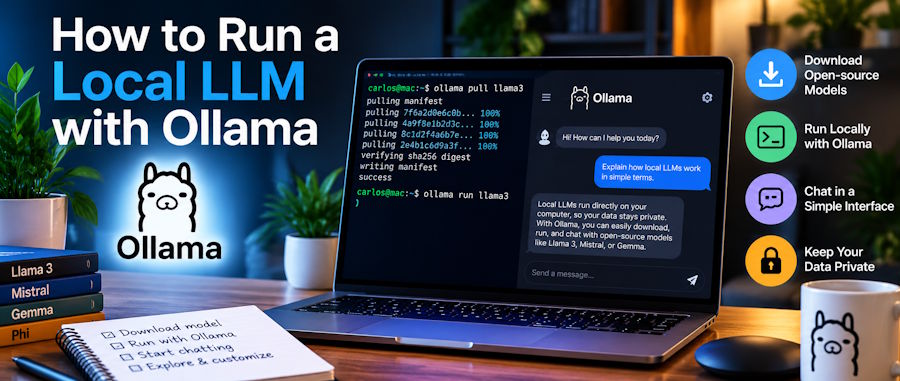
Running a local LLM with Ollama is one of the simplest ways for a developer to experiment with AI without sending every prompt to a cloud API. Install Ollama, choose a model that fits your hardware, run it locally, then connect it to your application through its local API.
That sounds simple because it is.
The part that usually causes trouble comes later. People download a model that's too large for their machine, wonder why responses are painfully slow, or assume the model file size tells them exactly how much memory they need.
It doesn't.
If you're setting up Ollama for development, a little planning saves a lot of frustration. Here's a practical way to get from a fresh machine to a working local LLM.
What Is Ollama and Why Run an LLM Locally?
Ollama is a tool for running and managing AI models locally on your computer. It provides a command-line interface, a local server, a model library and APIs that let applications communicate with the models running on your machine.
The appeal is straightforward. Your application can send prompts to a model running on your own hardware instead of making every request to a remote AI provider.
That can be useful for development, testing, private prototypes and workloads where you don't want every piece of input leaving your machine.
Ollama supports macOS, Windows and Linux, and there is also an official Docker image for developers who prefer containers. The project also provides Python and JavaScript libraries for application development.
There's another benefit that doesn't get enough attention.
You can experiment.
Want to test a different model? Download it and run it. Want to switch back? Keep both models installed and choose the one you need.
You aren't locked into one model for every experiment.
Can Your Computer Run a Local LLM?
Yes, but the model you choose matters just as much as the computer itself.
A small model can run comfortably on hardware that would struggle with a much larger one. Ollama's model library includes everything from very small models to models that require hundreds of gigabytes of storage, so there isn't one hardware requirement for "Ollama."
RAM is the first thing to check.
Ollama's documentation has historically suggested around 8 GB of RAM for 7B models, 16 GB for 13B models and 32 GB for 33B models. These are useful starting points, not universal rules. Context size, quantization, operating system overhead and the model itself all affect actual memory use.
| Hardware | What it generally means |
|---|---|
| 8 GB RAM | Stick to smaller models |
| 16 GB RAM | More comfortable with small and some medium models |
| 32 GB RAM | Gives you room for larger local models |
| Dedicated GPU | Can improve inference speed and allow larger models |
| Apple Silicon Mac | A practical option for local inference |
| CPU only | Works, but larger models can become slow |
Don't confuse model file size with total memory usage.
A 5 GB model doesn't mean your computer only needs 5 GB of RAM. The runtime needs additional memory, and longer context windows can increase the requirement.
Which Local LLM Should You Start With?
Start small.
That's probably the most useful advice I can give here.
You don't need a 70B model to find out whether local AI fits your workflow. A smaller model gives you a much easier first test and lets you understand the Ollama workflow before you start worrying about bigger models.
The current Ollama library includes model families such as Qwen3, Gemma, Llama, DeepSeek and others. Model sizes can vary dramatically within the same family. Qwen3, for example, currently has variants ranging from 0.6B to 235B parameters.
| Goal | Model direction |
|---|---|
| General experimentation | Small Qwen, Gemma or Llama model |
| Lightweight laptop | 0.6B to 4B models |
| General local assistant | 4B to 8B models |
| More capable reasoning | 14B and larger models |
| Coding | Coding-focused Qwen or other coding models |
| Vision | A model with vision support |
As a simple starting point, Qwen3 4B is currently listed by Ollama at about 2.5 GB, making it a reasonable model to test on a machine with modest resources.
The key is to match the model to the job.
Don't download the biggest model simply because it has the biggest number.
How to Install Ollama on Windows, macOS and Linux
Ollama supports the three major desktop operating systems, so the installation depends on what you're using.
Windows
Ollama provides a Windows installer and also documents a PowerShell installation method.
Open PowerShell and run:
irm https://ollama.com/install.ps1 | iexThe current Windows download page lists Windows 10 or later as the requirement.
If you prefer a graphical installation, download the Windows installer instead.
macOS
On macOS, you can download the application directly or use the installation command provided by Ollama:
curl -fsSL https://ollama.com/install.sh | shOllama provides a macOS download alongside its Windows and Linux options.
Apple Silicon Macs are particularly interesting for local AI because unified memory gives the CPU and GPU access to the same memory pool.
Linux
For Linux, the official installation command is:
curl -fsSL https://ollama.com/install.sh | shAfter installation, Ollama can run as a local service and expose its API to applications.
What About Docker?
Docker makes sense when you want a repeatable development environment or you're already comfortable managing containers.
The official Ollama project provides an ollama/ollama Docker image.
For a first local LLM experiment, though, I'd install Ollama directly.
Less setup. Fewer moving parts.
How to Download and Run Your First Local LLM
Once Ollama is installed, you can launch a model directly from the terminal.
For example:
ollama run qwen3:4bIf the model isn't already on your machine, Ollama downloads it first. After that, the command opens an interactive session where you can start chatting with the model.
That's it.
No API key.
No cloud dashboard.
No separate inference server to configure.
The current Qwen3 4B listing shows a 2.5 GB model and supports the ollama run qwen3:4b command.
Try something practical rather than asking only, "What can you do?"
For example:
Explain this JavaScript function and point out any possible bugs.
Or:
Write a Python function that validates an email address.
You'll get a much better feel for the model when you use a task that resembles your actual work.
Useful Ollama Commands for Developers
Once you've started using Ollama, you'll quickly use a few commands repeatedly.
| Command | What it does |
|---|---|
| ollama run MODEL | Downloads and runs a model |
| ollama pull MODEL | Downloads a model |
| ollama list | Shows installed models |
| ollama ps | Shows currently running models |
| ollama show MODEL | Displays model information |
| ollama rm MODEL | Removes a local model |
For example:
ollama list
might show the models you've already downloaded.
If you want to download another model without starting a chat session:
ollama pull MODEL
And when a model is taking up too much disk space:
ollama rm MODEL
These small commands are enough to manage a basic local model library.
How Much Storage Do Local LLMs Need?
More than you might expect.
Model size varies enormously.
The current Ollama library shows Qwen3 variants from around 523 MB for 0.6B to around 142 GB for the 235B version. The 4B version is about 2.5 GB, while the 30B version is around 19 GB.
| Qwen3 variant | Approx. model size |
|---|---|
| 0.6B | 523 MB |
| 1.7B | 1.4 GB |
| 4B | 2.5 GB |
| 8B | 5.2 GB |
| 14B | 9.3 GB |
| 30B | 19 GB |
| 32B | 20 GB |
| 235B | 142 GB |
Those are model file sizes.
They aren't promises about total system memory requirements.
You also need free disk space for the models you download, and keeping several models installed can add up quickly.
If you're working on a laptop with limited storage, check the model size before running ollama pull.
How to Use Ollama Through Its Local API
This is where Ollama becomes much more interesting for developers.
You don't have to interact with the model through the terminal. Your application can send requests to Ollama's local API.
Ollama's API is available locally, with the standard service listening on port 11434. The official API documentation provides endpoints for chat, generation, model management and embeddings.
A basic chat request looks like this:
curl http://localhost:11434/api/chat -d '{
  "model": "qwen3:4b",
  "messages": [
    {
      "role": "user",
      "content": "Explain recursion in simple terms."
    }
  ],
  "stream": false
}'
Your application can make the same kind of request.
That means Ollama can sit behind a local chatbot, a development tool, a document workflow or an experimental AI feature.
You can also use the official Python library.
Install it with:
pip install ollamaThen:
from ollama import chat
response = chat(
    model="qwen3:4b",
    messages=[
        {
            "role": "user",
            "content": "Explain recursion in simple terms."
        }
    ])
print(response.message.content)
The official Ollama project also provides a JavaScript library, so Node.js developers can work with local models without manually constructing every HTTP request.
That's a useful distinction.
Ollama isn't just a chat window.
For a developer, it's a local inference service you can build around.
Can You Use Ollama With VS Code?
Yes. Ollama can also fit into a local coding workflow.
The official project documents VS Code integration, where Ollama models can be selected inside VS Code Chat. The local Ollama service is discovered through 127.0.0.1:11434.
This opens up a different use case.
Instead of sending every coding experiment to a remote model, you can test local models against code explanations, small refactoring tasks, documentation and other development work.
The results won't always match a large cloud model.
That's fine.
The point is having another option.
For developers who are comparing different AI software for coding, automation and development workflows, you can also browse AI tools for developers on DailyAITools.
Ollama vs Cloud LLM APIs
Local and cloud models solve different problems.
One isn't automatically better.
| Factor | Ollama Local LLM | Cloud LLM |
|---|---|---|
| Where it runs | Your computer or server | Provider infrastructure |
| Internet | Can work locally after setup | Usually required |
| Hardware | You provide it | Provider provides it |
| Usage cost | No cloud token fee | Usually usage-based |
| Model choice | Limited by local hardware | Access depends on provider |
| Scaling | Limited by your machine | Easier to scale |
| Privacy control | More local control | Depends on provider |
| Maintenance | You manage the environment | Provider manages infrastructure |
| Best fit | Development and private experiments | Scale and managed access |
There is a catch with the "free" argument.
Running Ollama doesn't make computing free.
Your laptop still consumes electricity. Your SSD still has limited capacity. Your GPU still has a price. And a model that takes several minutes to answer isn't necessarily useful just because there was no API bill. If you're comparing local and cloud-based AI software, DailyAITools maintains a directory of AI tools across development, productivity, writing, audio and other categories.
Think about the workload.
If you're testing a small local assistant every day, Ollama can be a great fit. If you're building a service that needs a huge model and thousands of simultaneous requests, a cloud setup may make much more sense.
Does Ollama Work Without Internet?
Yes, after the required model files have been downloaded.
The initial setup needs internet access to download Ollama and the models you want. Once a model is stored locally, inference can run against that local model without sending the prompt to a cloud AI service.
That can be useful when working with sensitive source code, internal documents or prototypes.
But don't confuse local inference with automatic security.
Your computer can still be compromised. Local applications can still expose data. Logs can still contain sensitive information.
You control more of the stack, but you also take on more responsibility.
What Can Developers Build With a Local LLM?
Quite a lot.
A local model can become the AI layer behind a small application rather than something you only chat with from a terminal.
Developers can use local LLMs for:
- Private coding assistants
- Document summarization
- Local chatbots
- Retrieval-augmented generation prototypes
- Text classification
- Structured data extraction
- Internal knowledge tools
- AI agent experiments
- Content transformation
- Development and testing environments
The interesting part is iteration.
You can change the prompt, swap the model, modify your application and test again without changing the whole architecture.
That makes local inference particularly useful during development.
You don't need to build the perfect AI product on day one.
Build something small.
Test it.
Then decide whether the local model is good enough for the actual workload.
What About Docker and Self-Hosted Ollama?
Docker becomes useful when you want Ollama to live alongside the rest of your development stack.
For example, you might have:
Your application
↓
Local API
↓
Ollama
↓
AI model
Put that environment into containers and you can make the setup easier to reproduce across development machines.
The official Ollama project provides a Docker image, so Docker is a supported deployment path rather than a community workaround.
GPU access is where things become more involved.
If you're using a dedicated NVIDIA GPU, you need compatible drivers and the right container configuration. If you don't need GPU acceleration, don't add GPU-specific Docker configuration just because you saw it in a tutorial.
Keep the first setup boring.
Boring works.
Common Ollama Problems and Quick Fixes
A local model can fail for reasons that have nothing to do with the model itself.
The model is very slow
Check whether the workload is running on CPU, how large the model is and how much memory your system has available.
A smaller model may give you a much better development experience.
The model won't load
Check available RAM, disk space and the exact model name.
Also check whether another model is already using memory.
Ollama can't find the model
Run:
ollama listIf the model isn't listed, pull it first:
ollama pull MODELThe API isn't responding
Make sure Ollama is running and that your application is using the correct local address.
For the standard API:
http://localhost:11434
The output isn't good enough
Try a different model before rewriting your entire application.
This is one of the nice parts of Ollama.
The model is replaceable.
Is Running an LLM Locally Worth It?
For developers, it can be.
The strongest reason isn't that local models are automatically cheaper or better. It's the control you get while building.
You can experiment with models on your own machine, test prompts against real code, prototype an application without immediately adding an external API dependency and keep certain workloads local.
There are limits.
Your hardware determines what you can run comfortably. Bigger models need more memory and storage. Cloud models can still offer capabilities that smaller local models don't match.
So start with the machine you already have.
Pick a model that fits.
Run it.
Then test it against a real task from your workflow.
That tells you far more than a model leaderboard ever will.
FAQs
What is Ollama used for?
Ollama is used to run and manage AI models locally. Developers can use it for local chat, coding assistance, application development, API-based workflows and experiments with open models.
Can I run an LLM locally on my laptop?
Yes. The model you can run comfortably depends on your laptop's RAM, CPU, GPU and available storage. Smaller models are much easier to run on ordinary laptops.
Do I need a GPU to use Ollama?
No. Ollama can run models without a dedicated GPU, although suitable GPU hardware can improve inference speed and make larger models more practical.
How much RAM do I need for Ollama?
It depends on the model. Ollama documentation gives 8 GB as a starting point for 7B models, 16 GB for 13B models and 32 GB for 33B models, but actual requirements vary with the model and context.
Does Ollama work on Windows, Mac and Linux?
Yes. Ollama provides installation options for Windows, macOS and Linux, along with an official Docker image.
Can Ollama work without internet?
Yes. You need internet access to install Ollama and download models, but inference can run locally after the required model files are available.
What port does Ollama use?
The standard local Ollama API uses port 11434, with applications typically connecting through http://localhost:11434.
Is Ollama free?
Ollama can be installed and used locally without a subscription. Your actual costs can still include the computer hardware, electricity, storage and any infrastructure you choose to run around it.
Final Thoughts
Running a local LLM with Ollama isn't difficult.
The smart part is choosing the right model before you start.
A 4B model that responds quickly can be far more useful during development than a huge model that makes your laptop crawl. Once you have a model running, the local API gives you a much bigger playground. Python, JavaScript, VS Code and your own applications can all talk to the same local inference service.
Start small.
Test a real problem.
Then scale up only when you have a reason to.

