

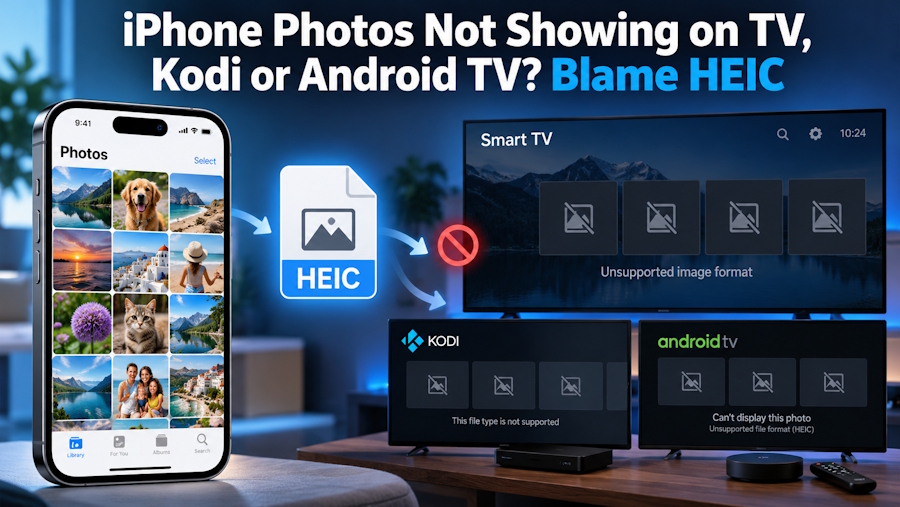
Your iPhone saves photos in a format that plenty of TVs, streaming boxes and media centers still can't open. Here's which devices are affected, why it happens and four simple ways to fix it.
You copy your vacation photos onto a USB stick, plug it into the TV and get an empty folder, a row of gray thumbnails or the classic "unsupported format" message. Or you open the Pictures section in Kodi and only your older photos show up, while everything shot on your iPhone seems to have vanished.
In most cases the culprit has a very specific name: HEIC.
What HEIC is and why so many devices ignore it
Since iOS 11, released in 2017, iPhones from the iPhone 7 onward save photos by default as HEIF files with the .heic extension instead of JPG. The benefit is real: at the same visual quality the files take up far less space, because the images are compressed with HEVC (H.265), the same codec the iPhone uses to record video.
That codec is also the problem. HEVC is covered by patents that require paid licenses, so a lot of free software skips HEIC support entirely. The photo viewers built into many TVs and streaming boxes can't open the format either, even when the same device plays HEVC video without complaint.
On the iPhone, on a Mac and on Windows with the right extensions, everything works. As soon as the photos land on a USB stick, a network share or a media center, things get complicated.
Which devices read HEIC and which don't
The picture varies a lot from one device to the next.
AirPlay and Apple TV
No problems here. When you send a photo over AirPlay, the iPhone decodes it itself and passes along an image that's ready for the screen. The same goes for TVs with AirPlay 2 built in, which many recent Samsung, LG and Sony models offer.
Samsung TVs
According to the media specifications Samsung publishes for developers, the .heic extension is supported starting with 2021 models running Tizen 6.0, and even then with some limits on how the file is structured. Older Samsung TVs simply won't show HEIC photos from a USB stick.
LG, Hisense, TCL and other brands
Here it depends heavily on the model and firmware. The USB photo viewer on many TVs only handles JPG, PNG and BMP, so it's worth checking the list of supported image formats in the manual before you blame the stick.
Android TV and Google TV boxes
Android itself has been able to decode HEIF images since Android 9 Pie, but what really matters is the app you open them with. Many file managers and media players built for TV boxes ship their own image libraries and still only show JPG and PNG, even on recent systems.
Kodi
Out of the box, Kodi won't open HEIC files. There is, however, an official addon called "HEIF image decoder" in the Kodi repository, listed under image decoders and available for Windows, macOS and Android. On Linux, LibreELEC included, it depends on whether your distribution ships the addon, and installation isn't always easy.
Plex
Plex photo libraries still don't properly support HEIC. As of early 2026, threads on the official Plex forum were still pointing to a staff answer explaining that support requires a major rework of the components that analyze and convert images, work that was under way but still had no release date.
Four ways to fix it
You don't have to give up your iPhone or Kodi. A few adjustments are enough.
- Shoot in JPG. Go to Settings > Camera > Formats and choose Most Compatible. From then on, new photos are saved as JPG. The files take up more space, so some people switch this on only before a trip or an event and switch back to High Efficiency afterward.
- Let the iPhone convert during transfer. If you copy photos to a PC with a cable, open Settings > Apps > Photos (on iOS 17 and earlier, Settings > Photos) and make sure Transfer to Mac or PC is set to Automatic. The iPhone will then usually hand over JPG copies. With Keep Originals selected, you get the HEIC files instead.
- Convert the archive you already have. If you have years of photos stored as HEIC, a batch conversion is the simplest route. A free online HEIC to JPG converter lets you upload up to 60 photos at a time without signing up and download everything as a single ZIP file. The files keep their original names and EXIF data, including the date each photo was taken, so apps that sort by date won't mix up vacations from two different years.
- Skip conversion altogether. If your photos are already in Google Photos, you can cast them to a Chromecast or a Google TV straight from the app. With an AirPlay 2 TV, the iPhone alone is enough.
Don't forget about orientation
A second problem often shows up with badly converted photos: portrait shots that appear sideways on the TV. It happens because some TV photo viewers ignore the rotation flag stored in the metadata and show the image exactly as the sensor recorded it.
That's why it pays to use a tool that actually rotates the image during conversion instead of just copying the flag into the metadata. Your photos then stay upright on any screen, even on older TVs.
How to prepare a USB stick your TV will read
If you regularly use a USB stick to show photos on the living room TV, a few simple rules will save you some unpleasant surprises:
- Use the right file system. Format the stick as FAT32 or exFAT. TVs generally can't read a stick formatted on a Mac as APFS or Mac OS Extended.
- Copy JPG files only. Keep the HEIC originals in your archive and put only the JPG copies on the stick.
- Split large collections into folders. Organize them by year or event, because many TV media players slow down badly with thousands of files in a single folder.
- Keep folder names simple. Avoid special characters and emoji, which some firmware can't display correctly.
- Expect Live Photos to lose their motion. Conversion keeps only the main still image. The short video clip is a separate file and stays as it is.
The bottom line
HEIC is a great format for the iPhone and for anyone who needs to save space, but plenty of TVs, TV boxes and media centers still can't display it. Keeping your originals in HEIC and using JPG copies for the TV, Kodi and Plex is the most practical compromise: no visible loss of quality, no empty folders and no photos lying on their side.

