


With Removal.AI, you can quickly erase the backgrounds from your photos, improving them suitable for multiple platforms that focus on e-commerce, marketing, social media, presentations, and daily commercial transactions. The purpose of this guide is to underscore how and when to use Removal.ai for a clean image and to have an easy-to-follow yet non-complex approach to the image removal process.
The Complete Guide to Removing Backgrounds from Photos in Seconds Using Removal.AI
Previously, only trained graphic designers could properly remove background from images since it was deemed a very tedious process, involving tracing edges and creating new layers around the subject. Hence, many people used to spend hours cleaning tiny details of their images, hoping the result would not look like it was cut out in a rush.
Now, background removal can be added to your everyday workflow, especially when you are editing multiple images.
This is important because you can now create and display images in more formats than ever before without overcomplicating the whole process. For example, the product image that you use on your brochures can be reworked or repurposed for an advertisement on Facebook, a marketplace, or other platforms.
Essentially, a highly advanced and reliable platform like Removal.AI can be very helpful for your creative journey. It will efficiently isolate the original background and allow you to come up with a new image to meet your specifications while using the least amount of time possible. While the original background has been completely removed, it will give you more control over how you will utilize the subject matter (e.g., resizing, placing, branding, and reselling the subject matter).
Why Background Removal Is Useful for More Than “Cleaner Photos”
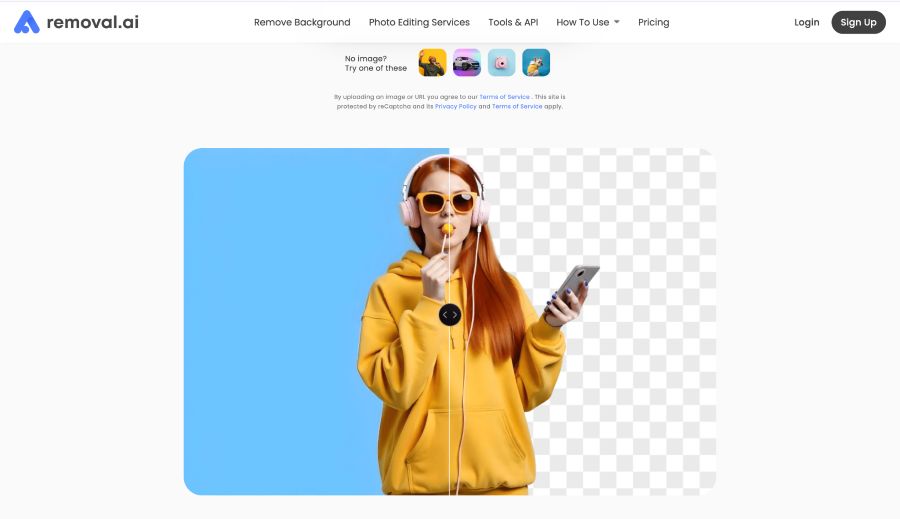
While a clean photo is great, it offers only a slightly better benefit at first glance. Removing the background allows for so much versatility.
One example of flexibility is changing a picture of an item taken on a busy shelf into an easier-to-read, clear image for a product listing. Another instance is taking a photo of a person in a room full of objects and making it a clean and impactful profile picture. In addition, you can take a photo of an item and use it to create an ad, thumbnail, banner, or web graphic—with no other images needed.
This will save time for ecommerce sellers, marketers, creators, and small business owners alike. Employing such a tool will also maintain a more consistent appearance among visuals across platforms.
With this, the consistency pointed out here is critical. In fact, Etsy’s Buyer Survey reveals that 90 percent of consumers said that the quality of the photo they see is “extremely important” or “very important” when making a purchase decision. BigCommerce also found that 75 percent of all online shoppers made their decisions based on the product photos displayed online.
The data provided does not mean that every image must look overly edited, but rather that visuals should aid people in understanding what they are looking at. A background remover can help achieve this, earning trust in what they see by being able to better compare and assess the item within the image.
What Removal.AI Does
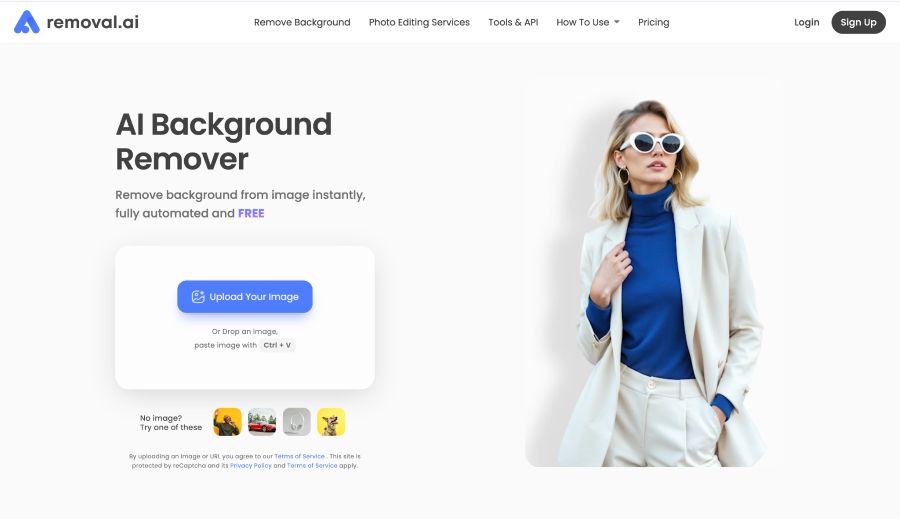
Removal.AI is an online tool that can take away the background of a picture to leave just the subject in a snap of a button.
It's simple. It's powerful.
You upload the material, and Removal.AI will find the subject of your image and remove the background. From there, you will be able to download this edited image or continue editing it.
There is no need for you to trace out the subject of your image manually since Removal.AI has already cut it out for you; then just check the result within seconds.
Removal.AI would be very useful if you need to take cutouts of images quickly for any of the following reasons:
- Photos of products
- Profile pictures
- Marketing collateral
- Social Media Posts
- Visuals for your website
- Slideshows for presentations
- Banners, thumbnails, and adverts
It is especially beneficial if you have tons of image files that you want to erase the background from in a batch or if you merely don't have much time to manually remove background from images individually.
When to Use a Background Remover
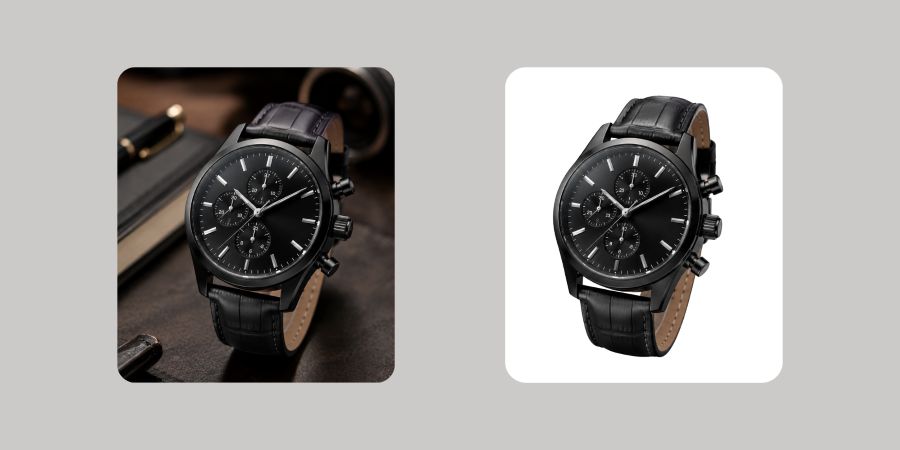
The background removal tool can be very helpful when the environment in which you took the photo detracts from the subject of the image. Some reasons you may want to use this tool are:
- You have an awesome photo of a product, and the original background is too busy for the subject.
- You have taken a really good headshot of a person, and the original background does not match your company's brand.
- You have a unique idea for a social media graphic, but you're unable to find an image that works well with your design.
Examples of when you can make good use of a background removal tool are:
- Creating product images for your online store.
- Generating images for your marketplace listings.
- Making your headshot images uniform.
- Turning photos into graphics for social media use.
- Creating thumbnails, ads, and banners.
- Eliminating objects in your photos that are distracting or cluttered.
- Creating transparent PNG files to use when layering into designs.
The purpose of using a background remover is to enhance the appearance of your photos regardless of platform, format, or design. For this reason, Removal.AI is an excellent choice for those who want practical edits to their photos without having to enroll or learn complex design treatment.
Start With the Right Photo
Fast background removal works best when the original photo is crystal clear.
Removal.AI can remove background from images quickly and easily. However, the final result will be dependent on how good the source image is. Typically, a strong material has:
- Visible subject
- Good lighting
- Defined edges
- Contrast between subject and background
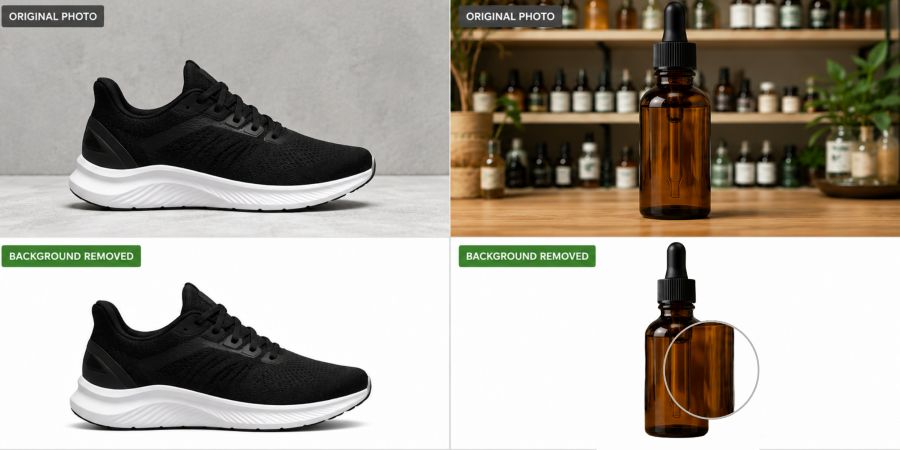
As an example, it would be easier to process a shoe that is photographed on a plain floor than a glass bottle in front of a busy shelf. A photo of a person in front of a solid wall will usually be easier to cut out than a photo of a person in front of a crowd who are all wearing colors similar to the background.
Hence, before uploading the image, make sure it does not contain:
- Blurry areas
- Dark lighting
- Reflective surfaces
- Transparent items
- Crowded background
- Edges that blend with the surroundings
You do not need to have a studio-quality photo in every instance; however, you do need to have a photo where the subject is easily identifiable.
Upload Your Image to Removal.AI
The initial step is effortless: simply upload the image you would like to have edited.
Once you have uploaded your picture, Removal.AI will process it for you quickly after you upload your image. The software will automatically detect your main focus point and erase the background from your picture to create an accurate cutout for you to approve. This is the main reason that Removal.AI saves you time.
When editing your photo, you do not need to use your time or effort to trace a product, person, or other items to make them look good on their own. Instead, you will edit the background in only a few seconds. This is extremely helpful when you need to do several images at one time.
For instance, an online seller needs product photos for their new catalog. Another example would be a company needing staff profile pictures for its website, or a marketing professional needing multiple advertisements that all use the same product image.
With Removal.AI, background removal is no longer simply a technical task. This has become a process that can be used time and time again.
Review the Automatic Cutout Before Downloading
Speed is advantageous, but be sure to complete your review process.
Removal.AI offers an efficient and effective service. Before using the new images or removing the background, take care to look closely at the edges and corners of the images, the edges, shadows, and finer details, as well as any portions of the subject that overlap with the current background.
Common areas that should be checked are:
- Hair (fur), fabric textures or tassels, jewelry, straps, handles (lacing), etc.
- Transparent or glass packaging
- Product labels or small text
- Sharp or unnatural shadows
Think of the review as a rapid quality check, not an extensive editing process. Such a short few seconds will allow you to catch anything that may make the final image appear to have been completed quickly, which would take away from the product itself.
This is of utmost importance when it comes to brand images. If a product appears to have had a lot of rough edges, lost detail, or strange shadows, the edited image will draw too much attention away from the product itself.
Choose Transparent, White, or Custom Backgrounds
When you take out the initial background of an image, you’ll want to think about what the new background image will look like before you layer the image onto something else.
Using a transparent background is great if you wish to layer an image that has been created for an alternate design. These types of images work well for websites, advertising projects, thumbnail images, posters, slide presentations, and so forth.
Many eCommerce sites utilize a white background for product images, catalog pages, profile images, and the market.
Meanwhile, custom backgrounds can help when producing content for a specific company's promotional material, such as graphics, campaign visuals, social media posts, and layout designs.
When determining the background for your images, there is no “right” type of background to use. Your decision of what background to employ will depend on your purpose or goal.
Use transparent if you require design versatility. Use white if you require a clean and simple product/catalog image. Use a custom background if you would like the image to complement your company's branding or design direction.
Refine the Image for a Cleaner Final Result
While removing the background of an image is an indispensable step that can give the product photo the look and feel of being new, it is only the first step in completing the overall design.
After using Removal.AI, take a moment to adjust the image before downloading or publishing it. Small edits can make the ultimate result look cleaner and more ready for use.
For example, following these simple improvements will level up the entire output:
- Center subject(s)
- Consistent spacing
- Remove remaining background fragments.
- Avoid cutting subjects awkwardly.
- Preserve natural shadows that add to the realism of the images.
- Colors still match the original subject(s).
There is a strong emphasis on accuracy in ecommerce; products should still appear as they would be received by customers. Over-editing the image may cause hesitation in purchasing due to an unrealistic appearance of the color, size, texture, and/or shadow of the final product.
A background remover should make the overall image look clearer and communicate as effectively as possible, without the product appearing different from the real product.
Download the Edited Image
Always decide which format and background color to use before beginning the download.
Transparent images are best used when placing images into other layouts, such as in advertisements, banners, presentation decks, YouTube thumbnails, and website sections.
White background images are best used on product listings, clean catalogs, profile graphics, and marketplace assets. White backgrounds also help maintain a sense of uniformity between images being displayed as groups or in specified product areas.
Your company should use organized file names when saving images that you will be utilizing for business purposes. Organized filenames will help other users find and locate the images more easily. Examples of files could be as follows:
- Blue-Running-Shoes-Transparent.png
- Ceramic-Mug-White-Background.jpg
- Team-Headshot-Julia-Transparent.png
Using organized file names makes it easier for users to find, share, and upload files in the future.
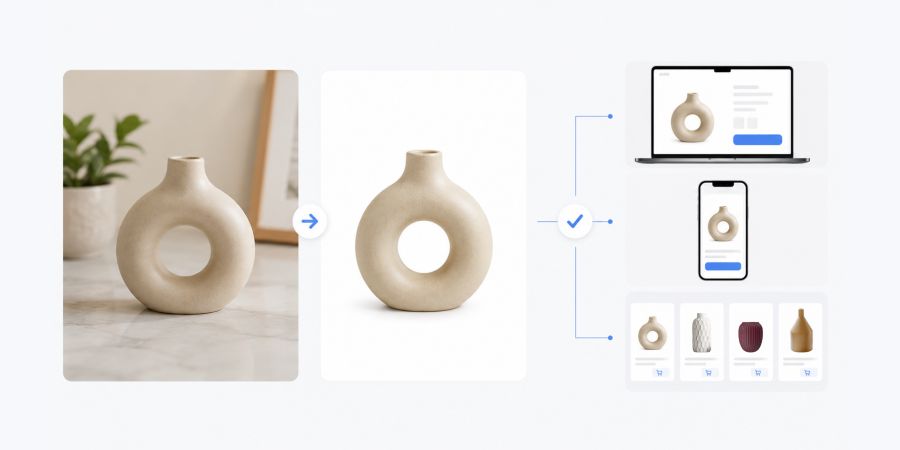
How to Use Background-Removed Images in Ecommerce
Images of products that have had the background removed can assist e-commerce businesses by providing cleaner listings, more coherent product grids, and more organized product pages.
Using an image with a product cutout helps consumers by being able to compare similar products, view finer details, and understand what they are purchasing from the company.
Removing the background from the image will also help the company maintain its visual identity by providing a consistent look to its products, even if they captured the photographs at different times or in various locations.
Removal.AI also provides a way for e-commerce merchants to produce multiple images without having to manually edit the backgrounds of each image.
It is worth noting, however, that removing a product's background does not, on its own, result in improved sales or higher conversion rates for the merchant. What removing the backgrounds from products will do is help enhance the clarity of the presentation, which helps to deliver a consistent shopping experience for the consumer. After all, for e-commerce businesses, having clarity in their products is of great value.

How Marketers and Creators Can Use Background Removal
Background removal is not just dependent on online sellers.
A marketer might remove the background from a product photo to make different versions of an advertisement. A content creator might change the portrait into a thumbnail. A SaaS team can use the cutouts with no background in slide decks or landing pages. A small business owner might put that photo to work across flyers, social posts, and sections of their website.
That's the real magic of Removal.AI; you're not just simply editing a single photo. You're taking a particular image and instantly converting it into an asset that can be exploited in a multitude of other formats.
With quick background removal of image files, you can test more layouts, create almost endless versions, and get visual content rolling throughout the workflow.
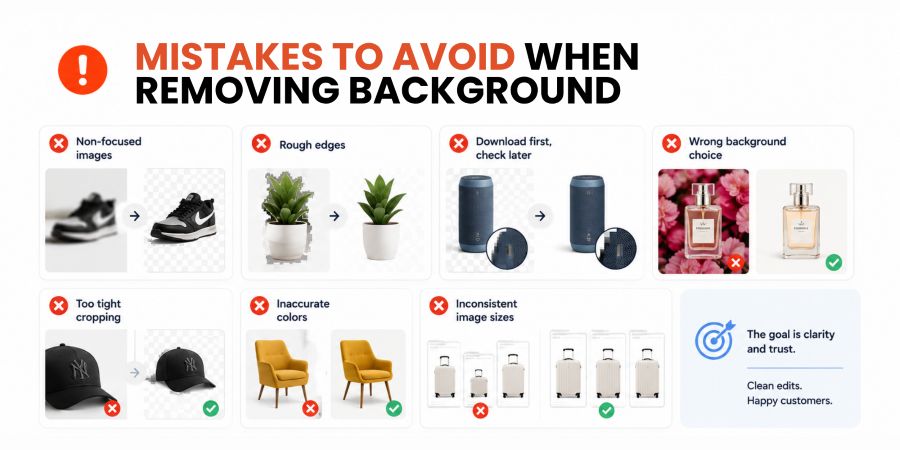
Mistakes to Avoid When Removing Backgrounds
Despite having a potent editing tool, you still need to consider tons of factors that can affect the outcome of your photo. To ensure better results, you must try to avoid these common errors:
- Using non-focused images
- Leaving oceans of rough edges
- Downloading first, then checking for small detail errors
- Selecting a background that doesn't go with what you are putting in front of it
- Cropping too tightly to either the product, the person, or both
- Applying inaccurate colors for products
- Using different image sizes within both a catalog and a campaign
The purpose of an edit is not to make what you have created invisible, but rather to show that you have purposely generated something and that it is easy to read after you edit.
A background remover will make your editing go much faster, but the final judgment is still yours.
A Simple Background Removal Workflow
To max out your Removal.AI editing experience, follow this simple process:
- Select a decent-quality, high-resolution image with good lighting.
- Upload your photo to Removal.AI and allow the background removal tool to create your cutout.
- Check the edges of your image and make sure there aren't any minor relics present.
- Choose a transparent background, white background, or custom background to use with your cutout.
- Adjust any spacing/cropping and alignment issues.
- Download your finished image
This process helps ensure the process remains as simple as possible but does not compromise on quality.
Again, while Removal.AI was developed for speed, it is best to use a manual human check to guarantee that your image looks finished and not just completed through a potentially quick process.
Conclusion: Fast Editing Still Needs a Human Eye
With Removal.AI, you can expedite the process of removing backgrounds from images, especially those of products, for marketing purposes, social media postings, presentations, and any other business assets.
However, using a good-quality original photo, choosing an appropriate color or texture, and doing a final review of the new photo before you post it will give you the ultimate quality.
A white background will work well when posting a product on a product listing site, and a transparent background may work better when posting it on an ad campaign layout. Using a custom background will generally work best when posting brand-based content.
Background removal is not simply a shortcut. It's a method to create images that are more reusable, less confusing to the brand, and easier to understand for the viewer.
Your photo does not have to stay limited to its original setting. Removal.AI clears what distracts, sharpens what matters, and gives the subject the space to own the frame.

