

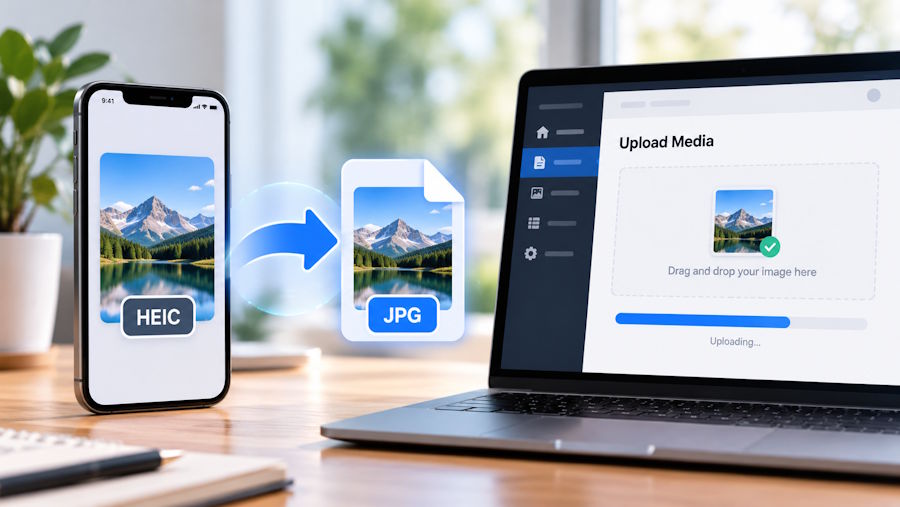
Suppose your content management system rejects an iPhone photo because it accepts JPG but not HEIC. The picture opens on the phone, but the publishing tool needs a different format. A JPG copy lets you use that photo in the post while keeping the original.
You can make that JPG in your browser before uploading the photo to the publishing system. Morphio's Privacy mode processes the photo on your device, avoiding a separate upload to a conversion service.
Check what the publishing system accepts
Start with the editor's accepted formats. Some publishing tools can process HEIC themselves; others accept JPEG but reject HEIC. If the system already handles your original correctly, conversion may add an unnecessary step.
When JPG is required, changing the filename from .heic to .jpg will not help. The image data must be decoded and encoded as JPEG. Keep the original photo and create a separate copy for publishing.
Also distinguish a format problem from an upload problem. A rejected file may exceed the site's size limit, or the upload may have failed for another reason. Read the error before converting an entire folder. If a JPG copy is accepted, check its preview before continuing with the rest.
What local browser conversion does
A server converter receives the source photo, processes it remotely, and returns a result. With local conversion, the browser reads the file you select and does the image processing on your device. The photo does not need to travel to a conversion server.
This matters when a photo includes something you do not want another service to receive, such as a work document visible on a desk. Local conversion keeps the source image out of the converter's server storage. That reduces exposure during this step; you still choose where the finished picture goes.
The conversion page still loads over the internet. Local image processing does not imply that the whole website runs offline or makes no network requests. It describes where the selected photo is processed. Uploading the finished JPG to your CMS is a separate action that you choose later.
Convert a JPG copy with Morphio
Open Morphio's HEIC to JPG converter and check the mode selector before choosing your photos. Privacy is selected by default for individual HEIC and HEIF images.
- Leave Privacy selected. Cloud is a separate mode that uploads files for server processing.
- Choose or drag in the HEIC or HEIF images you want to convert. Processing starts after selection; there is no separate start button.
- Follow each file's progress. Each successful input produces its own JPG, so a group of photos remains a group of separate images.
- Download a finished file, or use the grouped ZIP download when several results are ready. Open the downloaded JPG before adding it to your CMS.
- If an item fails, use Retry for that item. You do not need to discard the results that already finished.
Privacy accepts the individual image files. If your photos arrived inside a ZIP, extract the archive on your device first. Downloading several results as a ZIP is supported in Privacy; accepting a ZIP as the source is a Cloud feature.
Where the speed advantage comes from
Local processing skips the source upload and the transfer of a server-generated result back to your browser. On a slow connection, avoiding those transfers can make the job faster, especially when you are preparing several large phone photos.
The browser still has to decode each image and encode the JPG. A slow device with a large selection can take time. The useful speed benefit is avoiding the file transfers; total conversion time also depends on the device and the photos.
Morphio's Privacy conversions have no daily or monthly usage quota and do not consume conversion credits. You can return to another selection without waiting for a usage allowance to reset. The practical constraints are your browser's memory and the performance of your device.
For a large folder, start with a manageable group. If the browser struggles, reduce the selection and continue with the remaining images. You can process the next group when the browser is ready, without purchasing credits for Privacy conversion.
Check the JPG before publishing it
JPEG is a lossy format, so keep the HEIC original if you might need to edit or archive the photo. Conversion creates a new image; it cannot preserve every HEIC-specific feature. Open the JPG and check its orientation. Look closely at details the page needs to show, such as small labels in a product photo.
Look at dimensions and file size too. Converting to JPG does not automatically prepare the ideal image for your page layout. A full-resolution photo may still need resizing or further compression in an editor before you upload it. Check the exported file size before uploading it, particularly if the page will display several photos.
Local conversion also does not automatically remove metadata. Morphio preserves metadata that the output format and conversion path support. Check for GPS coordinates or other information you do not intend to publish, and remove it with a suitable metadata tool when needed.
Give the approved copy a descriptive filename, then upload that JPG to the CMS. Check the published page as well as the editor preview. Confirm that the correct photo loads at a useful size, and write alternative text that describes the image in its page context.
For a gallery, try one converted photo in a draft first. Check whether the publishing system creates the sizes you need and whether its thumbnail crops the subject correctly. Once that example works, prepare the remaining images with the same checks. This catches a publishing issue while you still have only one file to revisit.
Keep the source and publishing folders separate. That makes it easier to find the original for a later edit and reduces the chance of choosing the HEIC file again by mistake. If you revise the photo, export a fresh JPG from the source instead of repeatedly re-encoding an already compressed copy.
Choose the processing mode for the files you have
Morphio also offers Cloud processing for situations where the local browser is not suitable or you need ZIP input. That changes the file handling: the source files are uploaded for server conversion, and uploaded images are deleted by default after one day.
If keeping the photos on your device during conversion is the priority, stay in Privacy and select individual images. Keep the original files separately, then send only the checked JPG copies to the publishing system that needs them.

