

Digital creation is faster, bigger, and more demanding than ever. Digital creators, software developers, and video editors handle massive batches of critical content every single day. They render high-bitrate 4K footage, train complex deep-learning models, and manage gigantic local cloud-sync folders. However, high-volume data workflows come with an unavoidable risk: file corruption. A sudden system crash during an export or an improper ejection of an external drive can instantly turn days of hard work into unreadable junk.
Fortunately, modern storage technology has evolved alongside smarter recovery algorithms. When your operating system flags a drive as unreadable or your critical video file refuses to play, you do not have to start from scratch. Understanding how file corruption happens and using the right tools will help you restore your files quickly and seamlessly.
Why File Corruption Happens in High-Performance Workflows
File corruption rarely happens without a reason. It usually occurs when a file write operation gets cut off halfway through. Understanding the main causes helps you prevent future disasters and choose the right recovery strategy when things go wrong.
1. Interrupted Read/Write Operations
When you save a 50GB video file or export a complex dataset, your storage drive writes data in sequential blocks. If your computer suddenly loses power, experiences a blue screen error, or loses connection to an external USB drive during this process, the file header becomes incomplete. The file stays on your drive, but your operating system no longer knows how to open it.
2. Sudden File System Degradation
External SSDs, SD cards, and USB flash drives experience heavy physical wear. Frequent plugging, unsafe ejections, and file system glitches can instantly turn a healthy NTFS or exFAT drive into a "RAW" file system. When this happens, Windows or macOS will ask you to format the disk before using it. Formatting wipes your access path completely, making immediate recovery your top priority.
3. Cloud Synchronization Glitches
Automated cloud drives make collaboration easy, but concurrent syncing can lock local files. If a cloud agent attempts to upload a file while a local media program is still writing to it, the sync process might produce a zero-byte or damaged file duplicate across all connected devices.
The Technology Behind Modern Corrupted File Recovery
Traditional recovery methods often relied on basic undelete commands that only worked if the master file table remained 100% intact. Modern solutions use deep sector-level scanning and smart file reconstruction algorithms to rebuild lost data from scratch.
When a drive loses its partition table or a file header gets scrambled, specialized software scans the raw binary data across every storage sector. It looks for known "file signatures"—unique byte patterns that mark the start and end of specific file types like MP4, MOV, PNG, or ZIP. Once the algorithm identifies these signatures, it pieces the scattered fragments back together into a pristine, fully readable file.
This advanced approach makes Corrupted File Recovery possible even when your operating system claims that a drive is completely empty or damaged beyond repair.
Recover Corrupted Video Files and Large Media Datasets
Video editors and digital media producers face file corruption more often than almost anyone else. Modern high-bitrate video formats, such as ProRes or H.265, store vast amounts of frame data alongside delicate index metadata. If your camera battery dies mid-recording or your computer crashes during a video export, the index metadata fails to write properly. As a result, your media player throws a "cannot play file" error.
To Recover Corrupted Video Files successfully, you need a recovery engine that understands complex media structures. Modern recovery tools do not just pull raw bytes off your drive; they analyze the underlying audio and video streams, reconstruct the missing header info, and restore full playback sync without dropping quality.
Deep Scan Data Recovery Tool: Rebuilding Files from RAW Storage
When a storage drive encounters severe file system corruption, a basic quick scan will not be enough. Quick scans rely entirely on surviving file directories. If those directories are gone, you must use a dedicated Deep Scan Data Recovery Tool.
A deep scan bypasses the operating system's logical layer completely and talks directly to the hardware controllers of your PC, external hard drive, USB flash drive, or SD card.
| Scan Method | How It Works | Best Used For |
|---|---|---|
| Quick Scan | Reads existing file system indexes and file allocation tables. | Recently emptied Recycle Bin files or simple accidental deletions. |
| Deep Scan | Performs byte-by-byte sector analysis to identify raw file signatures. | Formatted drives, RAW file systems, corrupted partitions, and damaged media. |
By reading raw sectors sequentially, a deep scan digs out file fragments that have been buried under corrupted file indexes. It then groups those fragments by file extension and original structure, giving you the highest possible chance of retrieving your valuable data intact.
Meet Drecov: Your All-in-One Solution for PC, USB, SD Card & Hard Drive
When you face urgent file loss, you need a fast, reliable tool that handles multiple device types without requiring a degree in computer science. This is where Drecov excels.
Developed by PandaOffice, PandaOffice Drecov is a comprehensive data recovery software designed to rescue lost, deleted, formatted, or corrupted data across all your primary devices. Whether you lost project files on an internal SSD, accidentally formatted a camera SD card, or experienced a corrupted USB flash drive, Drecov delivers an intuitive and powerful recovery experience.
Why Choose PandaOffice Drecov?
- Universal Device Compatibility: Drecov supports Windows PCs, laptops, external hard drives, USB thumb drives, and SD/microSD cards formatted in FAT32, exFAT, or NTFS.
- Dual-Scanning Architecture: Combine rapid quick-scanning for recent deletions with intense deep-scanning for severe file corruption cases.
- Broad File Format Support: Easily recover documents, photos, high-definition videos, audio files, archives, and specialized datasets.
- Safe & Non-Destructive: Drecov operates in a strict read-only mode, ensuring it never overwrites your existing data during the scanning process.
- Free File Preview: Inspect recoverable photos, documents, and media files before committing to a full restoration.
If you are dealing with unreadable files right now, visit the official website at PandaOffice Drecov to download the software and start scanning your drive immediately.
Step-by-Step Guide: How to Perform Corrupted File Recovery with Drecov
Recovering damaged or unreadable files does not have to be complicated. Here is a simple, step-by-step walk-through to get your files back using Drecov.
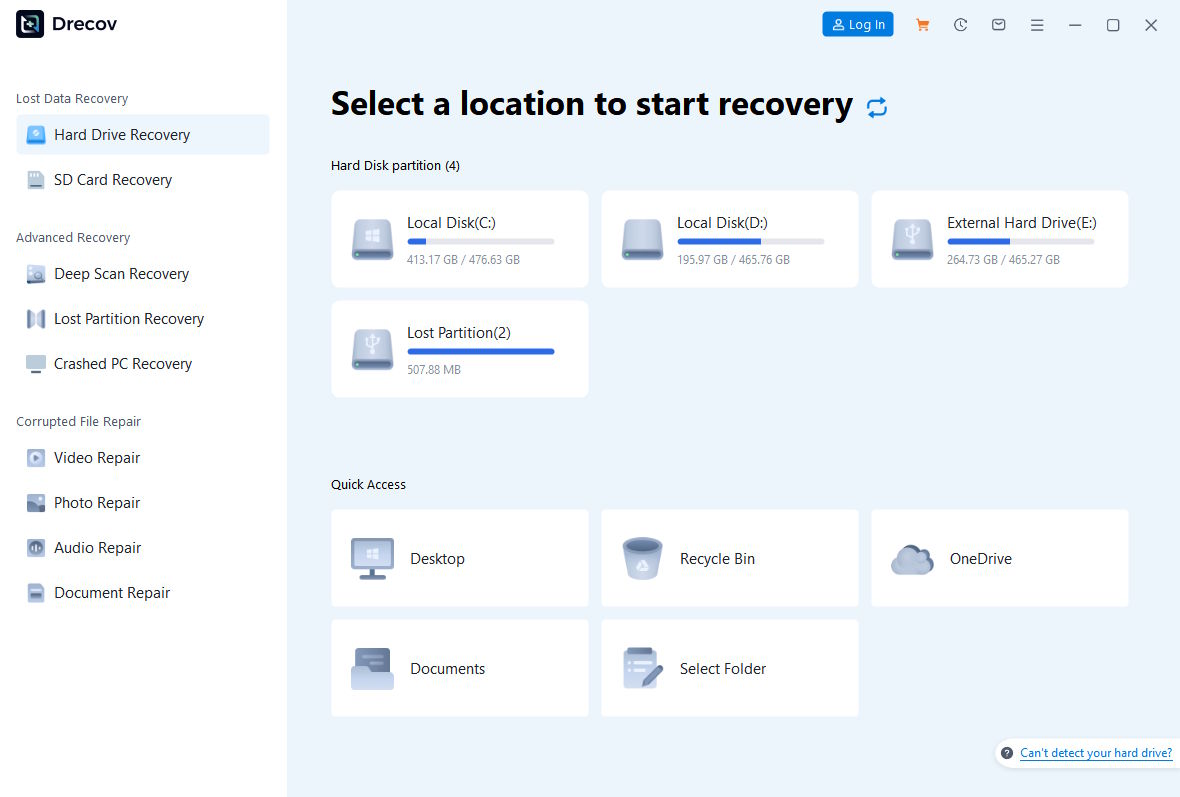
1. Select Your Target Storage Device
Launch Drecov. The main dashboard cleanly displays all connected storage devices, including your PC's local drives, external hard drives, connected SD cards, and USB flash drives. Select the specific drive that contains your corrupted files.
2. Run the Scanning Process
Click the Scan button. Drecov will automatically initiate a fast initial scan, followed seamlessly by its deep scan algorithm to locate deeply buried file fragments and broken headers.

3. Preview and Restore Your Files
Filter the scan results by file type (e.g., Video, Document, Photo). Double-click on files to preview their contents in real-time. Once you select the items you need, click Recover and choose a safe saving location on a completely different drive.
Best Practices to Prevent Future File Corruption
While tools like PandaOffice Drecov provide a reliable safety net, adopting good data hygiene habits reduces your risk of experiencing unexpected data loss in the future.
- Always Use "Safely Remove Hardware": Never unplug an external hard drive, USB flash drive, or SD card while its activity LED is blinking. Unplugging active drives is the single leading cause of RAW file system errors.
- Implement the 3-2-1 Backup Strategy: Maintain 3 copies of your important data, across 2 different storage media types, with 1 copy stored securely offsite or in the cloud.
- Monitor Drive Health with S.M.A.R.T. Tools: Regularly check your hard drive's health status. If a drive starts developing bad sectors or experiencing high read error rates, replace it before total hardware failure occurs.
- Keep Uninterruptible Power Supplies (UPS) Active: If you work on critical desktop rigs, an inexpensive UPS gives you enough time to save your project and shut down safely during unexpected power outages.
Final Thoughts
File corruption can bring your creative or business workflow to a sudden halt, but it does not have to ruin your projects. By understanding how file structures break down and leveraging specialized recovery tools like PandaOffice Drecov, you can reclaim damaged videos, datasets, and documents with confidence. Whenever disk errors threaten your hard work, head over to Drecov to restore your files and get back to business without missing a beat.

