

Excel files show up everywhere in a developer's life: exports from a web app, sales reports from the finance team, data dumps from a legacy system, or a colleague's carefully formatted tracking sheet. Sooner or later you will be asked to read one, transform it, and produce a new file, every week, automatically, without opening Excel yourself.
Python is a good fit for that job. With two libraries, pandas and openpyxl, you can read existing workbooks, clean the data, calculate summaries, and write polished output files in a few dozen lines of code. The two libraries overlap, but they solve different problems: pandas treats a worksheet as tabular data, while openpyxl works with the workbook itself, cell by cell. This tutorial explains the difference, shows runnable examples for both, and finishes with a complete automation script that turns a raw sales workbook into a formatted monthly report.
Everything here runs on standard Python 3 with no paid services or special files. The code was validated against Python 3.12, pandas 3.0.3, and openpyxl 3.1.5; the same patterns work on current pandas 2.x releases with no changes.
- pandas vs. openpyxl: Which Library Should You Use?
- Install pandas and openpyxl
- Read an Excel File with Python
- Read Excel Files with openpyxl
- Write an Excel File with pandas
- Create and Edit Excel Workbooks with openpyxl
- Automate an Excel Reporting Workflow
- Handle Common Excel Automation Errors
- Performance and Reliability Best Practices
- Verify Your Generated Excel File
- Conclusion
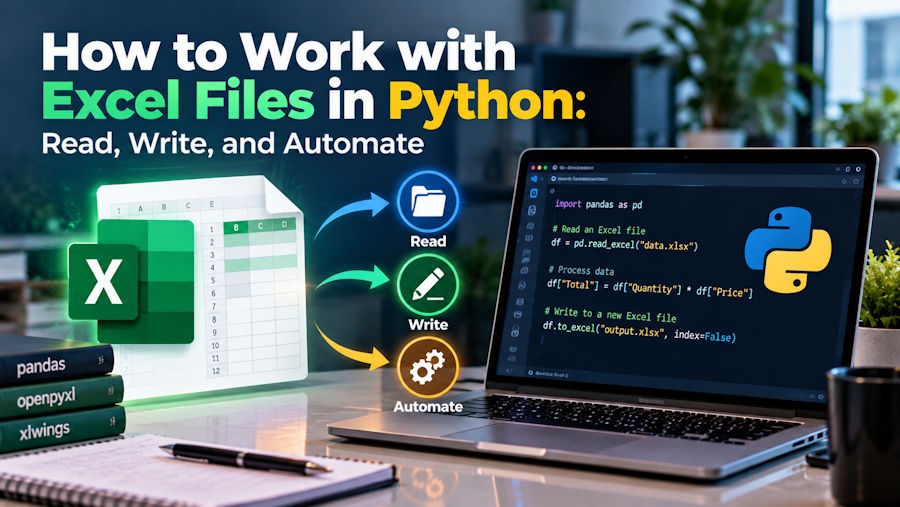
A pandas script reads a source workbook, computes a new column, and exports a report file.
pandas vs. openpyxl: Which Library Should You Use?
Both libraries read and write .xlsx files, and both are installed by the same pip command. The difference is the abstraction they give you, and picking the right one first saves a lot of refactoring later.
pandas works with whole tables. You load a worksheet into a DataFrame, a labeled two-dimensional table, and then filter, group, join, and export it with vectorized operations. If your task sounds like “read this sheet, sum the sales by region, write the result to a new file”, pandas is the right tool. It is also the natural choice for large datasets, because the heavy lifting happens in optimized C and NumPy code rather than in Python loops.
openpyxl works with the workbook as a document. It gives you objects for workbooks, worksheets, and individual cells, so you can read or change A1, adjust column widths, freeze the header row, apply fills and fonts, add charts, and edit an existing file without rebuilding it from scratch. If your task sounds like “open last month's report, update three cells, keep everything else as it is”, openpyxl is the tool.
One limitation to know upfront: openpyxl handles the modern Office Open XML formats (.xlsx and .xlsm) but not the legacy binary .xls format used before Office 2007. pandas can still read .xls, but only through the optional xlrd engine. When you control the output format, always write .xlsx.
|
Task |
Better fit |
Why |
|
Summarize or analyze tabular data |
pandas |
Vectorized group-by, filtering, and joins on DataFrames |
|
Bulk-read a sheet into memory |
pandas |
One call imports the whole sheet as typed columns |
|
Edit a few cells in an existing workbook |
openpyxl |
Loads the workbook and changes values in place |
|
Add or modify formatting, widths, freeze panes |
openpyxl |
Direct access to worksheet and cell styles |
|
Read cell values from a formatted report |
openpyxl |
Cell-level access preserves the sheet's layout |
|
Export analysis results to a new file |
pandas |
to_excel() writes a DataFrame in one call |
|
Keep charts, images, or macros of an existing file |
openpyxl |
Loads and re-saves the workbook structure |
pandas works on tables; openpyxl works on the workbook itself.
In real projects the two often work together: pandas does the data work, and openpyxl applies the finishing touches to the output file. The automation example near the end of this tutorial does exactly that.
Install pandas and openpyxl
Use a virtual environment so the installation stays isolated from your system Python. On Windows, macOS, or Linux:
python -m venv .venv
# Windows
.venv\Scripts\activate
# macOS / Linux
source .venv/bin/activate
python -m pip install pandas openpyxlpandas needs openpyxl for .xlsx support, so this single line covers both. Verify the installation by importing the libraries and printing their versions:
import pandas as pd

import openpyxl

print(pd.__version__)    # 3.0.3

print(openpyxl.__version__)  # 3.1.5
If pip installs packages but the import still fails, you are almost certainly running a different interpreter than the one pip installed into. The quickest fix is to install with the same interpreter you run: python -m pip install ... instead of a bare pip install. On Windows, a second common problem is installing pandas for one Python installation while your editor uses another; checking sys.executable in both places tells you immediately whether they agree.
Read an Excel File with Python
For the examples that follow, imagine a small business workbook, sales_data.xlsx, with one sheet named “Raw Sales” containing transaction rows: Month, Region, Product, Units Sold, and Unit Price. A few Units Sold cells are empty, a realistic mess that the code below will handle.
import pandas as pd

df = pd.read_excel("sales_data.xlsx", sheet_name="Raw Sales")

print(df.shape)        # (36, 5)

print(df.head())

print(df.dtypes)
read_excel() loads the sheet into a DataFrame. Two details worth noticing in the output:
- shape reports (36, 5): 36 data rows plus the header row, and 5 columns.
- dtypes shows how pandas interpreted each column: text columns as strings, numeric columns as float64 or int64. If a column you expected to be numeric shows up as object, some cell in it contains text, and that column needs cleaning before math.
To work with specific columns, select them by name:
units = df["Units Sold"]

subset = df[["Month", "Region", "Units Sold"]]

print(subset.head())
Missing values arrive as NaN (not a number). Count them per column, and decide what to do with them: filling, dropping, or defaulting to zero all make sense in different workflows:
print(df.isna().sum())

# Replace missing unit counts with 0

df["Units Sold"] = df["Units Sold"].fillna(0)
One subtlety beginners hit: pandas imports values, not formatting. If a cell displays $4,018.00 or 12%, the DataFrame contains 4018.0 and 0.12, the raw number behind the display format. Conversely, a value that Excel displays as a date may arrive as a string if it was stored as text in the workbook. When a column looks wrong, print df.dtypes first; the cause is almost always in the data itself, not in your code.
If the workbook arrives from an external source rather than a spreadsheet, pandas may not even be the right import tool; for web-collected data, a different acquisition step comes first, as covered in this web scraping tutorial with Python.
Read Excel Files with openpyxl
pandas collapses a sheet into a table. openpyxl keeps the sheet's shape, which matters when you need the position of a value, not just the value itself:
from openpyxl import load_workbook

wb = load_workbook("sales_data.xlsx")

ws = wb["Raw Sales"]

print(wb.sheetnames)      # ['Raw Sales']

print(ws.dimensions)      # A1:E37

print(ws.max_row, ws.max_column)  # 37 5

print(ws["A1"].value)             # Month

print(ws.cell(row=2, column=2).value)  # North
dimensions (and max_row / max_column) describe the used range of the sheet, useful for sanity checks before looping. Iterate over rows and cells like this:
for row in ws.iter_rows(min_row=2, max_row=4):

    print([cell.value for cell in row])
Formulas deserve a special note. By default, load_workbook() returns the formula string stored in each cell, for example =SUM(B2:B10). To read the last calculated result instead, pass data_only=True:
wbv = load_workbook("formula_demo.xlsx", data_only=True)

print(wbv.active["A3"].value)
The catch: data_only=True returns whatever Excel last saved as the cached result. If the file was generated by a script (openpyxl writes formulas but never calculates them), the cached value is None. Only an application that opens and recalculates the workbook, or a calculation library, produces real formula results.
For large files, openpyxl offers a read-only mode that streams rows instead of materializing every cell:
wb = load_workbook("huge_file.xlsx", read_only=True)

ws = wb.active

for row in ws.iter_rows(values_only=True):

    process(row)

wb.close()
read_only=True trades features for memory: cells are read on demand, which is much faster and cheaper for large workbooks, but you lose random access like ws["A1"], and you should close() the workbook when done. Use it for batch scans; use the normal mode when you need to edit.
Write an Excel File with pandas
The simplest export is a single DataFrame to a single sheet:
summary.to_excel("region_summary.xlsx", sheet_name="Summary", index=False)index=False is almost always what you want: without it, pandas adds a leading column of DataFrame row numbers that has no meaning in the workbook. To write several sheets that belong together, use ExcelWriter as a context manager:
with pd.ExcelWriter("region_summary.xlsx", engine="openpyxl") as writer:

    summary.to_excel(writer, sheet_name="Summary", index=False)

    df.to_excel(writer, sheet_name="Raw Data", index=False)
The with block opens the target file once, lets every to_excel() call add a sheet, then saves and closes everything cleanly. By default this creates a new file, and if the file already exists, it replaces it without asking. That behavior is convenient for regenerating a report and dangerous when the target is a workbook someone maintains by hand.
To add a sheet to an existing workbook instead of replacing the file, open it in append mode and decide what to do when the sheet name already exists:
with pd.ExcelWriter(

        "region_summary.xlsx",

        engine="openpyxl",

        mode="a",

        if_sheet_exists="replace",

    ) as writer:

    summary.to_excel(writer, sheet_name="Summary", index=False)
if_sheet_exists accepts error (the default, raises a ValueError), new, replace, and overlay. replace rewrites the sheet's contents; overlay writes over existing cells and leaves cells you do not touch untouched, useful for templates, but it means stale cells can survive. Whichever mode you choose, treat the destination as data: keep an untouched copy of any workbook you cannot afford to lose.
Create and Edit Excel Workbooks with openpyxl
When the output needs presentation, meaning a real report a human will read, openpyxl gives you direct control. The following single, coherent example creates a workbook, writes data with headers, formats the header row, sizes the columns, freezes the header, and saves:
from openpyxl import Workbook

from openpyxl.styles import Font, PatternFill, Alignment

from openpyxl.utils import get_column_letter

wb = Workbook()

ws = wb.active

ws.title = "Totals"

ws.append(["Month", "Region", "Product", "Units Sold", "Unit Price", "Revenue"])

for _, r in df.dropna(subset=["Units Sold"]).iterrows():

    ws.append([r["Month"], r["Region"], r["Product"],

               int(r["Units Sold"]), float(r["Unit Price"]),

               float(r["Units Sold"] * r["Unit Price"])])

header_font = Font(bold=True, color="FFFFFF")

header_fill = PatternFill("solid", fgColor="2F5496")

for cell in ws[1]:

    cell.font = header_font

    cell.fill = header_fill

    cell.alignment = Alignment(horizontal="center")

widths = [12, 10, 12, 12, 12, 14]

for i, w in enumerate(widths, start=1):

    ws.column_dimensions[get_column_letter(i)].width = w

ws.freeze_panes = "A2"

wb.save("formatted_report.xlsx")
Walk through the moving parts:
Workbook()creates a new workbook with one sheet, available aswb.active.ws.append()writes a row at a time; the first append becomes row 1, which here is the header.ws[1]selects the whole first row, so a small loop styles every header cell.column_dimensionsplusget_column_letter()set widths column by column, since a worksheet has no auto-fit.freeze_panes = "A2"locks everything above row 2, so the header stays visible while scrolling.
Formatting is worth doing for reports people read, but it does not change the data. Keep the underlying structure clean (one header row, one record per row, consistent types) and treat the styling as the last step, not as part of the data model.
Automate an Excel Reporting Workflow
Here is the full workflow in one function: read the source workbook, validate that it still has the columns the report depends on, clean the data, aggregate it, write a formatted two-sheet report, and return the path. Save the sample workbook, sales_data.xlsx, and the script in the same folder:
The automation pipeline: input workbook, Python processing, validation, output workbook, final inspection.
import pandas as pd

from openpyxl import load_workbook

from openpyxl.styles import Font, PatternFill


def build_monthly_report(source_path, report_path):

    REQUIRED_COLUMNS = ["Month", "Region", "Product", "Units Sold", "Unit Price"]

    # 1. Read the source data

    df = pd.read_excel(source_path, sheet_name="Raw Sales")

    # 2. Validate the columns the report depends on

    missing = set(REQUIRED_COLUMNS) - set(df.columns)

    if missing:

        raise ValueError(f"Source workbook is missing columns: {sorted(missing)}")

    # 3. Clean: treat missing unit counts as zero

    df["Units Sold"] = df["Units Sold"].fillna(0).astype(int)

    # 4. Aggregate: monthly revenue by product

    revenue = df.assign(Revenue=df["Units Sold"] * df["Unit Price"])

    monthly = (revenue.groupby(["Month", "Product"], as_index=False)

                    .agg({"Units Sold": "sum", "Revenue": "sum"}))

    # 5. Write the report (two sheets)

    with pd.ExcelWriter(report_path, engine="openpyxl") as writer:

        monthly.to_excel(writer, sheet_name="Monthly Summary", index=False)

        revenue.to_excel(writer, sheet_name="Cleaned Data", index=False)

    # 6. Presentation pass on the summary sheet

    wb = load_workbook(report_path)

    ws = wb["Monthly Summary"]

    for cell in ws[1]:

        cell.font = Font(bold=True)

        cell.fill = PatternFill("solid", fgColor="D9E2F3")

    ws.column_dimensions["C"].width = 16

    for row in ws.iter_rows(min_row=2, min_col=4, max_col=4):

        row[0].number_format = '"$"#,##0.00'

    wb.save(report_path)

    return report_path


build_monthly_report("sales_data.xlsx", "monthly_sales_report.xlsx")
Running it against the 36-row sample produces monthly_sales_report.xlsx with two sheets. Monthly Summary holds nine rows, one per month-product pair, like this:
| Month | Product | Units Sold | Revenue |
|---|---|---|---|
| February | Keyboard | 288 | 14112 |
| February | Laptop | 338 | 303862 |
| February | Monitor | 189 | 47061 |
| January | Keyboard | 335 | 16415 |
| January | Laptop | 58 | 52142 |
| January | Monitor | 305 | 75945 |
| March | Keyboard | 149 | 7301 |
| March | Laptop | 266 | 239134 |
| March | Monitor | 114 | 28386 |
The design choices matter more than the lines themselves. The column check fails fast and loudly: if someone renames “Units Sold” to “Qty” in the source workbook, you get a clear ValueError naming the missing columns instead of a KeyError three hundred lines later or, worse, a report full of zeros. The fillna(0) is a business decision, not a technical one, so decide explicitly what missing sales mean in your context and comment it. And the write goes to a new file, monthly_sales_report.xlsx, so a failed run can never damage the source workbook.
This same pipeline shape works for real reports. When the deliverable must also exist as a PDF for circulation, the export step pairs naturally with Python's PDF tooling, covered in this collection of PDF processing tips for Python. It converts an Excel report into a shareable document in a few lines.
Handle Common Excel Automation Errors
These are the failures you will actually hit, with what each one means:
- FileNotFoundError: the path is wrong relative to where the script runs, not where you think it runs. Run the script from the folder that contains the workbook, or use an absolute path while debugging;
print(os.getcwd())shows the working directory Python actually uses. - ValueError: Worksheet named 'Raw Salse' not found: the sheet name in
sheet_name=does not match. Printwb.sheetnamesordf.keys()to see the exact names; trailing spaces in sheet names are common in real workbooks. - ValueError: missing columns, from the validation step above. The source layout changed; fix the mapping rather than silently skipping the check.
- PermissionError: [Errno 13]; on Windows, this usually means the workbook is open in Excel (or WPS), which locks the file. Close it, or write to a different filename. It also appears when the output folder itself lacks write permission.
- KeyError on a column name: the column exists but with different spacing or capitalization. Compare
df.columnsagainst your expected list;df.columns = df.columns.str.strip()fixes invisible whitespace. - Numbers arriving as text: a column of dtypes object where you expected float64. Convert explicitly with
pd.to_numeric(df[col], errors='coerce'), which turns unconvertible values into NaN you can then inspect.
A pattern worth avoiding: wrapping the whole script in a bare try/except. It converts every failure into a silent one and hides which step actually broke. Catch specific exceptions where a specific recovery exists, and let everything else crash loudly in development.
Two format-level quirks round out the list. First, formulas: openpyxl writes formula strings but does not compute them, so a freshly generated workbook contains formulas with no cached results, so reading it back with data_only=True yields None until a real spreadsheet application opens and recalculates it. Second, macro-enabled workbooks: openpyxl can load and re-save .xlsm files, but you must pass keep_vba=True to load_workbook and keep the .xlsm extension, and the macros themselves are preserved, never executed or edited, by openpyxl.
One easy-to-miss variant of FileNotFoundError: a relative path such as "sales_data.xlsx" resolves against the current working directory, not the script's folder; a scheduled task or IDE session with a different working directory breaks it even though the file is right there. Debug with print(os.getcwd()) and build paths with pathlib's Path(__file__).parent. If your workflow delivers finished reports to the user's desktop, this guide to retrieve the desktop path in Windows with Python shows a dependable way to resolve that folder on any machine.
Performance and Reliability Best Practices
pandas advice: avoid cell-by-cell loops over DataFrames. itertuples() is the loop of last resort; a vectorized operation like df["Revenue"] = df["Units Sold"] * df["Unit Price"] is typically orders of magnitude faster. Aggregate early: group before export rather than writing a million raw rows and summing them in Excel.
openpyxl advice: for large workbooks, read with read_only=True and, when generating a big file, build it with write_only=True (a streaming mode where you append rows and cannot revisit cells). Avoid repeatedly load_workbook/save cycles inside a loop over many files; process each workbook once.
XLSX versus CSV: CSV is smaller and faster for pure tabular exchange, but it has one sheet, no types, no formulas, and no formatting, and any column that looks like a date or a leading-zero ID will be mangled by whatever opens it next. Use CSV when the consumer is another program; use XLSX when the consumer is a person or the data has multiple sheets.
Reliability practices that cost little and save hours:
- Never write over the source workbook; the workflow above always writes to a separate report path.
- Validate after writing: reopen the output and check what you expect (the next section shows how).
- Treat spreadsheets as sensitive data if they contain customer or employee records: keep them out of repositories, out of logs, and out of ad-hoc cloud uploads.
- In scheduled jobs, log the input file, row counts, and output path on every run, and log failures with the full exception, because a cron job that dies silently is worse than one that fails loudly.
- When a document workflow outgrows a script entirely, that is a build-versus-buy decision, and it is worth weighing SaaS against custom development costs explicitly rather than drifting into a fragile mega-script.
Verify Your Generated Excel File
Never trust a script that claims to have produced a correct workbook: open the result and prove it. The cheapest verification is to read the file back with the same library (or the other one) and assert on the values you expect:
# verify_report.py: read the output back and assert on it

from openpyxl import load_workbook

wb = load_workbook("monthly_sales_report.xlsx")

print(wb.sheetnames)                 # ['Monthly Summary', 'Cleaned Data']

ws = wb["Monthly Summary"]

assert ws["A1"].value == "Month"

assert ws.max_row == 10              # header + 9 grouped rows

assert wb["Cleaned Data"].max_row == 32   # 36 rows minus 5 NaN rows dropped

for row in ws.iter_rows(min_row=2, max_row=4, values_only=True):

    print(row)
If your script writes reports that humans will read, verification is even more important, because formatting bugs (wrong number formats, broken merged cells, columns hidden by mistake) never raise exceptions; they just silently produce an ugly or misleading file. A quick visual inspection in a spreadsheet application catches what assertions cannot.
It also pays to test how your files behave in tools other than the one that wrote them. For day-to-day inspection and quick edits, a capable Free spreadsheet software package such as WPS Office opens pandas- and openpyxl-generated workbooks without friction, and it is a fast way to eyeball formats, column widths, and charts before you send a report to a client. If you need the application itself, the excel download page on the WPS Academy walks you through getting set up in a couple of minutes. Note that no library guarantees pixel-perfect compatibility with every reader: complex conditional formatting, some chart types, and macros written for Excel specifically can degrade in other applications, so verify anything business-critical in the environment where it will actually be used.
Conclusion
pandas and openpyxl are not competitors, but complements. pandas is the right tool whenever you think in tables: reading, cleaning, aggregating, and writing columnar data in bulk. openpyxl is the right tool whenever you think in workbooks: editing existing files in place, applying styles, formulas, and number formats, and controlling the structure cell by cell. Most real-world Excel automation needs both, and the pattern shown in this tutorial (pandas for the data work, openpyxl for the presentation layer, with verification steps in between) scales from a one-off cleanup script to a nightly reporting pipeline.
The workflow you built here is deliberately reusable. Swap the input file and the grouping keys, and the same pipeline produces a fresh report; wrap it in a scheduled task and your monthly Excel reporting runs itself.
Happy coding!

