


You downloaded a product photo you shot years ago, or a screenshot you made yourself, and there it is - a date stamp, a logo, or a watermark sitting right where it ruins the picture. Don't worry, there are simple ways to remove watermarks from a photo. Below is two different solutions, and covers exactly how each one works, and where each one makes sense.
How to Remove Watermark from Photo in Photoshop
Photoshop gives you 3 tools that can handle most watermark removal jobs:
- Content-Aware Fill - reconstructs the area with what's around it
- Clone Stamp Tool - paints over with pixels you sample elsewhere
- Healing Brush Tool - blends the source texture into the target
For a typical semi-transparent logo or text on a fairly even background, the most reliable and commonly used option is Content-Aware Fill driven by a precise selection. Here's how to use it:
Step 1. Upload your photo to Photoshop. In the Layers panel, right-click the Background layer and choose Duplicate Layer.
Step 2. Go to Select > Color Range. Set Select to Sampled Colors, then click the eyedropper on the watermark to sample its color. Leave Invert off.
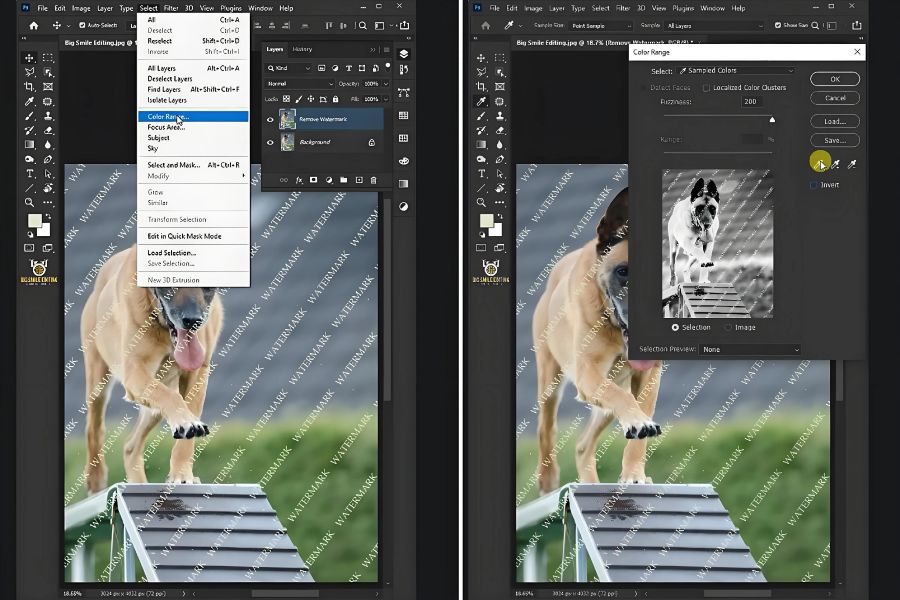
Step 3. Drag Fuzziness to about 34 so only the watermark is selected, then click OK.
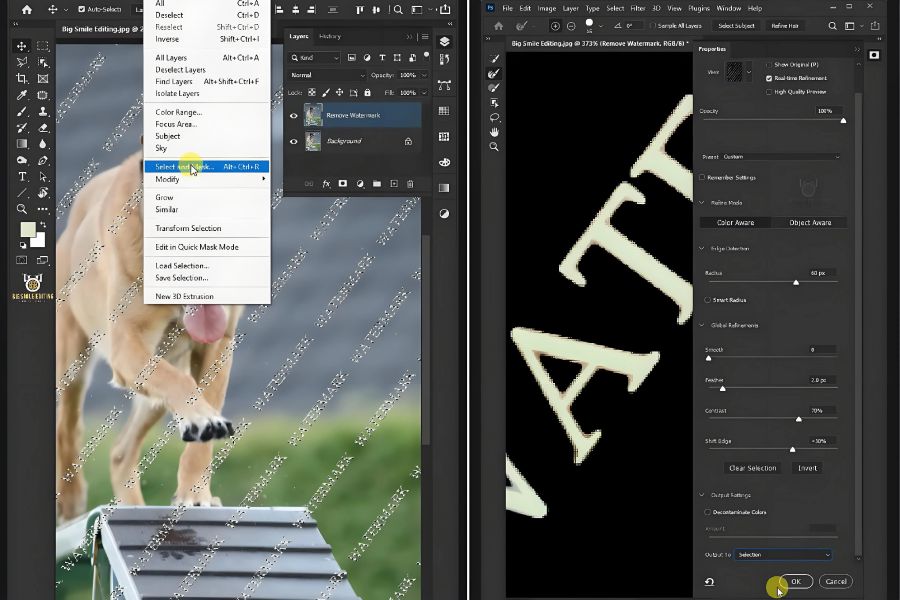
Step 4. Open Select > Select and Mask. Use Radius 60 px, Feather 2 px, Contrast 70%, Shift Edge +30%, and output back to a Selection. Expand the selection slightly with Select > Modify > Expand by 1 px to catch faint edges.
Step 5. Choose Edit > Fill, set Contents to Content-Aware, and click OK. Photoshop fills the gap to match the background.
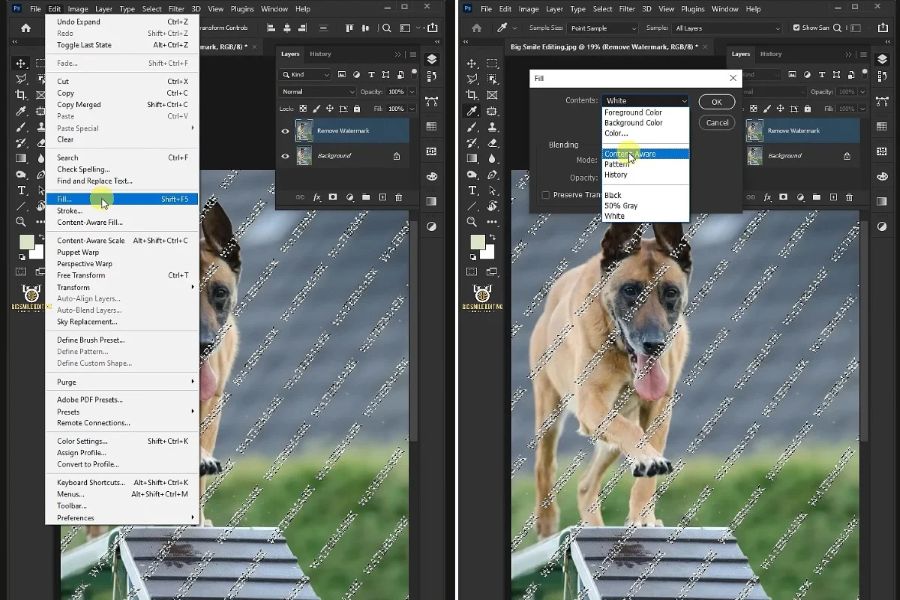
Step 6. Press Ctrl+D (or Cmd+D on Mac) to deselect, zoom to 100%, and inspect. If any marks remain, use Clone Stamp tool or Healing Brush tool on textured areas and clean them up with a smaller brush.
How to Remove Watermark from Photo Online Free
As you can see, watermark removal with Photoshop is a little bit complicated. If you want a simpler and faster solution, UltraPic can help you remove watermarks from photos online.
UltraPic is a free, AI-based online image editor that is designed for this. Compared with Photoshop, it requires no install, no layers, and no technique - you upload and the AI handles the selection and reconstruction. What makes UltraPic worth using:
- 1-click automatic removal. The AI detects text, logos, and overlays and erases them without you marking anything. Manual selection is also available for complex background processing.
- Clean reconstruction. It analyzes surrounding pixels and fills the spot so you don't get blur, ghosting, or hard edges.
- Detail retention. It holds up on tricky surfaces - fabric, wood grain, product textures.
- Format support. PNG, JPEG, JPG, WEBP, BMP and more.
Beyond watermark removal, UltraPic also bundles background removal, background generation, photo retouching, object eraser, image upscaling, and image enhancer, handy for various image editing needs.
Step 1. Open UltraPic in your browser and select the Remove Watermark tool. Then, upload your image.
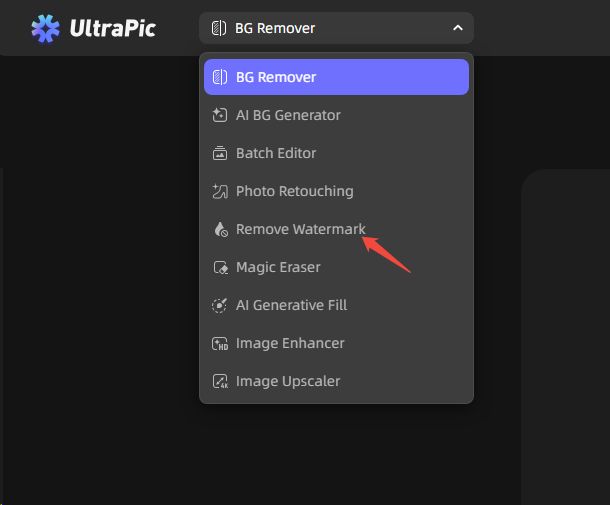
Step 2. Pick a removal mode: Auto lets the AI find and clear the watermark in one click; Manual lets you brush over the exact area first.

Step 3. Click Remove Now to begin the watermark removal. When it’s done, hit Download to save the clean image.
Important Tips for Watermark Removal
A few things worth saying plainly when you remove watermark from photos:
- Edit only what's yours. Remove watermarks only from images you created, own, or have explicit permission to edit. Stripping a third party's copyright watermark to reuse their photo commercially is copyright infringement.
- Keep the original. Always save your source file untouched and work on a duplicate layer or copy. Even professionals do this; a bad edit is reversible only if the original still exists.
- Set realistic expectations. A faint logo on a plain wall is a ten-second job. A watermark tiled across a detailed pattern will need manual work and may never look perfect.
- Check at 100% zoom. Inspect the result at full size before you publish it. If a free tool leaves a soft spot, a quick Photoshop touch-up with the Clone Stamp or Healing Brush can finish it.
Conclusion
To remove watermark from photo, Photoshop gives you precise, professional control over images, and UltraPic gets the same result in a few clicks, free, with nothing to install. Just choose the one that suits your needs.
Read More: Hb Seo Service

