

Every building project begins as a rough idea. Maybe it is a pencil drawing on graph paper, a quick layout scribbled on a napkin during a coffee meeting, or a flat 2D plan handed over by a builder. The challenge is turning that raw idea into something clear enough to share, review, and act on. Until recently, that meant redrawing everything in specialized software or paying a professional to do it. Today, AI tools can handle much of that work in minutes. This article explains how a 3D floor plan maker and a sketch to floor plan tool fit into a simple workflow that takes you from a rough drawing to a clear, presentable layout.
The Problem With Rough Ideas
Hand-drawn plans are wonderful for thinking. They are fast, flexible, and require no training. But they are also hard to share. Walls wobble, proportions drift, and labels are only legible to the person who wrote them. A contractor, a client, or a family member looking at a rough sketch has to guess what the author meant.
Flat 2D plans have a different problem. Even when they are neat and precise, they can be difficult for non-professionals to read. Many people struggle to look at a top-down drawing of lines and imagine how rooms connect, where furniture might go, or how the space actually feels. That gap between a drawing and a mental picture is where many planning mistakes begin.
Two kinds of tools address these two problems:
- A tool that cleans up and digitizes rough drawings.
- A tool that turns a clear 2D plan into a three-dimensional view.
Used together, they cover the whole journey from first idea to visual presentation.
Step One: Digitizing the Drawing With Sketch to Floor Plan AI
A sketch to floor plan tool takes an existing hand-drawn layout and produces a cleaner digital version. Instead of manually tracing every wall and room, you upload the drawing and let the AI generate a tidier plan based on the original structure.
According to the tool's own description, it works with a range of rough inputs, including napkin sketches, pencil drafts, graph-paper plans, office layouts, and even hand-drawn site plans. You can upload images in common formats such as JPG, PNG, WEBP, and HEIC, as well as PDF files. That flexibility matters, because most people do not have a perfect scan of their drawing. A quick phone photo of a notebook page is often all they have.
What the Conversion Can Do
The goal is to preserve what you drew while improving readability. In practice, the tool offers several controls:
- Line straightening and detail enhancement. Uneven, wobbly walls can be cleaned up so the plan is easier to read.
- Dimension annotations. You can choose to add measurements to the result, or turn them off if you prefer a simpler drawing.
- Custom requirements. Before generating, you can describe additional preferences in your own words.
- Visual styles. The tool lists ten styles, including Technical, Hand-Drawn, Blueprint, Colored 2D, 3D Isometric, Watercolor, Marker Pen, Collage, Anime, and Realistic.
- Before-and-after comparison. You can compare the generated result with your original drawing in one preview, which makes it easy to confirm that nothing important changed.
One point is worth noting. The tool is designed to digitize an existing layout rather than invent a new plan from a text description alone. That makes it a good fit if you already know roughly what you want and simply need it cleaned up. If you are starting with nothing, you would use a different kind of tool, such as a floor plan generator.
Typical Situations Where It Helps
A sketch conversion tool is useful in more situations than you might expect:
- Homeowners who have drawn a proposed renovation and want a neater version to show a contractor.
- Small business owners who have sketched a shop or office layout and want a readable plan for a landlord or designer.
- Students and hobbyists who draw house plans on graph paper and want to see them in a polished format.
- Landscape and site planners who have hand-drawn a site plan showing a building footprint, paths, and planting, and want a cleaner drawing.
- Real estate professionals who receive old paper plans and need them in a digital form.
Step Two: Seeing It in 3D With a 3D Floor Plan Maker
Once you have a clear 2D plan, the next question is what it will actually look like. A 3D floor plan maker answers that question by converting a flat layout into a three-dimensional visualization.
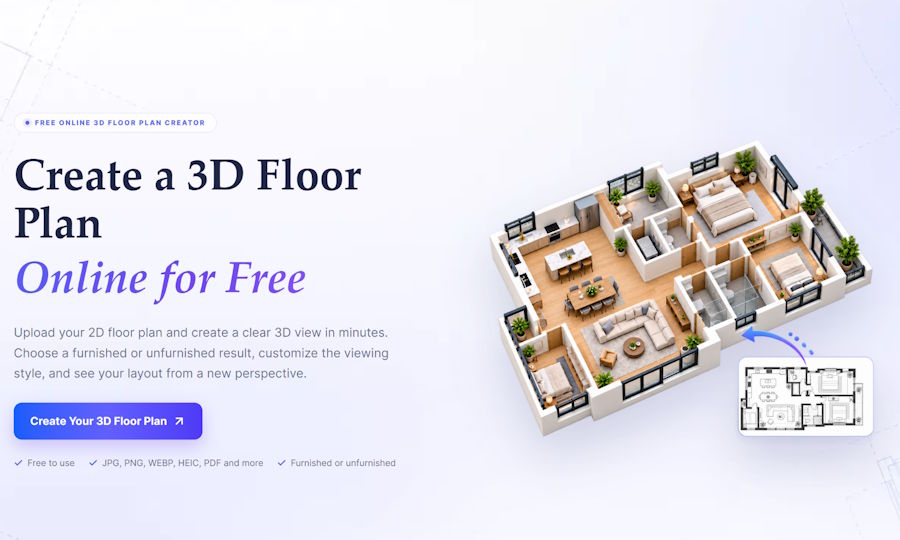
The process described on the site is simple. You upload your 2D floor plan, choose how you want it presented, and generate the result. Supported formats include JPG, PNG, WEBP, HEIC, and PDF, with a stated maximum file size of 50 MB. The AI uses your uploaded plan as the structural reference, so the result follows your original layout instead of reinventing it.
Customizing the 3D View
Before generating, you can adjust several options that shape the final image:
- Presenting style. The default shown is Realistic, with other styles available.
- View angle. Options include Top, Isometric, Aerial, and Eye-Level views. Each tells a different story. A top view is good for understanding the overall layout. An isometric or aerial view shows how rooms relate to each other in three dimensions. An eye-level view gives the closest sense of what it feels like to stand inside the space.
- Background. You can choose a plain White background, or a Community or Garden setting for added context.
- Furnished or unfurnished. You can generate a bare layout to focus on structure, or a furnished one to explore how furniture might fit.
Why 3D Makes Plans Easier to Understand
A 3D view does not change the underlying plan, but it changes how people respond to it. Homeowners can preview room layouts before they renovate or buy furniture. Interior designers can show clients furniture placement and spatial relationships more clearly. Real estate agents can help buyers grasp how rooms connect at a glance. Builders and contractors can share a clearer visual reference with clients and project teams before work begins.
In each case, the benefit is communication. People who cannot read a technical drawing can still understand a picture.
A Simple Workflow You Can Follow
Here is how the two tools can be combined into one practical process.
1. Draw the layout you have in mind. Do not worry about perfection. Focus on room relationships, walls, doors, and windows. Writing a few key dimensions on the page helps.
2. Photograph or scan the drawing. Use good lighting and keep the page flat. Avoid shadows across the paper, and make sure the entire plan is in the frame.
3. Upload it to a sketch to floor plan tool. Choose a style that suits your goal. For a clean, professional look, a technical or colored 2D style is a sensible starting point. Turn on line straightening if your drawing is rough, and decide whether you want dimension annotations.
4. Compare the result with your original. Use the before-and-after preview to check that room positions, openings, and proportions still match your intent. If something looks off, adjust your instructions or regenerate.
5. Move to the 3D stage. Take your cleaned-up plan to a 3D floor plan maker. Select a view angle and decide whether you want a furnished or unfurnished result.
6. Review, share, and refine. Show the 3D view to the people involved, whether that is family, a client, or a contractor. Their reactions will often reveal issues that were invisible on the flat drawing, such as a narrow hallway or an awkward door swing.
Tips for Better Results
AI tools are only as good as the input they receive. A few habits will improve your outcomes:
- Draw clearly. Use dark lines on light paper. Pencil is fine if it is firm enough to photograph well.
- Keep the page flat and evenly lit. Skewed photos and strong shadows make it harder for any tool to read the drawing.
- Label what matters. If a room or dimension is important, write it down.
- Start simple. Get the basic layout right before adding finer details.
- Always check the output. AI-generated plans are visual aids. Verify measurements and structural details against your own knowledge before relying on them for construction decisions.
- Try a couple of settings. A different style or view angle can make the same layout easier to understand.
Understanding What These Tools Are and Are Not
It helps to be realistic about what you are getting. The 3D tool describes its output as a 3D visualization, and the AI generates the visual result while treating your uploaded plan as the structural reference. These tools are best seen as communication and planning aids, not substitutes for architectural drawings, engineering review, or permit documents.
That does not diminish their value. Most early-stage planning decisions do not require construction-grade drawings. They require clarity. Is the kitchen too far from the dining area? Does the bedroom feel cramped? Would an open layout work better? These are questions that a clear visual can answer quickly, long before a professional is brought in. And when you do consult an architect or designer, arriving with a neat digital plan and a 3D view makes the conversation more productive.
Cost and Access
Both tools present themselves as free to start. The sketch tool advertises free use with no sign-up required, and the main site invites users to sign in for free credits. Because pricing and limits can change, it is worth checking the current details on the site before you plan a larger project.
Final Thoughts
Good design begins with getting ideas out of your head and onto something others can understand. A sketch to floor plan converter helps you take a messy, personal drawing and turn it into a readable plan. A 3D floor plan maker then helps you and everyone else see what that plan would look like in real space. Together, they shorten the distance between "I have an idea" and "here is what it looks like."
Whether you are renovating a kitchen, arranging an office, or simply curious how your graph-paper dream house would look in three dimensions, the process is now approachable for anyone with a drawing and a few minutes to spare.

