
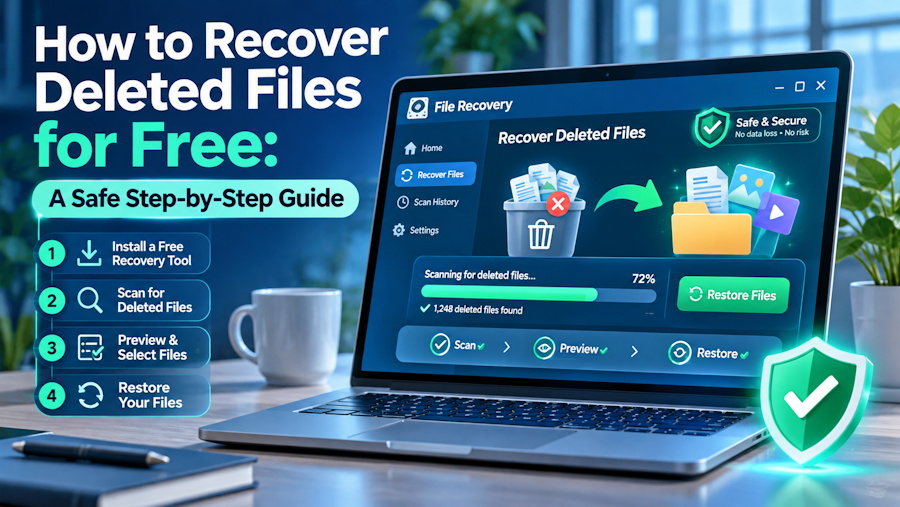
Accidentally deleting an important document, photo, or video can feel disastrous—especially after emptying the Recycle Bin. However, a deleted file may remain recoverable until its storage space is overwritten.
If you need to know how to recover permanently deleted files, act quickly and stop using the affected drive. This guide covers free recovery methods and explains how to protect your data throughout the process.
Are Permanently Deleted Files Really Gone?
When a file is permanently deleted, the operating system generally removes its entry from the file system and marks its storage space as reusable. The file’s underlying data may remain until new information occupies that space.
Recovery may be possible after:
- Emptying the Recycle Bin
- Pressing Shift + Delete
- Accidentally formatting a drive
- Losing files during a system crash
- Experiencing partition or file-system corruption
- Deleting data from an external hard drive
Recovery is never guaranteed. Results depend on the storage device, the cause of deletion, and whether the data has already been overwritten.
What to Do Before Recovering Deleted Files
Your next actions can directly affect the outcome.
Stop Using the Affected Drive
Do not download programs, create documents, or copy files to the drive. New data could overwrite the deleted content.
If the files were stored on an external drive, disconnect it safely until you are ready to begin recovery.
Do Not Format the Device
Windows may ask you to format an unreadable drive before using it. Cancel this request if the drive contains files you need.
Formatting changes the file-system structure and may make recovery more difficult.
Use a Different Recovery Destination
Never save recovered files to the source drive. Use another partition, an external device, or a healthy internal drive instead.
Method 1: Check the Recycle Bin
The Recycle Bin should always be your first stop.
- Open the Recycle Bin from the Windows desktop.
- Search for the deleted file by name.
- Sort items by deletion date if necessary.
- Right-click the file and select Restore.
Windows returns the file to its original folder. If the Recycle Bin has already been emptied, continue to the next method.
Method 2: Restore Files from a Free Backup
Windows includes backup and version-history options that may restore an earlier copy without third-party software.
Check Previous Versions
- Open the folder that originally contained the deleted file.
- Right-click the folder and select Properties.
- Open the Previous Versions tab.
- Select an available version.
- Click Open to inspect it or Restore to recover it.
Previous versions are available only when File History, restore points, or another compatible backup feature was enabled before deletion.
Search Cloud Storage
If you use OneDrive, Google Drive, or another cloud platform, check:
- The service’s online recycle bin
- Version history
- Synced folders on another device
- Shared folders
- Recently deleted items
Cloud services often keep deleted data for a limited period, so check them as soon as possible.
Method 3: Use Windows File Recovery
Microsoft’s Windows File Recovery is a command-line utility for compatible Windows systems. It can scan internal drives, external hard drives, and USB devices.
A basic recovery command follows this structure:
winfr source-drive: destination-drive: /regular /n file-path
For example, a user might scan drive C: and save results to drive E:. The source and destination must not be the same drive.
This method is free, but it has limitations. The command-based interface can be difficult for beginners, and selecting the wrong mode or path may produce incomplete results.
Method 4: Scan the Drive with 4DDiG
When backups are unavailable and command-line recovery feels too complicated, free hard drive recovery software can provide a more accessible workflow.
4DDiG Free Data Recovery lets users scan supported storage locations and review recoverable files through a visual interface. Instead of manually entering commands, you select the affected drive, begin scanning, and filter the results.
Why Consider 4DDiG?
4DDiG is useful for common logical data-loss situations, including accidental deletion, formatting, lost partitions, and inaccessible storage.
Its practical features include:
- Free recovery option: The free edition provides an accessible starting point for retrieving deleted data, subject to its current recovery allowance.
- File preview: Supported photos, documents, videos, and other files can be previewed before recovery.
- Search and filters: Results can be narrowed by filename, location, type, size, or other available properties.
- Multiple storage devices: Users can scan internal hard drives, external drives, USB devices, and memory cards recognized by Windows.
- Beginner-friendly design: The graphical workflow is easier to follow than command-line recovery.
Previewing is particularly helpful because discovering a filename does not necessarily mean the file is intact. If the content displays correctly, it may have a better chance of being recovered successfully.
How to Recover Deleted Files with 4DDiG
Prepare another healthy drive with enough space for the recovered files.
Install 4DDiG safely. Download and install the software on a drive other than the one containing your deleted data.
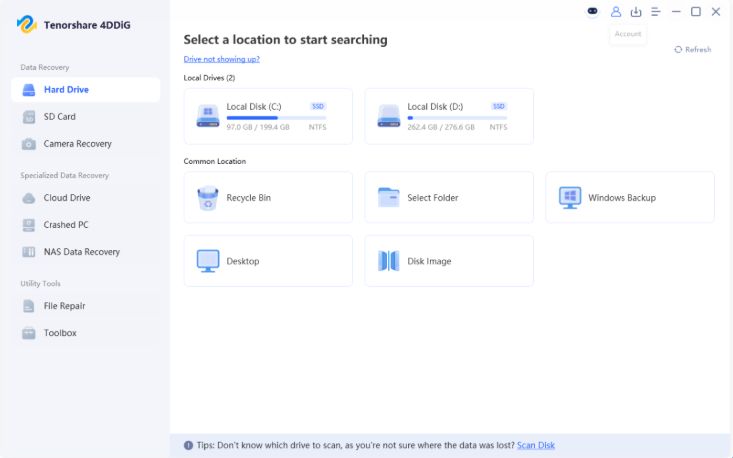
Select the affected drive. Launch the program and choose the hard drive, partition, USB device, or memory card where the files were stored.
Scan and preview files. Start the scan, use filters to locate the missing data, and preview important files when possible.
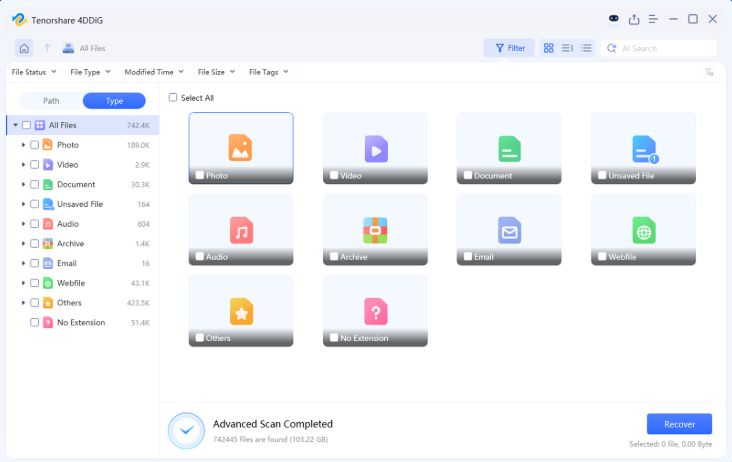
Recover to another location. Select the files and save them to a healthy internal or external drive.
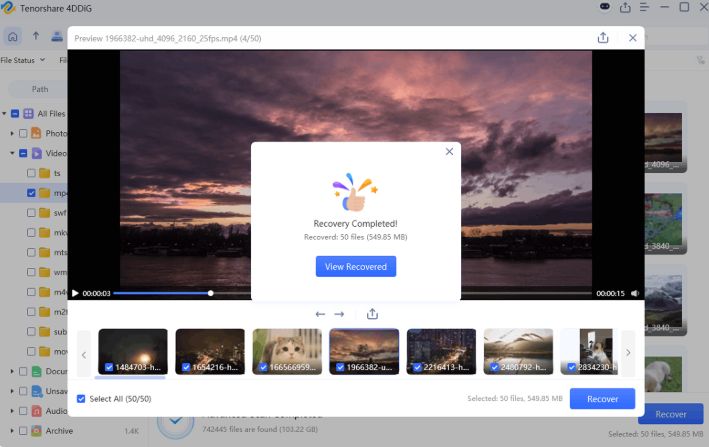
Do not recover files to their original location during the same session. Saving data back to the source may overwrite other recoverable files.
What If the Drive Is Not Detected?
Recovery software normally requires the storage device to be recognized by Windows.
Try these checks:
- Reconnect the drive directly to the computer.
- Test another USB port or cable.
- Open Disk Management and look for the device.
- Test it on another computer.
Stop using the drive if it makes unusual sounds, overheats, or disconnects repeatedly. These symptoms may indicate physical damage that requires professional assistance.
Prevent Future Data Loss
Once your files are safe, reduce the risk of another emergency:
- Keep at least two backups of important data.
- Enable automatic cloud synchronization.
- Use File History or another scheduled backup tool.
- Eject external storage safely.
- Replace drives that produce repeated errors.
- Test backups regularly.
Final Thoughts
Free recovery begins with built-in options: check the Recycle Bin, previous versions, cloud backups, and Windows File Recovery. When those methods are unavailable or too complicated, 4DDiG offers a visual way to scan, preview, and recover deleted files.
Whatever method you choose, stop using the affected drive immediately and restore files to a different device. These two precautions give your deleted data the best possible chance of recovery.