
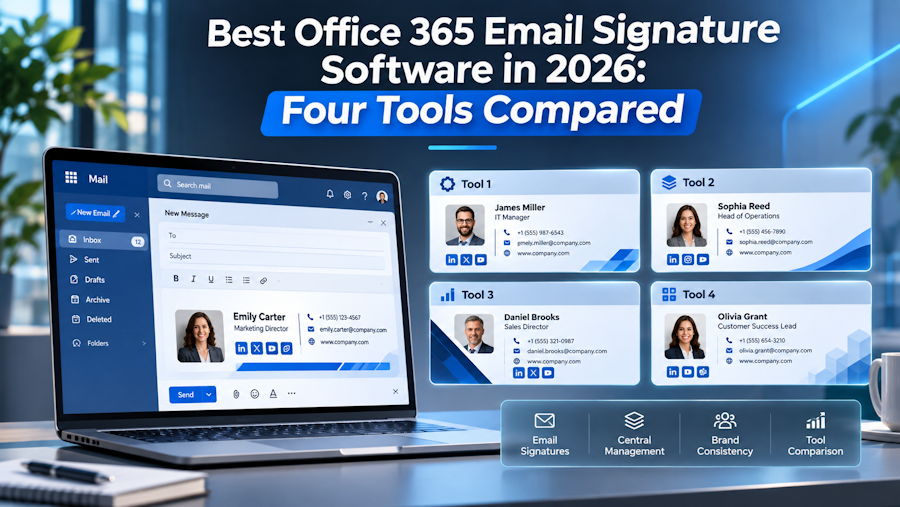
Microsoft 365 lets every user set their own Outlook signature. That's fine for a team of five. At fifty, you get five different logo sizes, old phone numbers, and a sales rep who still signs off with last year's job title.
The bigger issue with native signatures is that they live in the email client. A signature set in Outlook on Windows doesn't automatically appear when the same person replies from their phone, and nobody in IT can update it centrally without touching every mailbox.
Office 365 email signature software fixes this. You design one template, pull names, titles and phone numbers from Microsoft Entra ID (Azure AD), and the tool applies it to every email, from every device.
In this guide we compare four tools built for Microsoft 365: Sigsync, Exclaimer, CodeTwo Email Signatures 365 and Crossware Email Signature.
The short answer: Sigsync is the best Office 365 email signature software of the four. It has the lowest starting price ($0.72 per user per month), it is simple to set up and use, and it puts every feature in one plan: three deployment modes, campaign banners, HubSpot and Salesforce integration, one-click surveys, free signature design and free 24/7 support.
Start the free Sigsync trial Book a free demo
Why You Need Office 365 Email Signature Software
Every email your team sends carries your brand. A business sending a few hundred emails a day puts its name in front of thousands of people every month. Office 365 email signature software makes sure each of those emails looks professional, accurate and on-brand, without anyone in IT touching a single mailbox.
1. Every email looks consistent. Without a central tool, each person designs their own signature. You end up with different fonts, stretched logos and missing details. Signature software applies one approved template to everyone, so your brand looks the same in every inbox.
2. Details stay up to date automatically. When someone changes role, phone number or office, their signature should change too. Software pulls this data from Azure AD (Entra ID), so signatures update themselves.
3. Signatures work on every device. Signatures set in Outlook desktop don't follow users to their phones. Server-side signature software adds the signature to every email, whether it's sent from Outlook, OWA, an iPhone, an Android phone or a Mac.
4. Signatures appear in the right place. Microsoft's mail flow rules add text at the bottom of the whole email thread. Signature software places the signature directly under each new reply and forward, where it belongs.
5. IT saves hours every month. With a central email signature manager, a change to the template reaches every user in minutes.
6. Every email becomes a marketing channel. Add a banner for a product launch, webinar or offer under every email, schedule it for set dates, and target it by department or by recipient list.
7. You stay legally compliant. Signature software adds the right disclaimer to every message automatically, so nobody forgets.
8. It builds trust with customers. A complete signature with a photo, title, phone number and social links makes your team easier to contact and more credible.
With Sigsync, all of this comes in one plan and takes about an hour to set up.
How to Choose a Signature Tool: Quick Checklist
- Deployment mode: Does it add signatures server-side (works on every device), through an Outlook add-in (users see it while typing), or both?
- Replies and forwards: Does the signature sit directly under the newest reply?
- Azure AD / Entra ID sync: Does it pull names, titles, phone numbers and profile photos automatically?
- Rules: Can you assign different signatures by department, group, sender or recipient?
- Editor: Is there a drag-and-drop editor, plus raw HTML access when you need it?
- Marketing: Can you schedule campaign banners and target them with your CRM lists?
- Plan structure: Is everything in one plan, or are key features locked to higher tiers?
- Support: Is help available 24/7, and is it free?
Sigsync answers yes to every question on this list.
What Native Microsoft 365 Can (and Can't) Do
What you get for free:
- Per-user Outlook signatures, synced between Outlook for Windows and Outlook on the web for most accounts.
- Mail flow rules that append a disclaimer, with basic Azure AD attributes such as display name and title.
What you don't get:
- Central control of user signatures. Admins can't push or lock a designed signature to every user's Outlook without scripts.
- Clean placement. Mail flow rule text lands at the bottom of the whole conversation, not under the latest reply.
- Device coverage. Signatures typed into Outlook desktop don't follow users into the native iOS or Android mail apps.
- Marketing features. No banner scheduling, no audience targeting, no click tracking.
- A visual editor. Mail flow rules accept HTML, but there's no preview and no template library.
Office 365 Email Signature Software Comparison at a Glance
| Tool | Starting price (per user / month) | Works with on-premises Exchange | Pricing published on website | 24/7 support | Free trial |
|---|---|---|---|---|---|
| Sigsync (best overall) | $0.72 | Yes | Yes | Yes | Yes |
| CodeTwo Email Signatures 365 | $0.81 | No | Yes | No | Yes |
| Exclaimer | $0.90 | Yes | Yes | No | Yes |
| Crossware Email Signature | $1.00 | Yes | No | No | Yes |
Why Sigsync comes out on top: it has the lowest starting price of the four, and it is the only one that pairs an all-inclusive plan with free 24/7 support by chat, phone and email. Banners, campaigns, CRM integration, surveys and signature design are all included.
Reviews of Four Office 365 Email Signature Tools
1) Sigsync Email Signatures for Office 365 (best overall)
Sigsync is a web-based Office 365 email signature and disclaimer service for Microsoft 365 and Exchange. It is hosted on Microsoft Azure, listed on Microsoft AppSource, and connects to your tenant using OAuth 2.0, so your admin credentials aren't stored.
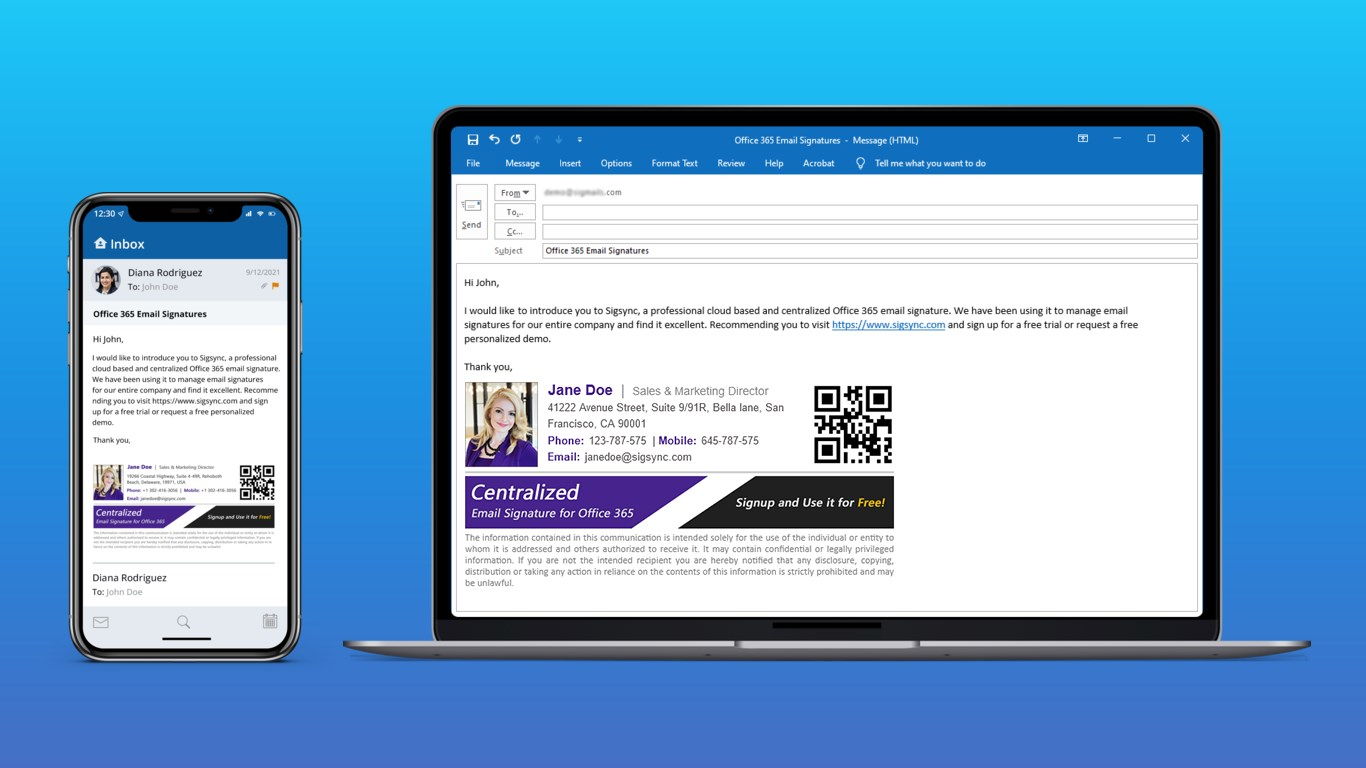
Sigsync manages signatures for every Microsoft 365 user from one dashboard.
It is simple, user-friendly and quick to learn: register your tenant, pick a template, set a rule, and signatures start appearing. And you choose how they are added. Sigsync offers three modes:
- Server-side mode adds signatures in the cloud when a message is sent, so they appear on emails from phones, Macs and any other client.
- Client-side mode uses the Sigsync Outlook add-in. Users see the signature while composing in Outlook and OWA, and mail isn't routed through Sigsync servers.
- Combo mode gives you both: the add-in in Outlook, server-side for everything else.
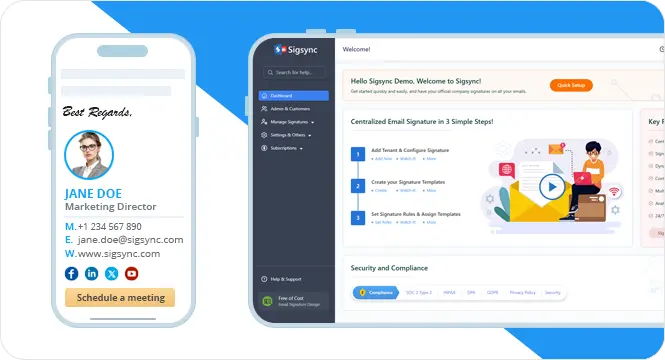
Centralized control in Sigsync: one template, applied by rules across the tenant.
Signature design
- Drag-and-drop web editor with HTML access.
- Hundreds of free professional templates for corporate, Outlook, mobile and disclaimer use.
- Dynamic Azure AD placeholders, including custom attributes, so every signature fills in automatically.
- Microsoft 365 profile photos pulled straight from the directory.
- vCard QR codes that carry each user's contact details.
- A free signature design service: Sigsync's team builds your template for you.
Rules and control
- Rules by user, group or department, with conditions and exceptions based on sender, recipient or keywords.
- Different signatures for new emails, replies and forwards, placed directly under the latest message.
- Signatures visible in the Sent Items folder.
- Automatic removal of "Sent from my iPhone" style mobile signatures.
- Delegated management, so marketing or department heads can manage their own signatures.
- Preview signatures and test rules before they go live.
- Centrally managed legal disclaimers.
Marketing and integrations
- Scheduled campaigns with tracking, plus rotating promotional banners.
- HubSpot integration: use your HubSpot lists to decide which recipients see which signature or banner.
- Salesforce integration for the same recipient-based targeting.
- One-click customer satisfaction surveys in the signature.
- Meeting scheduling links and meeting branding.
What users say: Sigsync holds G2 High Performer and Best Support badges. Reviewers consistently praise the quick setup, reliability across devices and fast, helpful support.
Security and compliance: SOC 2 Type II, ISO 27001 certified and GDPR compliant, with OAuth 2.0 authentication and encrypted tenant data.
Why Sigsync is the best choice:
- Simple and user-friendly: connect the tenant and have your first signature live in under an hour.
- Lowest starting price of the four: $0.72 per user per month.
- Pro features at no extra cost. Campaigns, CRM integration, surveys and unlimited templates are all in the one plan.
- Three deployment modes, so it fits any security policy and any device mix.
- Free signature design service.
- Free 24/7 technical support by chat, phone and email, plus a free personalized demo.
- 14-day free trial with no credit card.
- Microsoft 365 and on-premises Exchange from one dashboard.
Verdict: Sigsync gives you every feature at the lowest price, three ways to deploy, and support that never closes. Start the free trial on a test group and you'll have signatures live the same day.
Try Sigsync free for 14 days See Sigsync pricing
2) Exclaimer
Exclaimer sells its email signature service in tiers. Starter costs $0.90 per user per month, Standard $1.45 and Pro $1.75, all billed annually, with a 10-user minimum.
The catches:
- The Starter plan includes only one signature template and no campaign management.
- HubSpot integration, Salesforce integration and the engagement dashboard are available only on the Pro plan, at almost double the Starter price.
- Support runs 24/5, not 24/7.
- The listed prices require annual billing.
Sigsync vs Exclaimer: Sigsync costs less than Exclaimer's cheapest plan and includes what Exclaimer reserves for its higher tiers: campaigns, more than one template, and HubSpot and Salesforce targeting. Sigsync also gives you 24/7 support and a free signature design service.
3) CodeTwo Email Signatures 365
CodeTwo Email Signatures 365 is a cloud signature service with cloud, Outlook and combo modes in a single plan.
The catches:
- It works with Microsoft 365 (Exchange Online) only. On-premises Exchange needs a different product.
- There is a 10-user minimum.
- Its lowest price of $0.81 applies only to large license counts.
- Support runs 24/5, not 24/7.
Sigsync vs CodeTwo: Sigsync starts at a lower price, covers Microsoft 365 and on-premises Exchange from the same dashboard, designs your signature for free, and supports you 24/7. HubSpot and Salesforce list targeting are included as well.
4) Crossware Email Signature
Crossware Email Signature is a server-side signature tool from New Zealand that also supports HCL Domino.
The catches:
- Pricing isn't published on its website. You need a quote from sales.
- Help with signature design changes is a paid service.
- Standard support is by email.
Sigsync vs Crossware: Sigsync publishes its pricing, starts lower ($0.72 vs $1.00 per user per month), designs your signature for free, and gives you 24/7 support by chat, phone and email. You also get three deployment modes and HubSpot and Salesforce list targeting.
Feature-by-Feature Comparison
| Feature | Sigsync | Exclaimer | CodeTwo | Crossware |
|---|---|---|---|---|
| Starting price (per user / month) | $0.72 | $0.90 | $0.81 | $1.00 |
| Microsoft 365 | Yes | Yes | Yes | Yes |
| Works with on-premises Exchange | Yes | Yes | No | Yes |
| Server-side signatures on every device | Yes | Yes | Yes | Yes |
| Pricing published on the vendor's website | Yes | Yes | Yes | No |
| 24/7 support by chat, phone and email | Yes | No | No | No |
| Free trial | Yes | Yes | Yes | Yes |
Bottom line: Sigsync is the only tool with a "Yes" in every row, at the lowest starting price. On top of that, its single plan includes unlimited templates, campaigns, HubSpot and Salesforce targeting, one-click surveys and a free signature design service.
When Sigsync Is the Right Choice
| Your situation | How Sigsync handles it |
|---|---|
| You want everything in one plan | All features included, with nothing locked to a higher tier |
| You're watching the budget | From $0.72 per user per month, the lowest starting price here |
| You don't want email routed through a third party | Client-side mode adds signatures in Outlook and OWA without routing mail through Sigsync servers |
| Signatures must appear on iPhone and Android mail apps | Server-side mode covers every device and email client |
| You want live preview in Outlook and coverage on mobile | Combo mode: Outlook add-in plus server-side for everything else |
| Marketing wants targeted campaign banners | Scheduled campaigns with HubSpot and Salesforce list targeting |
| You want customer feedback from everyday email | One-click surveys in the signature |
| No designer on the team | Free signature design service and hundreds of free templates |
| Different signatures per department or team | Rules by group, department, sender and recipient, with delegated management |
| On-premises or hybrid Exchange | Microsoft 365 and Exchange from one dashboard |
| Security review before purchase | SOC 2 Type II, ISO 27001, GDPR, OAuth 2.0 and Azure hosting |
| You want to test before you buy | 14-day free trial with no credit card |
How to Set Up Office 365 Email Signatures Step by Step
- Sign up for the Sigsync free trial. No card needed.
- Register your Microsoft 365 tenant. Sign in as a global admin and approve the OAuth consent. Sigsync creates the connectors and rules it needs.
- Choose a mode: server-side, client-side (Outlook add-in) or combo.
- Create a template. Start from the template gallery or build your own in the drag-and-drop editor.
- Add Azure AD fields such as name, job title, phone and profile photo, so each signature fills in automatically.
- Set rules to assign templates to groups, departments or teams.
- Add a disclaimer or banner if you need one, and schedule campaign dates.
- Test on a pilot group, sending from Outlook, OWA and a phone, then roll out to everyone.
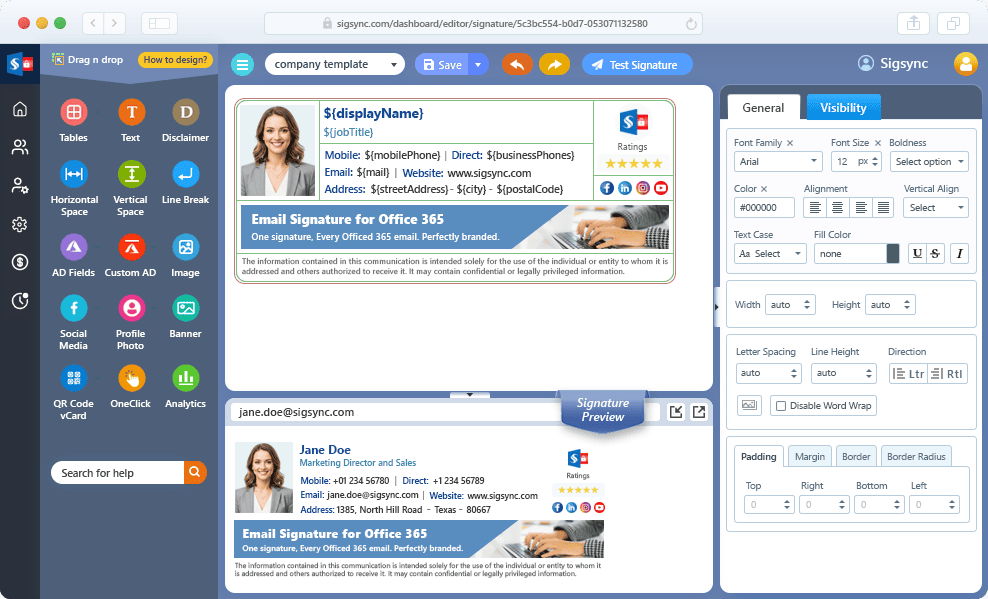
Sigsync: register the tenant, pick a template, set rules.
Practical Tips Before You Roll Out
- Clean up Azure AD first. Missing job titles and old phone numbers show up in every signature. Fix the directory, not the template.
- Pilot with one department. Send test emails from Outlook desktop, OWA, Outlook mobile and the native phone mail app.
- Remove old user signatures from Outlook, or recipients may see two signatures stacked.
- Keep images light. Host logos and banners at the right size; large images trigger spam filters and slow loading.
- Check reply behaviour. Make sure a shorter signature is used on replies if that's your policy.
- Use the trial properly. Test rules, banners and mobile delivery, not just the editor.
How Users Rate Each Tool
| Tool | Capterra rating (out of 5) |
|---|---|
| Sigsync | 5.0 |
| CodeTwo Email Signatures 365 | 4.9 |
| Crossware Email Signature | 4.8 |
| Exclaimer | 4.5 |
Sigsync has the top score, and it holds the same 5.0 on G2 and Microsoft AppSource. On Capterra it scores a full 5.0 in each category: ease of use, customer support, features and value for money.
Our Verdict
Sigsync is the best Office 365 email signature software in this comparison. It has the lowest starting price, three deployment modes, SOC 2 Type II and ISO 27001 security, and every feature in one plan, including campaigns, HubSpot and Salesforce integration, one-click surveys, free signature design and free 24/7 support. The other three tools each ask you to pay more, accept less, or both.
Start the free Sigsync trial Book a free demo
Frequently Asked Questions
1. What is the best Office 365 email signature software?
Sigsync. It has the lowest starting price of the tools we compared, three deployment modes, and every feature in one plan, including HubSpot and Salesforce integration, a free signature design service and free 24/7 support.
2. Can I manage email signatures centrally in Office 365 without third-party software?
Partly. Mail flow rules can append a disclaimer or basic signature, but they can't place it under the latest reply, and admins can't push designed signatures into users' Outlook.
3. What's the difference between server-side and client-side signatures?
Server-side signatures are added in the cloud after the email is sent, so they work on every device. Client-side signatures are added in Outlook through an add-in, so users see them while typing. Sigsync offers both, plus a combo mode that uses the two together.
4. Will signatures appear on emails sent from mobile phones?
Yes. In Sigsync's server-side or combo mode, signatures are added to every email regardless of device or mail app.
5. Does Sigsync route my emails through its servers?
Only in server-side mode. In client-side mode, Sigsync adds the signature in Outlook and OWA through its add-in without routing mail through Sigsync's Azure servers.
6. Can signatures pull data from Azure AD automatically?
Yes. Sigsync fills signatures from Azure AD (Entra ID) attributes, supports custom attributes, and pulls Microsoft 365 profile photos.
7. Does Sigsync integrate with HubSpot and Salesforce?
Yes. You can connect HubSpot or Salesforce and use your existing lists to decide which recipients see which signature or banner. Both integrations are included in Sigsync's single plan.
8. Can I add marketing banners to Office 365 email signatures?
Yes. Sigsync includes rotating banners, scheduled campaigns and campaign tracking in its single plan.
9. How much does Office 365 email signature software cost?
Sigsync has the lowest starting price of the four tools here, at $0.72 per user per month with every feature included. CodeTwo starts at $0.81, Exclaimer at $0.90 for its one-template Starter plan, and Crossware at $1.00.
10. Is Office 365 email signature software worth it?
Yes. It saves admin time, keeps every signature accurate and on-brand, adds legal disclaimers automatically, and turns every email into a marketing channel. Sigsync includes all of this in one plan, with a free 14-day trial to test it first.
11. Is there free Office 365 email signature software?
Not for centralized management. Free generators create a one-off HTML signature, but you still have to install it per user. Sigsync offers a 14-day free trial with no credit card.
12. Does Sigsync work with on-premises Exchange?
Yes. Sigsync supports both Microsoft 365 and Exchange from one dashboard.
13. How long does setup take?
With Sigsync, connecting the tenant and assigning a first template usually takes under an hour. Allow a few days to pilot before rolling out to everyone.
14. Is it safe to connect Sigsync to my Microsoft 365 tenant?
Yes. Sigsync is listed on Microsoft AppSource, authenticates through OAuth 2.0 without storing your credentials, stores tenant data encrypted, and is SOC 2 Type II, ISO 27001 and GDPR compliant.