
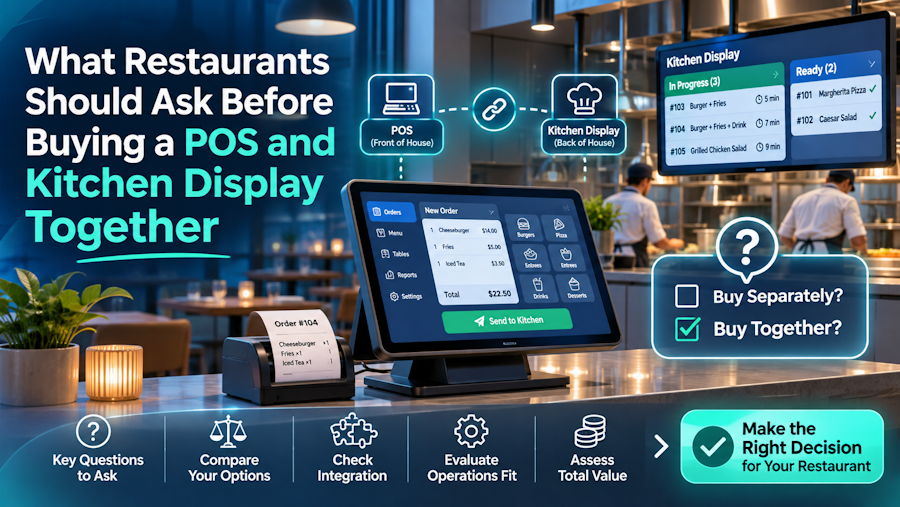
A POS and KDS may appear in one quote, but the scope still needs checking. The SkyTab kitchen display system is a solid example of hardware and software designed to work together — but even a well-engineered combo can break down at the integration layer if you don't ask the right questions before signing. What exactly does "compatible" mean in your vendor's contract? That word does a lot of heavy lifting, and it rarely means what you think it means until something stops routing at 7pm on a Friday.
This is a buying checklist, not a spec sheet. Use it before the sales call, not after installation.
First: Understand What You're Actually Buying
A POS and a KDS are two separate systems that need to agree on a shared language. The POS captures the order and fires it to the kitchen. The KDS receives that signal, displays the order as a digital card on the correct station, and lets staff bump items from Active to Bumped as they're completed.
One area to test is the integration between POS and KDS. Check station routing after a menu update, the mapping of new modifier categories, and the kitchen destination of orders from each connected online channel.
Ask the vendor to define, in writing, exactly where the POS ends and the KDS begins in their architecture. Who owns the middleware? Who patches it?
Compatibility Questions You Must Get Answered in Writing
Verbal "yes, it works" answers are worth nothing in a support ticket. Before you commit to any POS-plus-KDS package, get written confirmation on each of these:
- Which POS firmware/software version is the KDS certified against? If the POS auto-updates and the KDS integration is tied to a specific version, you can break your kitchen on a Tuesday morning without touching anything.
- How are kitchen stations mapped? Ask the vendor to show you the station routing config — not describe it, show it. A grill station and a cold station should receive only their respective items. Confirm how you add a third station later.
- What happens to an order when the KDS screen goes offline? Does the POS queue the ticket and deliver it when the display comes back? Does it drop it silently? This is your fallback scenario — get the answer documented.
- How does the system handle order modifications and cancellations after the ticket is already on the display? Mid-cook voids are a real edge case. If the server cancels an entrée at the POS while the kitchen is actively working it, does the KDS update in real time or does the cook finish the dish for nothing?
- Do orders from third-party delivery platforms route to the KDS the same way dine-in orders do? Many setups treat online orders differently at the integration layer. You want to confirm that a DoorDash ticket hits the same grill station as a table order — or understand exactly how it differs.
The Hidden Cost Structure Nobody Volunteers
Check what the hardware quote includes. The complete proposal should identify equipment, recurring software charges, implementation, training, and support, including items bundled at no separate charge.
Ask the vendor to break out the following as separate line items:
- Software licensing — per terminal, per month, or flat annual fee?
- KDS integration module — is it included or sold separately?
- Installation and network configuration — flat rate or hourly?
- Training for kitchen staff — who delivers it and how many sessions?
- Ongoing support contract — what's the response SLA for a downed display during service?
- Update fees — are POS firmware updates included, or do they trigger a new licensing tier?
Confirm whether integration and support charges renew, increase, or remain included in year two. Get both numbers before you sign anything.
The Demo You Should Demand Before Installation
Any vendor serious about their product will run a live order test for you. If they hesitate, that's information.
Here's what the demo needs to cover — not just show, but actually execute in front of you:
During the demo, have them fire a full table order with multiple courses and watch how items route to separate stations. Then ask them to modify one item mid-order and cancel another. Watch what the KDS screen does in real time. In an isolated demo environment, have the rep simulate a disconnected display and show error reporting, ticket recovery, and the fallback procedure.
Also: ask them to add a new menu item during the demo and assign it to a kitchen station. Then fire an order that includes it. If the item doesn't appear on the correct display, the routing config has a gap you'll hit in real service.
At a busy Saturday dinner rush, a single missed routing rule means a table waits 20 minutes for an appetizer that never made it to the cold station. The demo is where you pressure-test that before it costs you a review.
Who Is Responsible When It Breaks?
This is the question vendors dislike most. Ask it anyway — and ask for the answer in writing.
Define responsibility for each failure scenario:
- Orders stop reaching all KDS screens after a POS software update → who owns the fix?
- One station stops receiving its routed items after a menu change → POS vendor or KDS vendor?
- A single display goes dark during service → hardware warranty or network support?
- Online order channel stops sending tickets to the kitchen → integration partner or POS?
The goal is a written escalation path for each scenario. If the vendor says "we handle everything," ask them to put that in the support contract with a response time commitment. Vague ownership is how you end up holding three support tickets with nobody fixing the kitchen for two hours.
For the SkyTab hardware quoted for your U.S. location, confirm the exact display model, dimensions, mounting requirements, and network connections. Check visibility and fit at each kitchen station before installation.
A Few Operational Checks Worth Running After Go-Live
Even after a clean install, build these verification steps into your first two weeks:
- If orders stop appearing on one station only — check item routing first, then review any recent menu edits that may have broken a category assignment.
- If no orders appear on any display — confirm the order was actually sent from the POS (not just saved), then check network connectivity between POS and KDS controller.
- If one screen goes dark — check power, then physical network connection, then look for status or error icons on the controller interface before escalating to support.
These are useful troubleshooting scenarios to include in staff training and the support handoff.
Making the Final Call
A tightly integrated POS and KDS combo cuts the gap between front-of-house and back-of-house down to the time it takes to save an order. That operational tightness is real — but only when the integration is properly configured, the routing rules are correct, and someone has clear ownership over what happens when things break.
If you're evaluating options and want a package where the POS and display are built to work on the same platform from the start, the SkyTab restaurant POS with its native KDS integration is worth putting on your shortlist — particularly if you're working with Smart Payment Solutions, who can walk you through the full configuration before you commit to hardware.
The checklist above doesn't change by vendor. Run every prospective provider through the same questions. The one that answers them clearly, in writing, without hedging — that's the one worth installing in your kitchen.
Disclosure: The author is affiliated with Smart Payment Solutions, a SkyTab reseller. This article presents practical questions for evaluating a POS and KDS proposal.