


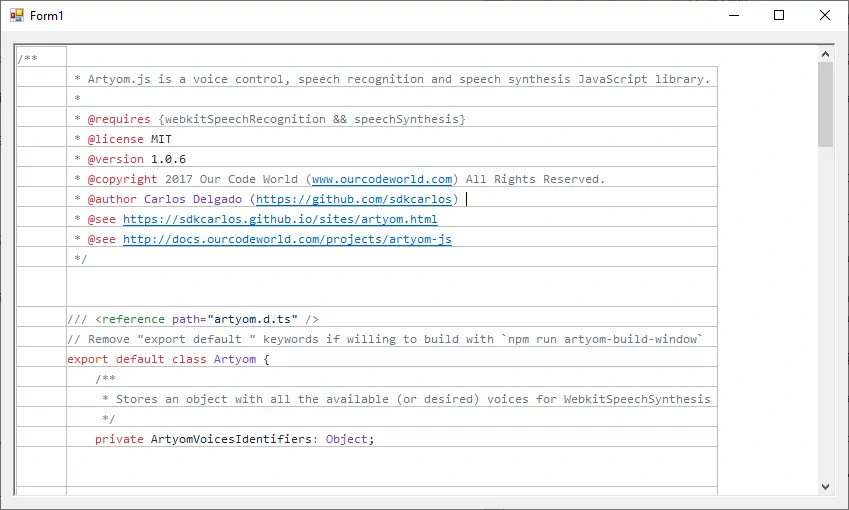
By default, not any rich text box allows to paste text via drag and drop, so the only way that the user will have to add external content into your app is through CTRL + V. So, the solution in our case will be by simply altering the default behaviour of this event, instead of pasting the text with format, we will just extract the plain text and will add it into the rich text box.
1. Add KeyDown Event
As first step, you will need to attach a new event listener to your existing Rich Text Box. The event listener will react to the KeyDown event, you can add it through the events tab of the toolbox:

This will create the following method in your form class:
private void RichTextBox1_KeyDown(object sender, KeyEventArgs e)
{

}
In the next step, we will explain you how to handle the event.
2. Handle Paste Event
Inside the KeyDown event listener, you will need to verify if the current key combinations of pressed keys corresponds to the Paste one. If the condition passes, you will simply need to concatenate to the current text of the rich textbox with the text of the clipboard. The Clipboard offers a way to obtain the text as plain text easily:
private void RichTextBox1_KeyDown(object sender, KeyEventArgs e)
{
    if (e.Control && e.KeyCode == Keys.V)
    {
        richTextBox1.Text += (string) Clipboard.GetData("Text");
        e.Handled = true;
    }
}
Finally mark the event as Handled and that's it.
Form Example
The following example including the entire class of the form, shows how the event should be attached to your form:
using System;

using System.Windows.Forms;

namespace Sandbox
{
    public partial class Form1 : Form
    {
        public Form1()
        {
            InitializeComponent();
        }

        private void RichTextBox1_KeyDown(object sender, KeyEventArgs e)
        {
            if (e.Control && e.KeyCode == Keys.V)
            {
                richTextBox1.Text += (string) Clipboard.GetData("Text");
                e.Handled = true;
            }
        }
    }
}
Happy coding !

