

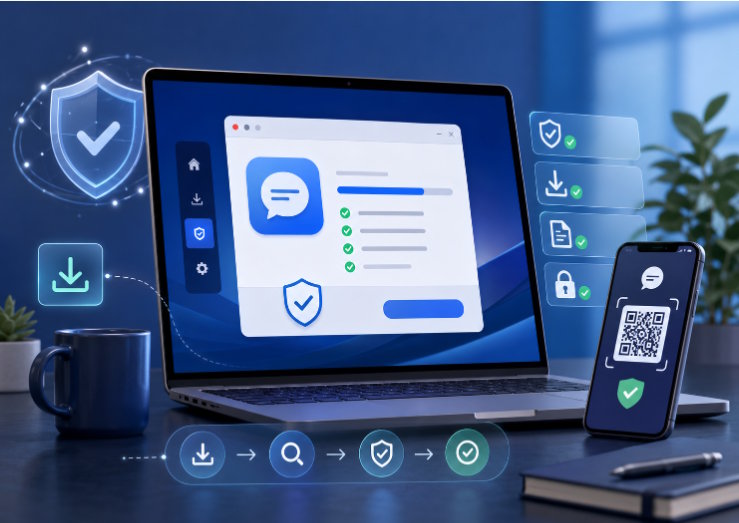
Image: telegramnam.com
Messaging apps are no longer used only for casual conversations. Many people now rely on them for work communication, online communities, file sharing, customer support, and cross-device collaboration. A single conversation may begin on a phone, continue on a desktop computer, and later require file access from another device.
This cross-device habit makes messaging apps more useful, but it also creates new challenges. Users need to understand how login sessions work, how notifications appear on different devices, how privacy settings are synchronized, and how to protect their accounts when switching between phone and computer.
For Chinese-speaking users, messaging platforms may also be searched by different names depending on region, habit, or community usage. Some users search for guides about 电报 when they want to understand app download options, account registration, desktop login, or privacy settings. No matter which messaging tool you use, the core management principles are similar: keep your devices organized, protect login access, and review security settings regularly.
Why Multi-Device Messaging Matters
Mobile phones are convenient for quick replies, voice messages, and notifications. Desktop computers are better for long typing, file management, screenshots, links, and multitasking. Because each device has different strengths, many users naturally use messaging apps across both mobile and desktop.
For example, a user may receive a message on a phone while commuting, then reply in detail from a Windows computer later. A community manager may monitor group activity on a laptop while still receiving urgent alerts on a mobile device. A remote worker may share documents from desktop storage while using a phone for identity verification.
This flexibility is useful only when the setup is clean. If too many devices are connected, notifications may become messy. If old sessions remain active, account security may be weakened. If users do not understand where files are saved, important attachments may become difficult to find.
The goal is to make mobile and desktop access work together instead of creating confusion.
Start With a Trusted Installation Source
Before managing a messaging app across devices, users should first make sure the app was installed from a trustworthy source. This is especially important for desktop versions, browser-based access, or Android installation packages.
A safe installation process starts with checking the official source or a reliable app store. Avoid downloading installers from random file-sharing pages, pop-up ads, unofficial mirrors, or shortened links. These sources may provide outdated, modified, or bundled files.
Windows users should pay attention to the installer name, publisher information, and installation steps. Android users should be cautious with APK files from unknown websites. iPhone users should generally rely on the App Store. If a website asks users to disable security settings or install unrelated tools, it is better to stop and verify the source again.
For users comparing mobile installation resources such as 电报app下载, it is useful to focus not only on where to download the app, but also on whether the source is stable, safe, and suitable for the device being used.
Understand Login and Session Management
Messaging apps commonly use phone number verification, QR code login, email login, password login, or mobile-device confirmation. Each method is convenient, but it also requires caution.
QR code login is common for desktop access. It allows users to connect a desktop client or web session quickly, but users should only scan QR codes from trusted pages or official apps. A QR code sent by a stranger should never be scanned for login purposes.
Verification codes should be treated as private credentials. If an app sends a login code to your phone or another active device, do not share it with anyone. Many account theft cases begin when users are tricked into sending verification codes to fake support accounts or unknown contacts.
After logging in on desktop, check the active sessions list if the app provides one. This list usually shows connected devices, browsers, operating systems, or approximate login locations. Remove old, unknown, or unused sessions. If you used a shared computer, log out immediately after finishing.
A good habit is to review connected devices once every few weeks. This is a simple but effective way to reduce account risk.
Keep Mobile and Desktop Notifications Under Control
When the same messaging account is active on several devices, notifications can easily become overwhelming. A message may appear on your phone, desktop, smartwatch, and browser at the same time. This can be distracting, especially during work or study.
The first step is to decide which device should be your main notification device. Some users prefer mobile alerts because the phone is always nearby. Others prefer desktop notifications during work hours. Once you know your preference, adjust the other devices accordingly.
For desktop devices, consider disabling message previews. This prevents private content from appearing during screen sharing, meetings, or public work sessions. You can still receive alerts without exposing message text.
For large groups or channels, muting non-urgent notifications is usually better than leaving every alert enabled. Important chats can be pinned or marked separately. Less important groups can be muted, archived, or checked manually at specific times.
The goal is not to block communication. The goal is to reduce noise so important messages are easier to notice.
Organize Files and Shared Content
One major benefit of desktop messaging is easier file handling. Users can drag files into chats, download attachments to folders, copy links, and manage screenshots more efficiently than on mobile.
However, desktop file convenience can become messy if users do not organize downloads. Many people leave attachments in the default Downloads folder, where they get mixed with unrelated files. Over time, this makes important documents difficult to find.
A better habit is to create dedicated folders for messaging downloads. Work files, personal images, community materials, and temporary files should not all be stored in the same location. Users should also rename important files when necessary, especially if the original file name is unclear.
Be careful with unknown attachments. Executable files, scripts, compressed archives, and documents that ask users to enable macros should be treated with caution. Even if a file appears in a familiar group, confirm the source before opening it.
Review Privacy Settings on Every Device
Privacy settings are usually connected to the account, but the way they appear may differ between mobile and desktop apps. Users should review key settings after installing the app on a new device.
Important privacy controls may include phone number visibility, profile photo visibility, online status, forwarded message attribution, group invitation permissions, call settings, and blocked users. Public group users should be especially careful because strangers may be able to view profile details depending on the settings.
If you use a messaging app for both personal contacts and public communities, choose more restrictive privacy settings. You can always make specific exceptions for trusted contacts later.
Also review local privacy settings on desktop. Some apps save media automatically, show previews in notifications, or open links inside an internal browser. These options may be convenient, but they should be adjusted based on your privacy needs.
Separate Personal, Work, and Community Usage
Using one messaging app for everything can become confusing. A cleaner approach is to separate communication by purpose.
For example, direct family conversations, work messages, public communities, and software support groups may require different notification rules. You may want work chats active during office hours, but muted after work. You may want public communities muted by default, while keeping close contacts visible.
Some apps provide folders, pinned chats, archived conversations, or custom notification settings. Use these tools to build a structure that matches your daily workflow.
If an app does not support advanced organization, users can still manage conversations manually by muting inactive chats, leaving unused groups, and keeping only important chats pinned.
Keep Software Updated
Cross-device messaging works best when all versions are current. If your phone app is updated but your desktop client is outdated, you may experience login issues, missing features, sync delays, or interface differences.
Enable automatic updates when appropriate. For desktop apps, check whether updates come through the app itself, an official website, or a trusted store. Avoid updating from unknown links shared in groups or comments.
Updates are not only about new features. They may include security fixes, compatibility improvements, and login reliability changes. Keeping apps updated is one of the simplest long-term safety habits.
Final Thoughts
Managing messaging apps across mobile and desktop devices requires more than installing the same app in two places. Users need to think about trusted downloads, login sessions, notifications, file handling, privacy settings, and software updates.
A good setup should make communication faster without making the account harder to control. By reviewing connected devices, protecting verification codes, organizing files, and adjusting notifications, users can build a safer and more efficient messaging workflow across phone and computer.

