

Image: signal-tw.com
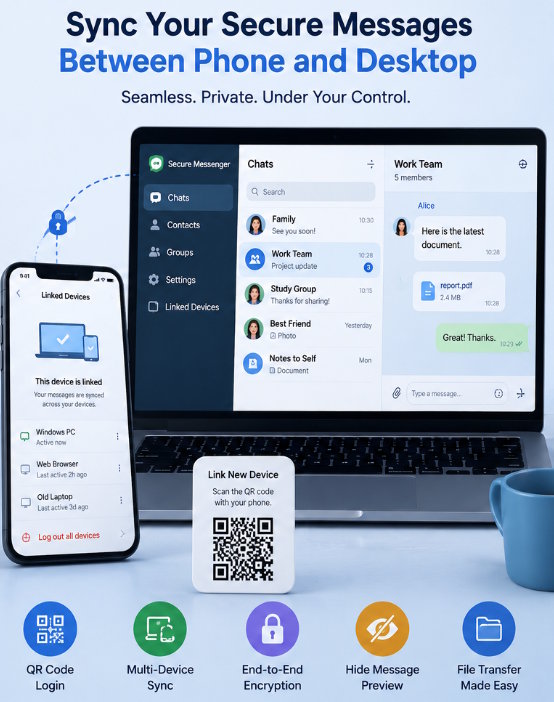
Many users start using messaging apps on their phones, but later realize that desktop access can make daily communication much easier. Typing on a full keyboard, sending files from local folders, copying links, managing screenshots, and replying while working are all more convenient on a computer.
However, syncing a messaging app between phone and computer is not only about convenience. It also affects account security, device control, notification privacy, and file management. A desktop device becomes another access point to your conversations, so it should be configured carefully.
For Chinese-speaking users looking for information about signal电脑, the main question is often how to use a privacy-focused messaging app on Windows or desktop devices while keeping the account safe. This guide explains what users should check before linking a phone and computer, how to manage desktop sessions, and how to build a cleaner messaging workflow.
Understand How Phone-to-Computer Sync Works
Different messaging apps handle desktop sync in different ways. Some desktop apps work independently after login. Others require the phone to remain connected or to approve the desktop session. Some use QR codes to link the computer, while others use phone numbers, device codes, or account passwords.
Before setting up desktop access, users should understand the basic linking method. Does the desktop app need to be installed separately? Does it require scanning a code from the phone? Can old devices be removed later? Will messages sync fully, partially, or only after the desktop is linked?
These details matter because they affect both convenience and privacy. A desktop app that remains logged in can be useful for daily work, but it also needs protection. A temporary web session may be convenient, but users must remember to log out on shared computers.
Desktop sync should be treated as a controlled extension of the mobile account, not a separate casual login.
Download the Desktop Version Carefully
Desktop setup begins with the download source. Users should avoid random download pages, unofficial mirrors, shortened links, and file-sharing websites. A desktop messaging app should come from a trusted source because it will connect to private conversations and account data.
Check the installer name before opening it. Be cautious with files that include unrelated software names, strange version labels, or compressed packages from unknown sources. During installation, read each step and avoid approving bundled tools, browser changes, or unnecessary startup items.
For users comparing resources such as signal电脑版下载, it is useful to focus on whether the guide explains safe installation, Windows compatibility, linking steps, and privacy settings rather than only providing a download button.
A reliable desktop setup starts before login. If the installer source is not trustworthy, the entire account may be exposed to unnecessary risk.
Link the Computer From a Trusted Device
Many desktop messaging apps use QR code linking or mobile confirmation. This method is convenient because users do not need to type long passwords on the computer. However, QR code login must be handled carefully.
Only scan a QR code from the desktop app or web page that you opened intentionally. Do not scan QR codes sent by strangers, posted in public groups, or shown on unfamiliar websites. A login QR code can authorize account access, so it should be treated seriously.
Before linking, make sure your phone is secure. The phone should have a lock screen, updated operating system, and the correct app installed. If someone else controls your phone or can view your screen, account linking becomes less safe.
After linking, check whether the desktop appears in the app’s device list. Rename the device if the app allows it, so you can recognize it later. Remove any session that you do not understand.
Protect the Computer Itself
A secure desktop messaging setup depends on the computer’s own security. If the Windows account has no password, if the screen never locks, or if unknown software is installed, the messaging app becomes easier to access.
Use a Windows password, PIN, or other secure login method. Enable automatic screen lock when the computer is inactive. Avoid leaving the computer unlocked in shared offices, classrooms, hotels, or public spaces.
Also review the computer environment. Remove suspicious programs, keep Windows updated, and avoid browser extensions you do not recognize. Since desktop messaging apps often open links in a browser, browser security also affects the overall setup.
A messaging app may be secure by design, but it still runs inside your device environment. If the device is poorly protected, the account is not fully protected either.
Manage Notifications on Desktop
Desktop notifications can improve productivity, but they can also expose private content. Message previews may appear during screen sharing, online meetings, presentations, or when someone is near your computer.
Users should review notification settings immediately after linking the desktop app. Consider disabling message previews while keeping basic alerts. This lets you know a message arrived without showing private text.
For work environments, it may be useful to mute non-urgent groups and keep only direct messages or important chats active. If the app supports notification exceptions, use them to separate important contacts from general conversations.
Sound alerts should also be considered. A constant stream of notification sounds can distract you and others. A good setup balances awareness with focus.
Understand What Syncs and What Does Not
Users often assume that every message, file, contact, and setting will sync perfectly between phone and computer. In reality, sync behavior can vary by app and version. Some content may appear only after linking. Some older messages may not be fully available. Some media may need to be downloaded again on the desktop.
Before relying on the desktop app for important work, test basic functions. Send a message from the phone and confirm it appears on the computer. Send a file from the computer and confirm it appears on the phone. Check whether read status, contact names, group messages, and notifications behave as expected.
Also test what happens when the phone is offline or the computer restarts. Understanding these details prevents confusion later.
For users who use messaging apps professionally, it is better to test sync behavior before depending on it during urgent work.
Organize Desktop Downloads
One major benefit of desktop messaging is file handling. Users can save documents, images, screenshots, and attachments directly to their computer. But without organization, downloads can quickly become messy.
Create a dedicated folder for messaging files. Separate work documents, images, temporary files, and important attachments. Rename important files so they are easy to find later. Delete unnecessary downloads regularly.
Be careful with unknown files from groups or unfamiliar contacts. Executable files, scripts, compressed archives, and documents that ask for macros should not be opened without verification. A desktop computer can be more exposed to file-based risks than a mobile device because users often handle more file types on Windows.
Good file habits make desktop messaging safer and more efficient.
Review Linked Devices Regularly
After setting up desktop sync, users should review linked devices from time to time. This is especially important if you use multiple computers, reinstall apps, test web versions, or sign in from temporary devices.
A device list helps you see where the account is active. Remove old computers, unknown sessions, or devices you no longer use. If you lose a laptop or sell a computer, remove its access immediately.
Regular device review is one of the simplest account safety habits. It takes little time and can prevent long-term exposure from forgotten sessions.
Separate Work and Personal Messaging
Using the same messaging app across phone and computer can blur the line between personal and work communication. Desktop access makes messages easier to manage, but it also makes private notifications more visible during work.
Users should decide how they want to separate communication. Some may use different apps for different purposes. Others may use folders, pinned chats, notification rules, or separate desktop profiles. The exact method depends on the platform and personal workflow.
The important point is to avoid mixing everything into one noisy chat list. A clean structure helps prevent missed messages, accidental file sharing, and distraction.
Final Thoughts
Syncing a secure messaging app between phone and computer can improve daily communication, especially for users who work on desktop devices. It makes typing faster, file sharing easier, and multitasking more efficient.
But desktop access also needs careful setup. Users should download from trusted sources, link devices only through verified methods, protect the computer, manage notifications, understand sync behavior, organize files, and review linked devices regularly.
A good phone-to-computer messaging workflow should be convenient, private, and controlled. With the right habits, users can enjoy the benefits of desktop messaging without creating unnecessary account or privacy risks.

