

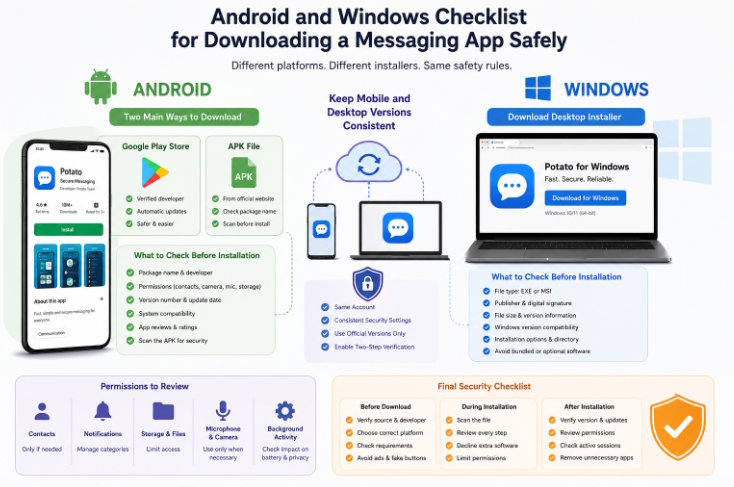
Messaging apps are commonly used across both smartphones and computers, but the download process is not the same on every platform. Android users may install an app from Google Play or through an APK file, while Windows users usually download an EXE or MSI installer. These differences affect how users should verify the source, review permissions, and confirm that the installed version is legitimate.
A safe download process should consider more than the app name or icon. Users need to check the developer, package details, system compatibility, installer signature, permissions, and update history. They should also make sure that the mobile and desktop versions belong to the same product ecosystem and use consistent security settings.
The following checklist explains how Android and Windows users can download and install a messaging app more safely without confusing app-store listings, APK files, desktop installers, or third-party download pages.
Why Messaging Apps Have Different Download Methods
Android and Windows use different software distribution systems.
On Android, most users install applications through Google Play. The app store provides basic information such as the developer name, update date, version details, download count, age rating, and requested permissions. In some cases, developers may also provide an APK file through their own website.
Windows software is usually distributed through a downloadable installer. Common formats include:
- EXE installation files
- MSI installation packages
- Microsoft Store applications
- Portable versions that do not require a full installation
These formats are not interchangeable. An Android APK cannot run as a normal Windows desktop program, and a Windows EXE file cannot be installed directly on an Android phone.
The verification process is therefore different. Android users should focus on the package name, app-store listing, developer identity, permissions, and APK source. Windows users should review the installer publisher, digital signature, file architecture, installation location, and administrator request.
Understanding these differences helps users avoid downloading the wrong file or trusting a page that only imitates an official product page.
Android App Store Downloads Versus APK Files
Google Play is the most familiar download method for many Android users. It offers a structured listing and handles installation and updates automatically. This reduces the number of manual steps, but users should still verify that the listing belongs to the correct developer.
A typical app-store listing should include:
- A recognizable developer or publisher name
- A consistent app description
- Recent update information
- Privacy and data-safety details
- Screenshots that match the expected interface
- Reviews that appear relevant to the product
- A link to a valid developer website or privacy policy
Users comparing potato 安卓下载 options should distinguish between an official app-store listing, an APK provided by the product website, and a third-party APK directory.
An APK is the installation package used by Android. It can be useful when an app is not available in a regional app store or when the developer provides a direct download option. However, APK installation requires more manual verification.
There are three common APK sources:
Official website APK
This is usually the safest direct-download option when it is genuinely provided by the developer. Users should confirm the domain, certificate status, version information, and download description.
Trusted distribution platform
Some established platforms distribute APK files and preserve version histories. Even so, users should compare the package name, developer identity, and file signature with official information.
Unknown third-party APK website
These sites may host outdated, modified, repackaged, or advertising-supported files. Users should avoid pages with multiple fake download buttons, forced redirects, or unclear file details.
The presence of an APK file does not prove that it is unsafe, but manual installation requires more caution than an app-store installation.
What Android Users Should Check Before Installation
Before installing a messaging app on Android, users should review several technical and practical details.
Package name
The package name is the unique identifier used by Android. It is more reliable than the visible app title because unrelated apps can use similar names and icons. Users installing an APK should compare its package name with information from a known product page or verified app-store listing.
Developer identity
Check whether the developer name is consistent across the app store, product website, privacy policy, and support pages. Small spelling changes or unrelated company names may indicate an imitation app.
Version number and update date
A very old version may lack security fixes or compatibility improvements. The version should also match the current information shown on the developer’s official channels.
System compatibility
Check the minimum Android version and device requirements. Installing software built for a newer system may fail, while using an outdated release can cause crashes or missing features.
Permissions
Review requested permissions before and after installation. A messaging app may reasonably request access to notifications, contacts, camera, microphone, and storage, but users should consider whether every permission is required for their actual use.
Installation source permission
Android may require temporary permission to install apps from a browser or file manager. After completing the installation, users should disable this permission again unless they regularly install verified APK files.
Security scan
Use the built-in Android security tools or another trusted mobile security solution to scan downloaded APK files before installation.
How Windows Desktop Installers Are Different
Windows desktop applications use a more traditional installer-based process. Instead of an APK, users may download an EXE or MSI file.
An EXE installer may contain a complete setup wizard and custom installation options. An MSI package follows the Windows Installer framework and is often used in business or managed environments.
Users following a potato 电脑版下载 process should verify that the file is specifically intended for Windows and not a mobile package, browser extension, or unrelated download manager.
Before running the installer, check:
- The filename
- The file extension
- The publisher
- The digital signature
- The file size
- The Windows version requirement
- Whether the installer is 32-bit or 64-bit
- Whether the page offers a direct file or a third-party download tool
To inspect a Windows installer, right-click the file and select Properties. The Details and Digital Signatures tabs may show the product name, company, version, and signature status.
When launching the installer, Windows User Account Control may display the publisher. An unknown publisher warning should not be ignored. It does not always mean that the file is harmful, but it indicates that the user should verify the source before continuing.
Users should also read each installation screen. Some installers offer optional startup settings, desktop shortcuts, browser integrations, or additional software. These options should be reviewed instead of accepted automatically.
How to Keep Mobile and Desktop Versions Consistent
Using a messaging app on both Android and Windows can improve convenience, but both versions should belong to the same product ecosystem.
Users should confirm that:
- The Android and Windows versions use the same account system
- The publisher and branding are consistent
- The login and verification flow is familiar
- Both versions support current security features
- The desktop version is not an unofficial modified client
- Updates are available through trusted channels
- The same privacy settings are reviewed on both platforms
A common mistake is installing an official mobile app but an unofficial Windows client with a similar name. Another mistake is using an old desktop installer copied from a third-party archive.
Users should also avoid modified editions that promise additional themes, removed limits, hidden status options, or unlocked premium features. Modified clients may change how credentials, messages, files, or verification codes are handled.
Version numbers do not always match between Android and Windows because the platforms may use different release schedules. However, both versions should appear actively maintained and compatible with the same account service.
Permissions to Review on Android and Windows
Messaging apps need access to certain system features, but permissions should remain proportional to actual use.
Contacts
Contact access may be used to discover existing users. Users who do not need contact synchronization can deny this permission and add contacts manually.
Notifications
Notifications are useful for calls and new messages. On Android, users can control notification categories. On Windows, notification settings can be managed through the system and application preferences.
Storage and files
Messaging apps may need file access to send documents, save downloads, or manage media. Users should avoid granting broad storage access when a limited file picker is sufficient.
Microphone and camera
These permissions are necessary for voice messages, calls, video calls, and in-app photography. They should not be granted when those features are not used.
Background activity
Android may allow the app to run in the background to receive messages. Windows may permit startup with the operating system. These settings improve responsiveness but can affect battery life, performance, and privacy.
Clipboard and screen access
Some desktop apps may interact with the clipboard or support screen sharing. Users should check when these features are activated and avoid exposing sensitive information during calls.
Permissions should be reviewed after installation because some apps request additional access only when a feature is first used.
Common Cross-Platform Installation Mistakes
Downloading from an advertisement
Sponsored results and display advertisements may imitate real download buttons. Users should check the domain before downloading.
Installing an outdated version
Old APK files and archived Windows installers may still function, but they can lack recent security improvements and compatibility updates.
Confusing mobile and desktop packages
An APK is for Android, while EXE and MSI files are for Windows. Emulator packages, browser add-ons, and web shortcuts should not be mistaken for native desktop software.
Using third-party download managers
Some software directories require a separate downloader that displays advertisements or offers additional programs. A direct installer is generally easier to verify.
Accepting every permission
Users sometimes grant all requested permissions without considering whether they are required. Permissions should be reviewed individually.
Installing modified clients
Unofficial editions may add features, but they can also alter login behavior, message handling, or update mechanisms.
Ignoring old installations
An existing desktop version may conflict with a new installer. Users should update or uninstall older releases through the normal system process.
Using different security settings
Mobile and desktop versions may have separate controls for sessions, notifications, downloads, privacy, and automatic media storage. Each device should be reviewed independently.
Final Security Checklist
Before downloading
- Confirm the correct product website or app-store listing
- Check the developer and publisher name
- Select the correct Android or Windows version
- Review the package or installer format
- Avoid advertisements and forced download managers
- Check the update date and system requirements
During installation
- Scan the APK, EXE, or MSI file
- Review the package name or Windows publisher
- Check the digital signature when available
- Read every setup screen
- Decline unrelated software
- Limit permissions to necessary features
- Confirm the installation location
After installation
- Check the app name, icon, and interface
- Verify the version number
- Enable updates from a trusted source
- Review contacts, storage, camera, and microphone permissions
- Check active account sessions
- Compare Android and Windows security settings
- Remove installation-source permissions that are no longer needed
- Uninstall any unexpected applications
Final Thoughts
Downloading a messaging app safely requires platform-specific checks. Android users need to evaluate app-store listings, APK sources, package names, developer identities, and mobile permissions. Windows users need to review EXE or MSI installers, publisher information, digital signatures, administrator requests, and setup options.
The safest cross-platform setup uses verified versions on both devices, consistent account security, limited permissions, and trusted update channels. By understanding the differences between Android and Windows distribution methods, users can avoid fake download pages, outdated installers, modified clients, and unnecessary privacy risks.

