

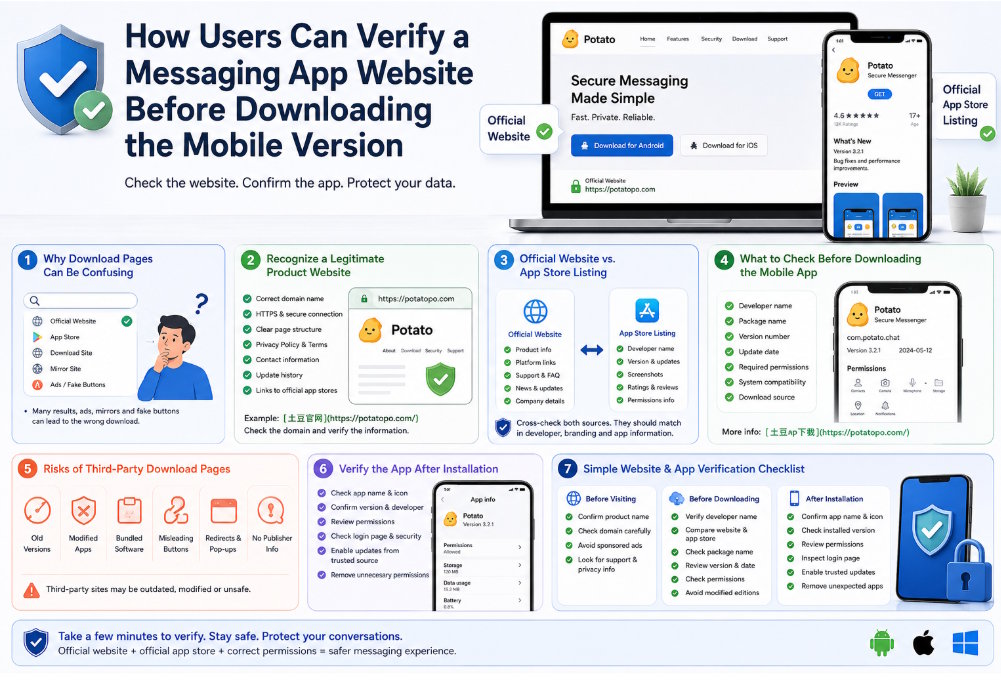
Downloading a messaging app may appear simple, but the search results leading to the download can be difficult to interpret. Users may see an official product website, an app-store page, a software directory, an APK archive, a mirror site, and several sponsored advertisements at the same time. Some of these pages may offer the correct application, while others may distribute an outdated version, redirect visitors to another product, or imitate the branding of the real service.
For mobile users, verifying the website and app listing before installation is especially important. Messaging apps may request access to contacts, notifications, storage, the microphone, the camera, and account information. Installing the wrong application can therefore expose more than just the device itself.
A reliable verification process should connect three sources of information: the product website, the official app-store listing, and the details shown by the installed application. When these sources are consistent, users have a stronger basis for trusting the download.
Why Messaging App Download Pages Can Be Confusing
Search engines often display several types of download pages for the same product. They may include:
- The official product website
- Google Play or another mobile app store
- Third-party APK directories
- Software review websites
- Regional mirror pages
- Sponsored advertisements
- Blog posts containing download buttons
- Pages offering modified or older versions
The position of a result does not prove that it is official. An advertisement can appear above the genuine product website, and a third-party directory may use a title that closely matches the app name.
Download pages can also become confusing when several versions exist. A product may offer an Android application, an iOS application, a Windows desktop client, a web version, and archived releases. Users who do not check the platform carefully may download the wrong package.
Fake download buttons create another problem. Some pages display multiple buttons, but only one leads to the intended file. Other buttons may open advertisements, install browser extensions, or redirect visitors to unrelated software.
The safest approach is to slow down and verify the page before clicking. The domain, page structure, product description, publisher information, and download destination should all be reviewed.
How to Recognize a Legitimate Product Website
A legitimate product website should provide clear and consistent information about the application. Users should begin by checking the domain name.
The domain should match the product branding or a clearly documented company identity. Watch for:
- Misspelled product names
- Extra words or unusual subdomains
- Domains containing random numbers
- Unexpected country-code extensions
- URLs that redirect several times
- Pages hosted on unrelated file-sharing services
Users researching the 土豆官网 should compare the domain with information shown in trusted app-store listings, support pages, and official product communications. A domain should not be trusted only because it includes the product name.
HTTPS is another basic signal. A secure connection helps protect data exchanged between the browser and the website. However, HTTPS alone does not prove that a site is legitimate because imitation websites can also use valid certificates.
The website should also contain a complete page structure. Useful elements may include:
- Product information
- Download options for supported platforms
- Privacy policy
- Terms of service
- Contact or support information
- Update history
- Frequently asked questions
- Links to official app-store listings
Users should be cautious when a page contains only a logo, a large download button, and very little supporting information.
Update records can provide additional confidence. A product website that clearly identifies current versions, release notes, or recent updates is easier to verify than a page with no date or version information.
Official Website Versus App Store Listing
The official website and the app-store listing serve different purposes.
The product website usually explains the service, provides platform links, publishes support information, and may offer direct downloads. It can also help users identify the correct developer and understand which versions are officially supported.
The app-store listing manages the actual mobile installation process. It may display:
- Developer name
- App title
- Package information
- Update date
- Version details
- Screenshots
- Reviews
- Privacy disclosures
- Age rating
- System compatibility
Users should cross-check the website and app-store listing rather than relying on only one source.
For example, the developer name on the app store should be consistent with the organization identified on the website. The app icon and screenshots should match the product interface shown on the website. The privacy-policy link should lead to the same organization or domain.
A legitimate website commonly links directly to its official app-store page. Users should verify that the link opens the expected listing rather than a search-results page or unrelated application.
The website and app store may not show identical version numbers because updates can be released at different times. However, both sources should appear active, professionally maintained, and connected to the same product identity.
What to Check Before Downloading the Mobile App
Before starting a 土豆app下载, users should review the app-store or APK details carefully.
Developer name
Check whether the developer name matches the organization shown on the product website. Similar app names can be published by unrelated developers.
Package name
Android applications use a unique package identifier. The package name is more difficult to imitate than the visible app title and can help distinguish the official app from a copy. Users installing an APK should compare the package name with a known app-store listing or trusted product source.
Version number
The version should be recent enough to support current security features and device requirements. An extremely old release may lack important fixes.
Update date
Regular updates can indicate that the application is still maintained. A long period without updates is not automatically dangerous, but users should investigate whether the product is still supported.
Permissions
Review the permissions requested by the app. Messaging software may reasonably need access to contacts, notifications, the camera, the microphone, photos or files, and background activity. Users should consider whether each permission is connected to a feature they intend to use.
System compatibility
Check the required Android or iOS version. Installing an app designed for a newer system may fail or produce limited functionality.
Download source
For most users, the official app store is the simplest installation method. When an APK is necessary, it should come from a verified product website or a trusted distribution source. Avoid files with unclear names, missing version information, or unusual archive formats.
Risks of Third-Party Download Pages
Third-party download pages are not always unsafe, but they introduce additional risks that users should understand.
Outdated versions
Some directories preserve old releases and may display them more prominently than the current version. Older applications can contain unresolved compatibility or security issues.
Modified applications
A modified app may claim to remove limits, unlock features, disable advertisements, or provide additional customization. These changes can also alter how messages, credentials, verification codes, or local files are handled.
Bundled download tools
Some websites require users to install a separate download manager. This can introduce additional applications, browser changes, or advertising components.
Misleading buttons
Download pages may contain multiple buttons that look similar. Some lead to advertisements or unrelated products instead of the intended app.
Redirect chains
Repeated redirects make it difficult to identify the final source of the file. A trustworthy download process should be clear and direct.
Incomplete publisher information
A page that does not identify the developer, version, package name, or update date provides very little evidence that the file is genuine.
When a third-party source is used, users should compare its file details with the official app-store listing and product website before installation.
How to Verify the App After Installation
Verification should continue after the app has been installed.
First, confirm that the app name and icon match the expected product. Imitation apps may use similar branding but slightly different names or colors.
Next, open the application information page in the device settings and review:
- App version
- Developer information
- Storage use
- Permissions
- Battery activity
- Data usage
- Notification access
The version number should be consistent with the download source.
Users should also inspect the login or registration page. Unexpected requests for payment details, recovery phrases, excessive personal information, or unrelated account credentials are warning signs.
Review permissions again after installation. Some applications request additional access when a feature is first used. A user who does not use voice calls, for example, may not need to keep microphone access enabled at all times.
Automatic updates should be enabled through the trusted app store or the application’s official update mechanism. Avoid update prompts that redirect to an unrelated website.
Finally, check whether any unexpected applications, browser shortcuts, or device settings were added during installation.
A Simple Website and App Verification Checklist
Before visiting a download page
- Confirm the correct product name
- Check the domain carefully
- Avoid sponsored results that lead to unrelated sites
- Look for official support and privacy information
Before downloading
- Verify the developer name
- Compare the website with the app-store listing
- Check the package name
- Review the version and update date
- Confirm system compatibility
- Read the requested permissions
- Avoid modified editions and forced download managers
After installation
- Confirm the app name and icon
- Check the installed version
- Review permissions
- Inspect the login page
- Enable trusted updates
- Remove unnecessary access
- Uninstall any unexpected software
Final Thoughts
Verifying a messaging app requires more than recognizing a familiar logo. Users should compare the product website, app-store listing, developer identity, package information, version details, and permissions before downloading.
The official website helps users identify the correct product and supported platforms, while the app store provides installation and publisher information. Third-party pages should be treated with additional caution because they may distribute old, modified, or misleading files.
By following a consistent verification process before and after installation, mobile users can reduce the risk of fake download pages, imitation apps, unnecessary permissions, and outdated software.

