

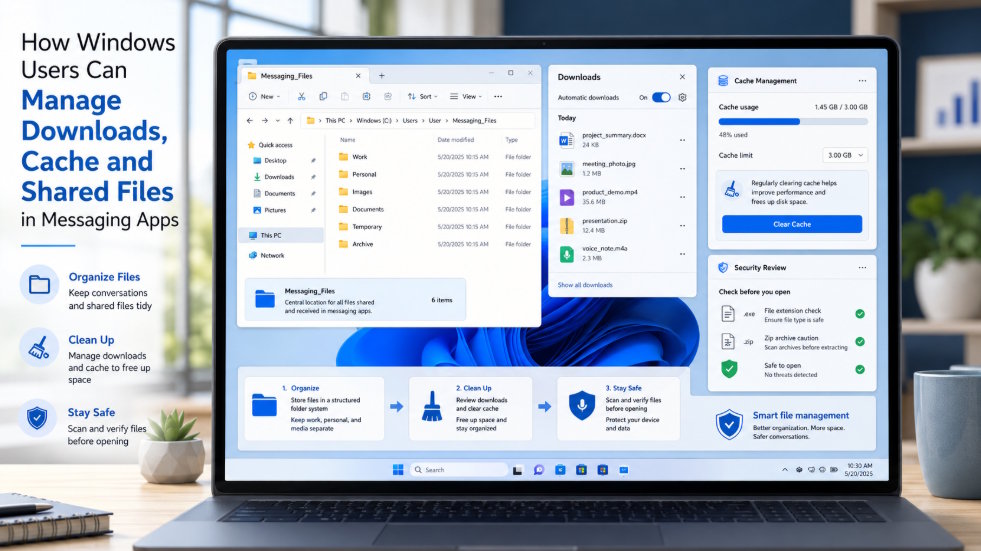
Messaging apps on Windows are no longer used only for short text conversations. They now handle screenshots, photos, videos, compressed archives, spreadsheets, PDFs, voice notes, presentations, and installation packages. In many cases, they become a second file-sharing channel alongside email, cloud storage, and project management tools.
That convenience creates a practical problem: messaging apps quietly save large numbers of files in the background. Images may download automatically, videos may remain cached long after they are viewed, and shared documents can end up mixed with work files in the general Downloads folder. Over time, users may lose track of what is temporary, what is important, and what should be deleted.
Without clear rules, storage fills up, duplicate files accumulate, and sensitive documents may remain on a device longer than intended. A better approach is to treat messaging-related files as a manageable Windows workflow. By understanding where files are stored, choosing a dedicated download folder, controlling automatic downloads, setting a cache policy, reviewing shared files carefully, and building a cleanup routine, users can keep their systems organized and safer.
Understand Where Messaging Files Are Stored
The first step is to understand that messaging apps usually store files in more than one place. Many users assume that every received file goes directly into the Downloads folder, but that is only part of the picture.
The most obvious location is the default download directory chosen by the user or by the application. This is where intentionally saved files often appear. On many systems, that location is the standard Windows Downloads folder. If left unchanged, messaging files can become mixed with browser downloads, installers, exported reports, and unrelated personal content.
A second category is the application cache. Cache files are local copies used to load media more quickly or to keep recently viewed content available offline. These files may include thumbnails, photos, voice messages, and video fragments. They are not always meant for long-term storage, but they still consume disk space.
Temporary files are another layer. Windows and the application may both create temporary data during previews, updates, decompression, or media playback. Users often forget this storage exists because it is usually hidden in system or application directories.
There is also a difference between manually saved files and cloud-accessible content. A file visible in a chat may still exist only as cloud content until it is downloaded locally. Conversely, once a user saves it to a folder, it becomes a separate local file that remains even if the chat is muted, archived, or deleted.
Understanding these differences helps users avoid two common mistakes: assuming cached files are permanent, and assuming saved files will disappear automatically.
Choose a Dedicated Download Folder
One of the most effective ways to stay organized is to stop saving messaging files into the general Windows Downloads folder. That folder quickly becomes crowded with browser downloads, setup files, PDFs, screenshots, and compressed archives from many sources.
Users working with 纸飞机电脑版 should select a dedicated Windows folder rather than allowing important documents to remain mixed with temporary downloads.
A dedicated structure makes it easier to find important items, delete low-value files, and separate work material from casual media. One practical example is:
|
Messaging_Files/ |
This structure does not need to be complicated. The goal is simply to create a controlled place for files arriving through messaging apps. Work-related spreadsheets, contracts, and project documents can go into Work. Personal items can remain separate. Images and general documents can be grouped by type. Temporary content can be held in a folder intended for short-term review and deletion. Older material that still needs to be retained can be moved into Archive.
Users should also think about naming conventions. Files shared through chats often have vague names such as “image_01,” “final,” or “document.” Renaming important files soon after saving them reduces confusion later. Adding a date, sender name, or project label can greatly improve searchability.
Control Automatic Media Downloads
Automatic media downloads are convenient, but they are one of the main reasons messaging apps consume storage so quickly. If every image, video, voice note, and document is downloaded by default, disk space disappears with little warning.
Users should review which file types truly need to download automatically. Images may be relatively small, but in active group chats they can still accumulate rapidly. Videos are much more demanding, especially if several are shared every day. Voice notes and audio files may appear harmless but can add up in high-volume conversations. ZIP archives and large documents deserve special attention because they often contain many files or large attachments.
A good policy is to separate file behavior by category. For example:
- Allow automatic download of small images only if they are routinely useful.
- Disable automatic download for videos unless they are essential.
- Review voice messages manually if storage is limited.
- Require manual download for ZIP files and large documents.
- Reconsider download behavior when using limited bandwidth or slower networks.
Although Windows desktop systems are often used on stable Wi-Fi or wired connections, storage management still matters. A fast connection can actually make the problem worse by downloading everything before the user notices how much space is being consumed.
Automatic downloads should support real work rather than create background clutter. If a file is not needed immediately, there is usually no reason to let it arrive silently on disk.
Set a Cache Limit
Cache management is different from ordinary file management. Permanent files are items the user chooses to save and keep. Cache files are local copies that help the application perform smoothly. They improve speed, but they are not always meant to be retained indefinitely.
Users should understand this distinction clearly. If cache is never cleaned, the app may consume many gigabytes of storage. If it is cleared too aggressively, the app may need to re-download media later, which can be inconvenient. The best approach is balance.
A useful policy includes three elements: size, frequency, and recovery expectations.
First, define an approximate cache size limit that matches the device’s storage capacity. A laptop with limited SSD space should use a stricter cache policy than a desktop with abundant storage.
Second, decide how often cache should be reviewed or cleared. Monthly review is a reasonable starting point for active messaging users. Heavier users may prefer biweekly checks.
Third, understand what happens after cache is cleared. In most cases, clearing cache removes local copies, not the original cloud content. That means photos or documents may still be accessible later and can be downloaded again when needed. However, users should never rely on assumptions. Important files should always be saved deliberately to a permanent folder before cache cleanup.
Windows users should also keep an eye on overall disk space. Messaging apps are only one source of storage pressure, and cache should be managed as part of broader system maintenance.
Review Shared Files Before Opening
Not every shared file should be opened immediately. Messaging platforms are commonly used for fast collaboration, but the speed of file sharing can lead users to trust files too quickly.
Before opening a received file, users should examine the extension carefully. A document, archive, image, or executable file should be identified before launch. Hidden or misleading double extensions are a classic risk. A filename that appears to be a document may actually be an executable if Windows is not showing full extensions.
Compressed archives deserve extra caution. ZIP files can contain unexpected executables, scripts, or macro-enabled Office files. Even ordinary-looking spreadsheets and documents may include macros or embedded content that should not be enabled casually.
A practical checklist includes:
- Confirm the file extension.
- Look for double extensions.
- Be cautious with archives.
- Treat executable files as high risk.
- Open Office files carefully, especially those requesting macros.
- Scan suspicious or unexpected files with Windows Defender before opening.
Users should also compare the file with the context of the conversation. If a contact suddenly sends an installer, password-protected archive, or oddly named document without explanation, verification is wise before opening it.
Keep Language and File Settings Consistent
Language settings and file settings are often adjusted at different times, which can create confusion. A user may switch the interface language but forget that the file download directory, auto-download behavior, or cache location is still using an old configuration.
Users looking for 纸飞机中文版下载 should treat interface language and file-storage settings as separate configuration tasks.
This distinction matters because interface localization does not automatically improve file management. A messaging app may display menus in Chinese while still saving files into the default Windows Downloads folder or continuing to auto-download large media. Similarly, a user may organize folders well but forget to update language and notification preferences for easier daily use.
To avoid inconsistency, users should review all related settings together: interface language, file download location, automatic media downloads, cache limits, and shared-file behavior. When these settings are aligned, the application becomes easier to use and easier to maintain.
Build a Monthly Cleanup Workflow
A monthly cleanup routine turns file management from an occasional emergency into a predictable habit. It does not need to take long, but it should be systematic.
A practical workflow can include the following steps:
1. Check the dedicated download folder Review newly saved items and confirm which files still matter.
2. Delete duplicate files Messaging apps often produce repeated downloads of the same image, document, or archive.
3. Clear unnecessary cache Remove local media that no longer needs to remain instantly accessible.
4. Move important work files Transfer valuable documents from temporary holding folders into permanent work directories.
5. Scan compressed archives Review older ZIP files and remove those that are no longer needed.
6. Delete expired installers Old setup packages and update files often remain in the system long after use.
7. Check disk space Confirm that free space remains healthy and that storage use is not trending upward without explanation.
This routine is especially useful on work laptops, shared home computers, or devices with limited SSD capacity. It also supports better privacy by reducing the amount of old media and forgotten documents left on the machine.
Conclusion
Messaging apps can quietly become major file-storage systems on Windows devices. Images, videos, archives, voice files, and shared documents often spread across the Downloads folder, cache directories, and temporary locations. Without clear rules, users may lose control of storage, keep low-value files too long, or mix sensitive work documents with casual media.
The most effective solution is to separate cached data, downloads, and permanent files into a clear workflow. Users should understand where files are stored, choose a dedicated download folder, control automatic downloads, set reasonable cache limits, review shared files carefully, and perform monthly cleanup.
When download behavior, cache management, and file retention are handled deliberately, messaging apps become easier to use, safer to maintain, and less likely to overwhelm the Windows environment.
telegrammnn.com

