

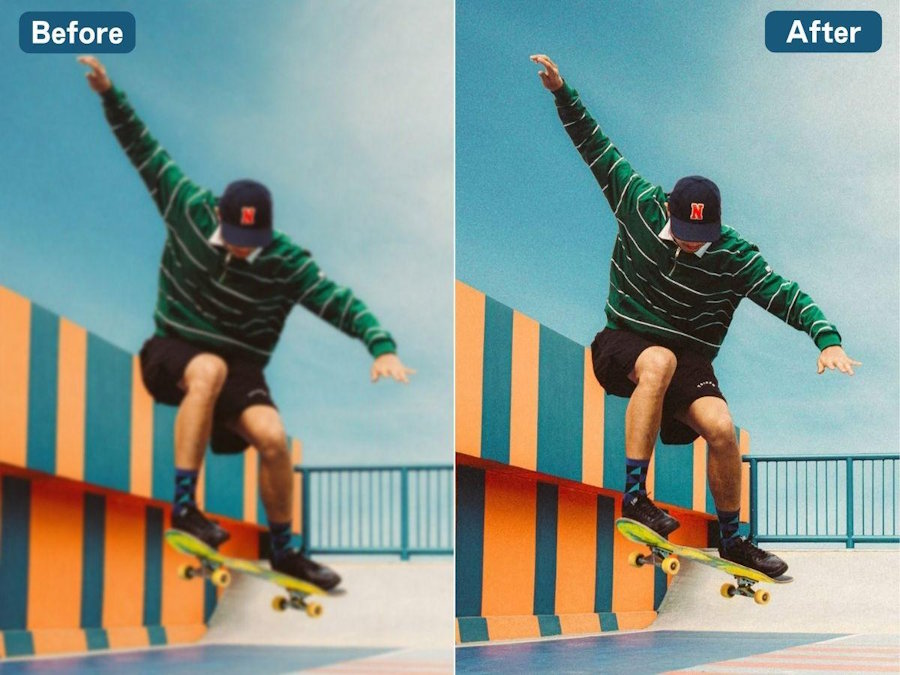
A photo can look perfectly acceptable on a phone screen yet reveal soft faces, shaky edges, or unreadable details when opened on a monitor. This problem is common with low-light shots, moving subjects, old scans, and images compressed by messaging apps. An AI-powered unblur image tool can improve these files by rebuilding edges, reducing noise, and increasing perceived sharpness. It cannot recover every detail that the camera missed, but the right software can make a slightly blurred image far more usable. When an image is too damaged to restore effectively, an AI search assistant can also help creatives discover alternative visuals and relevant image assets that better fit the project. Here are six options worth considering in 2026.
Six AI Tools to Unblur Image Files
1. BeautyPlus
Platform: Web, iOS, and Android
BeautyPlus offers a dedicated unblur image tool that automatically analyzes soft edges and unclear facial details. The workflow is straightforward: upload a photo, wait for the AI enhancement, and compare the processed result with the original. It is particularly effective when a face is slightly out of focus or when social media compression has reduced image clarity.
The platform also provides wider cleanup features. For example, users can remove person from photo when a passerby or background figure distracts from the main subject. This makes BeautyPlus useful for both sharpening and general visual cleanup without requiring traditional layer-based editing.
Best use case: Selfies, portraits, travel photos, and images intended for social platforms.
Pros:
- Simple automatic enhancement process
- Face-aware processing works well on portraits
- Includes object removal and other cleanup tools
- Available on both web and mobile platforms
Cons:
- Strong enhancement can make skin texture appear overly smooth
- Some editing tools or export options may require premium access
2. Picsart
Platform: Web, iOS, and Android
The Picsart combines sharpening with noise reduction, resolution enhancement, and creative editing. After processing an image, users can add text, remove backgrounds, apply filters, or resize the result for a particular social network.
Its interface is designed for speed rather than technical control. Most of the reconstruction is automatic, which is convenient for casual users but less suitable for photographers who want to adjust different sharpening parameters individually.
Best use case: Creator content, profile images, thumbnails, and compressed mobile photos.
Pros:
- Combines enhancement with a broad creative toolkit
- Easy to continue editing after unblurring
- Available in a browser and through mobile apps
- Useful presets for social media formats
Cons:
- The number of tools and promotional elements can make the interface feel busy
- Certain AI features and assets are limited to paid plans
3. Adobe Express
Platform: Web, iOS, and Android
Adobe Express provides image sharpening and enhancement in a simplified design environment. Its image enhancer, powered by Adobe Firefly, can improve moderately soft images while also giving users access to contrast, brightness, saturation, and layout controls.
The tool is particularly practical when the repaired image is only one part of a larger project. A business user, for instance, can enhance a product photo and immediately place it in a presentation, advertisement, or branded social post. It is easier to learn than Photoshop, although it does not provide the same restoration controls.
Best use case: Marketing graphics, presentations, product posts, and branded content.
Pros:
- Clean and approachable interface
- Strong selection of design and formatting tools
- Integrates well with other Adobe services
- Suitable for collaborative content production
Cons:
- Not intended for severe motion blur or major focus errors
- Some templates, assets, and advanced functions require a subscription
4. Canva
Platform: Web, Windows, macOS, iOS, and Android
Canva fits naturally into its template-focused design system. Users can sharpen a photo and then place it directly into a poster, résumé, presentation, website graphic, or social media layout.
Canva also provides supporting adjustments such as clarity, contrast, and brightness. These controls are useful because sharpening alone can create harsh edges or visible noise. The platform is not designed for forensic-level restoration, but it is efficient when the final goal is a complete design rather than a standalone photograph.
Best use case: Presentations, posters, social posts, and shared team projects.
Pros:
- Large collection of templates and layout tools
- Convenient cloud storage and collaboration
- Easy to adjust the image within a finished design
- Works across browsers, desktop systems, and mobile devices
Cons:
- Limited control over how the AI reconstructs details
- Several useful features are reserved for premium accounts
5. Topaz Labs
Platform: Web, Windows, and macOS
Topaz Labs is aimed at users who need more than a quick one-click correction. Its image enhancement models can address camera shake, missed focus, visible noise, and low-resolution source files. Desktop processing also allows photographers to inspect large images more carefully before exporting them.
Topaz is especially valuable when the photograph will be printed or delivered professionally. Its processing can recover convincing texture, although incorrect settings may also create artificial details. Reviewing the result at full resolution remains important.
Best use case: Professional photography, archival images, prints, and demanding high-resolution files.
Pros:
- Strong performance on difficult blur and noise
- Better control than most lightweight online editors
- Suitable for large files and professional output
- Useful for restoring older photographs
Cons:
- More expensive than casual browser tools
- Desktop processing may be slow on older hardware
- Requires more experimentation to achieve natural results
6. ElevenLabs
Platform: Web
The ElevenLabs provides a browser-based workflow for users who want an uncomplicated AI edit. Instead of presenting a dense professional interface, it focuses on making the requested visual change with minimal setup.
This approach is convenient for occasional enhancement and experimentation. However, users working with large groups of photographs may prefer software with batch processing, local file management, and more detailed output settings.
Best use case: Quick online corrections, occasional image enhancement, and AI editing experiments.
Pros:
- Minimal setup and no specialist knowledge required
- Accessible from a modern web browser
- Fast workflow for simple enhancement tasks
Cons:
- Fewer manual controls than dedicated photography software
- Usage may depend on account limits or credits
- Not optimized for high-volume professional workflows
How to Keep Photos from Turning Out Blurry
Blur does not always have the same cause. It may come from camera shake, incorrect focus, subject movement, poor lighting, or image compression. Identifying the likely cause makes it easier to prevent the problem before relying on an AI unblur tool.
Stabilize the Camera
Camera shake is one of the most common causes of soft photos, especially indoors or at night.
- Hold your phone or camera with both hands and keep your elbows close to your body.
- Lean against a wall or place the device on a stable surface when a tripod is unavailable.
- Use a tripod, timer, or remote shutter for low-light scenes and long exposures.
- Press the shutter gently instead of tapping the screen with unnecessary force.
Control Focus and Subject Movement
A steady camera alone will not prevent blur if the lens focuses on the wrong area or the subject moves during exposure.
- Tap the main subject on your phone screen or select an appropriate autofocus point.
- Lock focus when the distance between the camera and subject will remain unchanged.
- Use a faster shutter speed for children, pets, sports, traffic, and other moving subjects.
- Capture several frames or use burst mode when movement is difficult to predict.
Improve Lighting and Check the Lens
In poor light, cameras often use slower shutter speeds or higher ISO settings, increasing the risk of motion blur and noise.
- Move toward a window, switch on an additional light, or use a suitable flash when necessary.
- Avoid depending heavily on digital zoom, which crops and enlarges existing image defects.
- Clean the lens with a microfiber cloth. Fingerprints, dust, and moisture can create haze that resembles focus blur.
- Keep the lens dry and allow the camera to adjust when moving between different temperatures.
Preserve the Original Image Quality
A photo may look blurry after sharing even when the original capture was reasonably sharp.
- Keep the full-resolution original rather than editing a screenshot or downloaded preview.
- Avoid repeatedly saving and exporting the same JPEG, as each compression cycle may remove detail.
- Transfer important files through cloud storage, email, or a file-sharing service that preserves their original resolution.
- Check whether messaging and social media apps automatically compress uploaded photos.
Final Thoughts
Unblurring has moved well beyond the old sharpening slider. The six tools reviewed here cover everything from quick mobile touch-ups to detailed processing for large, high-resolution files. Results still depend heavily on how the blur occurred: camera shake, missed focus, low light, and compression each leave different traces in an image. That explains why the same tool can perform well on one photo and poorly on another. Their practical value is simple: photographs once left unused can return to a family album, a social post, a presentation, or a published project.

