

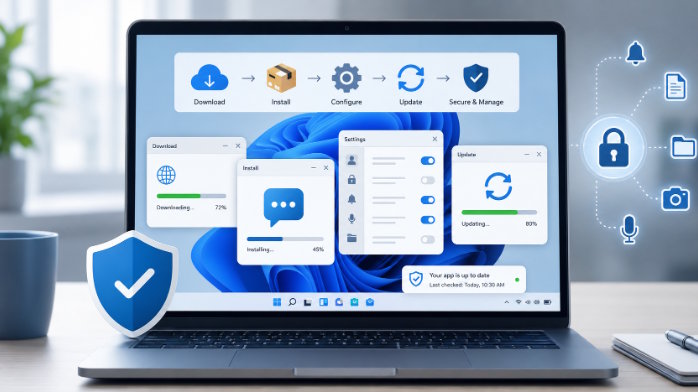
Windows messaging applications interact with more parts of the operating system than many users realize. A desktop chat client may access notifications, the Downloads folder, the clipboard, the camera, the microphone, local files, background processes, and network connections. It may also launch automatically, retain downloaded media, and keep an authenticated session active for long periods.
For that reason, installing a messaging app should not be treated as a simple download-and-click task. A safer approach is to manage the full lifecycle: identify the correct edition, verify the installer, review permissions, configure the application, control updates, monitor local data, and remove or reinstall the software carefully when necessary.
Identify the Correct Windows Edition
Before downloading anything, users should decide which type of Windows client fits their device and working environment. Desktop, web, Store, installer-based, and portable editions may look similar, but they differ in permissions, update methods, local storage, and compatibility.
Users searching for telegram Windows版下载 should first confirm whether they need a desktop installer, a Microsoft Store application, or a browser-based client.
A browser client normally requires no traditional installation. It may be suitable for temporary access, although it depends on browser permissions, cookies, and active sessions. A native desktop application is usually better for persistent notifications, file transfers, calls, and startup integration.
Microsoft Store editions are installed and updated through the Store, although Store access may be restricted on workplace or school devices. EXE installers are common for individual users, while MSI packages suit managed deployments. Portable versions avoid standard setup, but users still need to know where they store cache and configuration data.
Architecture matters as well. Most current Windows computers use 64-bit processors, but older systems may require a 32-bit build. ARM-based Windows devices need a compatible edition or reliable emulation. Choosing the wrong build can cause failed installation, poor performance, or incomplete features.
Before proceeding, check the Windows version, processor architecture, available storage, and whether the device is controlled by an organization.
Verify the Installer Before Running It
The period between downloading an installer and opening it is an important security checkpoint. A familiar product name in the filename is not proof that the package is genuine.
Review the complete filename and extension. Windows may hide known extensions, making misleading double extensions harder to notice. Enabling visible extensions in File Explorer helps users confirm whether the file is really an EXE, MSI, ZIP, or another format.
Next, inspect the file properties. The publisher, digital signature, product name, and description should be consistent. A valid signature is not an absolute guarantee of safety, but a missing, invalid, or unexpected signature is a reason to stop and verify the source again.
The download location is equally important. Installers should come from a verified official source or a trusted distribution channel. Search advertisements, copied download pages, software mirrors, shortened links, and unsolicited messages can lead to modified packages.
File size can provide additional context. An unexpectedly small or large package may be incomplete, bundled, or unrelated. Keeping installers in a labeled folder also prevents confusion between versions.
When Windows SmartScreen displays a warning, do not dismiss it automatically. Confirm the publisher, source, file details, and expected behavior before continuing.
Review Permissions During Installation
Installation screens often contain options that users approve too quickly. Each permission should be considered in relation to how the application will be used.
Administrator access may be required to install software for all users or write to protected folders. However, an installer that demands elevated privileges without a clear reason should be treated cautiously. On a managed device, users should follow the organization’s software approval process.
Startup settings also deserve attention. Automatic launch is convenient, but it increases background activity and may expose notifications as soon as Windows starts. Users of shared computers may prefer manual startup.
Other options can include desktop shortcuts, Start menu entries, file associations, and automatic launch after setup. These are not necessarily risky, but they should be selected intentionally.
Firewall prompts may appear when the application requests network access. Users should avoid granting unnecessary access on public networks. Camera and microphone permissions should be enabled only when voice or video features are needed, and they can be reviewed later in Windows privacy settings.
Configure the Desktop Application After Installation
Installation is only the beginning. Default settings prioritize broad usability, not necessarily the privacy, storage, or workplace requirements of a particular user.
After completing telegram 桌面版安装, users should review startup behavior, notification permissions, download folders, and active device sessions.
First, decide whether the app should start with Windows. Then adjust notifications so that private message previews do not appear on the lock screen, during presentations, or on a shared display. Users can often keep alerts enabled while hiding content or muting selected conversations.
The download folder is another important setting. Automatically saving every image, document, and video to the general Downloads folder can create clutter and expose attachments to other users or cloud backup services. A dedicated folder with clear retention rules is easier to manage.
Review automatic media downloads and cache limits as well. Large cached files can consume substantial storage. Clearing a cache usually removes local copies rather than cloud-based conversations, but users should confirm what will be deleted.
Proxy settings should remain disabled unless the user understands why a proxy is required and who operates it. Language and interface settings can also be adjusted at this stage.
Finally, inspect active device sessions. Terminate unfamiliar sessions and review account security, especially if the account was previously used on a public, repaired, borrowed, or shared computer.
Build a Controlled Update Process
Updates fix vulnerabilities and improve compatibility, but users should understand how their installed edition receives them.
A desktop client may update itself, require a fresh installer, or receive updates through Microsoft Store. Organizations may delay deployment until testing is complete, while personal users should generally install stable security updates promptly.
Before a major update, save important downloaded files outside temporary cache folders. Review release notes for changes to Windows requirements, storage, login behavior, or privacy settings. This also helps identify suspicious prompts that claim an urgent update is required but do not match the application’s normal process.
Avoid unknown third-party update utilities. When manually downloading a newer installer, repeat the original checks: verify the source, filename, publisher, digital signature, architecture, and expected file type.
After updating, confirm that startup, notification, download, proxy, and privacy settings remain correct. Also check that the update did not create a duplicate installation.
Monitor Desktop Sessions and Local Data
A secure installation can become risky if authenticated sessions and local files are ignored.
Review active sessions periodically, especially after travel, device repair, password changes, or use on another computer. Close sessions that are no longer needed.
Downloaded files should be managed separately from message history. Even when a conversation is removed or a cache is cleared, documents may remain in the Downloads folder, recent-file lists, backups, or synchronized cloud storage.
Automatic media saving can also create large collections of images and videos. Disable unnecessary downloads and establish a routine for deleting files that no longer need to remain on the device.
On shared computers, logging out is more important than simply closing the window. Remove saved downloads when appropriate, clear temporary data, and confirm that the application will not reopen automatically. Windows should also be locked whenever the user steps away.
Uninstall and Reinstall Safely
Before uninstalling, save any important files that exist only in local folders. Distinguish between downloaded documents, cached media, and cloud-synchronized message data.
Log out of the account on the device when possible. Then remove the application through Windows Settings, the Start menu, or an approved enterprise software tool.
Residual folders may remain in the user profile, AppData directories, Downloads folder, or a custom cache location. Review these folders rather than deleting them blindly, because they may contain files that still matter.
If the software is being reinstalled to solve a problem, first determine whether the issue is related to the installation, the network, the account, or Windows permissions. Reinstallation will not fix every failure.
When downloading again, verify the source from the beginning. Do not automatically trust an old bookmark, search result, or copied link. The replacement installer should pass the same checks as the original package.
Conclusion
A Windows messaging application should be managed as a complete software lifecycle rather than a one-time download. The process begins with selecting the correct edition and architecture, continues through installer verification and permission review, and extends into configuration, controlled updates, session monitoring, local file management, and careful removal.
This closed-loop workflow reduces the risk of installing the wrong package, granting unnecessary permissions, exposing private notifications, retaining sensitive files, or relying on unsafe update channels. It also makes maintenance more predictable. By treating every stage as part of the same security process, Windows users can keep desktop messaging software more stable, transparent, and manageable.

