

YouTube Shorts have become an important format for creators, businesses and publishers that want to reach mobile audiences through short-form video. However, producing an effective Short involves more than turning a phone sideways or resizing an existing landscape video.
The video must meet YouTube’s current format requirements, display correctly on mobile screens and keep important visual elements clear of interface overlays. Poor cropping, stretched footage, unreadable captions and incorrect export settings can reduce the quality of an otherwise useful video.
This guide explains the correct YouTube Shorts format, recommended dimensions, aspect ratios and practical steps for preparing vertical content without losing visual quality.
What Are the Recommended YouTube Shorts Dimensions?
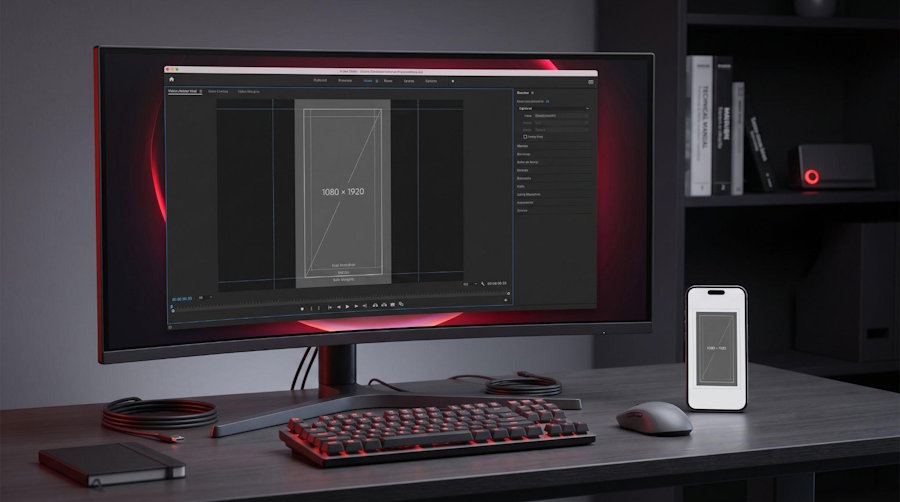
The most commonly recommended canvas for YouTube Shorts is:
- Width: 1080 pixels
- Height: 1920 pixels
- Aspect ratio: 9:16
- Orientation: Vertical
- Maximum duration: Three minutes
A 1080 × 1920 resolution fills most modern smartphone screens naturally and provides enough detail for text, faces, products and screen demonstrations.
However, it is important to understand that 1080 × 1920 is a recommended production size rather than the only resolution YouTube accepts.
YouTube currently classifies square or vertical videos of up to three minutes as Shorts. This means a 1080 × 1080 square video or a 720 × 1280 vertical video may also qualify.
The difference is mainly in presentation. A 9:16 video generally uses more of the available mobile screen, while a square video may leave additional space around the content.
Creators who need a simple reference can review the current YouTube Shorts dimensions before preparing a new video or resizing existing footage.
Is 1080 × 1920 Required for YouTube Shorts?
No. A YouTube Short does not have to be exactly 1080 × 1920 pixels.
YouTube’s main classification requirements focus on the video’s shape and duration. A newly uploaded video can generally be categorized as a Short when it is:
- Square or vertical
- No longer than three minutes
- Uploaded through a supported YouTube publishing method
- Compliant with YouTube’s content and copyright policies
A smaller vertical video may still qualify, but it can appear less sharp after processing. A square video can also qualify, although it may not provide the same full-screen experience as a 9:16 video.
For most new content, 1080 × 1920 remains the safest practical choice because it balances mobile display, editing flexibility and image quality.
Understanding the 9:16 Aspect Ratio
Aspect ratio describes the relationship between a video’s width and height.
A 9:16 video is taller than it is wide. It is the vertical version of the traditional 16:9 widescreen format used for standard YouTube videos, televisions and desktop displays.
Common 9:16 resolutions include:
- 1080 × 1920
- 720 × 1280
- 1440 × 2560
- 2160 × 3840
The resolution can change while the relationship between width and height remains the same.
For example, both 720 × 1280 and 1080 × 1920 use a 9:16 aspect ratio. The 1080p version contains more pixels and normally provides better detail, but both have the same vertical shape.
Can Square Videos Be Published as Shorts?
Yes. Square videos can be categorized as Shorts when they remain within YouTube’s current duration limit.
A common square resolution is:
- 1080 × 1080 pixels
- Aspect ratio: 1:1
Square content can be useful when the same video will be published across several social platforms. It also gives editors more space on the sides than a narrow vertical crop.
However, square videos may not fill a smartphone display as completely as a 9:16 video. For immersive content, product demonstrations, talking-head videos and visual storytelling, vertical content usually creates a stronger mobile presentation.
Can Landscape Videos Become YouTube Shorts?
A standard landscape video is wider than it is tall, so it does not match the square-or-vertical shape normally used for Shorts.
Landscape footage can still be adapted in several ways.
Crop the sides
The editor can remove parts of the left and right sides to create a vertical frame.
This works well when:
- The main subject is near the centre
- The video shows one person
- The background is not important
- The original recording has enough resolution
Cropping becomes risky when important objects, people, text or interface elements appear near the edges.
Add space above and below
A landscape video can be placed inside a vertical canvas with additional background space.
The extra area may contain:
- Captions
- Titles
- Branding
- Supporting images
- A blurred version of the original video
- Progress indicators
- Additional visual context
This method is useful for interviews, screen recordings, presentations and tutorials where cropping would remove important information.
Rebuild the layout
For higher-quality content, editors can create a custom vertical composition.
A redesigned layout may place:
- The speaker at the top
- A demonstration in the centre
- Captions near the lower middle
- Branding in a less intrusive area
This takes more time but often produces a better result than forcing horizontal footage into a narrow frame. Teams that produce vertical clips at scale often automate these layouts instead, integrating a video editing API such as Banuba's to handle cropping, captions, and effects programmatically inside their own apps.
Avoid Stretching Landscape Footage
Stretching a 16:9 video into a 9:16 frame is one of the most common formatting mistakes.
When a video is stretched:
- Faces may look unusually narrow or tall
- Products can lose their natural proportions
- Text may become distorted
- Interface elements can look compressed
- The video may appear unprofessional
The original proportions should always be preserved. Use cropping, padding or a redesigned layout instead.
Keep Important Content Away from the Edges
The YouTube Shorts interface places information and controls over parts of the video.
Depending on the device and application version, viewers may see:
- Like and comment buttons
- Sharing controls
- Channel details
- Captions
- Audio information
- Video descriptions
- Navigation elements
For this reason, avoid placing essential information directly against the right, bottom or top edges.
Important elements should remain closer to the visual centre, including:
- Faces
- Product features
- Calls to action
- Subtitles
- Prices
- Website names
- Buttons
- Important instructions
There is no single permanent safe-zone measurement that applies to every device and version of the YouTube application. The best approach is to leave comfortable space around important elements and preview the finished upload on a real smartphone.
Use Readable Captions
Many people watch short-form videos with limited sound or with the volume turned off. Captions make the content easier to understand and can improve accessibility.
Effective captions should be:
- Large enough to read on a phone
- Divided into short phrases
- Clearly separated from the background
- Timed with the spoken content
- Positioned away from interface controls
- Written in simple language
Avoid placing several lines of small text on the screen at once. A viewer should be able to read each caption quickly without pausing the video.
Captions should support the content rather than cover the subject.
Choose the Right Frame Rate
Frame rate measures how many individual images appear during one second of video.
Common recording frame rates include:
- 24 frames per second
- 25 frames per second
- 30 frames per second
- 50 frames per second
- 60 frames per second
For most Shorts, the best approach is to export the video using the same frame rate used during recording.
A video recorded at 30 frames per second does not automatically become smoother by exporting it at 60 frames per second. The editing software may simply duplicate or create additional frames, increasing processing time and file size without adding real detail.
Higher frame rates can be useful for sports, gaming, fast demonstrations and footage that will be slowed down. Talking-head videos and basic tutorials often work well at 24, 25 or 30 frames per second.
Recommended Video Format and Codec
A reliable export format for YouTube Shorts is:
- Container: MP4
- Video codec: H.264
- Audio codec: AAC
- Scan type: Progressive
- Audio sample rate: 48 kHz
- Colour space for standard video: BT.709
MP4 with H.264 is widely supported by cameras, editing software, browsers and mobile devices. It also provides a practical balance between visual quality and file size.
YouTube processes uploaded videos into several playback versions, so excessively large files do not automatically receive more reach or better performance.
The goal should be to upload a clear, properly encoded source file that gives the platform enough quality to produce good playback versions.
Should You Export Shorts in 4K?
You can export a vertical Short in 4K, such as 2160 × 3840 pixels, but it is not necessary for every video.
A 4K export may be useful when:
- The original footage was recorded in 4K
- Fine product details are important
- The content contains small interface elements
- The editor wants greater cropping flexibility
- Storage and upload time are not concerns
A 1080 × 1920 export is sufficient for most talking-head videos, tutorials, announcements and social content.
Upscaling a low-resolution source to 4K does not create genuine detail. It only increases the number of pixels in the file.
Check Video Orientation Before Uploading
Some smartphone videos appear vertical during playback even though their stored dimensions look horizontal.
This happens because certain cameras save the footage using landscape dimensions and add rotation information that tells the video player how to display it.
Problems may appear when:
- Rotation information is removed
- Editing software interprets the file incorrectly
- The video is transferred between applications
- An automated system checks only width and height
- The editor exports without normalizing orientation
Always preview the final exported file outside the editing application before uploading it.
Check that:
- The video is upright
- The subject is not rotated
- Captions appear in the correct position
- No unexpected black bars are visible
- The video fills the intended canvas
Pay Attention to Audio Quality
Good dimensions cannot compensate for poor audio.
Before publishing, check for:
- Background noise
- Low voice volume
- Music that overpowers speech
- Audio that ends before the video
- Delayed or unsynchronized sound
- Sudden volume changes
- Missing audio channels
For spoken content, the voice should remain clear on ordinary phone speakers. Music should support the video without making the main message difficult to understand.
When using copyrighted music, confirm that the track is licensed for the intended use.
YouTube may restrict or block content with active copyright claims. Shorts longer than one minute can face additional limitations when they contain claimed material.
Avoid Unnecessary Black Bars
Black bars are sometimes added when editors place one aspect ratio inside another.
They may be appropriate when preserving the complete source is essential, but they should not be added automatically.
Before using black bars, consider whether the space could be improved with:
- A blurred background
- Supporting text
- A branded design
- A second visual layer
- A larger crop
- A custom layout
The platform can already adapt its player to several video shapes. Permanent bars should only be included when they are part of a deliberate design decision.
Preview the Video on a Mobile Device
A video can look correct on a large editing monitor and still feel crowded or difficult to read on a phone.
Before publication, review the final version on a mobile device.
Check:
- Text size
- Caption speed
- Subject positioning
- Colour and brightness
- Audio volume
- Cropping
- Interface overlap
- Visual clarity
- Opening frame
- Final call to action
A private or unlisted test upload is particularly useful when working with a new template or automated editing process.
It allows the team to see how YouTube processes and displays the file before it becomes public.
Build a Simple Quality-Control Checklist
Before uploading a YouTube Short, confirm the following:
- The video is square or vertical.
- The duration does not exceed three minutes.
- The orientation is correct.
- The subject is not stretched.
- Important details remain inside the frame.
- Captions are readable on mobile.
- Text is not placed against the edges.
- The frame rate matches the source.
- The exported file plays without errors.
- Audio and video remain synchronized.
- The video uses a widely supported format.
- Copyright permissions have been checked.
- The opening is clear and visually strong.
- The final video has been previewed on a phone.
- A test upload has been reviewed when necessary.
This checklist does not guarantee views or recommendations. It prevents avoidable technical problems that can reduce the viewing experience.
Common YouTube Shorts Formatting Mistakes
Assuming one resolution is mandatory
YouTube does not require every Short to be exactly 1080 × 1920. Square and other vertical resolutions may also qualify.
Recording important details near the edges
Interface elements can cover captions, website addresses or calls to action placed too close to the screen boundaries.
Using very small text
Text that looks readable on a desktop monitor may be difficult to see on a smartphone.
Cropping without checking the entire video
A crop that works during the opening may remove a person, product or demonstration later in the clip.
Converting every video to 60 fps
Higher frame rates are not automatically better. The export should normally match the source.
Stretching footage to fill the screen
This changes the proportions of the original content and reduces production quality.
Treating technical formatting as a growth strategy
Correct dimensions improve presentation, but they do not guarantee engagement.
Audience interest, topic selection, opening quality, pacing, retention and viewer satisfaction still matter.
Frequently Asked Questions
What is the best size for a YouTube Short?
A 1080 × 1920 pixel canvas with a 9:16 aspect ratio is the most practical choice for full-screen vertical content.
Can a YouTube Short be 1080 × 1080?
Yes. A square 1080 × 1080 video can be categorized as a Short when it remains within the current duration limit.
Can I upload a 720 × 1280 Short?
Yes. It uses a 9:16 aspect ratio and may qualify as a Short. However, 1080 × 1920 normally provides greater visual detail.
How long can a YouTube Short be?
YouTube currently allows qualifying square or vertical Shorts to be up to three minutes long.
Should YouTube Shorts be vertical?
Vertical video is recommended because it uses more of the mobile display. Square videos may also qualify, while traditional landscape videos normally need to be adapted.
What file format should I use?
MP4 with H.264 video and AAC audio is a dependable choice for most YouTube Shorts.
Should I record Shorts in 30 or 60 fps?
Use the frame rate that matches the type of content and the original recording. Thirty frames per second is suitable for many videos, while 60 fps can help with fast movement.
Do correct dimensions increase views?
Correct dimensions improve presentation and help prevent technical problems. They do not guarantee more views or higher rankings.
Final Thoughts
The best YouTube Shorts format is not simply a set of pixel dimensions.
A strong vertical video combines:
- A suitable square or vertical canvas
- Clear mobile composition
- Correct orientation
- Readable captions
- Clean audio
- Supported export settings
- Careful copyright checks
- A real-device preview
For most creators, 1080 × 1920 with a 9:16 aspect ratio remains the most reliable production choice. It fills the mobile screen naturally and provides enough quality for editing, captions and visual detail.
However, the wider rule is more flexible: YouTube can categorize square and vertical videos of up to three minutes as Shorts.
Understanding that difference helps creators follow the platform’s actual requirements without confusing one recommended production preset with the only acceptable format.

