

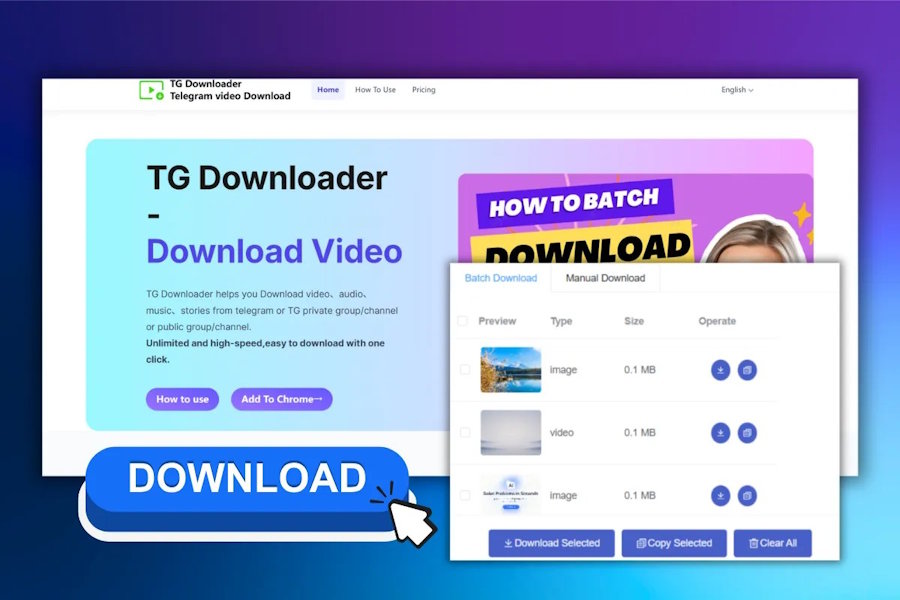
Telegram Web is convenient for watching videos, but saving multiple files can involve repetitive steps. A browser-based Telegram Video Downloader can reduce that work when accessible videos need to move from Chrome into an organized local folder.
Unlike a paste-link website, this workflow begins inside the Telegram Web conversation the user already has permission to view.
How the Browser Workflow Works
A paste-link downloader receives a public URL and attempts to resolve media from it. This may work for some public posts, but it is less suitable for conversations that depend on an authenticated Telegram session.
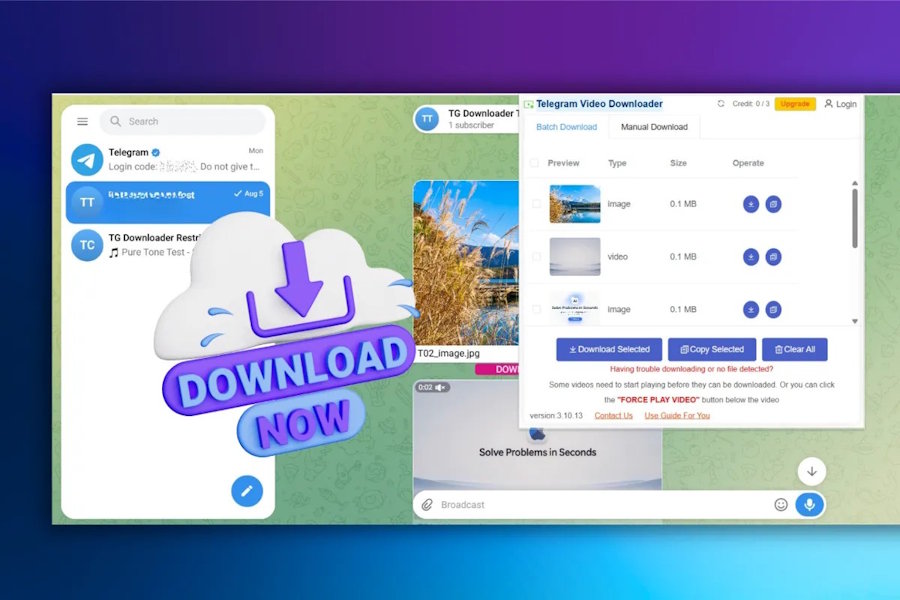
A TG Content Downloader operates alongside Telegram Web. It can provide download-oriented controls for supported media and reduce the number of actions required for a collection.
Requirements
Before starting, users need a current version of Chrome, access to Telegram Web, enough local storage, and legitimate access to the chat, group, or channel containing the video.
Authentication should remain inside Telegram’s normal interface. A downloader should not require users to send their Telegram password, session token, or browser cookies to a separate website.
Step 1: Install and Inspect the Extension
Open the official Chrome listing through the product website. Review the publisher, description, recent reviews, and requested permissions before selecting Add to Chrome.
After installation, confirm that the extension is enabled. Avoid running several Telegram download extensions at once because duplicate controls can make troubleshooting difficult.
Step 2: Open Telegram Web
Navigate to Telegram Web and open the conversation containing the video. Allow the message history and media controls to finish rendering.
If the video is old, use Telegram search or the conversation’s media view rather than scrolling through the entire message history.
Step 3: Download a Single Video
With the video visible, use the download action provided by Telegram or video downloaders. Save the file directly into a relevant project folder.
Wait for Chrome to complete the transfer, then open the local file and check playback, duration, and sound. Rename it while the context is still clear.
Step 4: Download Multiple Videos
For a course, event, or channel series, define a limited batch first. A collection such as Lessons 01-08 is easier to verify than an entire channel.
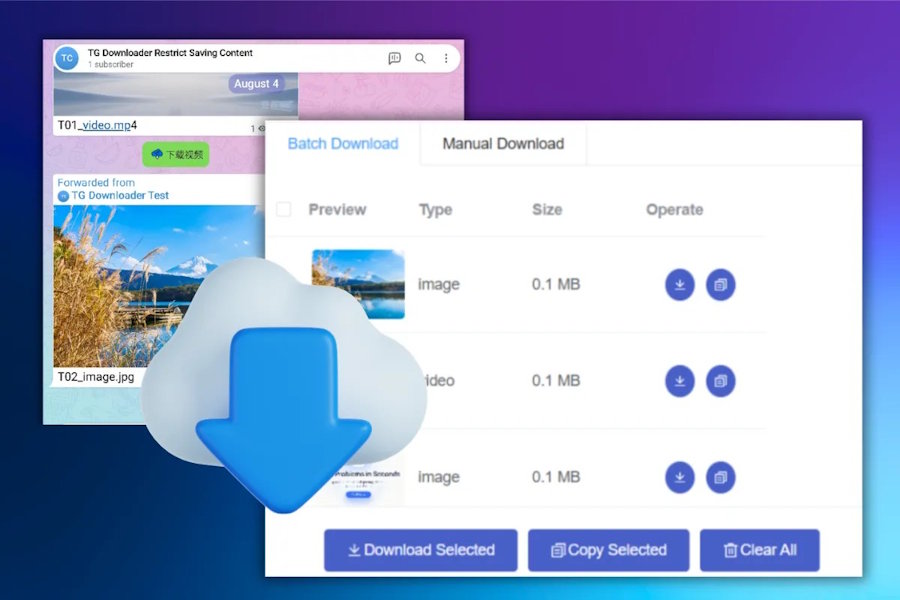
Use multi-item controls where supported and allow the current batch to finish before starting another large group. Compare the number of completed files with the number selected and check for incomplete downloads.
Step 5: Create Predictable Filenames
Use filenames that remain sortable across systems. An ISO date followed by a compact subject and sequence number works well:
2026-08-28-api-workshop-03.mp4
Avoid including confidential names in filenames that may later appear in screenshots or shared folders.
Troubleshooting
If no download action appears, refresh Telegram Web, wait for the conversation to render, and confirm that the extension is enabled.
If the extension works in one conversation but not another, the media or interface may be different. Try a supported Telegram Web A or Web K view.
When a large file stops, check disk space and network stability before retrying the individual file. If duplicate controls appear, disable competing extensions.
Some media may not be exposed as downloadable. Use permitted native options rather than assuming that restrictions can always be bypassed.
Security and Responsible Use
Keep Chrome and installed extensions updated. Remove tools that are no longer used, and do not upload private downloaded videos to random conversion websites.
Access is different from permission. Group members may be able to view a video without having the right to redistribute it. Respect copyright, confidentiality, channel rules, and personal privacy.
A reliable Chrome workflow combines legitimate Telegram access, a carefully reviewed extension, and a clear local organization system.

