

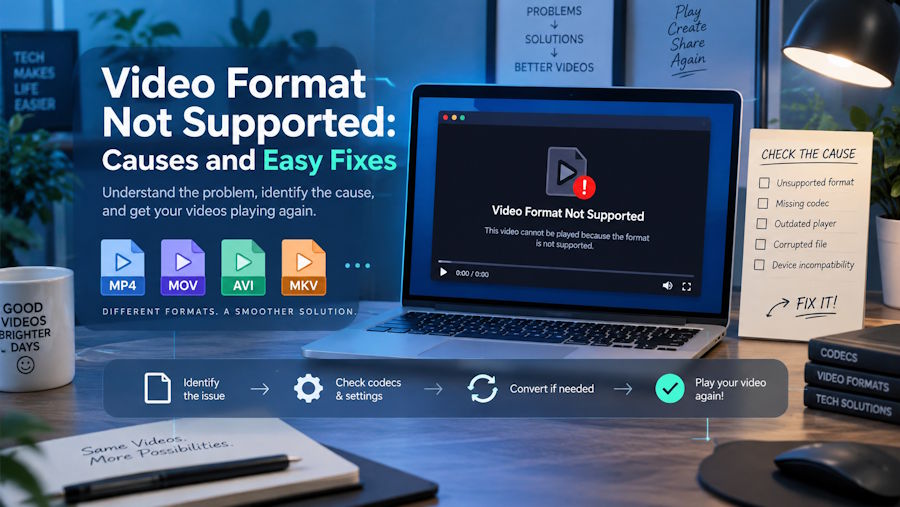
Seeing a “video format not supported” message can be confusing, especially when a video plays normally on one device but refuses to open on another. In most cases, the media player cannot properly read the video because it does not support its format, codec, or file structure. A missing codec or a damaged file can also cause the same error. Before you convert or delete the video, check what is actually causing the problem. This guide explains the common causes and shows simple ways to get your video playing again.
What Does “Video Format Not Supported” Mean?
A video format not supported error means that your media player cannot properly decode or read the video file. The problem does not always mean that the entire video format is bad. Your player may support the file extension but lack support for the codec used inside the file.
For example, your video may have an MP4 extension, but the video inside it may use a codec that your current player does not support. In another case, the file may have become damaged during downloading, transferring, or recording.
Common causes include:
- The player does not support the video format.
- The video uses an unsupported codec.
- The media player needs an update.
- The video file has become corrupted.
- The file did not download or transfer correctly.
Finding the cause first helps you choose the right fix instead of converting every video unnecessarily.
Video Format vs. Codec: What Is the Difference?
People often use “format” and “codec” as if they mean the same thing, but they describe different parts of a video.
What Is a Video Format?
A video format describes the file type or container. You can usually identify it from the file extension. Common examples include:
- MP4
- MOV
- AVI
- MKV
- WMV
Think of the format as a box that holds the video, audio, subtitles, and other information.
What Is a Video Codec?
A codec controls how the video gets compressed and stored inside that box. Common codecs include H.264, HEVC, and VP9.
This explains why two MP4 files may behave differently. Both files use the MP4 container, but they may use different codecs. Your player might support one codec while failing to play the other.
Fix 1: Try Another Video Player
If your current media player does not support the video's format or codec, it may show a video file not supported error. In this case, try opening the video with another media player that supports more file types and codecs.
Here are some popular options:
- VLC Media Player: VLC supports a wide range of video formats and codecs. It can play many files without requiring you to install extra codec packs.
- MPC-HC: Media Player Classic-Home Cinema is a lightweight option that supports many common video formats while using fewer system resources.
- PotPlayer: PotPlayer supports many video formats and codecs and includes several playback settings for users who want more control.
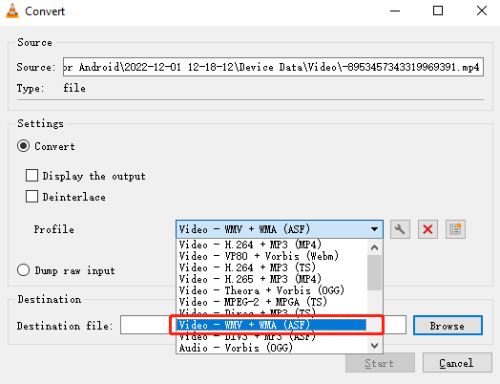
Fix 2: Convert the Video to a Compatible Format
If your video works correctly but your device or player does not support its current format or codec, conversion can solve the problem. A video converter changes the file into a format your target device can read. For general compatibility, MP4 with H.264 video remains a common choice because many computers, phones, browsers, and media players support it.
Conversion makes sense when:
- The original format is not supported.
- The codec does not work with your device.
- You need to play the video on an older device.
- You want a format that works across several players.
However, do not assume conversion will fix every playback error. If a converter cannot open the source file, the video may have a different problem.
Fix 3: Update Codec Support
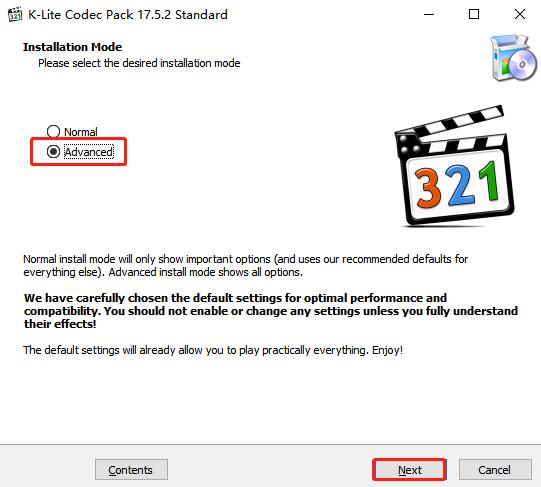
Sometimes the media player can open the video format but cannot decode the codec used by the file. In that situation, updating the player or adding the required codec support may fix playback. First, check whether your media player offers an update. Then check your operating system for available media-related updates. Some players also provide built-in support for additional codecs.
Codec problems often appear after receiving videos from newer phones, cameras, screen recorders, or editing programs. These devices may save videos using newer compression methods that older software cannot read.
If another updated player opens the video without any problem, you have a strong sign that codec support caused the original error.
Fix 4: Repair a Corrupted Video File
If different players cannot open the video and conversion also fails, the file may be damaged rather than simply unsupported. This can happen when a recording stops unexpectedly, a download ends early, or a file gets damaged during storage or transfer. In these cases, a video repair tool can be more useful than a converter because the main problem lies inside the video file itself. 4DDiG Video Repair can help repair damaged or corrupted videos. It is designed for cases where normal playback fails because the video file contains damaged or missing data.
A repair tool makes more sense when:
- Multiple players fail to open the video.
- A converter cannot load the file.
- The video shows errors after an interrupted recording.
- The file became damaged during transfer or storage.
- Only part of the video plays correctly.
Before repairing, keep the original file safe and work with a copy whenever possible.
How to Identify the Real Cause
Step 1: Open 4DDiG Video Repair, choose Video Repair, and click Add Videos to upload the damaged video you cannot insert into PowerPoint.
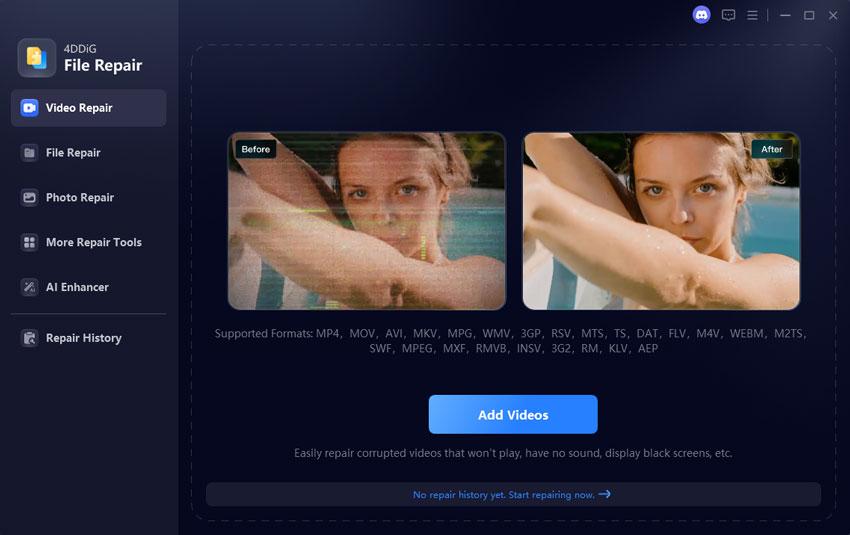
Step 2: After uploading the video, click Repair All to begin the repair process. Wait until 4DDiG finishes repairing the damaged video file.
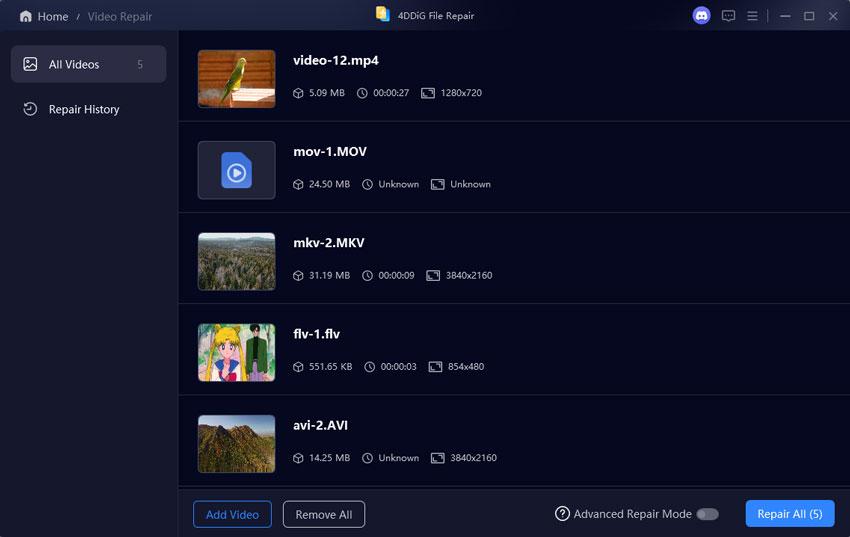
Step 3: Click Preview to check the repaired video. If it plays correctly, click Save or Save All, then insert it into PowerPoint.
This process helps you avoid using the wrong solution.
Conclusion
A video format not supported message does not always mean that you need to convert the video. The problem may come from the media player, an unsupported codec, or damage inside the file.
Start by trying another updated player. If the video plays there, the original player likely caused the issue. If the file works normally but uses an incompatible format or codec, convert it to a widely supported option such as MP4 with H.264. If conversion also fails, check for file corruption and consider a video repair tool.
The key is to identify the cause before choosing a fix. This approach saves time and helps you avoid changing a video that was never actually broken.

