

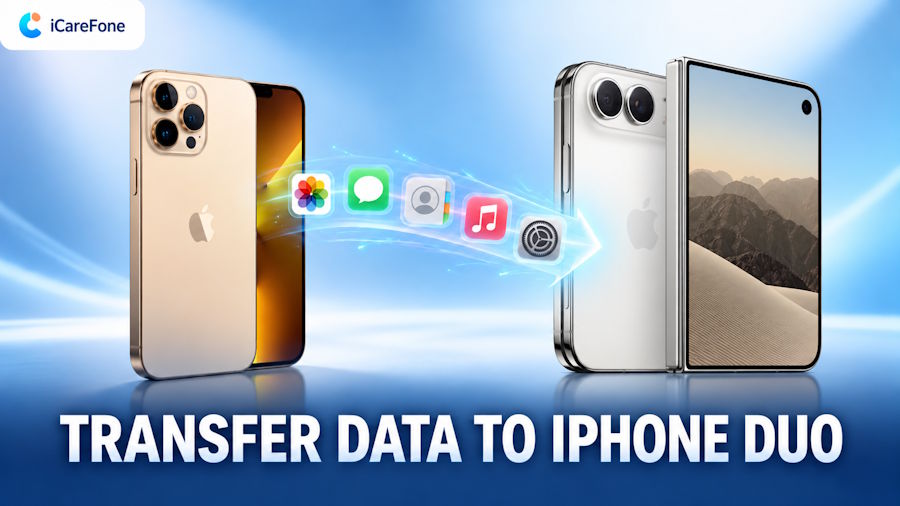
Moving to iPhone Duo? The right method depends on whether setup is complete and whether you need selected files or a broader migration. Here is how to transfer data from old iPhone to new iPhone using four approaches.
Before You Begin
Back up your old iPhone, check available storage on the destination, and keep both devices charged. Have your device passcodes and Apple Account details ready. For Quick Start, enable Bluetooth and connect the old phone to Wi-Fi. For computer-based transfers, use a reliable cable and enough local storage. Keep the old device unchanged until you have checked the transferred content.
Part 1. Compare Ways to Transfer Data to iPhone Duo
Choose by setup status and transfer scope. Confirm software compatibility with your exact device and iOS version before proceeding.
| Method | iCloud Needed | Setup Stage | Select Files | Best For |
|---|---|---|---|---|
| iCareFone | No | After setup | Supported types | Selective restoration |
| Quick Start | No: direct transfer | Initial setup | No | Device migration |
| iCloud Backup | Yes | Initial setup | No | Cloud backup |
| Computer Backup | No | Setup or restore | No | Local backup |
Part 2. How to Transfer Data from Old iPhone to iPhone Duo
Method 1. Transfer Selected Data with iCareFone
Already using your new phone but missing files from the old one? Tenorshare iCareFone provides a computer-based backup-and-restore route for supported content, without relying on iCloud. It is useful when you want to preview a backup and choose what to restore rather than repeat a full migration.
- Select supported files instead of restoring the entire backup.
- Preview backup content before restoring it.
- Use local computer storage rather than iCloud storage.
Download iCareFone and follow its Backup & Restore workflow. This is selective data restoration, not a complete system clone.
- Connect and unlock your old iPhone, trust the computer, and use Backup & Restore to create a local backup.
- Connect iPhone Duo, open Backup Records, and select that backup.
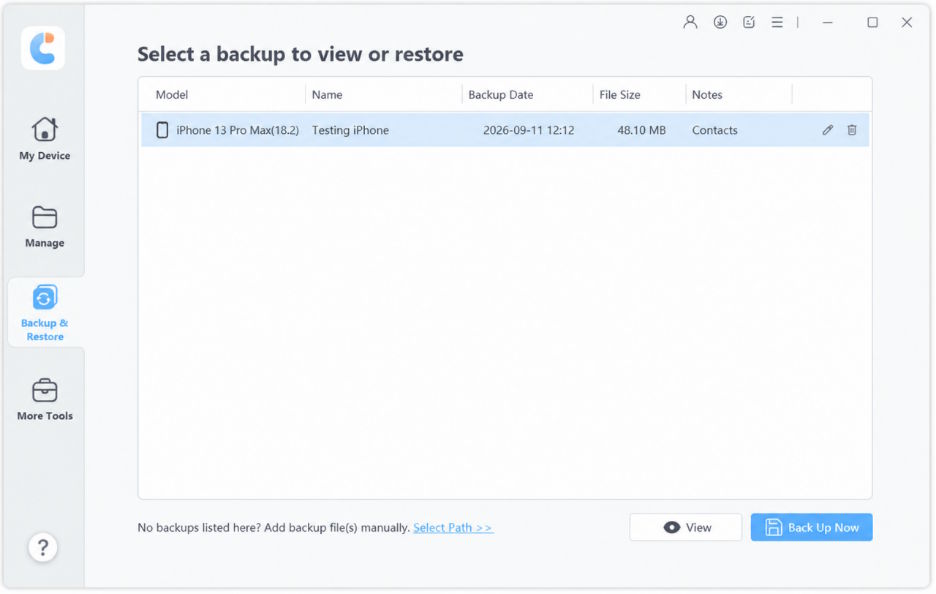
- Open the backup for preview, enter its password if encrypted, select supported files, and choose Restore to Device.
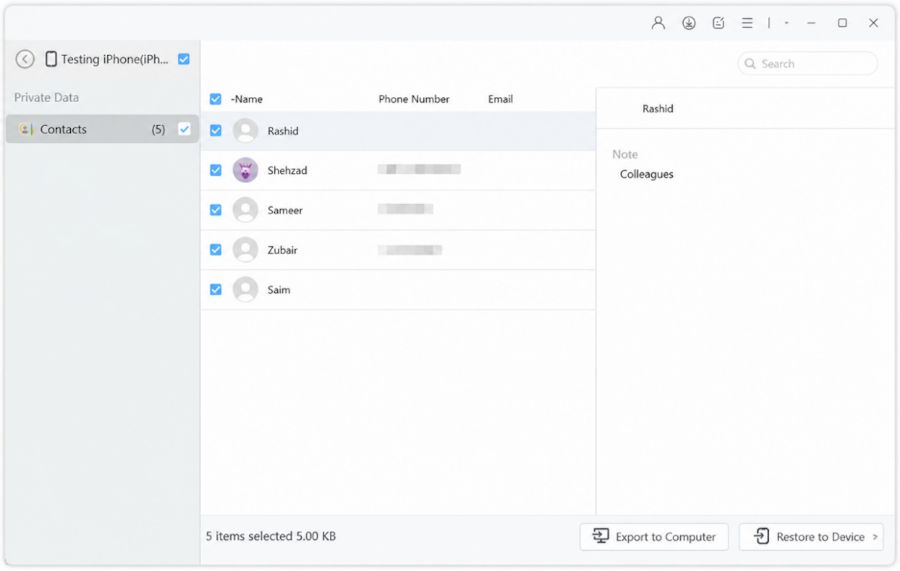
Keep iPhone Duo connected until restoration finishes, then check the transferred files. Screenshots illustrate the workflow on an earlier device.
Limitation: Direct restoration supports messages, bookmarks, contacts, photos, videos, and music. It does not reproduce every app or setting. A compatible computer and cable are required.
Method 2. Use Quick Start During Initial Setup
Quick Start is Apple's guided migration option when both iPhones are available. Choose direct transfer if you want to move content without first creating an iCloud backup.
- Turn on iPhone Duo near your unlocked old iPhone and follow the Quick Start prompt.
- Scan the animation, enter the requested passcode, and choose to transfer from the old iPhone.
- Keep both phones nearby and connected to power until the transfer finishes.
Limitation: Quick Start runs during setup. An already-set-up destination must be erased to restart this flow; save any new content first.
Method 3. Restore an iCloud Backup
An existing iCloud backup is useful when your old iPhone is unavailable during setup.
- If you still have the old phone, open Settings > your name > iCloud > iCloud Backup and tap Back Up Now.
- During iPhone Duo setup, select From iCloud Backup on the transfer screen.
- Sign in to the account holding the backup, select the appropriate date, and stay connected to Wi-Fi.
Limitation: Full backup restoration requires the setup flow and a usable backup. Content already synced with iCloud downloads separately.
Method 4. Restore an iPhone Backup with Finder, Apple Devices, or iTunes
Use Finder on a current Mac, Apple Devices on Windows, or iTunes where applicable. This route restores a device backup rather than letting you pick individual files.
- Connect the old iPhone and create a backup. Enable encryption to include items such as saved passwords and Health data; retain the password.
- Connect iPhone Duo, select it in the computer app, and choose Restore Backup.
- Select the backup, enter its encryption password if requested, and wait for restoration and syncing to finish.
Limitation: Restoration replaces destination content rather than merging two phones. Back up any existing destination data first.
Part 3. Tips Before Retiring Your Old iPhone
Check important files, complete app sign-ins, and confirm cloud downloads have finished. Keep the old phone until you have verified the result. Open a few older photos and videos on iPhone Duo to check that they load correctly. Also test your most-used apps before putting the old phone away.
FAQs About Transferring Data to iPhone Duo
Can I Transfer Data after Setup?
Yes. Supported selective transfers and cloud syncing can work after setup. Quick Start and full iCloud backup restoration require returning to the setup screen.
Can I Transfer Data without iCloud?
Yes. Use Quick Start's direct transfer, a local computer backup, or iCareFone for supported selective restoration. Choose according to your setup status and whether you need individual files.
Will Everything Transfer to My New iPhone?
Not necessarily. Apps may need to download again, services may require sign-in, and some content needs separate handling. Check your photos, messages, contacts, and essential apps before erasing the old phone.
Will Transferring Data Erase Existing Content?
A full backup restore can replace destination content. Selective restoration is a different process, but review the chosen tool's handling of existing and duplicate records before proceeding.
How Long Does an iPhone Transfer Take?
There is no fixed duration. Library size, connection speed, and device conditions affect timing. Keep the devices powered and follow the progress shown rather than interrupting an active transfer.
Conclusion
To transfer data to iPhone Duo, match the method to your starting point. Quick Start suits a fresh setup; iCloud and computer backups suit backup-based migration. For selected supported files after setup, see the iCareFone backup and restore guide. Whichever route you choose, verify the result before retiring your old iPhone.

