


Losing photos from an SD card can feel very frustrating especially when those photos hold memories or work images. If you have accidentally deleted photos, formatted the card, or simply noticed that your pictures have suddenly vanished, recovery might still be an option.
The first and most important step is to stop using the SD card and keep it from having data written onto it. Trying a professional recovery tool like MyRecover, you can easily recover photos from SD card and then move them to a safe location.
What to Do Before Recovering Photos from an SD Card
Before you attempt to recover your lost photos from your SD card, make sure you follow these steps first.
- Stop using the SD card. It is very important that you do not use the SD card where the photos were lost for storing new photos, videos, or files. Data written to the SD card after you’ve deleted a picture could overwrite that picture and prevent its recovery.
- Don’t format the card. This seems like an obvious thing to say, but if the computer reports an SD card that is RAW or unreadable, please do not format it as this will almost certainly make recovery harder.
- Connect the card properly. Use a card reader to connect the SD card to your Windows PC. If the SD card is not detected, check the reader, USB port, and connection before attempting recovery.
- Prepare a safe recovery destination. Select a location on your internal drive or on another storage medium which has sufficient free space. Never save recovered photos back to the SD card where they originally were.
Once you have taken these precautions you can scan the SD card for photos.
How to Recover Photos from an SD Card with MyRecover
MyRecover is a free data recovery software which can recover deleted files from SD cards, USB sticks, hard drives, SSDs, cameras, and other storage media. Whether your photos got deleted accidentally, got lost after an SD card format, an empty Recycle Bin, a power failure, or in any other way, MyRecover can scan your SD card or any other devices for recoverable files. Follow the steps below to scan your SD card, find the pictures you need, and recover them to a safe location.
Step 1. Connect the SD Card to Computer
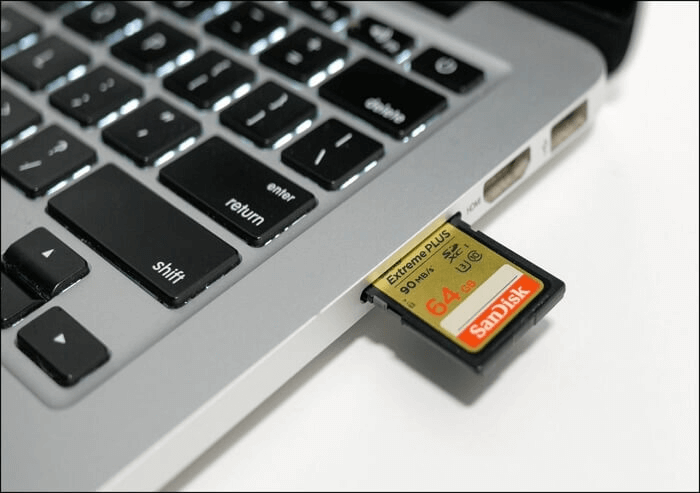
Remove the SD card from your camera or other device and connect it to your computer using an SD card reader. Ensure the card is properly connected to your computer so that it can be recognized. Note: Windows may prompt you to format the SD card when you connect it, cancel the prompt and continue with recovery.
Step 2. Select and Scan the SD Card
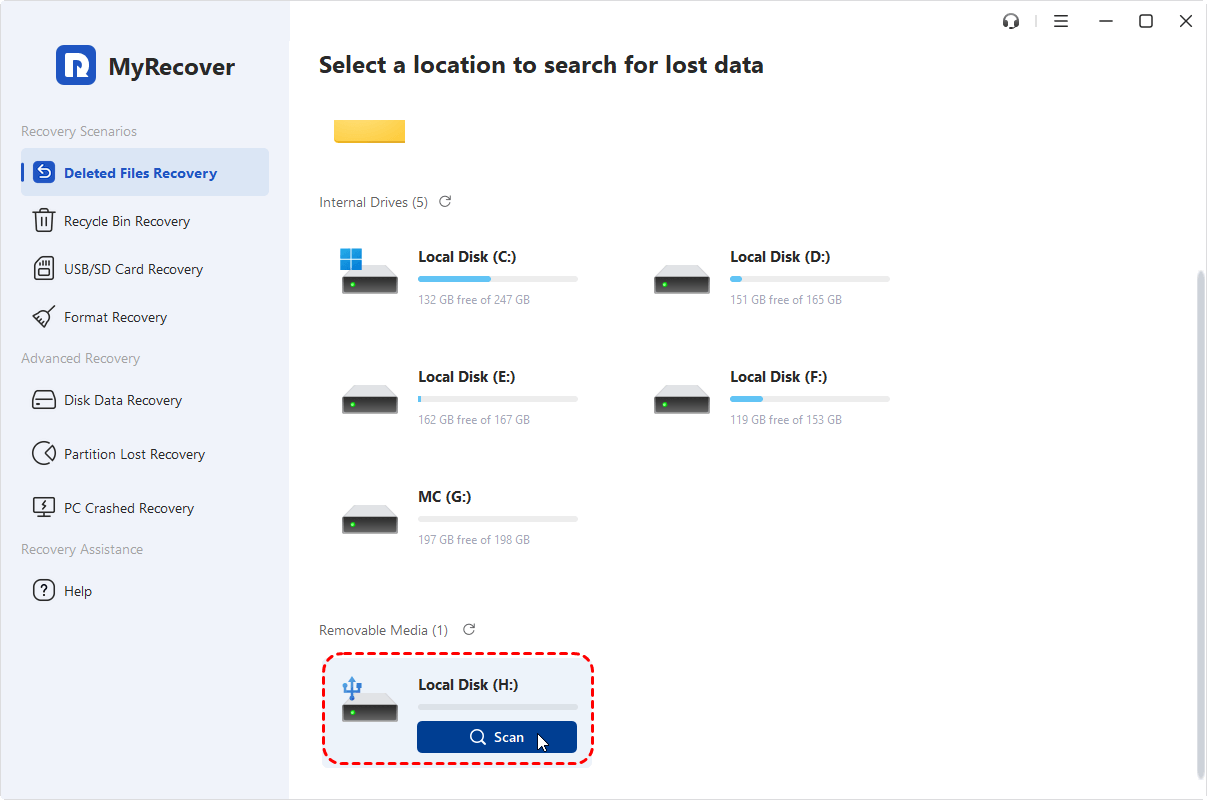
Download and install MyRecover on your computer then launch MyRecover. Find the SD card in the list of drives or partitions, then click the "Scan" button. MyRecover will search for files that can be recovered, such as photos that have been deleted or lost.
Step 3. Check the Recoverable Files
After scanning, look through the results to find the photos you want to restore. You can use the file Filters or Search options to make it easier to find what you’re looking for. The original file names and folder structure might still be there especially if the data hasn’t been overwritten. That can help you recognize the photos you need.
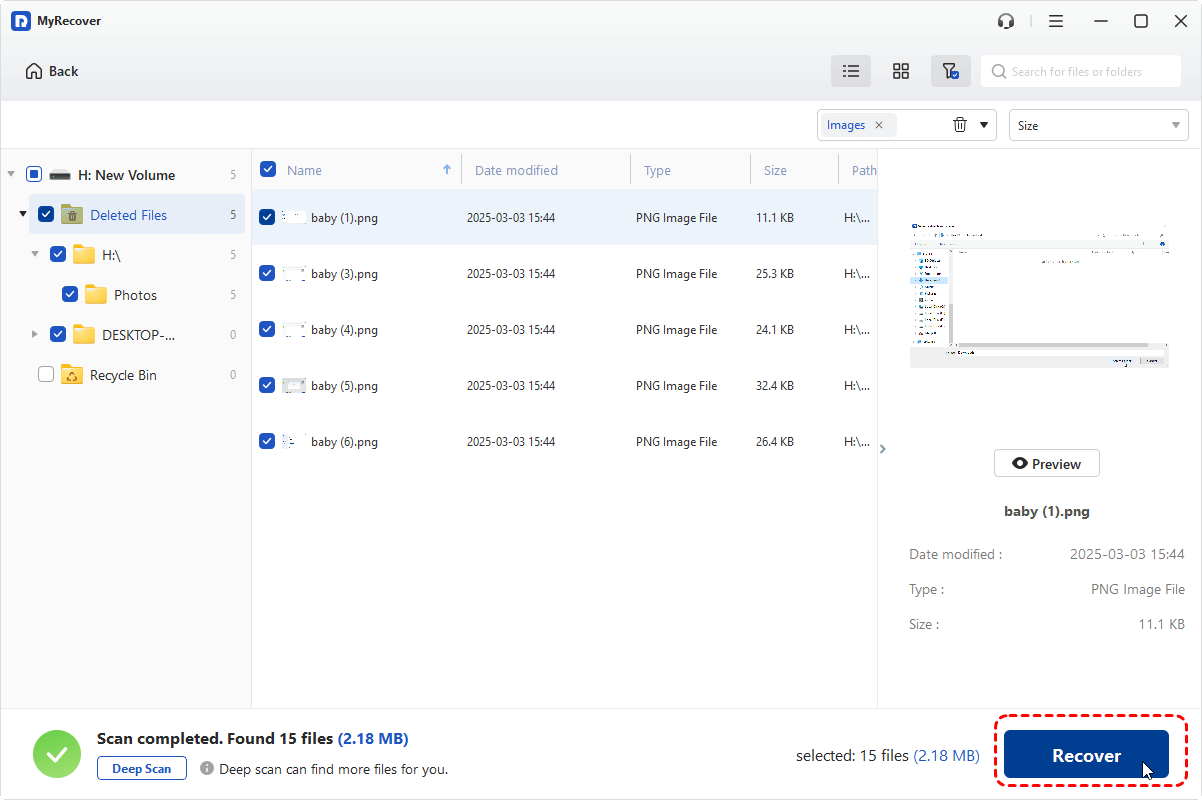
Upgrading to the Professional edition, you can preview the files for your chosen image type and take a look at the photos before recovering them. This helps you be sure you’re picking the right ones.
Step 4. Recover Photos to a Safe Location
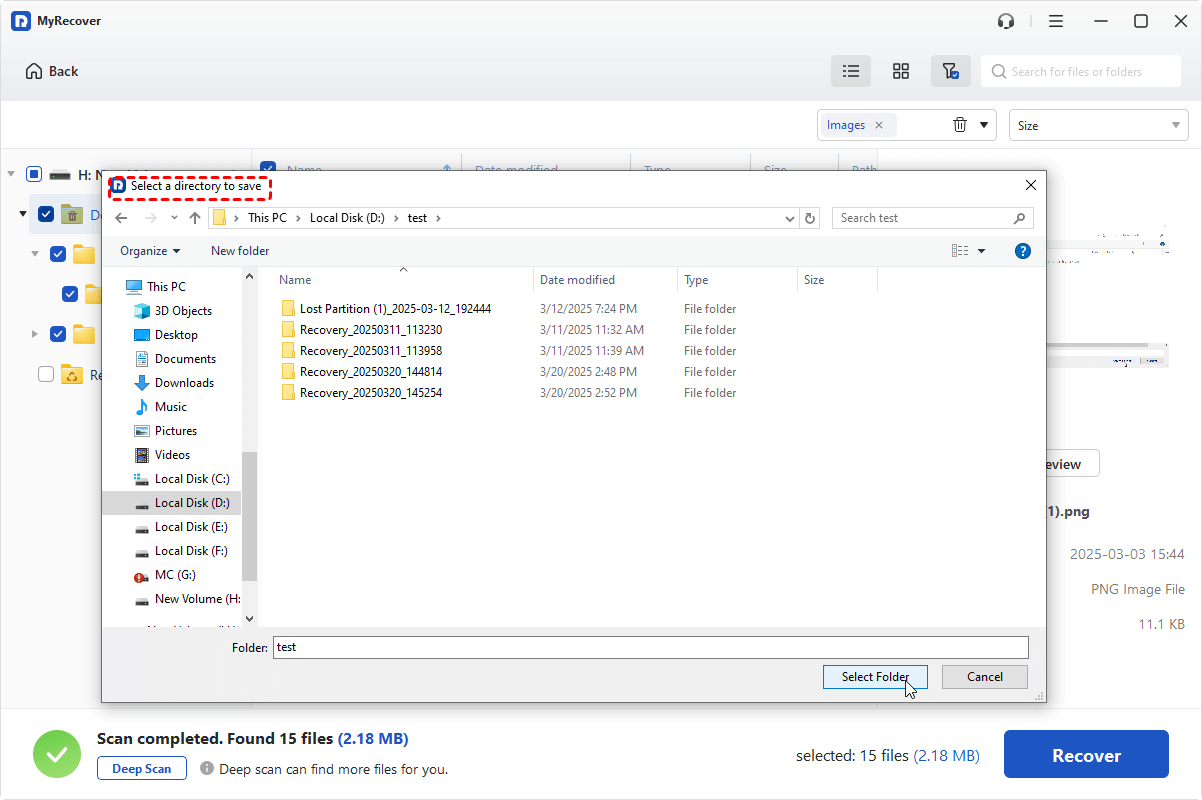
Select the pictures you want to recover, click the "Recover" button, and pick a place on your computer or another storage drive. Make sure you do not put the restored files back on the SD card because that could replace other information that might still be saved.
Recover Photos from Different SD Card Loss Scenarios
Besides deleting files or formatting the card, photos can go missing from an SD card for many other reasons. MyRecover can check supported storage devices to find files that can be recovered in situations where data is lost.
- SD Card Shows as RAW: If your SD card shows up as RAW, in Windows you might not be able to open your photos normally. MyRecover can scan the SD card to find photos that can be recovered. You don't need to format the card first.
- SD Card File System is Corrupted: File system errors can make saved photos inaccessible or cause files to disappear from view. If Windows can detect the card, MyRecover can help scan it for recoverable images and other files.
- Photos Lost After a Virus Attack: Malware or virus activity may cause files to disappear or become inaccessible. MyRecover can scan the affected storage device for recoverable data, although it does not remove malware or repair an infected card.
- Photos Lost After Improper Removal or Device Errors: Removing an SD card while files are being written or encountering storage errors may result in missing or inaccessible photos. Stop using the card and scan it with MyRecover to look for recoverable files.
Conclusion
Losing photos from an SD card doesn't always mean they're gone forever. Stop using the card to avoid overwriting data, then use MyRecover to scan for recoverable photos and restore them to a safe location. Download MyRecover today and start recovering your lost SD card photos.
Read More: Hb Seo Service

