
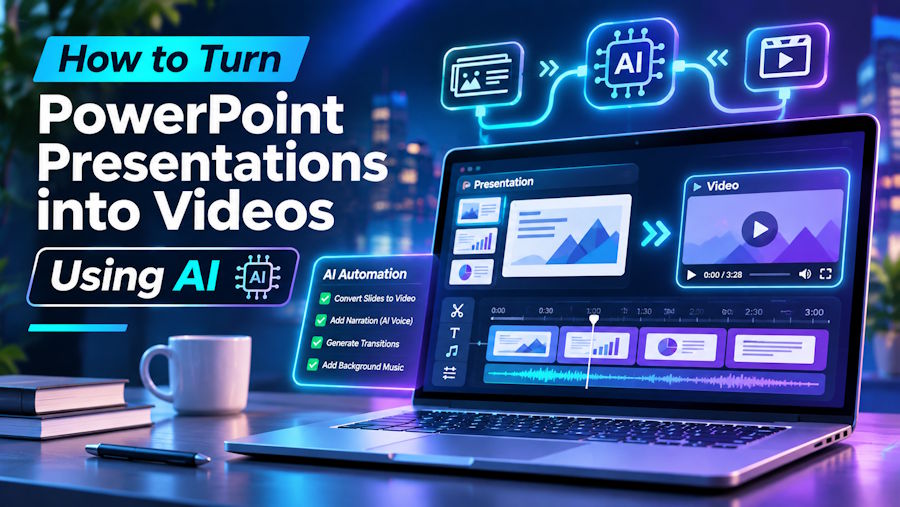
PowerPoint presentations are widely used for training, education, sales meetings, business proposals, and internal communication. However, sharing a presentation as a collection of slides does not always create the most engaging experience. Audiences may not have time to read every slide, and important information can easily get overlooked when there is no speaker available to explain the content.
Turning a PowerPoint presentation into a narrated video offers a practical alternative. Instead of asking viewers to move through slides independently, you can combine presentation visuals with spoken explanations and export everything as a video that is easy to share, watch, and revisit.
AI-powered tools have made this process significantly easier. You no longer need to record your own narration, hire a voice actor, or spend hours editing video and audio tracks. With the right workflow, an existing PowerPoint file or PDF can become a professional narrated video using AI-generated scripts, natural-sounding voiceovers, and even a digital version of your own voice.
Why Convert PowerPoint Presentations into Videos?
A presentation video combines the visual structure of slides with the clarity of spoken explanations. This makes it particularly useful when information needs to reach people who cannot attend a live presentation.
There are several advantages to converting slides into narrated videos:
- More engaging learning experiences: Narration helps explain complex information while viewers follow the corresponding slides.
- Consistent communication: Every viewer receives the same explanation, which is especially important for employee training and onboarding.
- Flexible access: Videos can be watched at a convenient time, paused, replayed, or shared with different audiences.
- Less repetitive work: A recorded presentation can be reused instead of delivering the same explanation in multiple meetings.
- Wider audience reach: Videos can be produced in different languages to support international teams, customers, and learners.
For businesses, educators, and training professionals, this approach can turn existing presentation materials into reusable learning and communication resources.
How to Turn a PowerPoint Presentation into a Video Using AI
The process does not require advanced video editing skills. Most AI presentation-to-video workflows follow a few straightforward steps, starting with an existing presentation and ending with an MP4 file.
1. Upload Your PowerPoint or PDF File
Start by selecting the presentation you want to convert. This might be a PowerPoint file containing training slides, a sales presentation, a lecture, or a PDF document with structured information.
Using existing material saves time because you do not need to recreate the visual content from scratch. The slides provide the structure, while narration adds explanations and context.
Before uploading, review the presentation to make sure the slides are in the correct order, the text is readable, and the visuals support the intended message.
2. Import Speaker Notes or Generate a Narration Script with AI
The next step is preparing the spoken content.
If your PowerPoint presentation already includes speaker notes, you may be able to use them as the narration for each slide. This is particularly useful for educators and professionals who have already written explanations for their presentations.
If no speaker notes are available, AI script generation can help transform slide content into a more natural spoken explanation. Rather than simply reading every bullet point aloud, an AI-generated script can organise the information into connected sentences that are easier to follow.
For better results, review the generated narration before moving forward. Correct any inaccurate details, simplify complicated sentences, and make sure the script reflects the message you want viewers to understand.
3. Choose an AI Voice for the Narration
Once the script is ready, select the voice that will narrate the presentation.
AI voiceovers use text-to-speech technology to turn written scripts into spoken audio. Modern AI voices can sound natural and expressive, making them suitable for professional presentations, educational materials, product explanations, and internal training videos.
Consider the audience and purpose of the video when choosing a voice. A clear, professional tone may work best for corporate training, while a more conversational voice can make educational content feel approachable.
Language selection is also important. For international audiences, the ability to generate narration in multiple languages can help make the same presentation accessible to people in different regions.
4. Use Voice Cloning for a More Personal Presentation
A standard AI voice is not the only option. Some presentation-to-video platforms also support voice cloning, allowing users to create a custom AI voice based on their own recorded voice.
This can be especially useful for professionals who regularly deliver presentations. Instead of recording every new video manually, they can use their cloned voice to narrate additional presentations while maintaining a more consistent personal sound.
For example, a company trainer could create a series of employee training videos using the same voice, while a teacher could prepare narrated lessons without having to record each presentation individually.
Voice cloning should always be used with the voice owner's permission. Users should also review the generated audio to ensure that the pronunciation, tone, and delivery are appropriate for the intended audience.
5. Generate and Review the Narrated Video
After choosing the narration settings, generate the video and review how the audio works with the presentation slides.
Pay attention to whether the narration matches the information displayed on each slide. A well-produced video should give viewers enough time to understand the visuals without leaving long, unnecessary pauses.
It is also worth checking pronunciation, transitions, audio consistency, and the overall flow. If a particular slide contains complicated information, consider adjusting the script to make the explanation clearer.
6. Export the Final Video as an MP4
Once the presentation looks and sounds right, export it as an MP4 video.
MP4 is a widely supported video format that can be uploaded to learning management systems, shared through company communication platforms, embedded on websites, or distributed through email and cloud storage.
The final video can be reused whenever the information is needed, making it easier to distribute presentations without organising another live session or recording.
What Is the Easiest Way to Convert Presentations into Narrated Videos?
For users who want to avoid traditional video editing, an AI-powered presentation conversion tool can simplify the entire process.
Presentation to Video by Vidsembly is an AI-powered tool that converts PowerPoint presentations and PDFs into professional narrated MP4 videos. Users can upload an existing presentation, import speaker notes, or generate a narration script with AI.
The tool offers a selection of natural-sounding AI voices in multiple languages. It also supports voice cloning, allowing users to create a custom AI voice based on their own voice and use it to narrate presentations without manually recording every video.
The general workflow is straightforward:
- Upload a PowerPoint presentation or PDF.
- Import existing speaker notes or generate a narration script using AI.
- Select a natural-sounding AI voice or use a cloned version of your own voice.
- Generate the narrated presentation.
- Export the finished video as an MP4 file.
This approach is useful for people who already have presentation materials but want to make them easier to consume in video format. You can explore the Presentation to Video tool by Vidsembly to see how it can turn existing slides into narrated videos without requiring traditional video editing.
Who Can Benefit from AI Presentation-to-Video Tools?
Converting presentations into videos is useful across several professional environments.
Educators and Online Course Creators
Teachers, lecturers, and online educators often rely on PowerPoint slides to explain lessons and organise course material. Turning these presentations into narrated videos makes it possible for students to review lessons independently and revisit difficult topics whenever necessary.
AI-generated scripts can help prepare explanations, while multilingual voiceovers may support students who prefer learning in another language.
HR and Employee Training Teams
Human resources departments frequently create presentations for onboarding, workplace policies, compliance training, and professional development.
Instead of repeating the same information during multiple sessions, HR teams can convert these materials into narrated videos that employees can watch when convenient. Voice cloning can also help maintain a consistent narration style across an entire training library.
Sales and Marketing Professionals
Sales teams use presentations to explain products, demonstrate services, and communicate business proposals. Converting these materials into videos provides another way to share information with potential customers.
A narrated video can introduce a product, explain its main benefits, or guide viewers through a presentation even when a salesperson is not available to deliver it live.
Businesses and Corporate Communications Teams
Businesses often need to communicate updates, explain procedures, and distribute information across different departments or locations.
AI presentation-to-video tools can help standardise these messages and reduce the time spent recording and editing individual videos. They are particularly useful when the same information needs to be shared repeatedly or with geographically distributed teams.
Tips for Creating Better AI-Narrated Presentation Videos
Although AI can automate much of the production process, the quality of the original presentation and narration still matters.
Keep these practical recommendations in mind:
- Avoid overcrowded slides. Too much text makes presentations difficult to follow, especially when viewers are also listening to narration.
- Write for speaking, not reading. Short, conversational sentences generally sound better when converted into speech.
- Review AI-generated scripts. Check facts, remove unnecessary repetition, and make sure the narration follows the presentation logically.
- Choose an appropriate voice. Match the voice, language, and tone to the audience and subject matter.
- Use voice cloning responsibly. Only clone voices with the owner's explicit permission.
- Keep the narration aligned with the visuals. Each explanation should correspond to the slide viewers are seeing.
- Check the final MP4. Watch the complete video before sharing it to catch pronunciation problems, timing issues, or missing information.
These small improvements can make a significant difference to the final viewing experience.
AI Presentation-to-Video Conversion vs. Traditional Video Editing
Traditional video production often involves recording narration, importing audio files, synchronising sound with visuals, and editing the final timeline. This can be time-consuming, particularly when presentations need frequent updates.
AI-powered conversion tools simplify several of these tasks by combining script preparation, voice generation, and presentation-to-video conversion in one workflow.
AI tools do not eliminate the need for reviewing and refining content. However, they can reduce repetitive production tasks and make narrated video creation more accessible to people without video editing experience.
Frequently Asked Questions
Can I turn a PowerPoint presentation into a video using AI?
Yes. AI-powered presentation-to-video tools can convert existing PowerPoint slides into narrated videos. Depending on the platform, you can import speaker notes, generate a script with AI, select an AI voice, and export the finished presentation as an MP4 file.
Can I convert a PDF into a narrated video?
Yes. Some AI presentation conversion tools support PDF uploads as well as PowerPoint files. The platform can use the document's content as the basis for a narrated video, depending on its supported features.
Can AI generate the narration script automatically?
Yes. AI script generation can help turn presentation content into spoken explanations. Users should review the generated text to ensure that it is accurate, clear, and suitable for the intended audience.
Can I use my own voice instead of a standard AI voice?
Some platforms support voice cloning, which allows users to create a custom AI voice based on their own recorded voice. This can help maintain a consistent personal narration style without recording every presentation manually.
Can AI-narrated presentation videos be created in different languages?
Some AI-powered tools offer voices in multiple languages. This can make it easier to adapt presentation videos for international employees, students, and customers, although the availability of specific languages depends on the platform.
What format can I export the finished presentation video in?
The Vidsembly Presentation to Video tool exports finished narrated presentations as MP4 videos, a widely supported format suitable for sharing and online distribution.
Turning PowerPoint presentations and PDFs into narrated videos is becoming a practical way to make existing content more accessible, engaging, and reusable. AI technology simplifies the process by helping users generate narration scripts, choose natural-sounding voices, and even clone their own voice for consistent presentation delivery.
For educators, HR departments, sales professionals, and businesses, this means they can transform materials they already have into professional videos without the complexity of traditional video editing. With a straightforward presentation-to-video workflow, valuable information can reach a wider audience and remain available whenever people need it.