
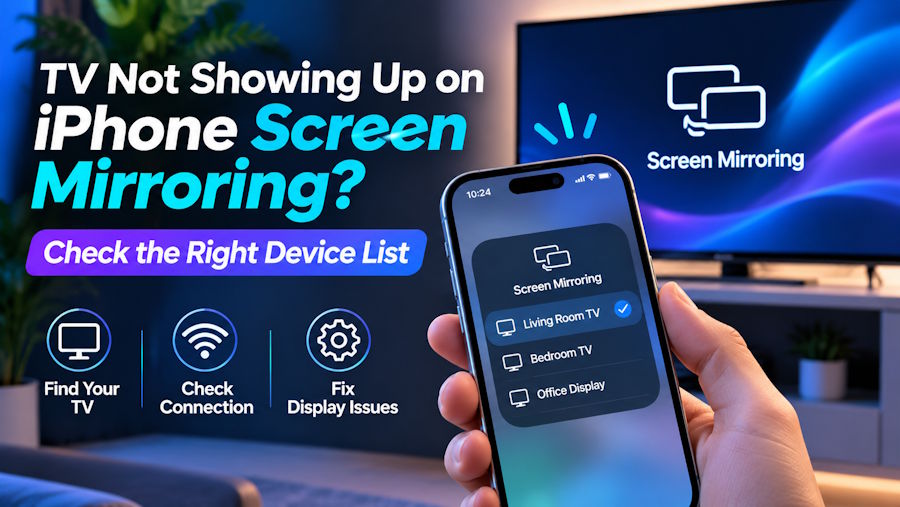
Your iPhone can play a video online. The television can stream its own shows. Both are connected to Wi-Fi. Yet when you open Screen Mirroring, the TV is missing.
Before resetting anything, check which device list you are looking at. The list in iPhone Control Center and the list inside a casting app can show different receivers. A television missing from one is not necessarily unreachable through the other.
The useful question is more specific than “Why is screen mirroring not working?”: At which point does the process fail: finding the TV, connecting to it, or displaying a particular piece of content? Those three symptoms need different fixes.
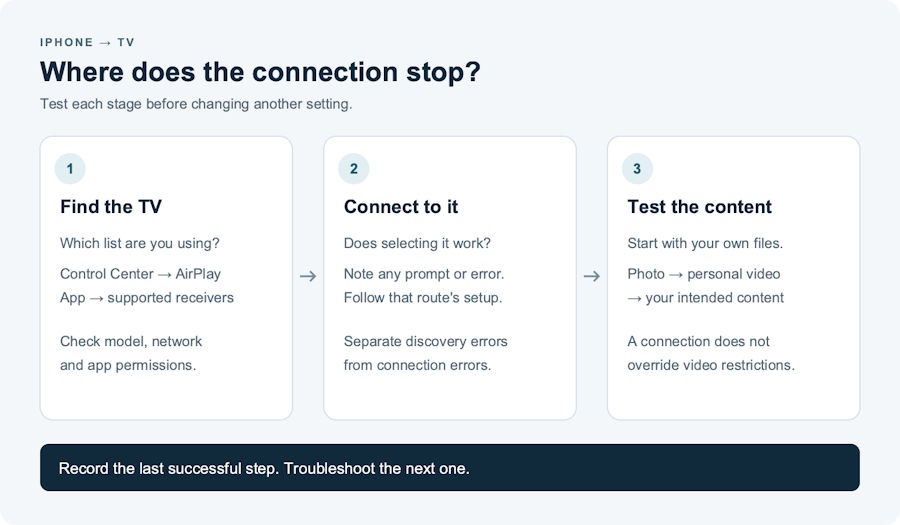
Start with the first checkpoint that fails. A working connection does not establish that every video service will allow playback.
One TV can appear in one list and disappear from another
On an iPhone, Control Center → Screen Mirroring uses AirPlay. It is not a directory of every smart television nearby. Apple's mirroring instructions require an Apple TV, an AirPlay-compatible television, or another supported receiver.
Google Cast uses a different route: you choose a receiver from a Cast-enabled app. On iPhone, that means opening the app, granting Local Network access, and selecting a device from its Cast menu.
For example, if a TV's specifications list Google Cast but do not list AirPlay, its absence from Control Center alone does not establish a fault. Check a compatible app's receiver list instead. If the model supports both, the same television may offer more than one route.
| Where you are looking | What you are checking | What an empty list does not prove |
|---|---|---|
| iPhone Control Center → Screen Mirroring | An available AirPlay receiver | That the TV cannot receive content through a different supported method |
| The Cast menu inside an iPhone app | Receivers supported by that app's Cast implementation | That AirPlay must also be broken |
| A third-party mirroring app's device picker | Devices that particular app supports and can discover | That every mode in the app will work with every detected television |
That last distinction matters when choosing a screen mirroring app: finding a TV and successfully using a particular feature are separate checks.
Checkpoint 1: establish what the receiver actually supports
Write down the TV's model number and software platform, rather than relying on the logo on its bezel. If you use a streaming stick, include that device too. The stick may be the receiver you need to select, even though the picture appears on another manufacturer's television.
For Roku, Settings → System → About shows the model and software version. Roku's AirPlay compatibility guide uses those details to determine support; “it's a Roku” is not enough.
If the receiver supports AirPlay, check that AirPlay is enabled on the television. A compatible TV with AirPlay switched off can still leave the iPhone unable to connect. Menu locations vary by model, so use the instructions for your set.
If AirPlay is unavailable, look for another method your receiver and iPhone app both support. Apps like Screen Mirroring · Smart TV offer their own TV picker and separate options for mirroring the screen or casting photos and videos. Check the supported receiver before installing: the brand name alone does not establish compatibility.
Once you have chosen a compatible app:
- Connect the iPhone and supported TV or streaming device to the same Wi-Fi network.
- Open the app and allow Local Network access when prompted, so it can search for receivers.
- Select the receiver in the app's device list. Do not wait for it to appear in Control Center as well.
- Start with a personal photo using its media-casting option. Then try full-screen mirroring if that is what you need, following the app's on-screen instructions.
Check the app's iOS requirements, available features and subscription terms before purchasing. A different app still needs a supported receiver and a usable network connection.
Checkpoint 2: separate internet access from device discovery
Two devices being online establishes that they can each reach the internet. It does not establish that the phone can discover the television locally.
Start with the network names shown on the phone and receiver. For the ordinary home setup described here, put both on the same home Wi-Fi network. A television connected to a guest network is an important clue, even if its own streaming apps work.
Next, check the permission for the app you are actually using: Settings → Privacy & Security → Local Network. Enable access for that app if you want it to discover nearby receivers. Apple explains that this permission is controlled per app.
This is a check for app discovery, not a universal repair switch for native AirPlay. Apple notes that system services such as AirPlay can still interact with the network even when an app's own Local Network access is denied.
If the app has permission and the receiver remains missing, investigate guest-network or client isolation. Google's network troubleshooting guidance identifies AP isolation as a setting that can obstruct Google streaming devices. On a managed hotel or office network, ask the administrator whether phone-to-TV connections are supported.
For AirPlay not showing up on a confirmed compatible receiver, check that devices are on, update their software, confirm the network, then restart them. If the receiver is configured in Apple's Home app, also check its AirPlay access restrictions.
Change one thing, reopen the relevant device list, and record the result. If the TV appears immediately after you allow Local Network access, you have learned something useful. If you change six settings at once, you have a working picture but no clear explanation to use next time.
The TV appears, but selecting it does not connect
Record what happens after the tap. For AirPlay, enter the passcode displayed on the TV if requested; Apple documents that step in its mirroring instructions. Check that you selected the intended receiver, especially if several nearby TVs have similar names. For an app-based route, follow its connection or broadcast prompts and record the exact error if it stops. Receiver discovery has succeeded, so report the connection failure separately instead of describing the TV as missing.
If you are switching methods, the iPhone-to-TV setup walkthrough covers selecting the receiver and starting a session inside the app. Follow the steps for the route you chose; selecting a TV in one app does not also start a Control Center mirroring session.
Checkpoint 3: use a personal photo before testing a streaming service
If the TV appears and connects, stop treating the problem as an empty-device-list issue. Test what can actually cross that connection.
Use this order:
- A personal photo: choose an ordinary image from your camera roll.
- A short video you recorded: test moving pictures and sound using your own content.
- The content you originally wanted: open the app, website or presentation that prompted the troubleshooting.
These are diagnostic comparisons, not a guarantee that one successful test validates every feature. Gallery casting and whole-screen mirroring are different modes: test the one you intend to use.
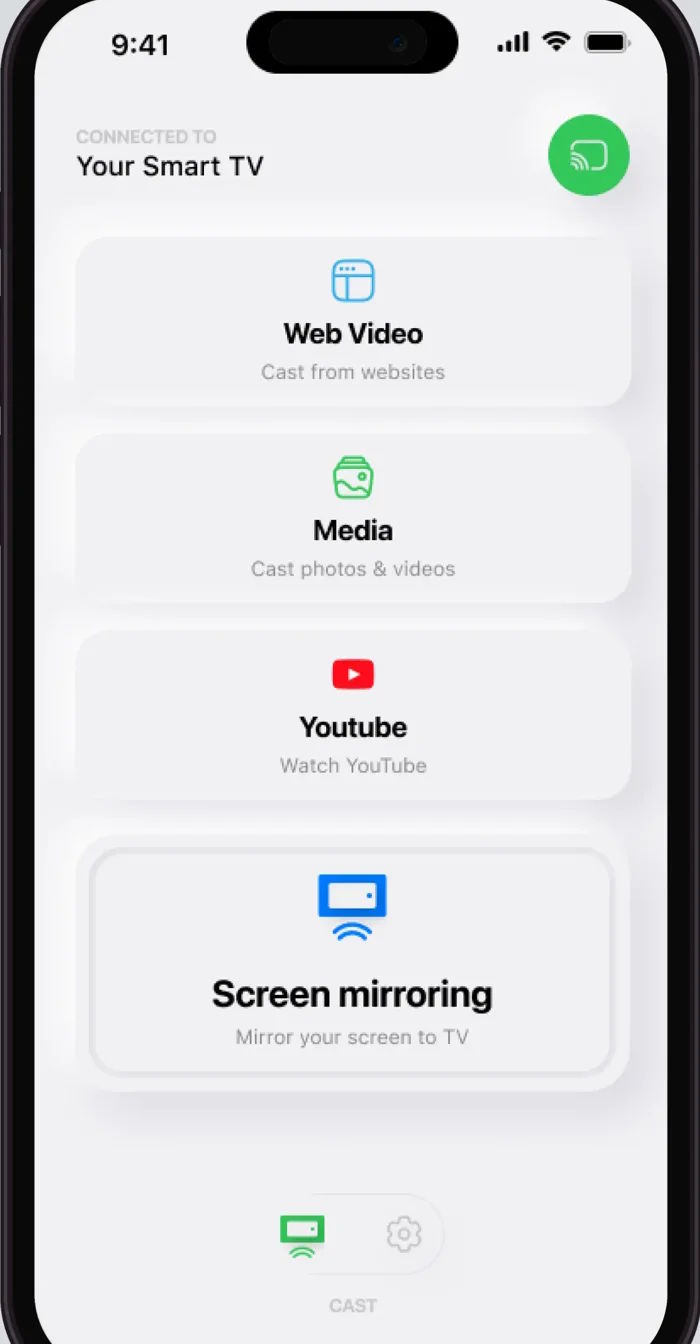
For one camera-roll photo, choose Media. To show the phone's interface as you use it, choose Screen mirroring. This published app interface illustrates the difference.
Suppose a personal photo displays, but a subscription video does not. That result shows that at least the photo-sharing route worked. It does not establish permission to display protected video from another service.
Netflix explicitly does not support AirPlay from iPhone or iPad. For Netflix, use its supported TV app or another connection method listed in its help documentation. A different mirroring app should not be presented as a way to bypass that restriction.
This distinction also prevents a misleading diagnosis: a black video window after a successful connection is a different symptom from a television that never appeared in the device picker.
Keep a connection note, not a collection of random fixes
If you end up contacting support, send these four details:
- Receiver: exact TV or streaming-device model and software version.
- Route: Control Center → Screen Mirroring, or the name of the app and feature you used.
- Last successful step: TV discovered, TV selected, photo displayed, or personal video played.
- Failure: exact message or visible result, plus whether the phone and receiver use home or guest Wi-Fi.
“iPhone screen mirroring not working” could describe several unrelated problems. “The TV appears in the app, a camera-roll photo displays, but this particular video stays black” is a problem someone can investigate without starting over.
When deciding how to connect iPhone to TV, begin with the receiver and the content you want to share. Use AirPlay where it is supported; use a compatible app route where that suits the receiver and task. Once you know which device list should contain your TV, you can troubleshoot the step that actually failed.