

A ten-second teaser lives or dies on its cut points. Viewers forgive a soft background, but they notice when the laptop in shot one has a silver lid and the laptop in shot two has a dark one. For a developer tool, an app launch or a game prototype, the screen, the hardware and the person at the desk are the continuity anchors, and they need to survive every cut.
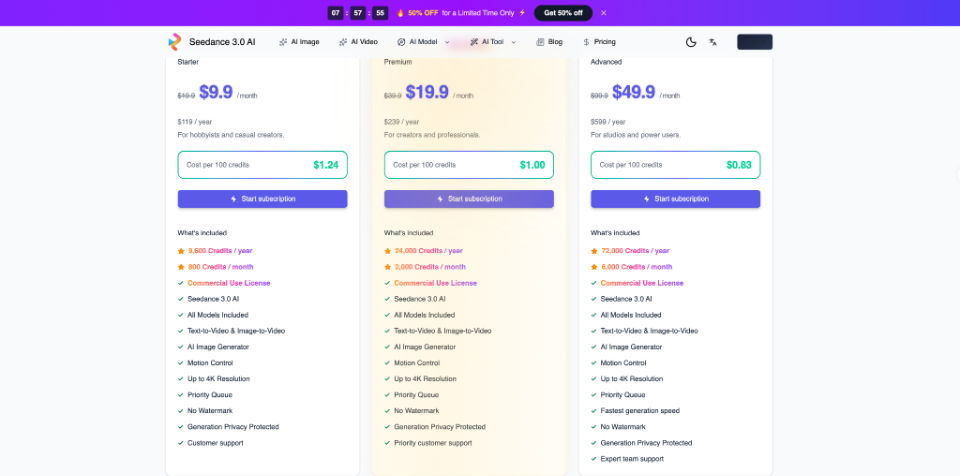
Most failed teasers fail before the first generation, in the planning. People write one long prompt, render it, and hope the result reads as a sequence. A better habit is to treat each shot as a separate small test with its own pass or fail condition. If you use a browser-based generator such as Seedance 3.0, the same discipline applies: check what the interface actually offers on the day you test, and plan around that rather than around a feature list.
Start With a Shot List, Not a Prompt
Write the teaser as four to six shots, each doing one job. A hypothetical example for a code-editor plugin: (1) a developer's hands over a keyboard, (2) a close view of an editor with an error underlined, (3) the same screen after the fix, (4) the developer leaning back, (5) a clean end card you will add in editing.
For each shot, record four things in a table or spreadsheet:
- Subject: who or what must look identical across shots.
- Camera: static, slow push-in, or handheld. Choose one per shot.
- Duration: short clips are easier to judge and to trim.
- Pass condition: one observable sentence, such as "the underlined error is visible in the first second."
Keep text on screens out of the generated footage. Generated video routinely garbles small text, so plan to composite real screen recordings over a blank or blurred monitor in editing. That decision alone removes the most common credibility killer in tech teasers.
Prepare Reference Material Before Generating
Continuity starts with inputs. Gather one clear still of each recurring subject: the developer, the desk, the laptop. Use images you created or hold the rights to. If a still comes from a stock library or a client, confirm the licence allows modification and AI processing before you upload it anywhere.
Describe each reference in a fixed sentence and reuse it word for word in every prompt: "a woman in her thirties, short black hair, olive jacket, silver laptop with a sticker on the lid." Changing the wording between shots invites the model to reinterpret her. Fixed phrasing also makes failures easier to diagnose, because the only thing changing is the action.
Lighting deserves its own line. State a single light source, such as "cool daylight from a window on the left," and repeat it. Cuts between shots with different colour temperature look like a mistake even when the faces match.
Run Short Test Generations First
Before committing to the full sequence, generate the two shots that sit on either side of your riskiest cut. In the example, that is shot two to shot three, because the same screen must appear before and after the fix. A tool that accepts image references, such as Seedance 3.0 AI, lets you attach the same reference still to both generations. Whatever tool you use, confirm in its interface whether reference input exists and how it behaves before you build the plan on it.
Generate each test several times. A single good result tells you little, because you cannot tell whether the setup works or you got lucky. Three or four attempts show the spread: if the laptop lid changes colour in two of four, the prompt is under-specified, and you should tighten the description rather than keep rerolling.
Watch these items in order:
- The first and last frames, since those are what the cut will actually use.
- Hands and fingers on the keyboard, which often drift or merge.
- Objects that should persist, such as the sticker, the mug or the monitor bezel.
- Motion that starts or stops abruptly, which makes trimming awkward.
Judge Continuity at the Cut
Place the outgoing clip and the incoming clip side by side and step through the last ten frames of one and the first ten of the next. Ask three questions. Is the subject in the same position on the frame? Is the light direction the same? Has any handheld object changed hand or angle?
What you find decides the fix. A small positional mismatch can often be hidden by moving the cut two or three frames earlier, or by inserting a one-second cutaway such as a close view of a coffee cup. A changed prop or a face that no longer matches cannot be edited around, so regenerate the later shot with a tighter prompt. If the earlier shot is the one with the problem, redo it instead, because fixing the later clip to match a flawed earlier one compounds the error.
Camera movement matters too. Two static shots cut together almost always feel stable. A push-in followed by a pan feels jarring unless the motion direction carries through. When in doubt, match the direction of movement at the cut, or hold one of the two shots still.
Decide What to Keep, Trim or Redo
Set a rule before you review, not after. One workable version: a clip is kept if it meets its pass condition and has no visible artefact in the part you will use. It is trimmed if only the first or last second is flawed. It is redone if a recurring subject changes appearance anywhere in the used section.
Then run a final pass on the assembled cut with the sound off and again with it on. Muted, you will see jumps in position and light. With sound, you will notice rhythm problems, such as a cut landing a beat before the music change. Fix the rhythm by adjusting clip lengths, not by regenerating footage.
Before publishing, check the practical side. Confirm the licence terms for any generated output under the tool's own terms of use, and add whatever AI disclosure the platform you publish on requires. Keep a note of which references and prompts produced the final shots, so a later revision can reproduce the look without starting again.
Finally, watch the teaser once as a stranger would, at normal size on a phone, without pausing. If you spot an inconsistency at that speed, an audience will too, and that shot goes back on the redo list.