
Getting files from a Mac to a university server can become confusing when coursework involves remote directories, project folders, and different types of server credentials. A lecturer might provide access to a course server, a computing lab might store datasets remotely, or a web-development class might require students to upload website files to a hosting account. In each situation, knowing where files belong and how to transfer them correctly matters.
I have found that having local coursework and remote files visible in one workspace makes this type of task easier to follow. Instead of repeatedly switching between separate applications, a visual file manager can keep both locations accessible. Commander One is a useful option for this workflow, offering remote connections and dual-pane file management for Mac users through its Commander One manager.
Why Students May Still Need FTP or SFTP
Not every university uses FTP or SFTP for coursework, but remote-server access remains relevant in several technical subjects. Students studying web development, computer science, networking, and IT may encounter these protocols when working with university hosting accounts, programming environments, or shared lab resources.
For example, a web-development course might provide students with individual server accounts where they can store HTML, CSS, JavaScript, and image files. A programming lab could offer remote access to project resources or datasets that students need to download before beginning an assignment.
Shared project directories are another possible use case. When several students have permission to access the same server location, they may need to retrieve existing files or upload their own contributions.
These tasks are different from submitting an assignment through a learning management system (LMS). If a course requires students to upload documents through its official portal, FTP is not a replacement. However, when the instructor specifically provides server credentials and requests files in a remote directory, an FTP or SFTP client for Mac can provide a practical way to manage the transfer.
Connecting to a Course or Lab Server with Commander One
The first step is connecting to the server using the details provided by the university or hosting administrator. These typically include a hostname, port, username, and password or another supported authentication method.
Commander One provides a Connections Manager for setting up remote connections. It supports FTP, SFTP, FTPS, and FTPES, allowing students to use the protocol required by their particular server.
For a typical academic environment, I would start with SFTP if the institution provides it. After opening Connections Manager, I enter the supplied server details, select SFTP, and provide the required login credentials. The exact port and authentication settings should follow the institution's instructions rather than assumptions about how its server is configured.
Once the connection is established, the remote directory becomes accessible through the file manager. I can navigate through the available folders and locate the directory assigned to my course or project.
FTP/SFTP/FTPS remote-server management is a Commander One PRO capability. Students should therefore check the edition requirements before planning to use it for coursework.
Keeping Local Coursework and Remote Files Side by Side
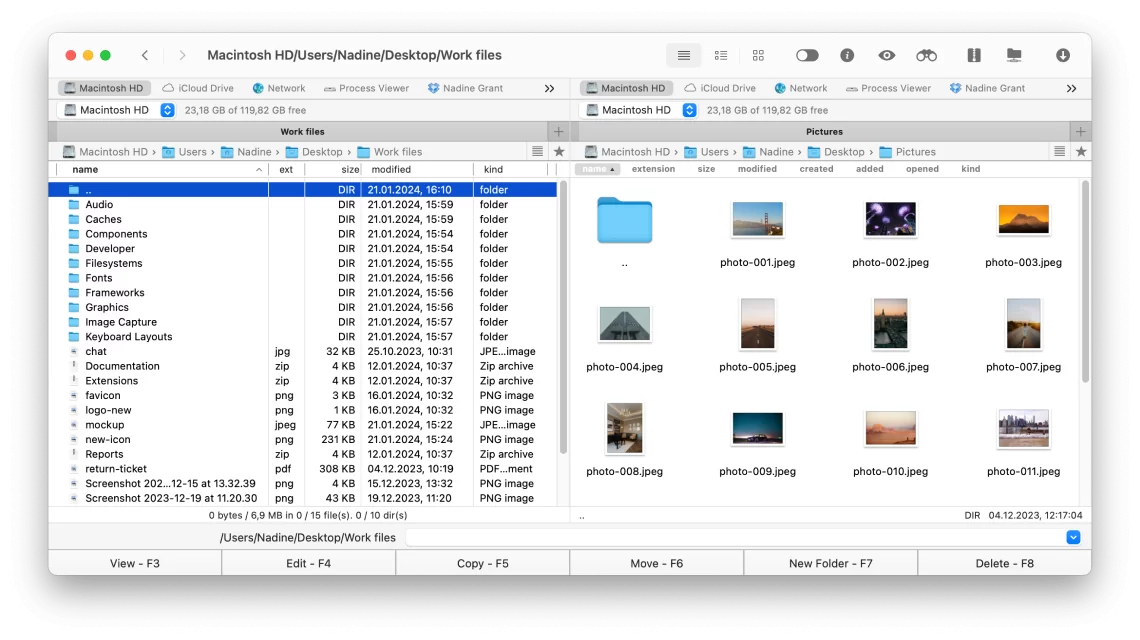
One of the useful aspects of Commander One is its dual-pane interface. Rather than treating the Mac and remote server as separate destinations, students can view both locations within the same workspace.
I usually think of the left pane as the local coursework location and the right pane as the remote server directory. For example, the left side might contain a folder named "Web Development Assignment," with HTML files, stylesheets, scripts, and images. The right side can display the directory provided by the instructor.
This arrangement makes it easier to understand where files are coming from and where they are going.
The dual-pane layout supports common file operations, including:
- Drag-and-drop transfers: Move selected files between local and remote locations.
- Copy and move: Organize coursework and project resources without navigating through several separate windows.
- Rename: Give files clearer names when permitted by the project requirements.
- Delete: Remove unnecessary remote or local files when the account permissions allow it.
- Open and preview: Inspect supported files before transferring or working with them.
I can also open different folders in tabs, which is helpful when a course includes multiple assignments or project directories. This keeps frequently used locations accessible without losing track of the current folder.
Uploading Assignments and Project Files Without Losing Track of Folders
Consider a practical web-development assignment. The instructor provides SFTP credentials and asks students to place their website files inside a specific directory on the course server.
After connecting, I open my local assignment folder in one pane and navigate to the assigned remote directory in the other. Before transferring anything, I check the folder names and confirm that the destination matches the course instructions.
I then select the required HTML, CSS, JavaScript, and image files and drag them into the remote pane. The operations queue provides a way to monitor file operations rather than assuming that every selected file has already reached its destination.
Once the transfer finishes, I check the remote directory to confirm that the expected files are present. If something is missing or has been placed in the wrong folder, I can review the locations and make the necessary file-management changes.
This workflow is also relevant to programming assignments, class hosting accounts, and personal project websites. Students can use the same approach whenever a course requires files to be stored on a remote server.
However, there is an important distinction: uploading files through SFTP counts as assignment submission only when the course explicitly accepts submissions through that server. Students should still follow the instructor's specified submission process and verify any required confirmation separately.
Working with Shared Project or Lab Files
Some academic projects involve directories that multiple students can access. A university might provide a shared server location containing starter files, research resources, or materials for a group assignment.
Commander One can help students access these locations when their accounts have the necessary permissions.
For instance, I might connect to a shared project directory, download a configuration file to my Mac, and review it locally before making permitted changes. After completing the work, I can upload the updated file to the appropriate remote location if the project instructions allow it.
The dual-pane interface is particularly useful here because it keeps the original remote location and the local working folder visible together.
Still, accessing a shared directory does not automatically make Commander One a collaboration platform. It does not provide real-time collaborative editing, project version control, instructor feedback, or assignment grading.
File permissions, simultaneous editing conflicts, and version history depend on the server configuration and the other tools used by the project team. For programming projects that require change tracking and collaborative development, Git and dedicated collaboration platforms remain more appropriate.
Why SFTP Is the Better Default for Student Server Access
FTP, SFTP, and FTPS are related file-transfer protocols, but they do not provide the same type of connection.
Understanding the differences helps students select the correct option when connecting to an academic or hosting server.
SFTP (SSH File Transfer Protocol)
SFTP operates over SSH and encrypts the connection. This protects the authentication process and transferred data while communicating with the server. It is generally the preferred option when a university or hosting provider offers SFTP access.
FTP (File Transfer Protocol)
Traditional FTP does not encrypt its connection by default. Login credentials and transferred information can be exposed during transmission, making plain FTP less suitable for situations where connection security matters.
FTPS (FTP Secure)
FTPS adds TLS encryption to FTP connections. It is different from SFTP, even though both can provide encrypted file transfers.
Students should always use the protocol specified by their university or server administrator. Changing connection settings without authorization can prevent access or create unnecessary security problems.
Useful File-Management Tools for Recurring Coursework
Remote-server access is rarely a one-time activity for students working on multiple technical assignments. A semester might involve several classes, different hosting accounts, and recurring downloads from lab servers.
Commander One includes additional file-management features that can support these routines.
Multiple tabs and connections: Students can keep different folders and remote locations available while working across several classes or projects.
Operations queue: The queue helps track file operations, particularly when transferring several resources as part of a coursework folder.
Search: Finding a particular file becomes more manageable when local and remote directories contain many resources.
File viewing: Opening or previewing supported files can help students inspect resources before deciding whether to download or transfer them.
File organization: Renaming, moving, copying, and deleting files helps maintain a consistent folder structure, provided the relevant permissions allow those operations.
For example, I can download a dataset from a lab server, keep a local copy inside my research folder, and later reconnect to retrieve updated resources. Maintaining a separate local backup of important remote files is also useful, although it should not replace any backup arrangements required by the institution.
Students interested in exploring the application can find it on the Mac App Store.
Conclusion
FTP and SFTP are not necessary for every student, but they remain useful when coursework involves university servers, hosting accounts, programming labs, and shared project directories.
For Mac students who regularly work with remote files, Commander One provides a visual workspace that brings local and remote file management together. Its Connections Manager, dual-pane interface, tabs, and file operations can make routine transfers and folder organization easier to follow.
The important thing is to use the right tool for the right task. Commander One can help manage remote files when server access is provided, while LMS platforms, Git, and dedicated collaboration tools continue to serve their own purposes in academic work.