


Photos often capture some of our most important memories, from family gatherings and vacations to work-related documents and personal milestones. That's why accidentally deleting photos from an iPhone can be a stressful experience, especially when you realize there's no backup available.
The good news is that deleting a photo doesn't always mean it's gone forever. Depending on how the photo was deleted and how much time has passed, there may still be several ways to recover it. In this guide, we’ll explain where deleted photos go on an iPhone, whether permanently deleted photos can be recovered, and the most effective methods to restore lost photos without a backup in 2026, including the use of MagFone iPhone Data Recovery.
Where Do Deleted Photos Go on iPhone?
When you delete a photo from the Photos app, Apple doesn't immediately erase it from your device. The deleted photo is not removed immediately; it is stored in the Recently Deleted album instead. Photos stored in this folder remain available for up to 30 days before being permanently removed.
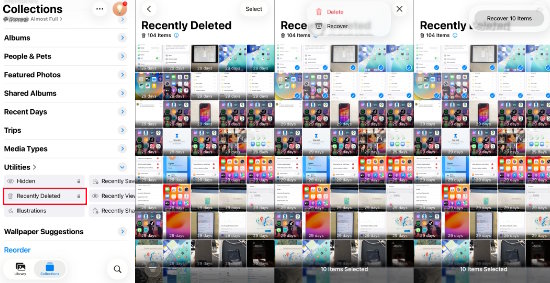
To see if your photos can still be recovered, open the Photos app, go to Albums, scroll down, and tap Recently Deleted. Unlock the folder using Face ID, Touch ID, or your passcode. Select the photos you want to recover, and tap Recover. If the items are still inside the 30-day recovery window, this is the fastest way to get them back.
Can Permanently Deleted Photos Be Recovered?
Many users assume that once a photo disappears from the Recently Deleted folder, it can never be recovered. The outcome actually varies depending on different situations. When a photo is deleted, the storage space it occupied is typically marked as available for new data. However, the underlying data may remain on the device until it is overwritten by new files.
This is why acting quickly is important after discovering photo loss. The more you continue using the device, taking pictures, installing apps, or downloading files, the greater the chance that recoverable data may be overwritten. While recovery isn't guaranteed, there is often still a possibility of retrieving deleted photos, even when no backup exists.
Method 1: Check iCloud Photos
If you use iCloud Photos, your deleted images may still be available in your iCloud account. Go to iCloud.com and log in using your Apple ID. Open Photos, check your photo library and the Recently Deleted folder. Download any available photos.

Sometimes synchronization delays can also make photos appear missing when they haven't actually been deleted. Ensuring your iPhone is connected to a stable Wi-Fi network and properly signed into iCloud may help restore missing images.
Method 2: Restore Photos from an iCloud Backup
Even if photos are no longer available in iCloud Photos, they may still exist within an older iCloud backup. To verify whether a backup exists, you need to open Settings, and tap your Apple ID. Select iCloud, and open iCloud Backup. If a backup was created before the photos were deleted, restoring the device may recover them.
However, this approach has an important drawback. Restoring an iCloud backup replaces your current device data with the contents of the selected backup, which may cause newer data to be overwritten. For users who only want to recover specific photos, a more targeted solution is often preferable.
Method 3: Recover Photos from a Computer Backup
If you've previously backed up your iPhone using Finder on Mac or Apple Devices/iTunes on Windows, your photos may still be stored in a local backup. Connect your iPhone to the computer, and open Finder or Apple Devices/iTunes. Pick your device, then select the option to restore from backup. Select the backup created before the photos were deleted.
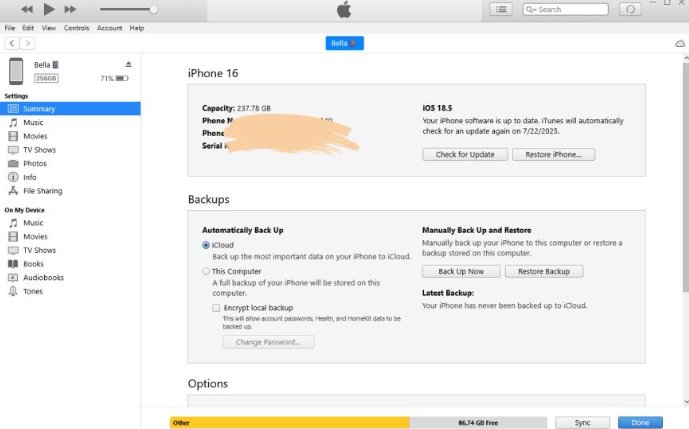
Like iCloud restoration, this method restores the entire backup rather than individual files.
Method 4: Recover Deleted Photos Without a Backup
If you don't have an iCloud backup or a computer backup, specialized recovery software may help recover deleted photos directly from your device. MagFone iPhone Data Recovery is designed to help users recover lost or deleted data from iPhones, including photos that are no longer available in the Recently Deleted folder.
MagFone iPhone Data Recovery supports multiple recovery scenarios, including accidental deletion, system crashes, failed iOS updates, factory resets, device lockouts, or data loss caused by software issues. Unlike traditional backup restoration methods, it allows users to scan their devices and preview recoverable files before restoring them.
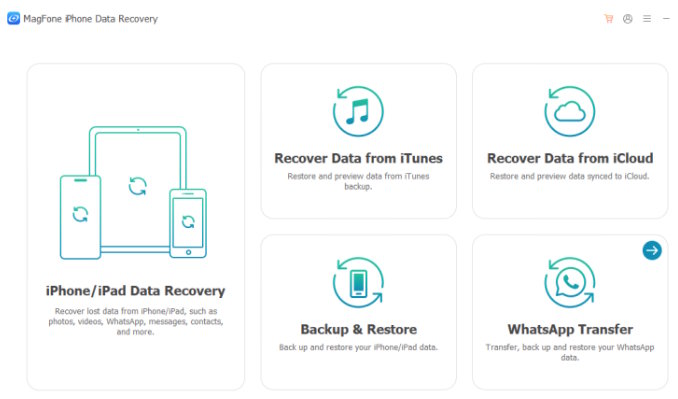
Step 1: Install MagFone iPhone Data Recovery on your computer and connect your iPhone using a USB cable. Select the iPhone/iPad Data Recovery mode that best matches your situation.
Step 2: Allow the MagFone software to complete the scanning process. Keep your device connected and unlocked during the process. Once complete, preview recoverable files such as photos, videos, messages, contacts, and WhatsApp data.
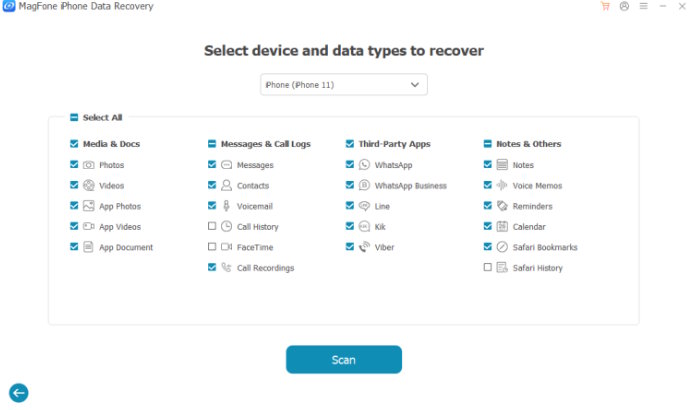
Step 3: Select the photos or other files you want to restore and save them to your computer. The process is straightforward and does not require restoring the entire device.

What If Photos Disappeared After an iOS Update?
Photo loss can sometimes occur after installing a major iOS update. In many cases, the photos aren't permanently deleted but become temporarily inaccessible due to incomplete iCloud synchronization, Apple ID sign-in issues, storage indexing problems or software bugs.
If photos appear to be missing after updating to iOS 27 or a later version:
- Verify that iCloud Photos is enabled.
- Check your internet connection.
- Restart the device.
- Sign out of iCloud and sign back in.
- Allow time for synchronization to complete.
If the photos still do not appear, a recovery tool may help locate and restore them.
Tips to Avoid Losing Photos in the Future
While recovery solutions are helpful, prevention remains the best strategy. Consider these recommendations:
- Enable automatic iCloud backups.
- Use iCloud Photos for cloud synchronization.
- Create regular computer backups.
- Export important photos periodically.
- Verify backups before major iOS updates.
- Keep sufficient storage space available on your device.
These habits can significantly reduce the risk of permanent photo loss.
Final Thoughts
Accidentally deleting photos from an iPhone can be frustrating, especially when no backup is available. Fortunately, there are several methods worth trying before assuming the photos are gone forever.
Start by checking the Recently Deleted folder, iCloud Photos, and any available backups. If those options aren't available, specialized recovery solutions such as MagFone iPhone Data Recovery can help scan your device and recover deleted photos that may still be retrievable. The most important step is to act quickly. The sooner you attempt recovery, the greater your chances of successfully getting your photos back.

