

Image: signalses.com
Messaging apps are used every day for private conversations, work updates, group discussions, file sharing, and cross-device communication. Because these apps often hold sensitive information, users should not treat downloading and setting them up as a casual one-click task. A safer setup begins before the first message is sent.
Privacy-focused messaging tools are especially popular among users who care about account security, message confidentiality, device control, and clean communication habits. However, even a privacy-focused app can become risky if users download it from the wrong source, ignore login security, or leave old devices connected.
For Chinese-speaking users searching for resources such as signal下载, the goal is usually not only to find an installation file. They also want to know which source is safer, how to install the app properly, what settings to review, and how to avoid common mistakes during setup. This guide explains practical steps that everyday users can follow when downloading and configuring a secure messaging app.
Start With the Download Source
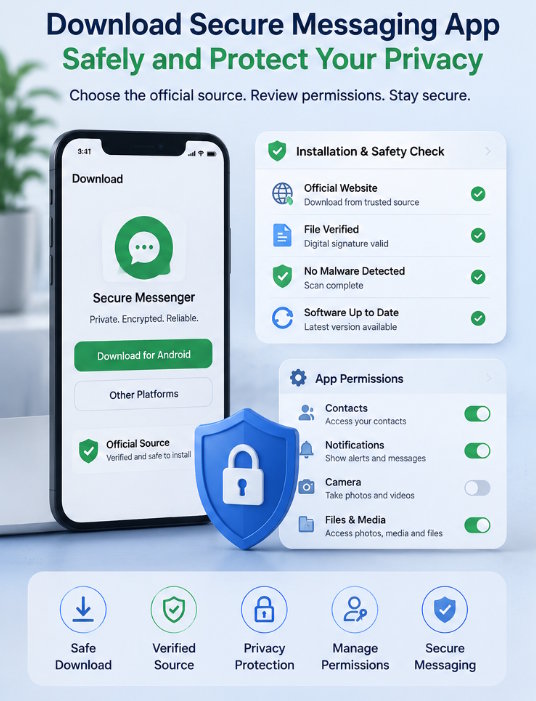
The download source is the first checkpoint. Many security problems begin when users install apps from unclear websites, file-sharing pages, fake download buttons, or modified installation packages. A messaging app connects to personal contacts, conversations, files, and notifications, so users should be careful about where the app comes from.
Mobile users should prefer official app stores whenever possible. Desktop users should use trusted websites or clearly verified distribution channels. Android users should be especially cautious with APK files from unknown sources because modified packages may look similar to normal apps but behave differently after installation.
A safe download page should be simple and consistent. It should not force users through multiple redirects, unrelated pop-ups, browser extensions, or bundled software offers. If a page has several confusing download buttons, strange file names, or aggressive ads, it is better to stop and verify the source again.
The safest habit is to slow down before downloading. A few extra minutes of checking can prevent many installation and account problems later.
Understand What You Are Installing
Before installing any messaging app, users should understand what version they need. A mobile app, desktop app, web version, and Android installation package may work differently. Choosing the wrong version can cause confusion or login issues.
For example, a phone app may be required before using a desktop version. A desktop client may need to be linked through a QR code or mobile confirmation. A web version may depend on browser settings, cookies, and session storage. An Android APK may require additional permission to install from outside an app store.
Users should not download every version just because it is available. Install only what you actually need. If you mainly chat on a phone, start with the mobile version. If you work on a computer every day, a desktop version may be useful after the mobile account is properly set up.
For users comparing sources related to signal官方下载, it is important to check whether the guide clearly distinguishes between mobile, desktop, Android, and other installation methods.
Check Permissions During Installation
Messaging apps may request permissions such as contacts, notifications, microphone, camera, photos, files, and background activity. Some permissions are necessary for normal use, but users should understand why they are requested.
Contact access can help find people you know, but privacy-conscious users may want to review this carefully before allowing it. Notification access is useful for receiving messages, but message previews may expose private content on the lock screen or desktop. Camera and microphone access are needed for calls or media sharing, but they do not need to be used all the time.
A good approach is to allow only the permissions you need at the beginning. More permissions can be enabled later when a feature requires them. This gives users better control and reduces unnecessary exposure.
On desktop systems, also watch for startup behavior. Some apps ask to open automatically when the computer starts. This is convenient for daily users, but unnecessary for occasional use.
Secure the Account Immediately
After installation, account security should be reviewed before heavy use. Many users start messaging immediately and forget to configure protection settings. This is a mistake because the first setup period is the best time to secure the account.
Start by reviewing login methods. Some messaging apps use phone number verification, QR code linking, device approval, or password-based protection. Verification codes should always remain private. Do not share them with anyone, including people claiming to be support staff, administrators, or security checkers.
If the app supports additional account protection, enable it. This may include a registration lock, PIN, passcode, two-step verification, screen lock, or recovery setting depending on the platform. The exact names vary, but the purpose is the same: prevent unauthorized access even if someone tries to log in with basic credentials.
Users should also check active sessions or linked devices. Remove any device that is unfamiliar, old, or no longer used.
Review Privacy Settings Before Adding Contacts
Privacy settings should be checked before adding contacts or joining groups. Important options may include profile visibility, phone number visibility, read receipts, typing indicators, group invitations, call permissions, blocked users, and message preview settings.
Not every user needs the same privacy level. Someone who only chats with family may use different settings from someone who joins public groups or communicates with unknown contacts. The larger and more public your communication environment is, the more carefully you should configure visibility options.
Message previews deserve special attention. On mobile, previews may appear on the lock screen. On desktop, previews may appear during meetings, screen sharing, or in shared workspaces. Turning off message content in notifications can protect privacy while still showing that a new message arrived.
Privacy settings are not about hiding everything. They are about choosing what information appears, where it appears, and who can see it.
Be Careful With Group Invites and Unknown Contacts
Secure messaging apps are often used for private conversations, but users may still receive group invitations, public links, or messages from unknown contacts. These interactions require caution.
Before joining a group, check the source of the invite. Is it from someone you trust? Does the group have a clear purpose? Are the rules visible? Does the group push suspicious downloads or ask for personal information?
Unknown contacts should also be handled carefully. Do not share verification codes, personal documents, payment information, or private files with strangers. If someone sends a link and creates urgency, such as “verify now” or “download immediately,” slow down and check the context.
A privacy-focused app gives users better tools, but safe behavior is still necessary.
Manage Files and Media Storage
Messaging apps often store images, videos, voice messages, documents, and downloaded files. Over time, this can affect both privacy and storage space.
Users should review media auto-download settings. Automatically saving every image or file may be convenient, but it can fill storage quickly and keep content that users did not intend to save. For privacy-conscious users, manual download is often cleaner.
On desktop, create a dedicated folder for messaging downloads. Do not leave important files scattered in the default Downloads folder. For work files, rename them clearly and move them to the correct location after downloading.
Be cautious with unknown attachments. Executable files, compressed archives, scripts, and documents that ask users to enable macros should not be opened casually.
Keep the App Updated
Updates are part of safe messaging. App updates may improve reliability, fix bugs, adjust login behavior, or strengthen security-related features. Using an outdated version can lead to compatibility problems or missing settings.
Users should update from trusted sources only. Avoid update links sent by strangers or posted in random groups. If an app notifies you about an update, check whether the update flow leads to a trusted source.
Mobile app stores usually make updates easier. Desktop users should pay attention to whether updates happen automatically or require manual download. Android users who install from outside an app store should be even more careful to verify the update source.
A secure setup is not a one-time task. It requires occasional review and updates.
Build Better Daily Messaging Habits
After download and setup, daily habits matter. Lock your phone and computer. Avoid leaving desktop sessions open on shared devices. Review connected devices regularly. Mute noisy groups. Keep important chats organized. Do not click suspicious links. Do not share login codes.
These habits are simple, but they reduce many common risks. A privacy-focused messaging app works best when the user also follows privacy-focused behavior.
Final Thoughts
Downloading a messaging app is only the first step. A safer experience depends on choosing a trusted source, installing the correct version, reviewing permissions, securing the account, adjusting privacy settings, and managing files carefully.
Users should treat messaging apps as important communication tools, not casual utilities. By following a clear setup process and maintaining good daily habits, everyday users can enjoy private, organized, and reliable communication across mobile and desktop devices.

