

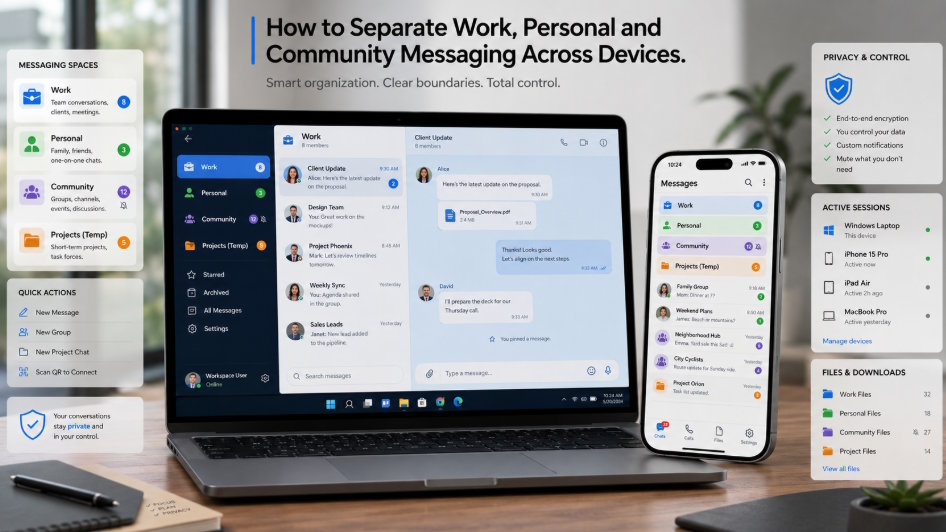
A practical framework for assigning device roles, controlling notifications, organizing files and protecting privacy across messaging environments.
Modern messaging apps make it easy to keep in touch across phones, laptops, tablets, and web sessions. That convenience is useful, but it also creates a problem many people underestimate: everything starts to blend together. Work chats sit next to family conversations, client updates appear beside community notifications, and large group messages compete with direct personal messages for attention. Over time, this mixed environment can lead to practical mistakes—sending a file to the wrong conversation, missing an urgent work message, downloading private media into a business folder, or leaving a session active on a device that should not store personal data.
The issue is not simply how many messages a person receives. It is how those messages are organized across different devices and roles. A phone is typically used for instant alerts. A Windows computer is better for long replies, document handling, and structured work. A tablet may be used mainly for reading and light review. If all these devices mirror the same unorganized environment, the result is friction rather than flexibility.
A better approach is to separate communication by purpose, decide which device should handle which type of task, and review privacy and notification settings regularly. This is especially important for users who rely on the same messaging platform for work coordination, personal conversations, and large communities or channels. Clear boundaries reduce mistakes, improve focus, and make daily communication much easier to manage.
Define Separate Communication Purposes
The first step in organizing a multi-device messaging environment is to identify the different purposes communication actually serves. Many users treat everything inside the app as one category—“messages”—but in practice, not all conversations belong in the same mental space.
Work chats usually involve colleagues, managers, internal coordination, schedules, and file sharing. These conversations often require timely attention during work hours and may include documents or links that need to be saved properly.
Family and friends represent a different communication layer. These chats are personal, informal, and often ongoing throughout the day. They should remain easy to access, but they do not always need the same notification priority as work conversations.
Client communication may deserve its own category even when it overlaps with work. External communication often carries more reputational risk than internal team chat. A delayed response, unclear message, or misplaced file can have a more visible impact when the recipient is outside the organization.
Community groups and channels create another category altogether. These may include interest groups, neighborhood communities, fan groups, professional forums, public channels, or hobby-based discussions. They can be useful and engaging, but they also generate the highest volume of low-priority messages.
Temporary projects should also be separated when possible. A project with contractors, event organizers, or external collaborators can quickly become noisy if it remains mixed into permanent work chat long after the task is complete.
Finally, file transfer should be treated with care. Many users send files to themselves or keep them inside chat threads for convenience. While this is understandable, it can blur the line between formal work storage and casual communication.
Once these purposes are defined, it becomes much easier to organize the messaging environment around them.
Choose the Right Device for Each Task
Not every device should be used in the same way. A clear division of device roles helps reduce confusion and improves communication quality.
Phones are best suited for immediate awareness. They are ideal for urgent notifications, quick acknowledgments, short replies, and staying reachable while away from a desk. Because phones are always nearby, they naturally become the center of real-time communication. However, they are not always the best place for writing detailed explanations or managing multiple files carefully.
A Windows desktop or laptop is better for longer, more deliberate communication. Writing detailed responses, reviewing shared documents, organizing downloads, and copying information between work tools is much easier with a full keyboard and larger screen.
Users relying on 电报电脑版 can reserve the desktop environment for long-form replies, file organization, and work-hour communication.
Tablets often work best as reading devices. They are useful for reviewing channels, catching up on long community threads, reading shared PDFs, or scanning updates without committing to a full desktop session. For some users, a tablet can act as a middle layer between the phone’s speed and the desktop’s structure.
Shared devices deserve stricter rules. Personal accounts and private sessions should not remain logged in on family computers, public machines, or loosely managed shared devices. Even when a device belongs to a trusted household, it is better to avoid storing sensitive work or private communication there unnecessarily.
The goal is not to use more devices. It is to assign each device a role. When that role is clear, communication becomes more predictable and safer.
Organize Notifications by Priority
Poor notification management is one of the main reasons messaging apps become exhausting. If every group, contact, and channel is allowed to interrupt the user equally, important communication becomes harder—not easier—to notice.
Work-related alerts should usually receive the highest priority during work hours. This may include direct messages from colleagues, key team groups, and client conversations. For some users, these alerts should be visible on both phone and desktop so that urgent requests are not missed.
Personal chats often require a lighter approach. Close family messages may remain active, but less urgent friend groups can often be muted or reduced to badge notifications rather than full alerts.
Large community groups should almost never use the same alert settings as work chat. Their message volume is often too high, and unrestricted notifications can create constant interruption. It is usually better to mute these groups, allow mentions only, or review them during scheduled breaks.
Some users also benefit from keyword or mention-based alerts when the platform supports them. Rather than watching everything, they can be notified only when a specific name, project, or topic appears.
Do Not Disturb modes are equally important. Focus time, meetings, evening hours, and sleep periods should not be controlled entirely by incoming messages. On Windows devices, the notification center or focus-assist tools can help reduce unnecessary pop-ups during concentrated work.
Notification settings should reflect communication value, not message volume. A quiet but important client conversation may deserve more attention than a large active group with hundreds of daily messages.
Separate Files and Download Locations
Messaging apps often become accidental file hubs. A user downloads a report from a colleague, receives photos from family, saves a PDF from a client, and picks up media from a community group—all through the same application. Without structure, these files end up in the same default download location and quickly become difficult to manage.
A better system starts with separate folders. Work-related downloads should go into a dedicated work folder or project-based directory. Personal media can be kept in a separate photo or media folder. Temporary downloads should be placed in a clearly labeled temporary directory that can be cleaned regularly.
Automatic download settings should also be reviewed. Phones with limited storage should not automatically download every video or file from large groups. Desktop devices may have more space, but even there, unrestricted auto-download can create clutter and increase the risk of storing unnecessary or sensitive material.
File naming matters too. Work documents downloaded from chats should be renamed if necessary and moved to a proper work folder rather than left with vague default names like “document(7)” or “image_2026.” This reduces later confusion.
Regular cleanup is part of the process. Old installation files, outdated reports, duplicate images, and expired temporary documents should be removed. A short weekly review can prevent download folders from turning into unmanaged archives.
The key principle is simple: communication tools can help transfer files, but they should not replace organized file management.
Manage Language Settings Across Devices
Users who work across different devices sometimes assume that language or interface preferences will behave the same everywhere. In reality, settings may vary by device, operating system, or version of the app.
Some people prefer a local-language interface on mobile because it feels more intuitive during quick daily use. Others may keep the desktop version in English because they work in bilingual environments or follow English-speaking communities. Either option is fine, as long as the choice is intentional.
People researching 电报中文版下载 should still verify the standard application first and then configure the interface language separately on each device. Downloading an app and setting its language are not the same task, and users should avoid assuming that a localized interface automatically changes other privacy, notification, or session-management settings.
When multiple devices are involved, it helps to confirm the following:
- Whether language settings are device-specific
- Whether menu labels differ significantly between versions
- Whether support articles or workplace instructions match the chosen interface language
- Whether shared screenshots in support or team documentation remain understandable to the user
This matters more than it seems. If a user receives guidance from colleagues or online help resources, mismatched interface language can make even simple steps harder to follow.
Clear language choices improve usability. Usability, in turn, reduces mistakes.
Review Active Sessions and Privacy Controls
A messaging setup is not complete without checking who and what is still connected to the account. Multi-device convenience is useful only when sessions remain under control.
Users should review active sessions regularly to confirm which phones, desktops, tablets, or browser sessions are currently signed in. Old devices that are no longer used should be removed promptly. This is especially important after upgrading a phone, replacing a computer, or signing in temporarily on another machine.
Two-step verification adds an important layer of protection and should be enabled when available. A strong password, combined with login confirmation controls, makes it harder for unauthorized access to occur.
Screen locks on both phone and desktop devices help protect messages from casual viewing. This matters not only for work conversations but also for personal privacy.
Login notifications can provide early warning if a new device accesses the account unexpectedly. Users should pay attention to these alerts rather than dismiss them automatically.
Contact synchronization should also be considered. Some people prefer broader sync for convenience, while others may want tighter control over which contacts are exposed across devices.
Online-status visibility, profile visibility, and file-access permissions all influence privacy as well. Community participation does not require making every aspect of one’s account visible to everyone.
The best setup is one that keeps access intentional and visible.
Build a Simple Weekly Review Routine
Even a well-organized communication system becomes messy without maintenance. Fortunately, the review process does not need to be complicated.
A short weekly routine can include:
- Checking for newly logged-in devices
- Reviewing unread or unresolved work chats
- Cleaning desktop and mobile download folders
- Verifying that muted groups are still muted appropriately
- Leaving or archiving completed project groups
- Deleting expired temporary files
- Checking whether large community groups are generating unnecessary clutter
- Reviewing whether notification priorities still match current work needs
This review may take only ten or fifteen minutes, but it prevents small problems from becoming daily frustration. It also helps users adapt when work responsibilities, client projects, or personal routines change.
The routine works best when it is simple. If it feels too technical or too long, people stop doing it. The aim is not perfection. It is consistent control.
Conclusion
Using one messaging app for work, personal life, and communities is convenient, but without structure it can also create mistakes, noise, and privacy risk. Messages compete for attention, files end up in the wrong places, and sessions remain active longer than they should.
A better system begins with clear categories: work, personal, clients, communities, temporary projects, and file transfer. From there, users can assign device roles more intelligently, organize notifications by priority, separate download locations, review language preferences, and manage privacy settings more carefully.
In the end, communication becomes easier when not every device and every chat is treated the same way. Clear device roles and clear communication categories reduce accidental actions, improve focus, and make cross-device messaging much more manageable.
telegramnam.com |

