

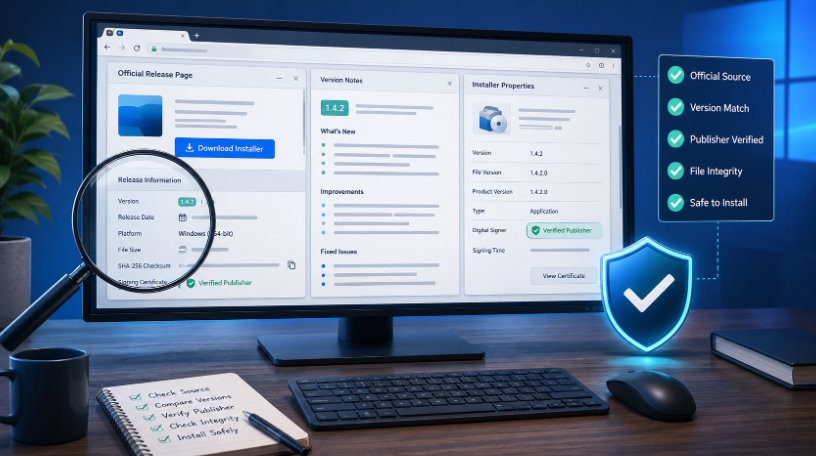
Software downloads are often trusted too quickly. A user searches for an application, opens a professional-looking page, clicks the largest download button, and assumes the installer must be legitimate. In reality, an official website, product download page, support center, release-note archive, and update server may all use different URLs. The same software may also be distributed through an EXE file, MSI package, the Microsoft Store, or an internal updater.
Because these channels are separated, users should not rely on one visual signal. A familiar logo, HTTPS, or polished design is not enough. A safer process compares the domain, product name, current version, release date, installer publisher, file type, update notes, and version shown inside the application.
The goal is to build a repeatable routine that exposes obvious inconsistencies before an installer is opened.
What an Official Release Page Should Contain
A reliable release page should clearly explain what users are downloading. It should identify the product, supported Windows versions, current release, and publisher responsible for the software.
Useful information normally includes:
- Full product name
- Supported Windows versions
- Latest version number
- Release or update date
- Summary of important changes
- Installer format, such as EXE, MSI, or Microsoft Store
- Links to support documentation
- Privacy and security information
- System requirements
- Update or uninstall instructions
The absence of one item does not automatically make a page unsafe. However, a page with no version number, release date, support contact, or publisher information gives users very little to verify.
Release notes connect the website to the installed application. If a page says that version 6.2.1 was published on a specific date, users should be able to open the application’s About, Help, or Settings section and find the same version number. A mismatch may have a harmless explanation, such as a staged rollout, but it should still be checked.
Check the Domain Before Trusting the Page
The domain name is the first technical signal to review. Users should read it carefully rather than trusting the page title or search-result text.
A reliable telegram 官网入口 should use a consistent domain, recognizable branding, and clear links to product support and release information.
Look for small spelling changes, extra words, unusual hyphens, random numbers, or unexpected subdomains. Some pages imitate a product name while operating under an unrelated domain. Others use redirect chains that send visitors through advertising or tracking pages before reaching a file.
Users should also check whether the connection uses HTTPS, whether the browser reports certificate problems, whether the domain remains consistent while navigating, and whether support and privacy pages use the same organization.
HTTPS protects the connection, but it does not prove that a site is official. Misleading sites can also obtain valid certificates. Treat HTTPS as a minimum requirement, not final proof.
Compare Version Notes With the Installer
After downloading the file, users should compare the installer with the release information before running it.
On Windows, right-click the file and open Properties. Review the file name, size, product name, version, company name, and digital signature when available. The publisher displayed by Windows should match the company or developer associated with the application.
The website version number, installer file version, product name, publisher, release date, file architecture, update notes, and version shown inside the application should be consistent.
A file named “latest_setup.exe” is harder to verify than a clearly versioned installer. Generic names are not automatically dangerous, but they make comparison more difficult.
Digital signatures are particularly important. A valid signature can help confirm that the installer has not been changed since it was signed and that it was issued by the named publisher. Users should still verify the publisher identity, because a valid signature from an unfamiliar company does not prove that the file belongs to the expected product.
After installation, open the application’s version information and compare it again with the website. This helps confirm that the installer produced the expected software rather than a bundled or modified client.
Distinguish Official Pages From Mirrors
Search results often lead to third-party software directories, regional mirrors, review sites, blogs, file-sharing platforms, and archived releases. Some may distribute legitimate files, but they are not equivalent to an official release channel.
A mirror may provide an unchanged installer, but it may also host an older version, add a download manager, rename the file, or delay updates. Software directories may place advertisements beside the real download button, making it difficult to know which link is correct.
Users should ask a simple question: does this page publish the software, or merely redistribute it?
An official release channel should normally connect directly to support pages, privacy information, update notes, and a recognizable installer publisher. A third-party page may describe the product accurately but still have no control over its update process. When an official source is available, it is usually the better choice.
Evaluate a Download Website Before Installation
Before trusting a page presented as a Telegram 官方下载网站, users should verify whether its version information matches the installer publisher and the application's internal update channel.
The update channel matters because it shows where future versions will come from. A legitimate desktop application should have a predictable update method, such as an in-app updater, an official release page, or the Microsoft Store. Be cautious if the application sends users to a different or unrelated domain for updates.
The download process should also be clear. A trustworthy page should not require a separate download manager, ask users to disable antivirus protection, force unrelated surveys, or open multiple advertising pages.
Before installation, confirm that the domain matches the product identity, the current version and release date are visible, the installer format suits Windows, the publisher is known, the digital signature is valid when provided, the update method is explained, and the support page belongs to the same organization.
Use a Simple Verification Checklist
A repeatable process is more reliable than intuition. For any Windows application, users can follow the same sequence:
1. Check the domain for spelling changes, redirects, and unrelated subdomains.
2. Confirm the exact product name.
3. Record the version number shown on the page.
4. Review the release date and update notes.
5. Check the installer publisher in Windows.
6. Confirm the file format and system architecture.
7. Identify the update method.
8. Verify that support and privacy pages connect to the same organization.
Keeping a simple record of the source URL, version number, download date, installer hash, and publisher can make future troubleshooting easier. If a problem appears after an update, users can identify which installer was used and where it came from.
Warning Signs That Should Stop the Download
Some warning signs are serious enough that users should stop immediately.
Do not continue when a page:
- Forces installation through an unfamiliar download manager
- Displays several misleading download buttons
- Asks users to disable Windows Defender or antivirus software
- Provides a file with an unexpected or double extension
- Shows an unknown or mismatched publisher
- Omits version and release information
- Redirects to an unrelated domain
- Opens repeated advertising pages
- Offers a modified client without explaining who maintains it
A double extension such as “setup.pdf.exe” is especially suspicious because Windows may hide the final extension by default. Users should enable file-name extensions in File Explorer before opening downloaded software.
An unknown publisher warning does not always mean a file is malicious, especially for small open-source projects. However, it means the user has less evidence to rely on. In that case, release history, checksums, source repositories, and community documentation become more important.
Conclusion
Recognizing an official software source requires more than checking a logo or choosing the first search result. A safer method compares the release page, domain, version notes, installer properties, publisher identity, digital signature, update channel, and version shown inside the application.
No single signal is perfect. A professional design can be copied, HTTPS can be obtained by almost any site, and a file name can be changed. Confidence comes from consistency across several independent details.
Before installing a Windows desktop application, users should be able to answer four questions: where did the file come from, who published it, which version is it, and how will it receive future updates? When those answers are clear and consistent, the download is far easier to trust.
Software Verification / Cybersecurity / Windows

