

There are different choices whose impact on the image and design quality is invisible. Image format is one of them. Sometimes, you will not even notice that something is wrong until you zoom in or use it for design.
You’ve probably seen some of these before: a company logo sitting inside an awkward white box because the background wasn't transparent; a product page that takes so long to load that the customer gives up; and a beautifully edited photo that turns into a blurry mess the second it’s uploaded. Any of these is a sign that the image format doesn’t match the job.
The differences between JPG, PNG, and WebP are pretty easy to ignore in a low-resolution image until you start dealing with HD and 4K dimensions. At that stage, file sizes balloon, compressed textures get ugly, and picking the wrong format is exactly why your high-res image suddenly looks cheap.
Let’s break down how JPG, PNG, and WebP actually work, how they stack up side-by-side, and—most importantly—why your format choice won't save you if your source image is messy to begin with.
The Big Three Formats: What's the Catch?
1. JPG/JPEG (The Old Reliable)
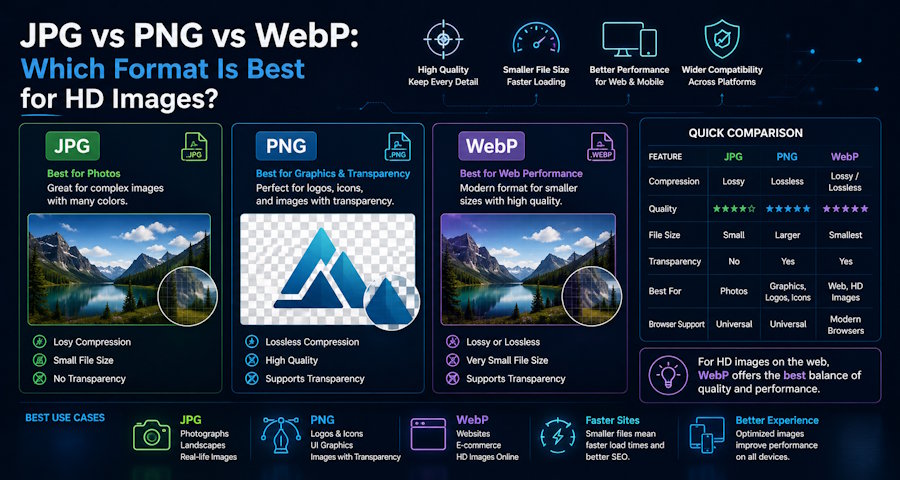
When it hit the world in 1992, the Joint Photographic Experts Group (JPG/JPEG) was a massive deal. It became the default for photography, and it has kept that crown for over three decades. Despite its popularity, JPG does well at squeezing complex, colourful photos into tiny, manageable file sizes.
● How it works: JPG uses lossy compression, but makes the flaws and pixels visible to you. Unfortunately, this causes the algorithm to look at your photo, identify details the human eye won't notice, and discard them.
● The downside of JPG: Every single time you edit and hit "Save" on a JPG, it loses more data. Do this a few times, and the cumulative loss starts looking blocky and pixelated.
● The HD problem: JPG compression flaws are completely hidden at 800 pixels but stick out like a sore thumb at 4K pixels. You won’t have a problem if you are a one-time image user. Just export a JPG and upload it, you’ll be fine. But if you’re still working on the image/flyer, don’t use the JPG format to avoid a solid background in your designs. It can't handle the transparency that you might need in logo designs and the quality retention needed for evergreen images.
2. PNG (The Perfectionist)
The PNG (Portable Network Graphic) image format was built on the opposite philosophy of JPG. It never changes a single pixel.
● How it works: PNG uses lossless compression. That means you can open, edit, and save a PNG fifty times, and the 51st version will look identical to the original. PNG is non-negotiable for things that require absolute precision, such as app interfaces, vector logos, and text-heavy graphics.
● The downside: PNG’s perfection isn't cheap; it holds onto all data and costs you storage space. A standard PNG photograph is four to five times larger than a JPG of similar size. Additionally, you may try reducing how much you use it because, at 4K dimensions, a few PNG product shots can completely tank your website's loading speed.
● The superpower: PNG's real claim to fame is transparency. The image format has clean, crisp edges that sit perfectly over any colored background. Just don't make the mistake of using it as your default "safe" option for everything because of storage.
3. WebP (The Modern Standard)
Google’s WebP, released in 2010, had sat in a weird limbo. It was technically better than JPG and PNG, but almost no web browsers supported it. Fast forward to today, and that problem is entirely gone as WebP global browser support is over 96%, making it the undisputed heavyweight for web use.
● How it works: WebP is a chameleon. It supports lossy and lossless compression, handles transparent backgrounds just like a PNG, and consistently uses smaller storage than its older rivals.
● The numbers: On average, a WebP file is 25% to 35% smaller than an identical JPG. Against a high-resolution PNG, the size savings are even crazier.
The takeaway: For publishing anything online right now, make WebP your default. The only real edge cases where it still causes friction are in certain email clients or outdated file management systems.
Side-by-Side Comparison
|
Format |
Compression |
Transparency |
File Size (HD) |
Best For |
|
JPG |
Lossy |
No |
Small |
Photos, social media |
|
PNG |
Lossless |
Yes |
Large |
Logos, graphics, UI |
|
WebP |
Both |
Yes |
Smallest |
Web, social, HD |
Quick-Reference Table: Best Use Cases
|
Use Case |
Best Format |
Reason |
Avoid |
|
Social media photos |
JPG or WebP |
Manageable size, good quality |
PNG (too large) |
|
Logo/branding |
PNG or WebP |
Transparency support |
JPG (no transparency) |
|
E-commerce product shots |
WebP |
Quality + small file size |
PNG (page load) |
|
Website hero images |
WebP |
Fast load, HD quality |
JPG at HD (artefacts) |
|
Print-ready files |
PNG |
No data loss |
JPG (repeated saves) |
|
Email campaigns |
JPG |
Wide client support |
WebP (some clients) |
The takeaway: Though JPG works well for images you only want to post on social media, and PNG lets you retain quality at the expense of storage, WebP gives you the best HD images without consuming all your storage.
Why Format Alone Is Not Enough for HD Results
Format guides tend to stop at the comparison table. Choose the right format, export correctly, and you are done. That framing is incomplete because it treats format as the primary quality variable, and at HD dimensions, it is not.
Hear this well: “The source image matters (how it was captured) more than the container (formats) it goes into.” A WebP file made from a poorly exposed, low-resolution original is still a poorly exposed, low-resolution image. The format does not recover details that were never captured, nor does it fix noise, correct colour casts, or sharpen edges that were blurry at the point of capture. What it does is preserve whatever quality exists in the source.
This is where enhancement belongs in the workflow: before export, not after. Running images through a photo enhancer before converting to your target format means you are working with the best possible source material. Zawa AI's enhancer applies AI-powered upscaling, noise reduction, and detail restoration that recovers meaningful visual information rather than just stretching pixels.
For anyone working with batches of images, such as a product catalogue, a content archive, or a social media library, the practical question is whether you want to process images one at a time or in bulk. Zawa's HD photo converter handles enhancement and conversion in a single workflow, supporting output up to 4K Ultra HD. That means you are not jumping between tools to get from a raw image to a publication-ready HD file.
The sequence that produces the best HD results is: enhance the source image first, then export to the right format for the destination. Not the other way around.
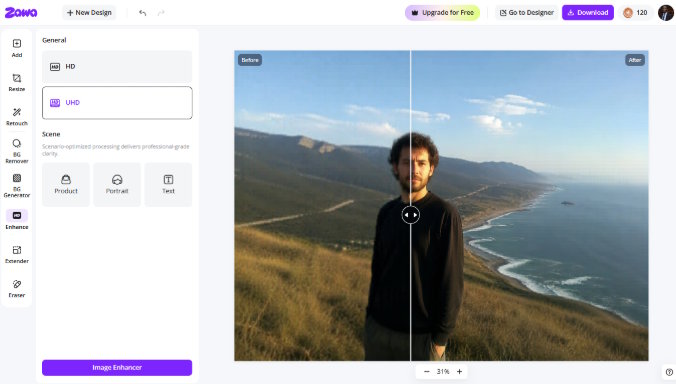
Below is an image before and after enhancing with Zawa AI HD Photo Converter
Before:

After:

Conclusion
On a final note, JPG is the right choice for photographs going to social media, email, or standard websites where transparency is not needed and file size matters. PNG earns its place for logos, interface elements, and graphics where precision and transparency are non-negotiable. WebP is the strongest general-purpose choice for web publishing because of its smaller files, equivalent quality, and broad support. However, Webp
At HD dimensions, the stakes on all three decisions go up. Artefacts that are invisible at standard sizes become obvious; file sizes that are manageable at lower resolutions become performance problems; and the quality of the source image before any of this becomes the most important variable of all. So, if you are to pick one, pick WebP. If you are to pick two, Pick PNG and WebP.

