

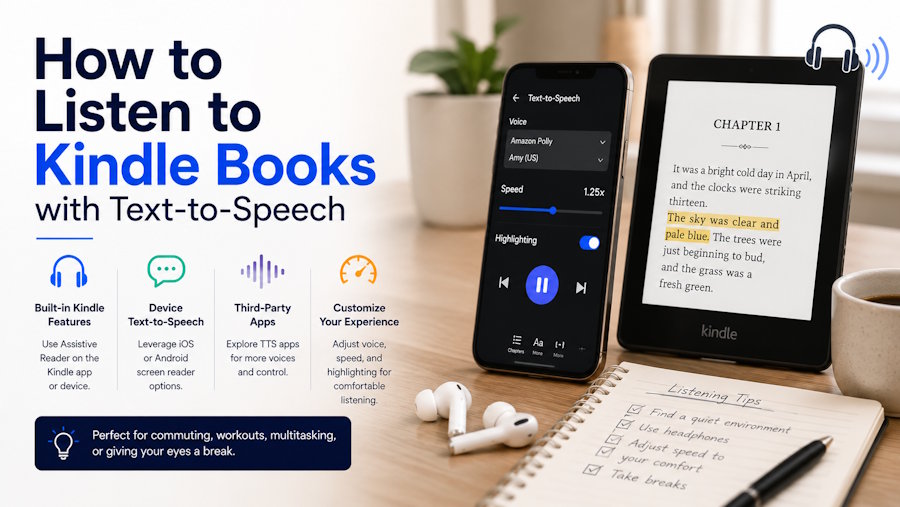
An audiobook is not the only way to listen to a Kindle title. Text-to-speech (TTS) can read the text already available in your Kindle library, making long books easier to follow while commuting, exercising, cooking, or resting your eyes. The best method depends on where you read, because Kindle support varies by device, app version, book, language, region, and publisher settings.
1. Check Kindle's built-in option first
On the Kindle app for iOS or Android, open the book, tap the page to reveal the controls, and look under Aa and More for Assistive Reader. If it is available, select a voice and speed, then start playback. Some Kindle e-readers and Fire devices also provide accessibility features such as VoiceView or text-to-speech.
This is the simplest route because it requires no extra software. However, the option may not appear for every title. Publishers can limit read-aloud access, and controls differ across Kindle models and apps. If you cannot find the setting, check the book's product details and Amazon's help information before assuming your device is faulty.
2. Use your operating system's accessibility tools
If you read in the native Kindle app on a Mac, macOS Spoken Content can read selected or on-screen text. Similar screen-reading tools are available on Windows, iOS, and Android. They are useful fallbacks, especially for accessibility, but navigation may feel less like an audiobook: you may need to select text, move between pages, or adjust focus manually.
3. Listen through Kindle Cloud Reader
For desktop listening, open Kindle Cloud Reader in Chrome or Edge. Ordinary browser TTS extensions can struggle because some book pages are rendered in a way that does not expose clean text to the page. A Kindle-aware reader can handle that layout more reliably.
One option is CastReader, a browser reading tool for Kindle books, webpages, and PDFs. Its Kindle workflow uses on-device OCR to identify text visible in Cloud Reader, then reads it aloud with synchronized highlighting. This is especially useful when a conventional extension sees the menus around the book but not the book page itself.
Guest post submission • Our Code World 1 / 2
How to set it up
Install CastReader from its official download link, open a book you are authorized to access at read.amazon.com, and click the extension icon. If the current page is supported, choose a voice and playback speed, then press play. The extension highlights the text as it speaks. CastReader says the page image stays on the device during OCR; extracted text is sent to its voice service to generate audio.
For an illustrated, current walkthrough, see CastReader's guide to listening to Kindle books with text-to-speech. Chrome and Edge are the supported desktop route described there. Availability still depends on the book and the way its page is rendered.
Tips for a better listening experience
Start around 1.0x to 1.2x speed, then increase it gradually. Use headphones for dense nonfiction, and keep highlighting visible when names, formulas, or unfamiliar terms matter. Before a long session, test two or three pages to confirm that paragraph order and page progression are correct. If the book offers a professionally narrated audiobook, compare it with TTS: narration is usually better for performance, while TTS is flexible, searchable, and available for far more everyday reading.
The bottom line
Begin with Kindle's built-in Assistive Reader when it is available. Use system accessibility tools as a dependable fallback. On a computer, Kindle Cloud Reader plus a compatible browser reader provides the most flexible route for titles that do not expose a native play button. Whichever method you choose, respect the book's access restrictions and use TTS only with content you are entitled to read.

