

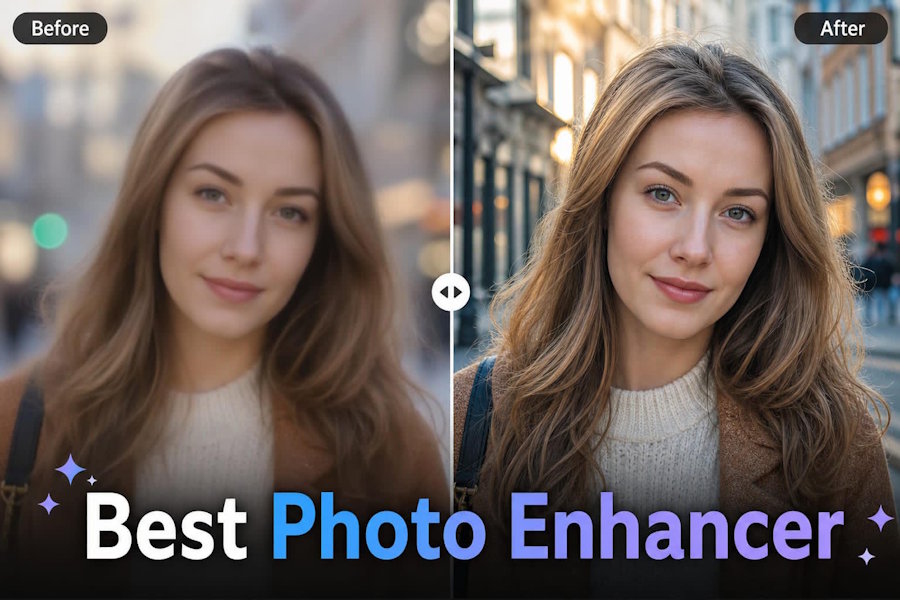
You finally have that perfect shot: a milestone moment, a product photo for your store, or a carefully composed portrait only to zoom in and find a blurry, pixelated mess that no print lab will accept and no platform will approve. It is a frustrating experience that most photographers, content creators, and everyday users have run into at least once. But low resolution is not a permanent verdict. Modern AI-powered tools can raise photo resolution intelligently, recovering sharpness and fine detail without starting from scratch. This guide walks you through exactly why resolution loss happens, how the technology behind upscaling works, and which tool gives you the fastest, cleanest results available today.
Why Do Your Photos Lose Resolution?
A blurry or pixelated photo is not just an aesthetic problem—it carries real consequences depending on how you use your images. For e-commerce sellers, blurry product photos erode buyer trust before a single word is read. For photographers and designers, pixelated images are flatly rejected by print labs, stock platforms, and publishing clients who enforce strict resolution requirements. And for anyone presenting work professionally in a deck, a portfolio, or a client-facing document, low-resolution visuals quietly signal a lack of care and attention, undermining credibility even when the underlying work is strong.
Common Reasons Photos End Up Low-Resolution
Understanding the source of the problem helps you fix it the right way. Here are the most frequent culprits:
Shot on an older or low-end device
Smartphones and cameras manufactured before the megapixel race of the last decade often captured images at resolutions that simply are not enough for modern print or display standards. The sensor only captures so much data, and no amount of pinching or zooming changes that.
Compressed repeatedly through messaging apps or social media
Every time an image passes through WhatsApp, Instagram, Facebook, or similar platforms, it gets compressed to reduce file size. Send the same photo back and forth a few times, or download someone else's upload, and you may end up with a fraction of the original quality baked in permanently.
Scanned from old prints without proper settings
Digitizing physical photographs is a common cause of resolution loss. Scanning at 72 or 96 DPI screen-friendly settings produces images that look fine on-screen but fall apart the moment you try to print or enlarge them. Proper archival scanning requires 300 to 600 DPI at minimum.
Cropped too aggressively
Even a high-resolution original loses usable pixel count the moment you crop deeply into it. A tight crop on a face taken from 20 feet away may leave you with only a few hundred pixels to work with, no matter how sharp the original looked before cutting.
The solution to all of these scenarios is the same: you need a tool that can intelligently raise photo resolution, one that does not simply stretch pixels, but reconstructs missing detail using AI. Let’s get to the solution without any delay.
Fastest Way to Raise Photo Resolution: HitPaw FotorPea
HitPaw FotorPea stands out as the most capable solution for anyone who needs to raise photo resolution without a steep learning curve or a professional editing background. Whether you are dealing with a compressed social media download, a faded scan of a decades-old family photo, or a product image that came out too small for your listing requirements, FotorPea handles it in a single workflow.
What sets FotorPea apart from generic upscalers is that it does not simply interpolate; it uses deep learning models trained on millions of images to reconstruct the detail that was never captured or was lost through compression. The result is not a bigger blurry image; it is a sharper, more detailed one. The software supports upscaling to HD, 2K, 4K, 8K, and even 16K resolution depending on the model and source image, making it suitable for everything from social media thumbnails to large-format print.
What Makes FotorPea Worth It?
Boost Resolution, Sharpness, and Color Instantly
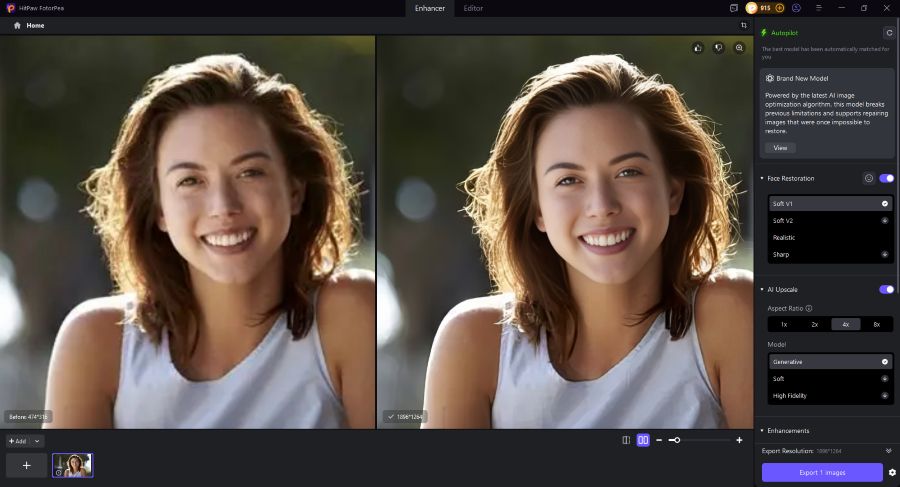
FotorPea’s AI Photo Enhancer automatically improves image quality with a single click. It intelligently removes blur, reduces noise, corrects poor lighting, and enhances colors while upscaling photos to HD, 4K, or even 8K resolution. The result is a sharper, clearer, and more vibrant image with enhanced detail and professional-grade quality.
Restore Old and Damaged Photos
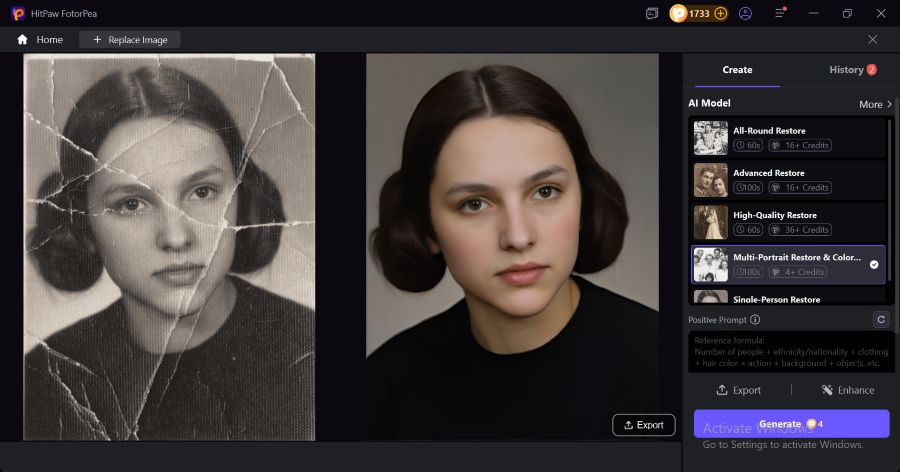
Bring faded memories back to life with AI-powered photo restoration. FotorPea repairs aging photos, revives details, and colorizes black-and-white images with realistic tones, giving vintage pictures a fresh and natural appearance.
Make Blurry Text Clear and Readable
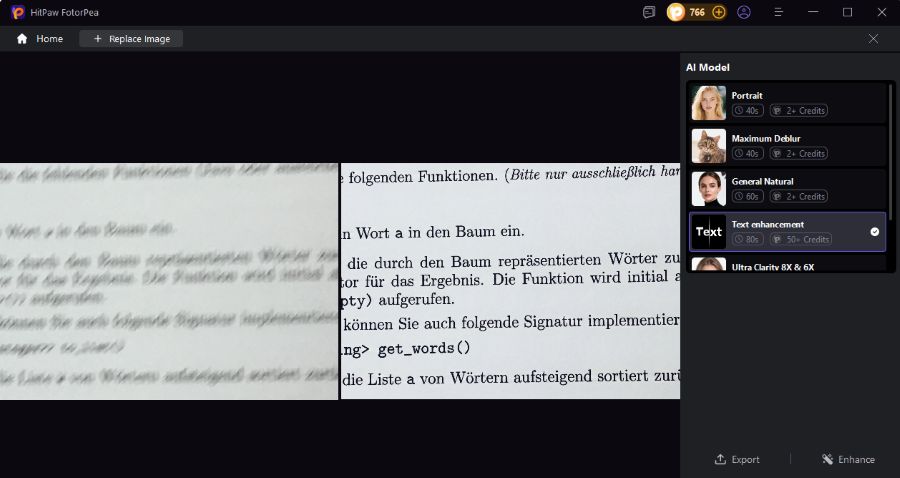
The Image Text Enhancer improves the clarity of blurry, pixelated, or low-resolution text in photos. It sharpens characters and restores readability, making documents, screenshots, and scanned images easier to view and share.
Remove Backgrounds in Seconds
Quickly separate subjects from any background with AI precision. This feature automatically detects and removes backgrounds, making it perfect for product images, marketing materials, social media content, and professional presentations.
Generate Images with AI
Powered by advanced Nano Banana technology, FotorPea lets you create and transform images using simple text prompts. Upload a photo and describe the changes you want, such as a new outfit, background, or expression, and the AI generates a customized result within seconds.
Edit Images Through Conversation
AI Canvas replaces complex editing tools with a simple chat-based experience. Just describe your desired changes, and the AI can expand images, replace backgrounds, remove objects, or resize photos automatically, making professional editing accessible to everyone.
Remove Unwanted Objects Effortlessly
Eliminate distracting elements from your photos with a few clicks. Simply highlight the object you want removed, and the AI seamlessly fills the area, creating a clean, natural-looking image without manual retouching.
How to Raise Photo Resolution?
Step 1: Download, Install and Launch
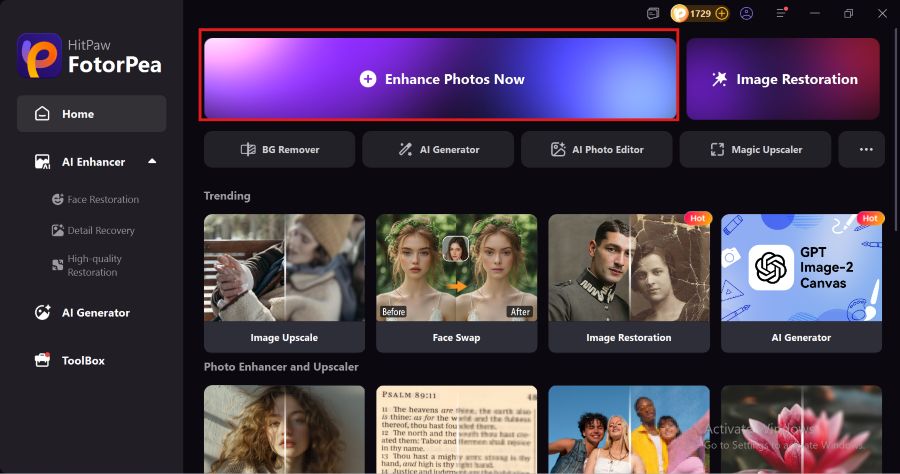
First of all, download and install FotorPea from the official website of HitPaw and launch it. After that, click on Enhance Photos Now to start enhancing your images.
Step 2: Import Your Photo
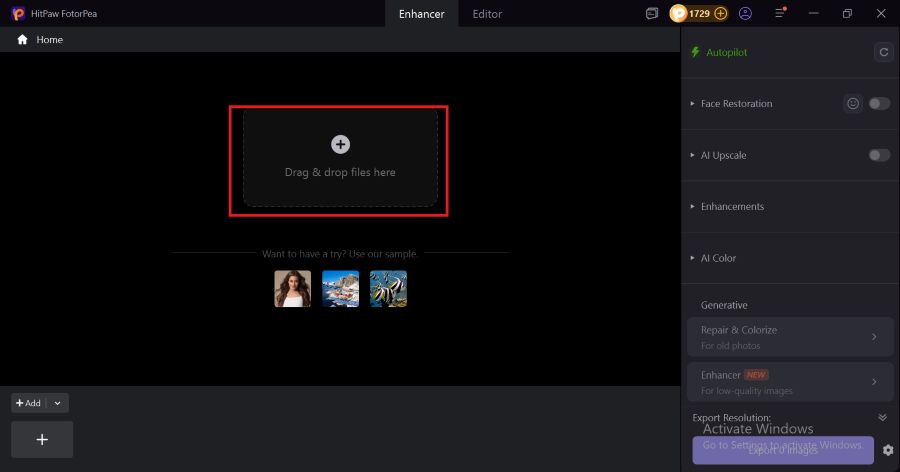
Click on the + icon to add the photo or you can simply drag and drop the image into HitPaw FotorPea.
Step 3: Click on Preview
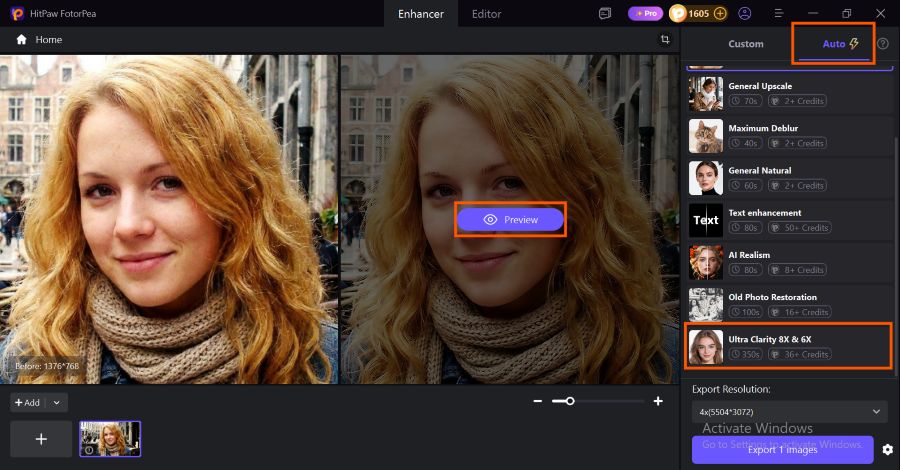
On your right you will see a control panel where you can choose the right AI model for your image. After choosing the AI model, click on Preview to let FotorPea start processing.
Step 4: Save your Photo
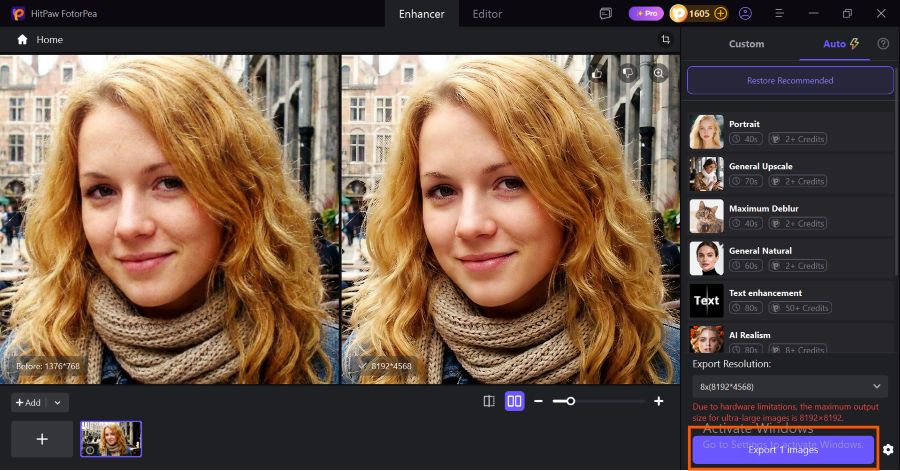
After waiting for a few seconds, the final result will be in front of you. Now you can simply click on the Export button to download the final result to your device.
How HitPaw FotorPea Redefines AI Photo Upscaling for Professionals
The Shift in Upscaling Technology
The broader shift happening in photo editing is worth understanding, because FotorPea sits at the center of it. Traditional upscaling, the kind built into older software, worked by interpolation: estimating what color a new pixel should be based on its neighbors. The results were predictably soft, often introducing halos or smearing fine textures like hair, fabric, or foliage.
Reconstruct Detail Instead of Approximating It
AI-powered upscaling works fundamentally differently. Models trained on enormous datasets learn what high-frequency detail actually looks like in different contexts: human skin, architectural edges, natural textures and use that knowledge to reconstruct realistic detail rather than approximate it. FotorPea's purpose-built models for faces, animation, low-light scenes, and general photography each apply this logic to their specific domain, which is why results vary meaningfully across subject types when you choose the right model.
Generative Enhancement
The most recent versions of FotorPea push this further with generative enhancement. Rather than simply inferring detail from surrounding pixels, the generative SD model creates new visual information grounded in what the image logically should contain, turning a blurry ID photo into a sharp, print-ready portrait, or restoring pixelated anime artwork to its intended clarity. This is a qualitative step beyond upscaling as it was understood even three or four years ago.
Bridging Professional Workflows and Everyday Use
The result is a tool that bridges the gap between professional retouching workflows and accessible, one-click automation. Features like batch processing, cloud rendering, multi-model stacking, and the AI Canvas make FotorPea practical not just for casual users enhancing personal photos, but for e-commerce operators processing hundreds of product images, photographers preparing archives for print, and creative professionals preparing assets for large-format display.
Conclusion
Low-resolution images are a common problem, but they are not an irreversible one. Whether your photo was shot on an older device, compressed through social media, scanned at insufficient settings, or cropped too tightly, the underlying issue is the same: missing pixel data that needs to be intelligently reconstructed, not just stretched.
HitPaw FotorPea gives you the fastest and most practical way to raise photo resolution today. Its suite of AI models covers portraits, landscapes, archival photos, and creative work, while features like batch processing, multi-model stacking, and cloud rendering make it scale to professional use cases without adding complexity. The four-step process—download, import, select a model, export—puts genuinely high-quality results within reach of anyone, regardless of prior editing experience.
If your images have been holding your work back, there is no reason to keep accepting that limitation.

