

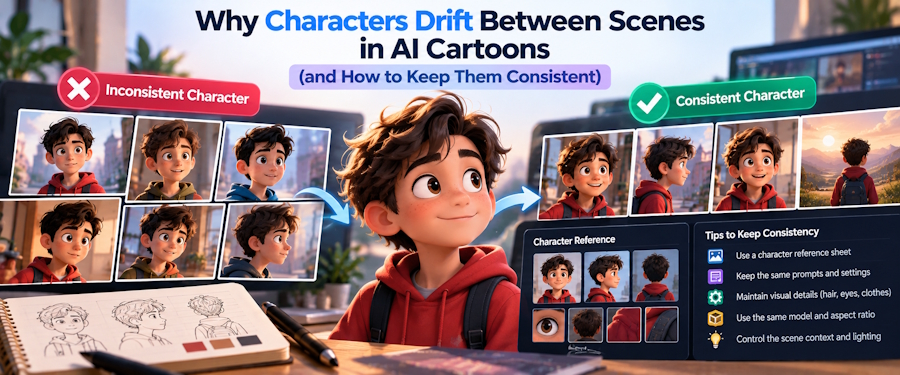
You generate the first scene of your cartoon and the hero looks great: red scarf, round glasses, a slightly crooked smile. Scene two, the scarf is orange. Scene three, the glasses are gone and she looks ten years older. By scene six you have a different person.
This is the most common complaint about AI-made cartoons, and it is not random bad luck. Once you understand why it happens, most of it can be prevented before you spend anything on rendering.
The Problem: Every Scene Is a Fresh Guess
Image and video models do not "remember" a character between generations the way a human illustrator does. Each scene is generated from its own prompt (and whatever conditioning the tool passes along). If the only thing tying scene one to scene six is the word "Maya", the model fills in everything else from scratch each time: hair length, face shape, age, clothing, even body proportions.
Three things make drift worse:
- Vague descriptions. "A young girl" leaves the model hundreds of decisions to make, and it will make them differently each time.
- Inconsistent wording. Calling her "a girl in a red scarf" in one scene and "Maya, wearing winter clothes" in another gives the model two different targets.
- Busy scenes. When a prompt also asks for a crowded market, three other characters and dramatic lighting, the main character's details get less attention.
There is also a style factor. Photorealistic styles show every small difference in a face. Looser illustrated styles hide small variations because viewers read the character from a few strong features, not from exact facial geometry.
Fix 1: Anchor Everything to One Reference Image
The single most effective fix is to stop describing the character from scratch and give the model a picture to match instead.
Most serious cartoon tools now support some form of reference image. In ToonBee AI, for example, one reference image anchors every scene in a story video, so the face, outfit and proportions carry through from the first scene to the last. You can also upload your own character, a drawing or a photo and use it as that anchor rather than letting the AI invent one.
What makes a good reference:
- Clear and well lit. No heavy shadows across the face.
- Facing the camera or at a slight three-quarter angle.
- Full outfit visible, or at least the parts that should stay the same.
- Plain background, so the model does not treat a lamp or a tree as part of the character.
- One character per image. If you need two recurring characters, give each their own reference.
If you are drawing your own character for this, make the distinctive features bold: a bright scarf, a big hat, an unusual hair colour. Strong, simple features survive generation far better than subtle ones.
Fix 2: Write One Character Description and Never Change It
Even with a reference image, the text still steers each scene. Write a short, fixed description and paste it into every scene prompt exactly as written:
Maya, 9 years old, short curly black hair, round glasses, red scarf, yellow raincoat.
Rules for this description:
- Same words every time. Do not paraphrase. "Yellow raincoat" in one scene and "mustard jacket" in another are two different instructions.
- Only permanent features. Leave emotions and actions to the scene text ("Maya laughs and jumps into a puddle").
- Keep it short. Five or six concrete details beat a paragraph.
- Order matters a little. Put the most important identifying feature first.
If the outfit changes in the story (pyjamas at bedtime, a costume at a party), write a second fixed description for that version and use it consistently for those scenes.
Fix 3: Keep Each Scene Simple
A scene prompt that asks for too much will sacrifice something, and it is often your character's details. Aim for one main action and one setting per scene.
Instead of:
Maya runs through the busy market, past the fruit stalls and the musicians, chasing her dog while her grandmother calls after her in the rain at sunset.
Split it into two or three scenes:
Maya runs through a busy market in the rain, chasing her dog.
Her grandmother stands under an umbrella, calling after her.
This helps consistency and usually helps the story too, because each picture has a clear focus.
Fix 4: Redo the Scene That Drifted, Not the Whole Video
Even with a good reference and disciplined prompts, some scenes will drift. That is normal. What matters is that fixing one bad scene does not force you to regenerate everything.
Before animating anything, review every scene picture side by side with the first one. Check the face shape, hair, the signature item (glasses, scarf, hat) and the overall proportions. Redraw any scene that does not match, against the same reference.
Tools handle this differently. Some force you to regenerate the whole sequence; others let you redraw a single scene. In ToonBee AI a drifting scene can be redrawn on its own, and the old picture stays as a variant, so you can compare and pick the better one. Whatever tool you use, do this review at the still-picture stage. Fixing a picture is quick; fixing an animated clip means paying for the animation again.
Fix 5: Choose a Style That Forgives
If consistency matters more than a particular look, pick a style that hides small differences:
- Children's book illustration and watercolor are very forgiving. Soft edges and simple faces read as "the same character" even when details shift slightly.
- Comic and modern cartoon styles are a good middle ground. Bold outlines and flat colours keep the signature features obvious.
- Anime works well if your character has a distinctive hairstyle and colour scheme, which anime faces rely on.
- Realistic film looks are the least forgiving. Any change in face shape is noticeable, so use a strong reference and review carefully.
Whatever you pick, use one style for the whole video. Switching styles mid-story makes the character look different even if the model got every detail right.
What About Single Clips From a Photo?
Not every project is a multi-scene story. Sometimes you just want one short clip of a specific character or person moving: a mascot waving, a portrait turning to the camera, a pet looking up. In that case the most reliable way to keep the look is to start from the image itself rather than from a text description.
Image-to-video tools do exactly that. With Dolai, a web generator that runs ByteDance's Seedance 2.5 model in the browser, you can upload a photo as the first frame and describe the motion, and the clip starts from your exact picture. Because the first frame is your image, the character's appearance is fixed at the start, and the prompt only has to describe what moves. The same tips apply: a clear, well-lit image, a simple background, and one action per clip.
A Short Consistency Checklist
- One clear reference image per recurring character
- One fixed text description, pasted word for word
- One action and one setting per scene
- Every scene picture checked against scene one before animating
- Drifting scenes redrawn individually
- One art style for the whole video, ideally a forgiving one
Character drift feels like a model limitation, and partly it is. But most of the drift people see comes from vague, inconsistent inputs. Tighten the inputs and review at the still-picture stage, and your hero will still be wearing that red scarf in the final scene.

