

Database corruption is one of the most challenging issues a SQL Server Database Administrator can face. To prevent and detect the corruption early, administrators can run the native command: DBCC CHECKDB in SQL Server. This command checks the overall health of a database. It performs both logical and allocation consistency checks and returns specific errors if any test fails.
If consistency checks fail, the preferred option is to restore the database from the last good backup. If this is not possible, then use the DBCC CHECKDB with the REPAIR_ALLOW_DATA_LOSS option. It can resolve severe corruption within the SQL database. While it can help to successfully bring a corrupt database back online, the command is associated with certain risks. For this reason, even Microsoft recommends using it as a last resort option.
In this article, we will explain exactly what DBCC CHECKDB REPAIR_ALLOW_DATA_LOSS command is, how to use it safely, and its limitations. Additionally, we will cover what alternatives to pursue if it fails to repair your SQL database.
What is REPAIR ALLOW DATA LOSS in SQL Server?
REPAIR_ALLOW_DATA_LOSS is a repair option used with the DBCC CHECKDB command to repair corrupted NDF/MDF files. This option can help to fix corruption or broken allocation pages. While resolving the corruption, it may remove (delete) damaged pages, rows, or objects, resulting in data loss. Microsoft recommends running it only when your backup is unavailable/corrupted or there is no other option.
How to Use REPAIR_ALLOW_DATA_LOSS Command to Repair SQL Database?
Here are the steps to run REPAIR_ALLOW_DATA_LOSS command in SQL Server:
Note: First backup the corrupt database (if possible).
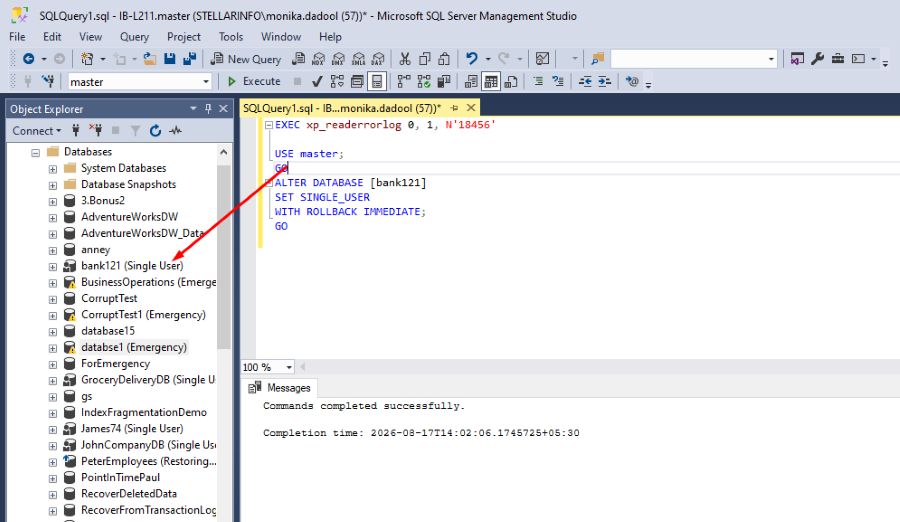
- Set the SQL database into SINGLE_USER mode. Run the following command to do so and terminate all existing connections:
GO
ALTER DATABASE [bank121]
SET SINGLE_USER
WITH ROLLBACK IMMEDIATE;
GO
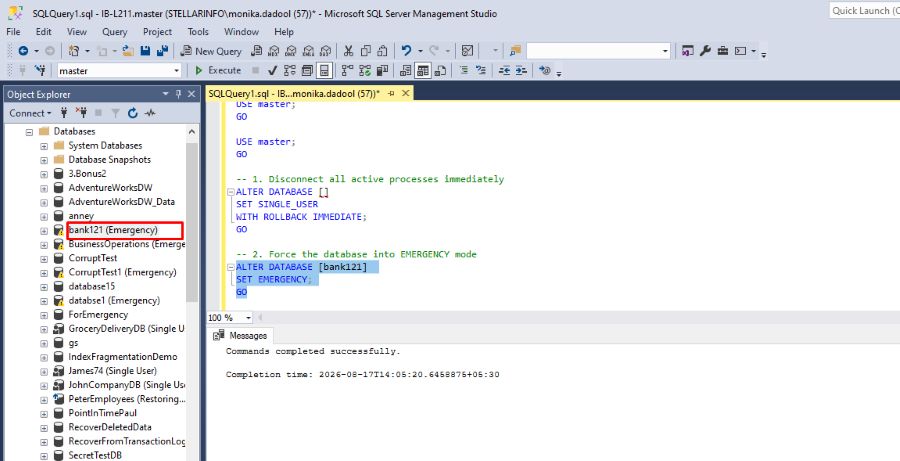
- Next, run the following command to change the database state into EMERGENCY:
ALTER DATABASE [bank121]
SET EMERGENCY;
GO
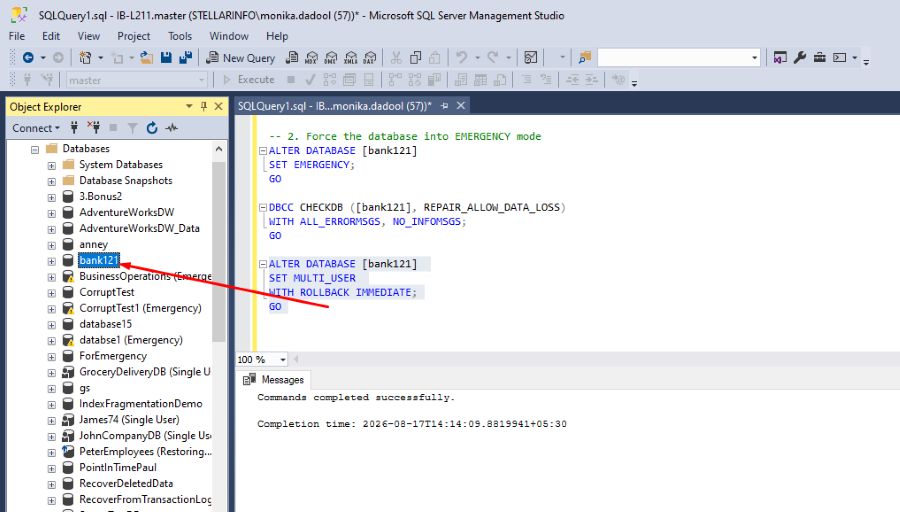
- Run the following command to repair the corrupt database:
DBCC CHECKDB ([bank121], REPAIR_ALLOW_DATA_LOSS)
WITH ALL_ERRORMSGS, NO_INFOMSGS;
GO
- After repairing the database, again change state of the database into MULTI_USER:
ALTER DATABASE [bank121]
SET MULTI_USER
WITH ROLLBACK IMMEDIATE;
GO
Why you should use CHECKDB REPAIR_ALLOW_DATA_LOSS as a Last Resort?
Although CHECKDB REPAIR_ALLOW_DATA_LOSS can resolve corruption in the database, it has some limitations. These are:
- It doesn’t fix broken data.
- It may delete corrupted data or objects like rows or columns, while repairing.
- Once you run the command, you cannot undo the deletions. The data is gone unless you have a separate backup copy.
Why DBCC CHECKDB Repair Allow Data Loss is not Working?
You may encounter some scenarios where the command fails or stops working. Some common ones include:
- As the DBCC CHECKDB repair command requires exclusive access, if the database is not in single-user mode, you may face the following error:
Msg 7919, Level 16, State 3, Line 26
Repair statement not processed. Database needs to be in single user mode. - If your database is severely corrupted.
- If your system’s disk has insufficient free storage.
- If your database is inaccessible due to SUSPECT or RECOVERY PENDING mode.
How to Repair SQL Database if DBCC CHECKDB REPAIR_ALLOW_DATA_LOSS fails?
If the CHECKDB command fails to repair corrupted SQL database, then you can opt for a professional MS SQL repair tool. Stellar Repair for MS SQL is one such tool that can repair severely corrupted MDF/NDF files with complete precision. It can quickly recover all the data from the corrupt SQL database. It fixes DBCC CHECKDB consistency errors without deleting rows or other damaged objects. It also helps you restore deleted records, including tables, indexes, or stored procedures from SQL database without a backup file. The tool supports SQL Server 2025, 2019, and earlier versions.
Now let’s see how to use Stellar Repair for MS SQL to repair database:
Note: Before starting, stop the SQL Server and create a copy of the database.
- Download, install, and launch the software.
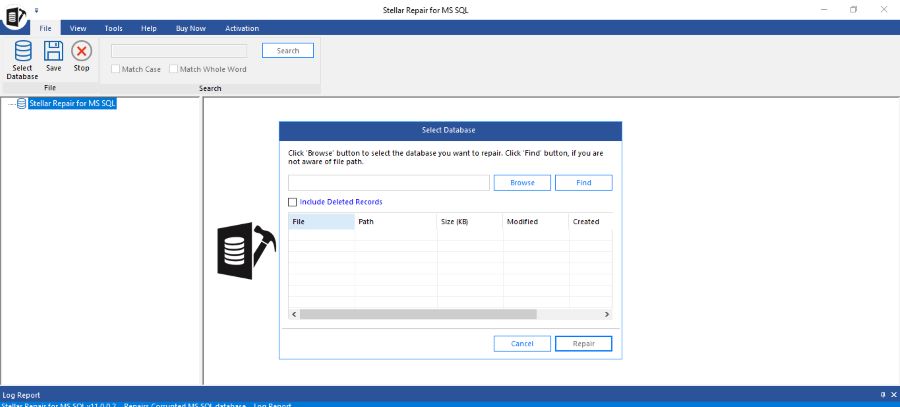
- A dialog box will open. You can use the ‘Browse’ option to select the corrupted database file (if you know the location) or use the ‘Search’ option to locate the file on your system. After selecting the required file, click Repair.
- After clicking Repair, select any of the given modes:
- Standard Scan (Recommended) – This mode scans and repairs normal corruption in MDF file.
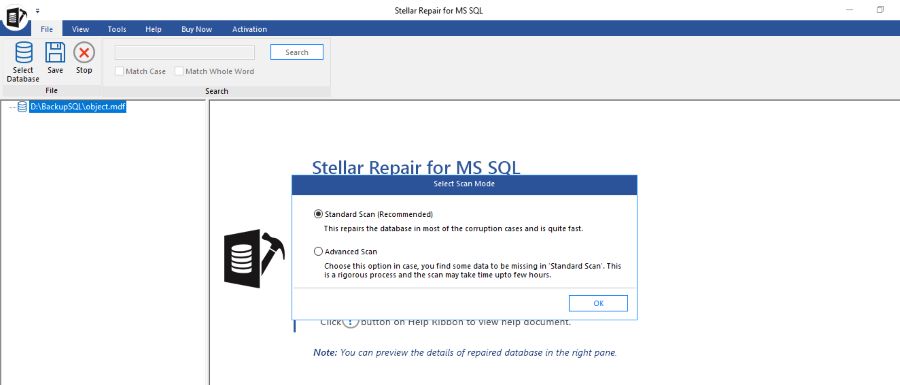
- Advanced Scan – Use this mode when you do not get desired result after Standard scan. This mode thoroughly scans the corrupted MDF file.
- When the repair is completed, you will get a ‘Repair Complete’ dialog box. Click OK.
- You can see the preview of the repaired files.
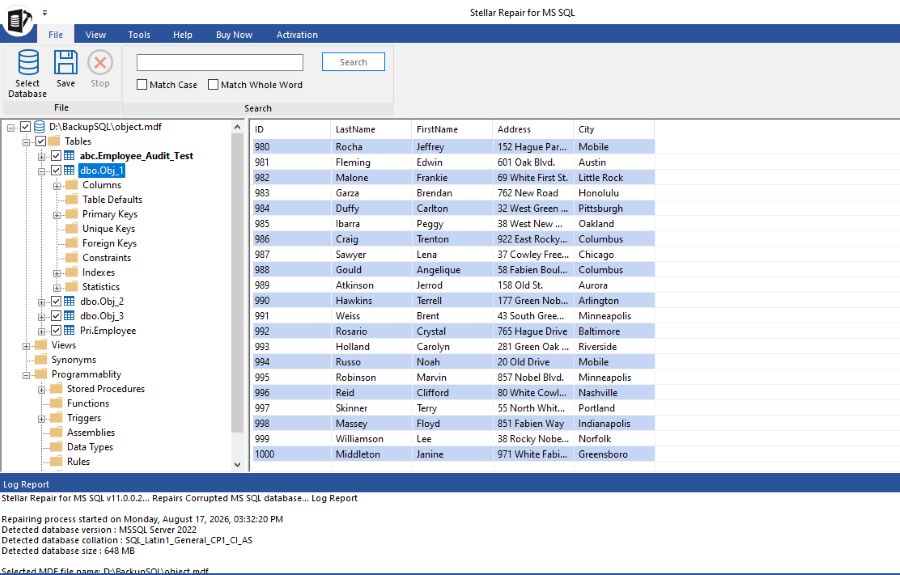
- Now, you can select the objects you want to save and then click ‘Save’.
- A new dialog box comes up, displaying multiple saving options – MDF, CSV, HTML, and XLS.
- Select the saving option as MDF and enter the required details.
- Choose the destination for saving the file and click ‘Save’.
- The ‘Save Complete’ dialog box appears when the data is successfully saved.
Repair Corrupted MDF Files Online Without Downloading Desktop Software
Users who do not want to download or install desktop software can also consider Stellar’s free online SQL database repair tool as an alternative for repairing corrupted MDF files. SQL Server database corruption can make MDF files inaccessible and prevent users from accessing important tables, records, and other database objects. In such situations, an online repair tool can offer a convenient approach for users who prefer to explore repair options directly through a web browser rather than installing a separate application. Before choosing an online solution, users should check whether it supports their SQL Server database files, the type of corruption they are experiencing, and the repair features available in the free version. It is also important to review any file size limitations and data security considerations before uploading database files. For users who want to avoid the installation process, an online repair option may be worth considering, provided it supports their specific database recovery requirements.
Conclusion
If you’re dealing with corruption in SQL database and the backup (.bak) file is not available, then you can use the DBCC CHECKDB REPAIR_ALLOW_DATA_LOSS command to repair it. While it can help you resolve corruption, it may not guarantee complete data recovery. To repair your database with complete integrity, use a professional SQL recovery tool, like Stellar Repair for MS SQL. It helps you repair the database files and recover all their data with the original structure intact.

