

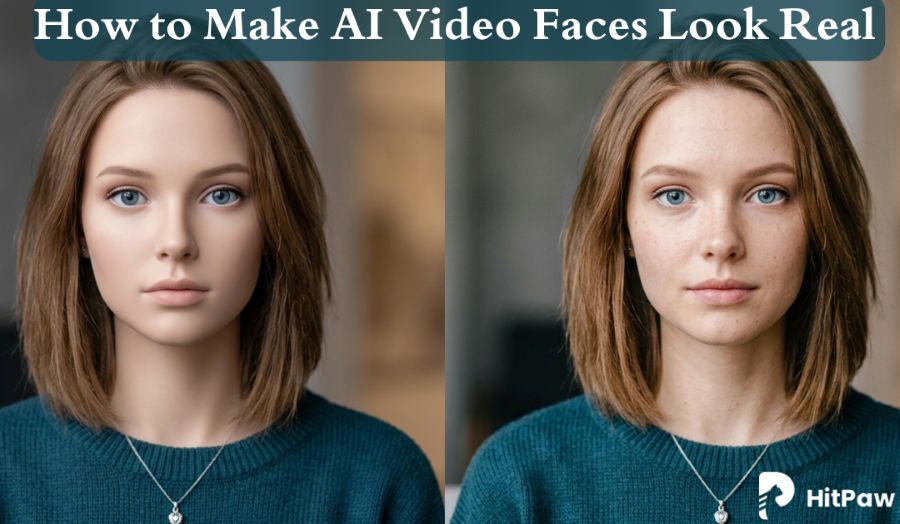
AI video generators can create smooth motion and cinematic lighting, but human faces often reveal their biggest weakness. On closer look, AI-generated faces can appear glossy, overly smooth, or waxy, creating an obvious “AI look” that breaks realism. This happens because most models prioritize overall image quality over fine facial details, often removing natural skin texture, micro-expressions, and subtle imperfections that make faces feel real. As a result, expressions can look flat, and lighting on the face may feel inconsistent. In this guide, you’ll learn why this happens and how to make AI look real in 4 easy steps for more realistic results.
Why Do AI-Generated Video Faces Look Like Plastic Wax Figures?
AI-generated faces from tools like Runway or Kling often look almost human but slightly off. The skin appears too smooth, too even, more like a wax figure than real flesh. This isn't a random rendering glitch; it's a direct result of how these models handle AI skin retouching, and most common fixes only make it worse.
The Model Defaults to Face Smoothing
Real skin contains a lot of high-frequency detail, such as pores, fine wrinkles, blotchiness, and stray hairs, and this detail shifts slightly from frame to frame. AI models are trained to minimize average error, so when they're uncertain exactly where this detail belongs, the safest output is to apply aggressive face smooth processing rather than risk guessing wrong.
Frame-to-Frame Stability Makes the Problem Worse
Video models also need to keep faces temporally consistent across dozens of frames per second. Fine, chaotic detail like pore texture is difficult to render consistently; it tends to flicker or shift between frames. To avoid this flicker, models lean even harder into automated AI skin retouching, suppressing detail entirely. The trade-off is stability at the cost of realism, pushing faces further toward a flat, doll-like appearance.
Skin Lighting Gets Oversimplified
Real skin is semi-translucent. Light enters the surface, scatters beneath the surface, and exits elsewhere. This subsurface scattering is what gives skin its natural depth and warmth. AI models approximate this crudely, often defaulting to a uniform, generic sheen instead. That flat sheen is one of the strongest visual cues behind the "wax figure" effect; it's the same quality seen in actual wax and resin sculptures.
Blur Filters Make It Worse, Not Better
A common instinct is to apply an extra blur or face smooth filter to "clean up" AI artifacts. This backfires because the root issue is already too much smoothing; layering more retouching on top compounds the problem.
Meet The Professional Solution to Make AI Video Faces Look Real: HitPaw VikPea
AI-generated and low-quality videos often suffer from faces that look overly smooth, with lost skin texture and missing natural detail. Instead of improving realism, basic filters often overdo face-smoothing effects, creating a waxy, artificial appearance. This is where HitPaw VikPea truly stands out as a professional solution to make AI look real. Unlike simple filters, VikPea is a local AI video enhancement tool built for intelligent AI skin retouching that restores authentic facial details instead of masking them.
Its advanced Portrait Model enhances skin texture naturally, refines facial contours, and preserves realistic lighting so results look clear and lifelike rather than edited. At the same time, its 4K/8K upscaling, noise reduction, and repair tools improve overall video quality by fixing blur, compression, and shaky footage. Together, these features help VikPea deliver clean, cinematic videos with natural, high-definition facial realism.
What Sets HitPaw VikPea Apart?
Turn AI-Generated Videos Into Stunning 4K Content
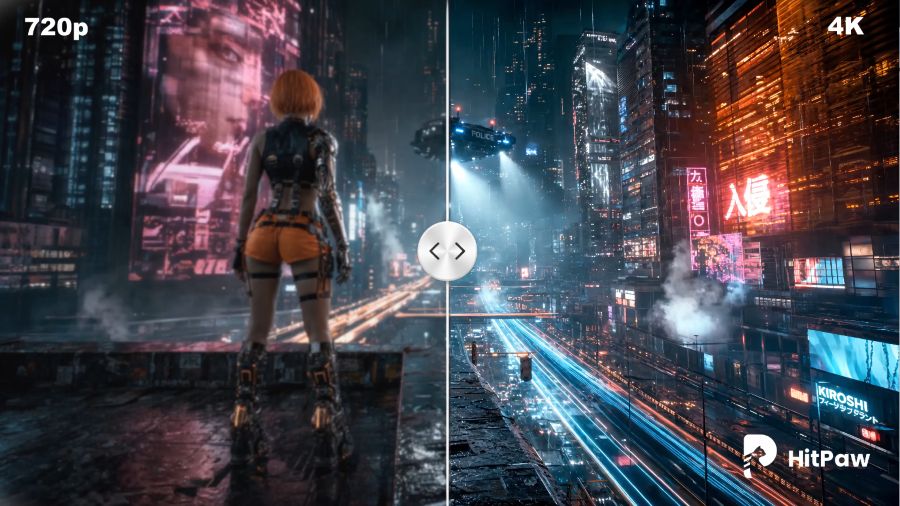
AI-generated videos often lose detail when exported at lower resolutions. VikPea helps transform videos created with models like Sora, Kling, and Veo 3 into crystal-clear 4K quality. Instead of simply enlarging the video, the AI restores fine details, removes visual artifacts, and minimizes motion stuttering. The result is a cleaner, more cinematic video with a professional finish.
Revive Old and Black-and-White Videos with AI Colorization
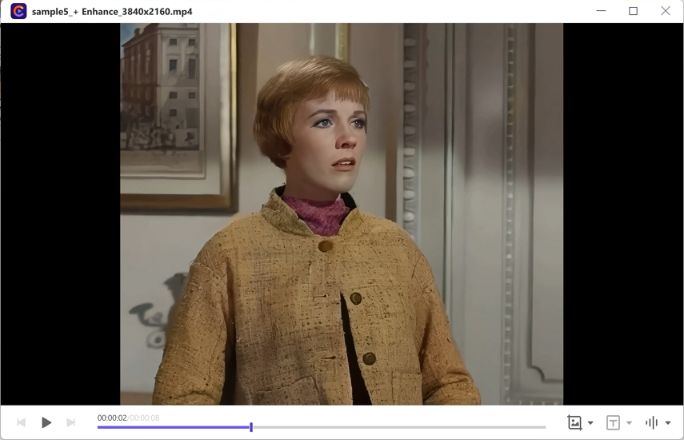
Vintage or faded videos can look fresh again with VikPea's AI Video Colorizer. The tool automatically adds realistic colors to black-and-white footage while restoring washed-out scenes with balanced brightness, contrast, and saturation. This gives old recordings a modern appearance, making them more engaging for today's viewers and social media platforms.
Repair Corrupted Videos and Restore Lost Quality
Damaged or corrupted video files don't always have to be discarded. VikPea's AI Video Repair feature is designed to recover videos affected by corruption, pixelation, or visual degradation. By rebuilding missing image data and enhancing overall clarity, it restores damaged footage into smooth, viewable videos that are ready to watch or share.
Create AI Videos in Minutes with Advanced AI Models
HitPaw VikPea also includes a powerful AI Video Generator designed for fast content creation. It combines popular AI models such as Pixverse 5.5, Kling V3 Omni, and Seedance 2.0 in one easy-to-use interface. Whether you want to generate videos from text prompts or animate still images, the platform delivers smooth motion, accurate scene generation, and high-quality 1080P videos within seconds.
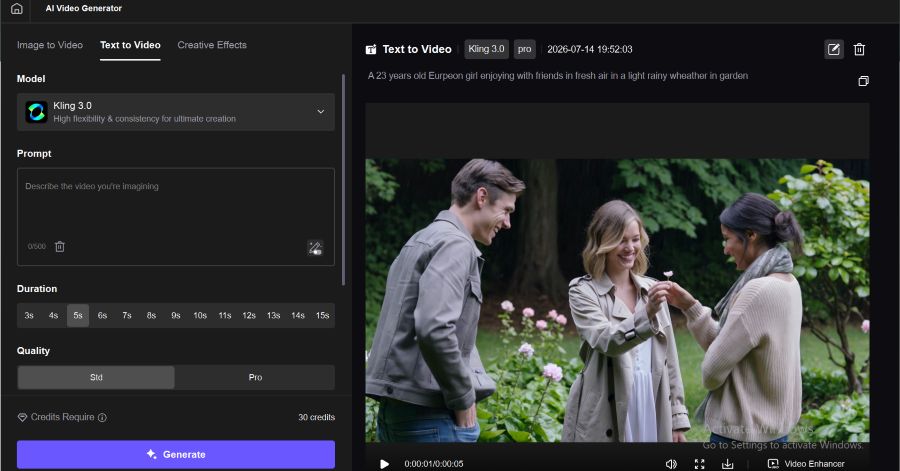
How to Make AI Video Faces Look Real in 4 Easy Steps
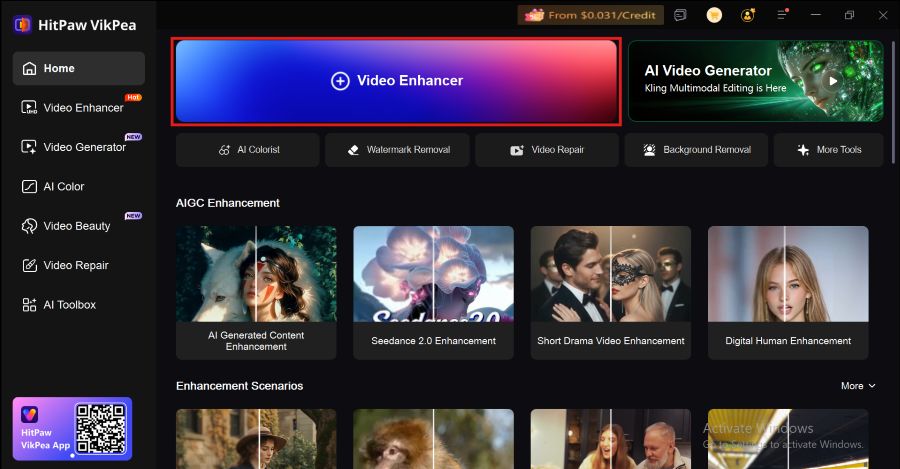
Step 1. Download, install, and launch
Download and install HitPaw VikPea from the official HitPaw website, then launch it. Choose Video Enhancer.
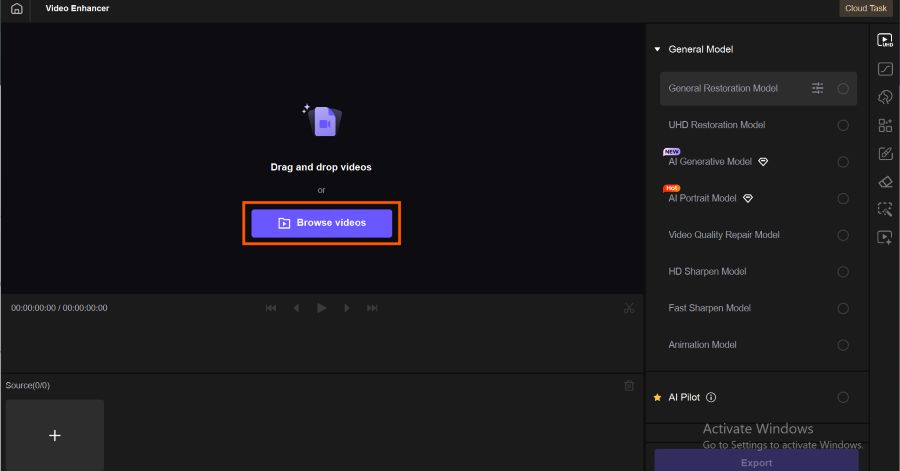
Step 2. Import Your AI-Generated Video
Import the video by clicking Browse Videos or by dragging and dropping your videos.
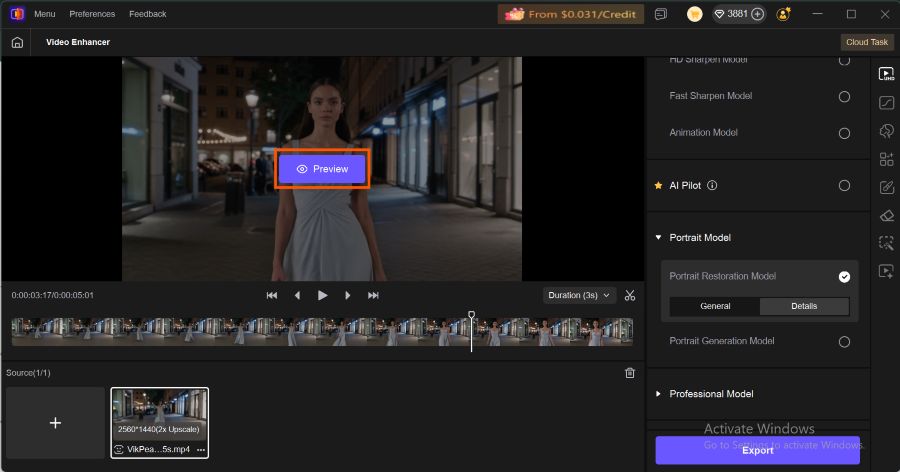
Step 3. Select the Portrait Restoration Model
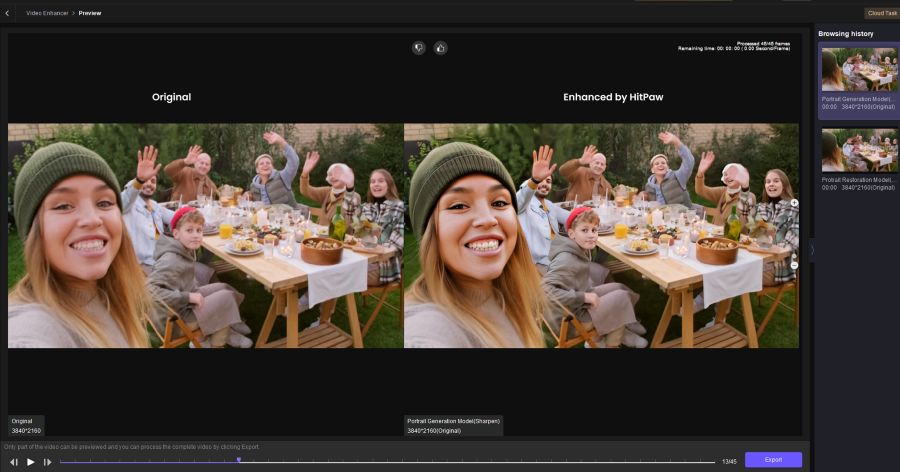
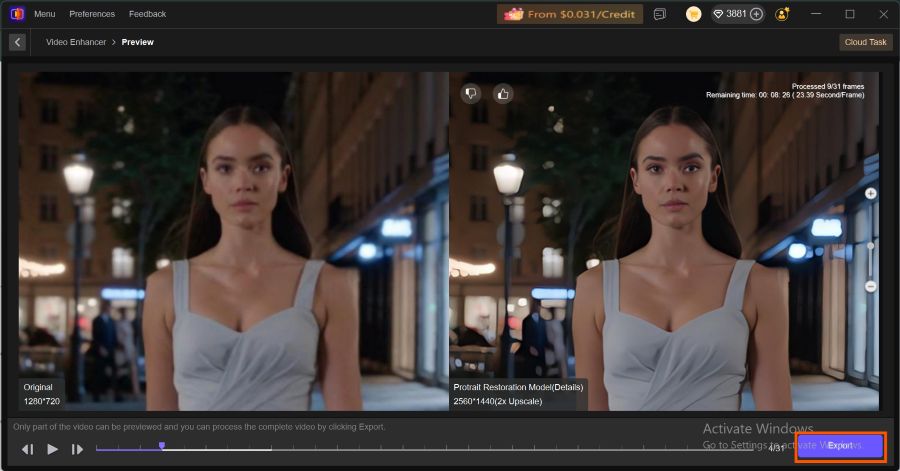
On your right side, you will see a control panel. Scroll down a little, choose the portrait restoration model, and then click on the preview button and wait a few seconds.
Step 4. Preview and Export in 4K
Here, your video is ready. You can have a look and download it by clicking on the Export button on your device.
FAQ’s
Why do AI-generated faces look fake even in high-quality videos?
Resolution and realism aren't the same thing. A video can be sharp and detailed everywhere except the face because AI models specifically smooth out skin texture to avoid rendering errors and flickering between frames. That's why even 4K AI videos can still have that plastic, waxy look on faces.
Can I fix waxy AI faces without regenerating the whole video?
Yes. You don't need to re-render the clip from scratch. Tools like HitPaw VikPea work as a post-processing step, applying a Portrait Restoration Model on top of your existing footage to rebuild skin texture, correct lighting, and sharpen facial detail without touching the rest of the video.
Will adding sharpening or blur filters help fix the waxy look?
No, and this is a common mistake. Blur filters add more smoothing on top of a face that's already over-smoothed, making the problem worse. Sharpening filters alone can't restore texture the model never rendered in the first place; they just add noise or harsh edges. What actually works is a dedicated AI restoration model trained to rebuild realistic skin detail, not a generic filter.
Does making AI faces real work on videos from any AI generator?
Yes. Since the "wax figure" effect is a shared limitation across most AI video models, the fix works regardless of which generator produced the clip, including outputs from Runway, Kling, Sora, Pixverse, Seedance, and Veo 3.
Do I need editing experience to use HitPaw VikPea?
No. The workflow is designed to be beginner-friendly: import your video, select the Portrait Restoration Model, preview the result, and export. There's no manual masking, keyframing, or color grading required.
Can this also fix old or low-quality non-AI videos?
Yes. The same Portrait Restoration Model, combined with VikPea's noise reduction, upscaling, and repair tools, works on old footage, low-resolution clips, and even black-and-white videos, not just AI-generated content.
Conclusion:
As AI video technology continues to advance, audience expectations for realistic visuals are higher than ever. Overly polished, waxy faces are easy to recognize, making natural-looking skin texture and facial details essential. If you want to make AI look real, relying on basic filters isn't enough. Professional AI Skin Retouching helps restore authentic skin texture while preserving natural expressions instead of creating an artificial appearance. With HitPaw VikPea's AI-powered Portrait Restoration Model, you can Face Smooth imperfections intelligently, enhance facial clarity, and produce lifelike AI-generated videos without the over-processed or fake-looking effect.
If you want your videos to appear more professional, cinematic, and believable, now is the perfect time to upgrade your workflow. Download HitPaw VikPea from the official website today and start transforming artificial-looking AI faces into realistic, high-quality videos in just a few easy steps.

