


Introduction
Cross-tab reports are one of the most practical ways to summarise data quickly. They let you view numbers across two dimensions at the same time, such as sales by region and month, leads by channel and course, or customer issues by category and priority. In many organisations, cross-tabs are the first step before charts and dashboards because they reveal patterns clearly and support quick comparisons.
The good news is that you do not need coding skills to build cross-tab reports. With tools like Excel PivotTables, structured tables, and a few built-in features, you can create professional cross-tabs in minutes and refresh them whenever new data arrives. For learners starting through data analytics coaching in bangalore, cross-tabs are a core reporting skill because they show how analysts transform raw rows into decision-ready summaries.
What a Cross-Tab Report Looks Like
A cross-tab (short for cross-tabulation) is a table where:
- Rows represent one category (for example, City)
- Columns represent another category (for example, Month)
- Values show a metric (for example, Revenue, Count of Leads, Average Rating)
A simple example could be: “Number of enquiries by course and by lead source.” In one view, you can compare how each source performs across courses. This is often more insightful than looking at a long list of transactions.
Step 1: Prepare Your Data for Cross-Tab Reporting
The quality of your cross-tab depends on clean, consistent data. Before building the report, ensure:
- Each column has a clear header (no merged header cells)
- Each row is a single record (one order, one lead, one ticket, etc.)
- Dates are stored as real dates, not text strings
- Categories are consistent (e.g., “Facebook Ads” not mixed with “FB ads”)
If your data is messy, consider cleaning it using Excel’s basic tools (Find/Replace, Remove Duplicates) or Power Query. Many students in data analytics training in bangalore start with these preparation habits because they prevent wrong totals and confusing categories later.
A simple rule: if you can filter your data reliably, you can cross-tab it reliably.
Step 2: Create a Cross-Tab Using PivotTables
PivotTables are the fastest no-code method for cross-tab reports in Excel.
How to build it
- Select your dataset and convert it into a table: Insert > Table (This helps with automatic range expansion when new rows are added.)
- Go to Insert > PivotTable
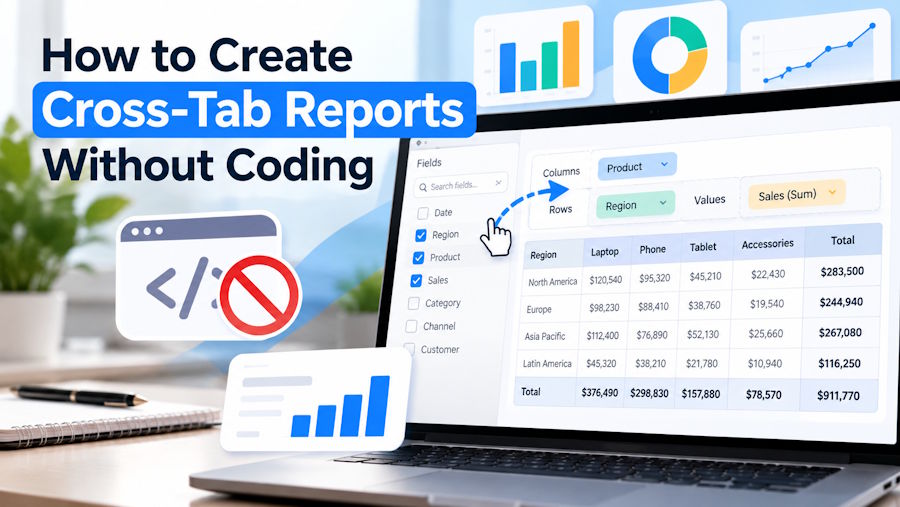
- In the PivotTable Fields pane:
- Drag the first dimension into Rows (e.g., Region, Course, Product)
- Drag the second dimension into Columns (e.g., Month, Channel, Category)
- Drag your metric into Values (e.g., Revenue, Count of Leads)
Choosing the right value calculation
PivotTables allow different summaries:
- Sum for revenue, costs, quantities
- Count for leads, orders, tickets
- Average for ratings, delivery time, response time
- Distinct Count (available when using the Data Model) for unique users or unique customers
PivotTables also make it easy to switch views. If you want “Month by Region” instead of “Region by Month,” you simply swap the fields.
For anyone learning practical reporting through data analytics coaching in bangalore, PivotTables are a must because they cover 80% of cross-tab reporting needs in day-to-day analytics work.
Step 3: Improve the Cross-Tab for Readability and Business Use
A cross-tab is only useful if it is easy to interpret. After building the PivotTable, apply a few refinements:
Add Grand Totals and Subtotals (when relevant)
- Use totals to see overall contribution.
- Use subtotals for hierarchical categories (like Country > State > City).
Sort and Filter for Focus
- Sort rows by highest totals to highlight top performers.
- Filter columns to show the latest months or key categories.
- Use slicers for interactive filtering if the report is shared with others.
Use PivotTable Design Options
- Choose a clear table layout (Tabular Form often works best).
- Turn off repeated labels if the table becomes too dense.
- Apply number formatting consistently (currency, decimals, percentage).
Add Conditional Formatting
Simple heatmaps can make patterns obvious:
- Highlight highest values
- Add colour scales to show trends
- Use data bars for quick visual comparison
These enhancements are typically included in data analytics training in bangalore because presentation matters as much as calculation. A well-formatted cross-tab reduces follow-up questions and improves decision speed.
Step 4: Create Cross-Tabs Without PivotTables (Alternative Methods)
PivotTables are ideal, but there are situations where you may prefer formula-based cross-tabs without “Pivot” behaviour.
Using COUNTIFS and SUMIFS
You can create a cross-tab grid and calculate values using:
- COUNTIFS() for counts across row and column conditions
- SUMIFS() for sums across conditions
Example use case:
- A fixed-format weekly report where the structure must never change
- A report where you need strict control over the layout and labels
This approach is still no-code in the programming sense, but it requires careful handling of ranges and category naming. It also becomes harder to maintain for large datasets or many categories, which is why PivotTables are generally recommended first.
Using Power Query + Pivot (for advanced refresh workflows)
You can transform data with Power Query, load it into Excel, and then build PivotTables on top. This creates a clean pipeline: refresh data → refresh cross-tabs → update dashboards.
Conclusion
Cross-tab reports help you turn raw datasets into clear summaries without writing a single line of code. With PivotTables, you can build flexible cross-tabs quickly, change views instantly, and refresh reports as new data arrives. If you need a fixed format, you can also use functions like COUNTIFS and SUMIFS, but PivotTables remain the most efficient starting point for most analysts.
If you are building reporting skills through data analytics coaching in bangalore, focus on strong PivotTable fundamentals and clean formatting habits. And if you are strengthening your Excel analytics toolkit via data analytics training in bangalore, practise cross-tabs on different datasets—sales, leads, operations, and finance—so you can confidently create decision-ready summaries in real business scenarios.
Business name: ExcelR - Data Science, Data Analytics Course Training in Bangalore
Address: 49, 1st Cross, 27th Main, BTM Layout stage 1, Behind Tata Motors, Bengaluru, Karnataka 560068
Phone: 9632156744

